Label Templates
Use this page to design the labels your label printer prints — the size, which details show (name, price, barcode, THC/CBD…) and where they sit.
Quick steps
- Make sure Enable Label Printing is ticked under Settings > Edit Settings > Hardware & System.
- Go to Products, open More Actions and click Label Templates, then click New Template.
- Enter a Name, pick the Template type, and set the Width (mm) and Height (mm) of your label stock (or click one of the Common sizes).
- Click + Add Text/Barcode for each detail you want. Choose its Field (for example Product Name or Price) and drag it into place on the Live Preview.
- Click Save, then Test Print next to the template to check it on your printer.
- Click Set as default so it's used when labels are printed from the admin and the register.
Measure your actual label stock with a ruler. Even 1–2mm off can cut text off.
Common questions
Text is cut off at the edge. Move it inward, or click Fix Positions in the editor. The Safe margin (mm) keeps everything a little inside the edge.
Test Print does nothing. The test goes to the label printer of the register this browser's register screen is set to. Check the Printer Status card at the top of the page.
Can I delete my default template? No. Make another template the default first.
Can I make loyalty cards? Yes. Choose the Customer Card type.
More detail: finding the page, and every template setting
Label templates let you design the labels your label printer prints. You choose the label size, which details appear (name, price, SKU, barcode, THC/CBD and more), and where each one sits. Your default template is then used whenever labels are printed from the admin or the POS.
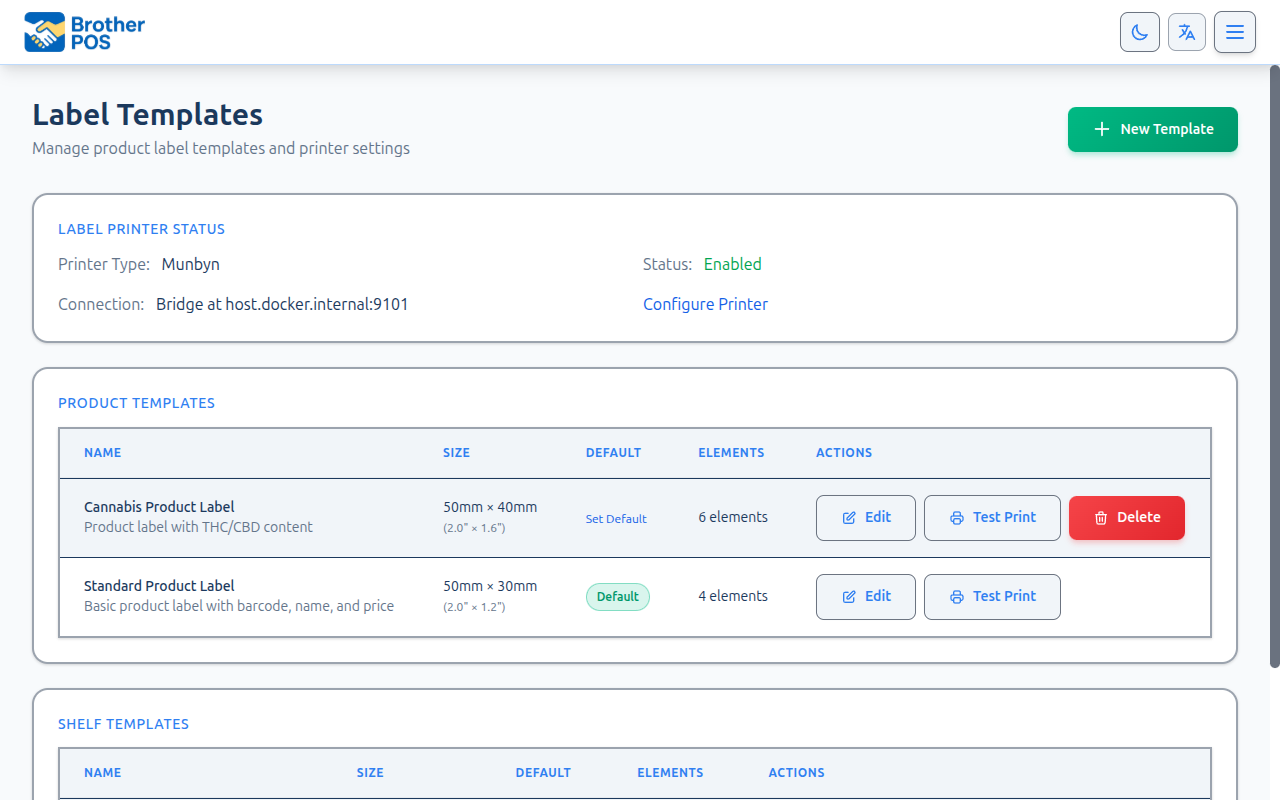
Label printing is only available when Enable Label Printing is ticked under Settings > Edit Settings > Hardware & System.
Accessing Label Templates
- Log in to the admin.
- Go to the Products page.
- Open the More Actions menu and click Label Templates.
The page lists your templates grouped by type (Product Templates, Shelf Templates, Custom Templates, Customer Card Templates), showing each one's Size, whether it's the Default, and how many Elements it has.
Creating a Label Template
- Click New Template.
- Fill in the settings below.
- Click Save.
If something is wrong (for example, the name is already used by another template), the form shows Please fix the following errors: at the top.
Name, Type and Description
- Name — Required, and must be different from your other templates. For example "Standard Shelf Label" or "Jar Label".
- Template type — Product Label, Shelf Tag, Customer Card or Custom.
- Description — Optional notes shown in the template list.
Label Size
Enter the size of your label stock in millimetres. The editor shows the size in inches underneath, and you can click one of the Common sizes to fill both in.
- Width (mm)
- Height (mm)
Measure your actual label stock with a ruler. Even 1-2mm off can cause text to be cut off or misaligned.
Safe Margin
Safe margin (mm) keeps text and barcodes a set distance inside every edge of the label (default 1mm, anything from 0 to 10mm).
- In the editor, a faint dashed line shows the margin, and dragging an element keeps it inside.
- When a label prints, anything placed inside the margin is moved in to the margin, and long text wraps to fit.
Thermal printers can't reliably print right to the edge, and barcode scanners need clear space around a barcode. A small margin keeps content printable and barcodes scannable.
Border Style
Decorative Border adds an optional border around the label edge. Choose from:
- Basic — Simple Line, Bold Line, Thick Line, Dotted, Dashed
- Classic — Double Line, Rounded Corners, Elegant, Ornate
- Decorative — Scalloped Edge, Wavy Edge, Pill / Capsule, Ticket Stub, Banner / Ribbon, Bracket Frame, Double Rounded
- Fancy — Diamond Corners, Star Corners, Flourish / Scroll Corners
Some line styles, such as rounded corners and dotted lines, can print as a plain line on some printers. Test print to check.
Label Image / Logo
Upload an image (such as your logo) under Label Image / Logo. PNG works best. The image is converted to black and white for printing. Place it on the label with + Add Image, and use Remove image to take it off the template.
More detail: text, barcode and field options
Label Elements
Add text and barcodes with + Add Text/Barcode. Each element has its own settings card:
| Setting | What it does |
|---|---|
| Type | Text or Barcode |
| Field | Which detail to show (see below) |
| X Position (mm) / Y Position (mm) | Where the element sits on the label |
| Font Size | Text size (text only) |
| Height (mm) | Barcode height (barcodes only) |
| Align | Left, center or right. Choosing an alignment moves the element to the matching spot: the left margin, the centre of the label, or the right margin. |
| Bold | Makes text bold |
| Color | Black (default) or Red. Red prints only on Brother DK-2251 black/red rolls; on other stock it prints black. See Brother QL-810W Label Printer. |
| Wrap width (mm) | How wide text can run before it wraps. Leave blank to use the label width minus margins. |
| Custom Text | The text to print when Field is Custom Text |
Fields for product, shelf and custom labels: Product Name, Price, SKU, Barcode Text, Strain Type, THC/CBD, Package Size, Brand, Weight, Custom Text.
Fields for customer cards: Store Name, Customer Name, Customer Code, Loyalty Card Number, Static: "LOYALTY CARD", Static: "Scan at checkout", Custom Text.
Barcodes
A barcode element prints the field you choose as a scannable barcode. When you switch an element to Barcode, its Field changes to Barcode Text automatically (or Customer Code on a customer card) unless you've already chosen SKU or Loyalty Card Number. There's no separate barcode type, position or size menu: position it like any other element and set its Height (mm).
When a product is created without a barcode, Brother POS gives it an 8-digit number. Short numeric codes print narrow enough to fit a 2" x 1" label with room to scan. Products that already have a barcode keep it.
More detail: the editor, preview and test printing
The Editor Canvas
The Live Preview canvas shows the label as you build it:
- Turn on Grid and Rulers, and choose a Sample Product to fill the preview with real data.
- Zoom in and out with - and +, or jump to Fit or Actual Size. Fit All moves any element that runs off the label back inside it.
- Click an element to select it, drag it to move it, use the arrow keys to nudge it 0.5mm (hold Shift for 5mm), and press Delete to remove it.
- If an element sits outside the label, a warning appears. Click Fix Positions to pull everything back inside.
- Scan risk: a warning appears when a barcode's 2.5mm clear space overlaps the label edge or the safe margin. Move it inward or cut back other content, or scanners may fail to read it.
Previewing and Test Printing
- Click Preview in the editor.
- The Print Preview window shows the label at printer resolution, with a dark outline marking the label edge, a checkered background around it, and the width and height marked.
- Click Send Test Print to send a test label to your printer, or Close. (Save a new template first — until then the window says Save template first to test print.)
You can also click Test Print next to any template on the Label Templates page. It uses the label printer of the register this browser's POS is set to. On a computer, the test label goes to that register's Printer Bridge; in the app, it goes to the connected Bluetooth printer.
Label printers are set up on each register. The Printer Status card at the top of the Label Templates page lists every register that has a label printer, with its Printer Type and Connection, plus a Manage Registers link. If no register has one, it says No register has a label printer set up yet.
Always test print one or two labels on your actual printer before running a large batch.
More detail: editing, the default template and deleting
Editing a Template
- Click Edit next to the template in the list.
- Change any settings.
- Click Save.
Editing a template doesn't change labels you've already printed. Only future prints use the updated template.
Setting a Default Template
Each template type has one default. Click Set as default next to a template to make it the default for its type; the previous default is cleared.
The default product template is used when labels are printed from the POS and from the admin Products page (unless a product has its own template).
Deleting a Template
- Click Delete next to the template in the list.
- Confirm.
The default template for a type can't be deleted. Make another template the default first.
More detail: loyalty cards, printing labels and printer types
Customer Card (Loyalty Card) Templates
Choose the Customer Card type to design loyalty cards. The editor keeps customer cards to customer fields:
- A new text element starts on Customer Name.
- Switching an element to Barcode picks Customer Code, the code scanned at checkout, unless you've chosen Loyalty Card Number.
If you haven't set up a customer card template, Brother POS still prints a simple default loyalty card.
Printing Labels
- From the admin: on the Products page, open the product card's ⋯ menu and click Barcode, choose a variation or weight if asked, set the quantity and print. The Price field prints the product's regular price (never a sale price that will end), with /g for flower priced per gram and From $X for flower priced only by weight or tier — see Label Printers.
- From the POS: open a product's details and tap Print Label, or use the print button on a cart line.
See Label Printers and Label Printing for step-by-step instructions.
Printer Types
Templates work with every supported label printer type: Zebra, Munbyn, Dymo, Brother and Generic ESC/POS. The printer type is set in each register's label printer settings, not in the template. See Label Printers to set up a printer, and Printer Bridge for USB printers.
More detail: cannabis labels and good habits
Cannabis-Specific Labels
For cannabis products, labels often need regulatory information:
- THC/CBD — Required in many jurisdictions.
- Health warnings — Add warning text with a Custom Text element.
- Weight — Required for products sold by weight.
Check your provincial and federal regulations for cannabis labeling requirements. Brother POS provides the tools to include required information, but compliance is your responsibility.
Best Practices
- Create templates for different uses — A small product label, a larger shelf tag and a loyalty card cover most needs.
- Include barcodes — Barcodes enable fast scanning at the POS. Include them whenever there's room.
- Test with your actual printer — Alignment varies by printer. Test before printing hundreds of labels.
- Keep a stock of label rolls — Running out during a relabeling session is frustrating.
- Reprint after price changes — Mismatched shelf labels and POS prices confuse customers.
- Make the price large — Customers look at price first.
What's Next?
- Managing Products — Print labels from the product list.
- Menu Board — Display products on a digital menu screen.
- Creating Products — Set up products with barcodes and SKUs for labels.