Making a Sale
Use this page to ring up a customer, take their payment and hand them a receipt.
Quick steps
- Find the item. Scan its barcode, or type its name in the search bar. You can also tap a category to browse.
- Tap the item to add it to the cart on the right. If a window pops up (a weight, a size or add-ons), pick an option.
- Check the cart. Use + and - to change how many, or the X to take a line off.
- Tap how they are paying: CASH or CARD (you may see other buttons, such as E-TRANSFER or GIFT CARD).
- Finish the payment.
- Cash: tap the amount they handed you (or Exact), then tap Complete Sale. The screen shows the change to give back.
- Card: tap Complete Sale. If your card machine is linked to the register, follow the prompts on screen while the customer pays.
- Hand over the receipt, then tap Start New Sale for the next customer.
No drawer open? The register asks you to open one with a starting float first. See Opening and Closing.
Common questions
The customer wants to pay with two cards, or part cash and part card. Tap Split Payment (just below the payment buttons) and take each part separately. See Split Payments.
The customer forgot their wallet in the car. Tap Hold, type a name for the order (for example their first name), and serve the next person. When they come back, tap Recall (it shows when the cart is empty) and pick their order.
How do I give a discount? Tap Apply Discount below the cart. If your role isn't allowed to discount, a manager enters their PIN. See Applying Discounts.
The internet went down. Can I still sell? Yes. The register saves sales on the device and sends them when the connection comes back. The top bar shows Offline meanwhile.
Should I add the customer to the sale? If they have a loyalty account, yes. Search for them at the top of the cart so they earn points and get any member discount.
More detail: before you begin and the register layout
Before You Begin
Make sure the following are in place before processing your first sale:
- You are logged in to the POS register screen (the touch-friendly register interface).
- Your register is selected (if your store has more than one).
- A cash drawer session is open for your register. If none is open, the POS asks you to open one, with a starting float, when you select the register.
The register works in any modern web browser, and you can add it to the home screen of a tablet so it opens like an app.
The POS Layout
The register screen is split into two main areas:
| Area | Location | Purpose |
|---|---|---|
| Product Pane | Left side | Search bar, category filters, brand filters, and the product grid |
| Cart Pane | Right side | Line items, totals, customer selection, and payment buttons |
On a phone, the product grid takes the full screen. Tap the cart button in the bottom bar to open the cart.
More detail: each step of a sale
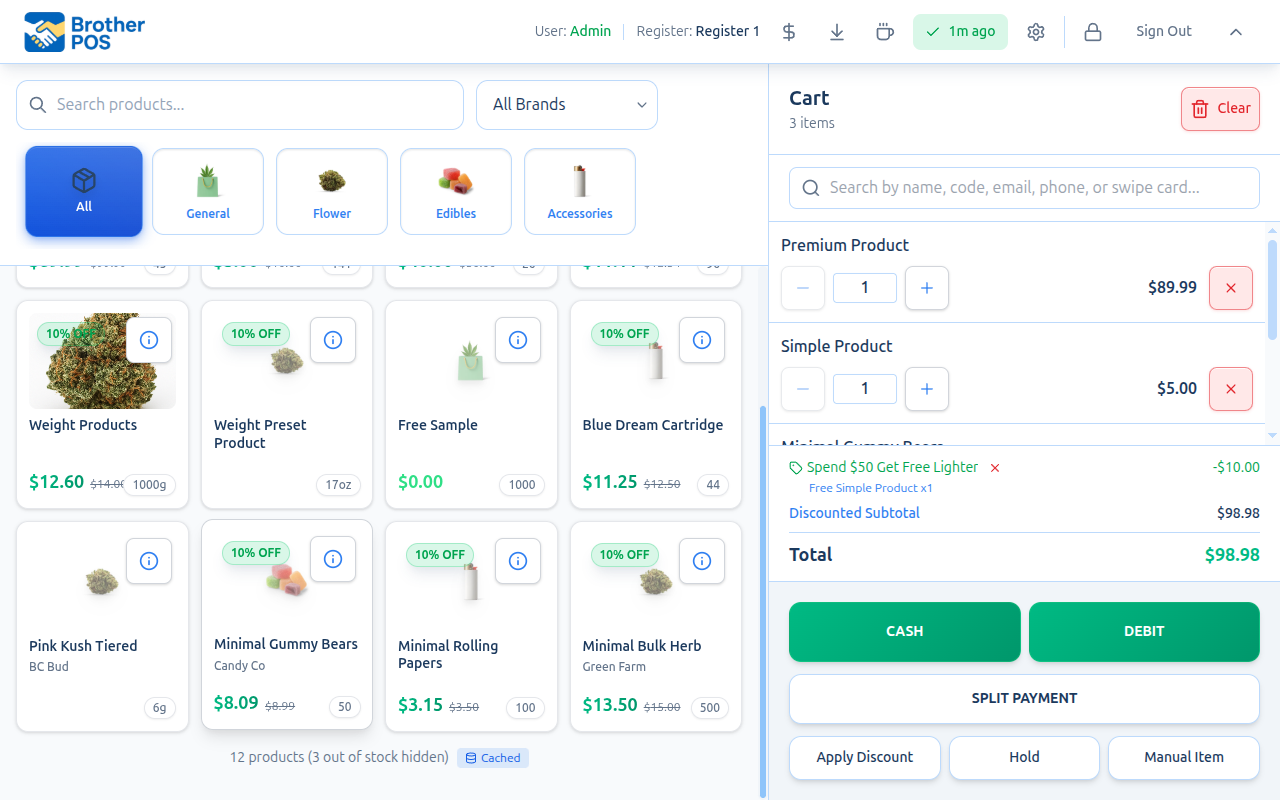
1. Find the Product
You have several ways to locate a product:
- Type in the search bar at the top of the product pane. Results filter as you type.
- Scan a barcode using a USB or Bluetooth barcode scanner. The product is added to the cart automatically.
- Browse by category using the category filters.
- Browse by brand using the brand filter.
For full details, see Product Search and Scanning.
2. Add to Cart
Standard products — tap the product card once. It appears in the cart on the right with a quantity of 1.
Weight-based products — tapping the product card opens a weight selection modal. Choose from the weight presets set up for the product, or enter a custom weight where the product allows it. See Weight-Based Products for details.
Products with variations — tapping the card opens the variation picker, where you select the specific size, color, or other option. See Modifiers and Variations.
Products with modifiers — a modifier selection modal appears letting you choose add-ons, toppings, or customize the item. Required modifier groups must be satisfied before adding.
Bundles, combos, platters and buckets — a fixed bundle adds straight to the cart. A combo with a choice ("which pop?"), a build-your-own platter, or a bucket opens a window where you pick what goes in it first. See Cart Management.
3. Review the Cart
The cart pane shows:
- Each line item with its name, quantity and line price
- Quantity controls (+/- buttons) to adjust amounts
- An X button on each line to remove it
- The Subtotal, Tax, and Total at the bottom
You can also:
- Tap Apply Discount to apply a percentage, dollar, or final-price discount
- Tap Manual Item to add a custom line item not in your product catalog
- Tap Hold to save the current cart and start a new one
For more on managing the cart, see Cart Management.
4. (Optional) Attach a Customer
Use the customer search at the top of the cart pane to look up or create a customer record. Attaching a customer:
- Earns them loyalty points on this sale
- Applies any tier-based automatic discounts
- Makes the sale appear in their purchase history
5. (Optional) Apply Discounts or Promotions
Tap the Apply Discount button below the cart to open the discount window. From there you can:
- Pick one of the Active Promotions to fill in that promotion's discount
- Redeem Loyalty Rewards if a customer is attached
- Apply a manual discount: Percentage (%), Discount ($) or Final Price ($)
If your role isn't allowed to apply discounts, a manager must enter their PIN first. See Applying Discounts.
6. Choose a Payment Method
When you are ready, tap one of the payment buttons at the bottom of the cart:
| Button | What Happens |
|---|---|
| CASH | Opens the cash window with a keypad, quick-amount buttons, and change calculation |
| CARD | Records a card payment. If your store uses a connected card terminal, a button for that terminal (such as SQUARE, HELCIM or KORT) appears instead |
| E-TRANSFER | Records an e-transfer payment with an optional reference (if enabled in store settings) |
| STORE CREDIT | Applies a customer's store credit balance to the sale (if enabled in store settings) |
| Split Payment | Opens split payment mode to divide the total across multiple methods. It sits in the row below the payment buttons and appears when more than one payment method is enabled |
Only enabled payment methods appear, and other buttons such as GIFT CARD show when those are switched on. Your admin configures which methods are available in Store Settings.
For full payment details, see Completing Payment and Split Payments.
7. Complete the Sale
After confirming payment:
- The system records the sale and updates inventory.
- A success screen appears showing the total and, for cash payments, the change due.
- If your register is set to print receipts automatically, a receipt prints.
- The cart clears and is ready for the next customer.
Tap Start New Sale to return to the product grid.
More detail: a worked example
Quick Sale Example
Here is a typical transaction at a cannabis dispensary:
- Customer asks for a 3.5g of Blue Dream.
- You type "Blue Dream" in the search bar — the product card appears.
- Tap the card — the weight selection modal opens.
- Tap 3.5g — the item appears in the cart at the tier price (e.g., $35.00).
- Customer also wants rolling papers — scan the barcode, and papers are added at $3.99.
- Subtotal: $38.99. Tax (13% HST): $5.07. Total: $44.06.
- Customer pays cash — tap CASH, tap the $50 quick button, see change of $5.94.
- Tap Complete Sale — the change amount is shown on screen and the receipt prints if auto-print is on.
More detail: barcode scanners and offline sales
Barcode Scanners and the Search Bar
On a computer, the cursor starts in the search bar when the register opens (not on touch tablets or phones), so you can type straight away. A barcode scan adds the product to the cart.
Barcode scanners act as keyboard input. The POS recognizes the very fast typing of a scanner and treats it as a scan rather than manual typing, even if the cursor is in another box on the register screen. The exception is while a pop-up window is open: close it first, then scan.
Offline Sales
If the network goes down, Brother POS continues to work. Sales are saved on the device and automatically sync when connectivity returns. A status indicator in the header shows Offline while you're disconnected.
Some features are limited while offline: customer lookup uses customers saved on the device, and promotions may be out of date (the cart shows Offline pricing — promotions may be out of date).
What's Next?
- Product Search and Scanning — all the ways to find products
- Cart Management — adjust quantities, remove items, add manual items
- Applying Discounts — percentage, dollar, and final price discounts
- Completing Payment — cash, card, and e-transfer flows
- Receipts — printing and reprinting receipts