Applying Discounts
Use this page to take money off one item or the whole order at the register.
Quick steps
- With items in the cart, tap Apply Discount below the cart. To discount one item, you can tap that line in the cart instead.
- If you see Manager Authorization Required, a manager types their PIN and taps Authorize.
- Under Apply To, pick Entire Order or Single Item (then choose the item).
- Pick the type: Percentage (%), Discount ($) or Final Price ($). Type the amount, or tap a quick-select button or a preset such as Senior Discount (10%).
- Add a reason if you like, then tap Apply Discount (or Set Final Price). The discount shows in the cart.
Tap the small X next to the discount in the cart.
Common questions
Can my manager see the discounts I give? Yes. Every discount, who gave it, who approved it and the reason are listed in the Voids & Discounts report.
The customer has a promo code. Type it into the Promo code box in the same window and tap Apply code. No manager PIN is needed. Promo codes don't work while the register is offline.
Why was I asked for a manager PIN? Your role doesn't have the Apply Discounts permission. Clerks don't have it unless your store turns it on. Loyalty rewards and promo codes don't need a PIN.
Why is an item greyed out with "no discounts"? Your store marked that product as not discountable.
Does "$5 off" on a line of 2 take off $5 or $10? $10 — a dollar discount on a single item comes off each unit. Weighed products are the exception: the discount comes off the line once.
More detail: opening the discount window and manager approval
Brother POS supports several types of discounts that can be applied to individual items or to the entire order. This guide covers manual discounts applied at the register. For automatic promotions, see Sale Campaigns and Freebies.
Opening the Discount Modal
To apply a discount:
- Make sure there is at least one item in the cart.
- Tap the Apply Discount button in the action buttons area below the cart.
- The discount modal opens.
You can also tap a line in the cart to open the discount modal already set to discount that one item. Free items, payout lines and room charges brought in from a reservation can't be tapped this way.
The Apply Discount button does nothing while the cart is empty. Add an item first.
Manager Authorization
If your role does not have the Apply Discounts permission, the discount modal first shows a Manager Authorization Required screen. The Promo code box is shown on that screen too, because a customer's promo code needs no approval.
If a customer with loyalty points or rewards is attached to the sale, you skip the PIN screen and go straight to their rewards and Cash Out Points, since redeeming what the customer earned doesn't need approval (unless your store has switched off Redeem Loyalty Rewards & Points for your role). Any other discount shows the message "Other discounts need a manager's approval." with an Other discount (manager PIN) button.
Authorizing a Discount
- The screen reads "Enter the PIN of someone who can approve this discount." Someone who can approve (usually a manager or admin) enters their 4-digit PIN and taps Authorize.
- The system checks that the PIN belongs to an admin, or to someone whose role has the Apply Discounts permission.
- If valid, the full discount modal opens.
- If invalid, an error message appears and you can try again. After 5 wrong PINs within a minute it shows Too many attempts; wait a minute, then try again.
Manager Admin Users with the Apply Discounts permission skip this step entirely. Admins always have it and managers have it by default. Clerks don't have it by default, but your store can turn it on for them in its role settings, so a clerk at one store may be asked for a PIN while a clerk at another is not.
The manager does not need to take over the register. They simply enter their PIN on the cashier's screen to authorize the discount and can walk away.
More detail: order or single item
Discount Scope
At the top of the discount modal, choose where to apply the discount:
| Scope | Description |
|---|---|
| Entire Order | The discount applies to the order subtotal, including any manual items |
| Single Item | The discount applies to one specific line item |
When Single Item is selected, a dropdown appears listing all items in the cart. Select the item you want to discount. Products your store has marked as not discountable are greyed out in the list with "no discounts".
A single-item discount goes on that line only. Say a customer has two separate lines of the same drink and you ring one of them free: the other line stays at full price. And if you add another of that product after discounting a line, it starts a new, undiscounted line instead of joining the discounted one.
Items keyed in with Manual Item show up in the Single Item dropdown like any product, and all three discount types work on them. A dollar discount on a manual item comes off each unit, and it can never be more than the item is worth, so the line bottoms out at $0.
An Entire Order discount covers manual items too. A percentage comes off everything in the cart. A dollar amount is shared between the products and the manual items according to how much each is worth. Either way, it never takes off more than the order total.
More detail: the three discount types
Discount Types
Three discount types are available, on the buttons Percentage (%), Discount ($) and Final Price ($):
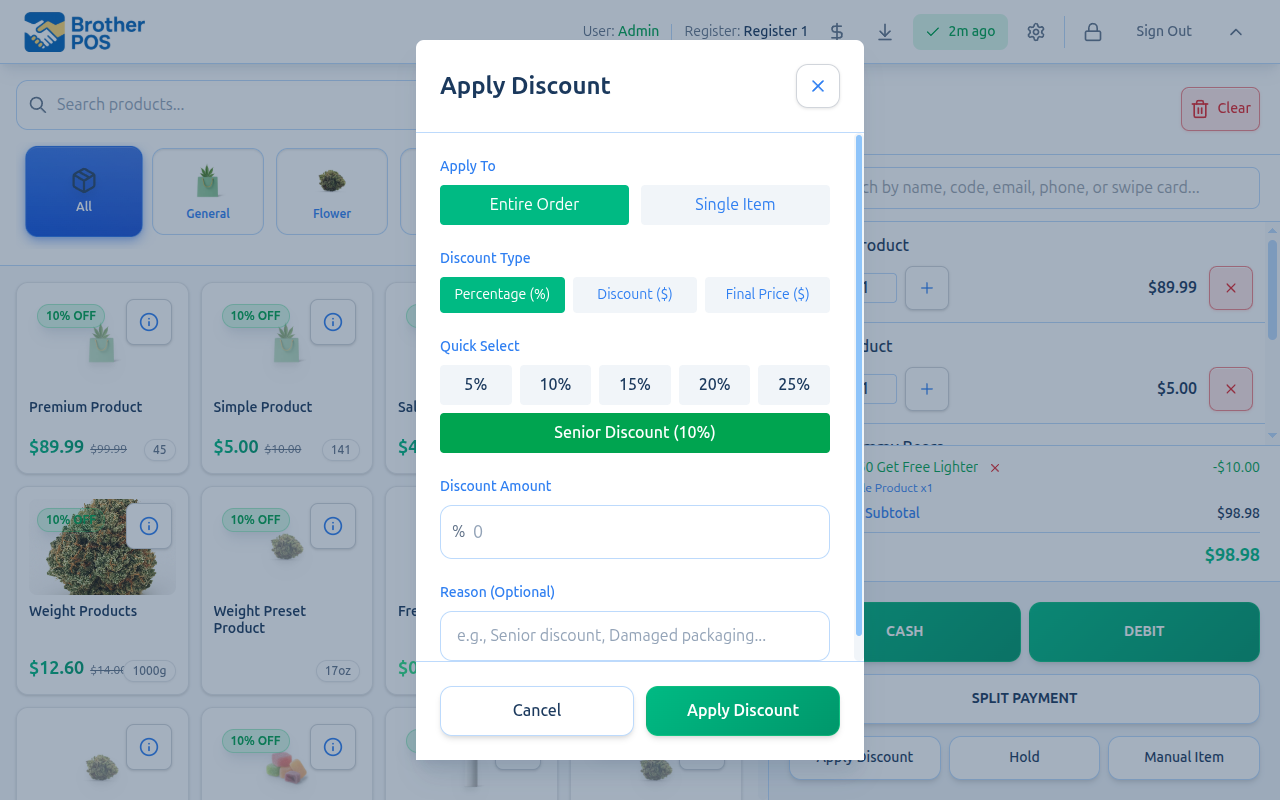
Percentage Discount (%)
Reduces the price by a percentage. For example, 10% off a $50.00 subtotal = $5.00 discount.
- Enter a value above 0, up to 100.
- Quick-select buttons appear for common percentages: 5%, 10%, 15%, 20%, 25%.
- Discount presets appear below the percentage buttons. By default, a Senior Discount (10%) preset is available. Store admins can set up their own presets (e.g., "Employee Discount 15%", "VIP 20%") in the admin under Settings, on the Products & Inventory tab, in the Discount Presets section. Each preset has a name and percentage.
Dollar Discount ($)
Reduces the price by a fixed dollar amount. For example, $5.00 off a $50.00 subtotal.
- Enter the dollar amount to subtract.
- On an Entire Order discount, the amount can't be more than the subtotal. On a single item it is capped so the line never goes below $0.
When you apply a fixed-dollar discount to a single line item of a product sold by the unit (each), the amount is taken off each unit, not once for the whole line. So "$5 off" on a line with a quantity of 2 takes $10 off, not $5. This matches what customers expect from a "$5 off each" deal.
If the per-unit total would exceed the line's price, it is capped at the line subtotal (the line simply goes to $0 — you can never discount below zero).
Products not sold by the unit are the exception. Weight-based and fuel products measure quantity in grams or litres (for example, two ounces is stored as 56 g), so multiplying a dollar discount by that number would make no sense. For these products, and for other unit types such as box, case or pack, a fixed-dollar discount is applied once to the whole line as a flat reduction.
Final Price Override ($)
Sets the exact price the customer will pay, and the system calculates the discount automatically.
- Enter the desired final price.
- The modal shows the current price for reference and calculates the discount amount.
- For example, if the subtotal is $50.00 and you enter $40.00, the discount is $10.00.
- On a single line with more than one unit of a product sold by the unit, or of a manual item, the discount is split evenly across the units. For example, a final price of $10.00 on 2 drinks takes the same amount off each drink. If the amount doesn't split evenly, the line can land a cent or two away from the price you typed.
Final price override is useful when you need to match a competitor's price or honor a specific quoted price. Instead of calculating the discount percentage, just type the agreed price.
Applying the Discount
- Select the scope (Entire Order or Single Item).
- If Single Item, select the item from the dropdown.
- Choose the discount type (Percentage, Dollar, or Final Price).
- Enter the value (or tap a quick-select button).
- Optionally type a reason (e.g., "Senior discount", "Damaged packaging", "Price match"). The reason is saved with the sale's records.
- Tap Apply Discount (or Set Final Price for final price overrides).
The modal closes and the discount appears in the cart totals.
More detail: how discounts show in the cart, and removing them
How Discounts Display in the Cart
Order-Level Discounts
Order discounts appear as a separate line in the totals area:
- Order Discount: Shows the dollar amount taken off (e.g., "-$5.00"). A percentage discount also shows the percentage next to the label, e.g. "Order Discount (10%)"
- Tax is recalculated on the discounted subtotal
- A small X button next to the label lets you remove it
Item-Level Discounts
Item discounts appear on the individual line item:
- Above the price, a label shows the discount (e.g., "10% off: -$3.30" or "Discount: -$5.00") with a small X button to remove it
- The discounted line price is shown, with the original price crossed out below it
Removing a Discount
Removing an Order Discount
Tap the X button next to the order discount line in the cart totals area.
Removing an Item Discount
Tap the X button next to the discount label on the specific line item.
More detail: campaigns, loyalty rewards and promo codes
Active Promotions
The discount modal also shows running sale campaigns that are set to Manual application under Active Promotions. Automatic campaigns aren't listed here; they apply to the cart on their own. These appear above the manual discount options, below any loyalty rewards. Only campaigns that give a discount are listed, so a manual freebie campaign (which gives an item instead) doesn't appear here.
Selecting a Campaign
- Active campaigns are listed with their name and a short summary of the deal.
- Tap a campaign to fill in its discount type and value. It is set up as an Entire Order discount.
- The reason box is filled in with "Campaign:" and the campaign name.
- Tap Apply Discount to apply it.
You can switch from the campaign list to the manual discount options using the Manual discount link, and back with ← Back to promotions.
For more on campaigns, see Sale Campaigns and Freebies.
Loyalty Rewards
If your store's loyalty program is on and a customer with available loyalty rewards is attached to the sale, the rewards appear at the very top of the discount modal.
Redeeming a Reward
- The customer's points balance is shown.
- Available rewards are listed with their name, description, and point cost.
- Tap a reward to apply it.
- The reward's discount is applied in its own slot and the points are deducted when the sale completes.
A redeemed loyalty reward applies on top of any manual or preset order discount (such as the Senior Discount) instead of replacing it. You can give a customer their senior discount and let them redeem a loyalty reward on the same sale. Selecting a reward doesn't clear an order discount you already applied.
When the customer has points, a Cash Out Points box also appears, so you can redeem any number of points (entered as dollars or as points) for money off. A sale can use a reward or a points cash-out, not both: picking one clears the other.
For more on loyalty, see Loyalty Rewards at Checkout.
Promo Codes
The discount window also has a Promo code box for one of your store's promo codes that a customer brings in (for example SAVE10):
- Type the code into Promo code and tap Apply code.
- If the code is good, the window closes and the cart totals show a Promo code SAVE10 line with the amount off. Tap its X to take it off.
- If it can't be used, a message under the box says why, for example This promo code is not valid.
A promo code is the customer's own code, so no manager PIN is needed. Promo codes need a connection to the server, so they can't be applied while the register is offline. If your store runs promo games, a prize code (starting WIN, JP, BNS or BUY) can be typed into the same box. See Promo Games.
More detail: rules, limits and offline use
Discount Rules and Limits
| Rule | Description |
|---|---|
| Percentage discounts cannot exceed 100% | Anything above 100 is not accepted |
| Dollar discounts cannot exceed the subtotal | You cannot discount more than the total price |
| Final price can't be negative | You can set a final price of $0.00, but not below it |
| Final price cannot exceed current price | Setting a higher "final price" is not allowed |
| Only one order discount at a time | Applying a new manual order discount replaces any existing one |
| Loyalty rewards stack | A redeemed loyalty reward applies in its own slot, on top of the order discount, rather than replacing it |
| Item discounts are independent | Different items can have different discounts |
| Approver is recorded | When a PIN unlocks the discount, the sale records who approved it: an admin, or anyone whose role has the Apply Discounts permission |
Every sale keeps its discount amounts and the clerk who rang it up. If someone's PIN was used to unlock the discount, the sale also records who approved it.
Offline Discount Support
When the POS is offline:
- Manual discounts (percentage, dollar, final price) work normally.
- The Active Promotions list is loaded from the server, so it may be missing or out of date while offline.
- Loyalty rewards fall back to cached customer data, and a warning shows in the modal. Points are deducted when the sale reaches the server.
What's Next?
- Sale Campaigns and Freebies — automatic promotions and free item campaigns
- Loyalty Rewards at Checkout — redeeming points and tier discounts
- Completing Payment — processing the discounted sale
- Manager Override — how manager authorization works across the POS