Product Search and Scanning
Use this page to find a product and get it into the cart — by scanning, typing, or tapping through categories.
Quick steps
- Scan the barcode. You don't need to tap anywhere first — the register picks up a scan from anywhere on the screen. The product goes straight into the cart.
- Or type in the search bar at the top of the product side. Part of the name, the SKU or the barcode all work, and results update as you type.
- Or browse: tap a category button (and a subcategory if one appears), or pick a brand from All Brands.
- Tap the product card to add it. If it comes in sizes, weights or options, a window opens so you can choose first.
- Tap Clear to reset the search and all the filters.
You can scan a customer's code (like C10001) the same way to put them on the sale.
Common questions
I scanned and nothing happened. Close any open pop-up window first — scans aren't added while one is open. If the barcode isn't known, an Unrecognized barcode window lets you attach it to the right product (or ask a manager to).
It says "Stock Override Required". The register thinks there's none left. Type a reason and have a manager enter their PIN to sell it anyway.
A product is missing from the grid. It may be out of stock. Out-of-stock products are hidden from the grid and from search unless Show out of stock products is on in the register's Display Settings — the note under the grid (for example "(2 out of stock hidden)") tells you how many are hidden.
Does search work offline? Yes. Searching, browsing and scanning use the copy of the catalog saved on the register. Products added while you were offline appear once it reconnects.
More detail: the product pane and search bar
The Product Pane
The left side of the POS screen is the Product Pane. From top to bottom, it contains:
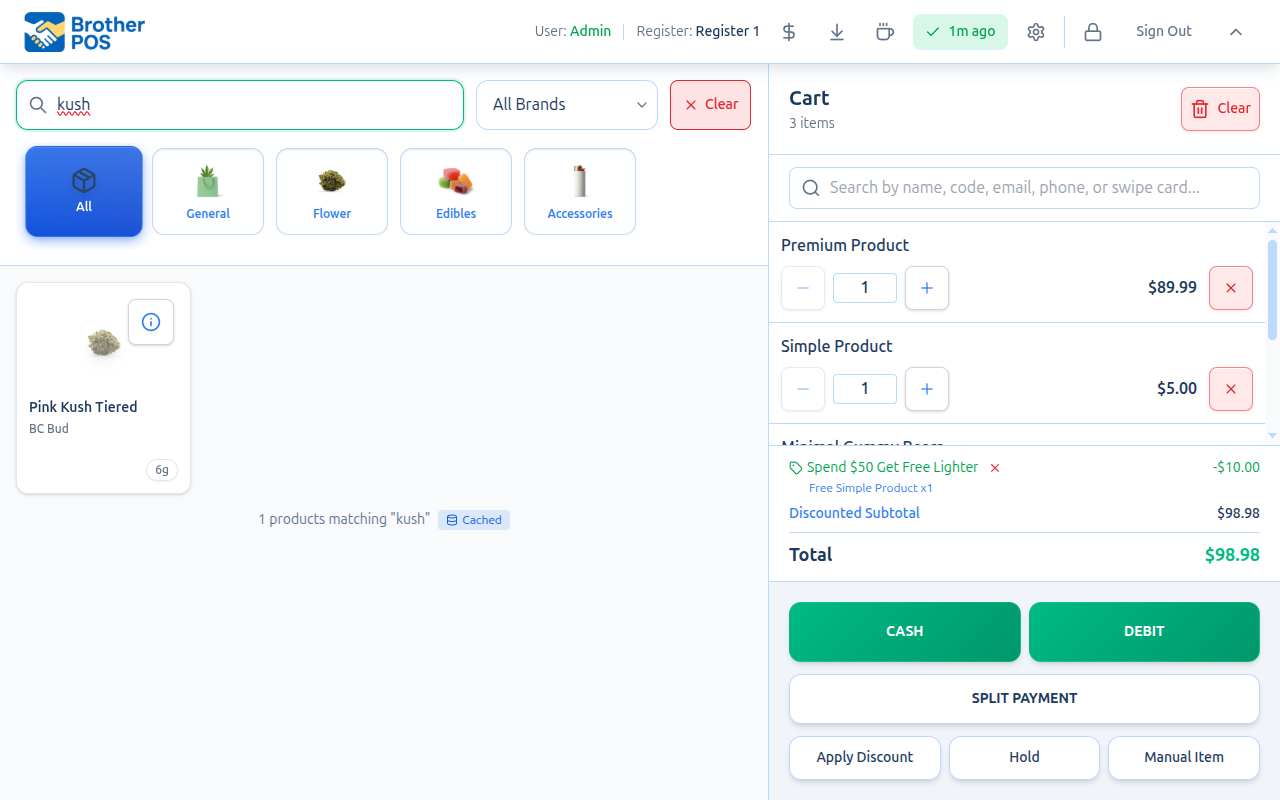
- Search bar — type to search by product name, SKU, or barcode. The brand filter sits beside it, and a Clear button appears there once any search or filter is in use.
- Category buttons — filter the grid by product category
- Subcategory filter — narrow within a selected category
- Product grid — cards showing each matching product
Search Bar
The search bar sits at the top of the product pane. Tap it to begin typing, or simply scan a barcode — the POS listens for rapid keyboard input across the whole screen, so scanners work even when the search bar is not focused.
How Search Works
- Results filter as you type (with a brief delay to avoid flickering).
- Search matches against product name, SKU, and barcode.
- The search is case-insensitive — "blue dream" and "Blue Dream" return the same results.
- Clear the search field, or tap Clear, to return to the full product grid. Clear also resets the category, subcategory and brand filters.
Search Tips
If you know the product's SKU, typing the full SKU is the quickest way to narrow the grid down to that product.
- Use partial words: typing "blue" will match "Blue Dream", "Blueberry Kush", etc.
- For products with long names, type the most distinctive word first.
- The search bar also accepts customer codes (format
C10001). Scanning or typing a customer code selects that customer for the sale.
More detail: barcode scanning
Barcode Scanning
Brother POS supports USB and Bluetooth barcode scanners that act as keyboard-wedge devices (they type characters as if they were a keyboard).
How It Works
- The scanner sends characters rapidly — Brother POS detects the rapid input as a barcode scan.
- The scanner can end the code with
Enter, withTab, or with nothing. When the characters stop, the POS processes the barcode. - If the barcode matches a product, it is added to the cart (or the product's picker opens, see below). Product barcodes need to be at least 8 characters long.
Scanning Behavior
| Scenario | Result |
|---|---|
| Barcode matches a standard product | Product added to cart (quantity +1) |
| Barcode matches a weight-based product's base barcode | Weight selection window opens (unless there is only one weight to choose) |
| Barcode matches a specific per-weight barcode | That weight is added straight to the cart |
| Barcode matches a product with several variations | Variation picker opens |
| Barcode matches a product with modifiers | Modifier selection window opens |
| Barcode matches a case or pallet label | That whole case or pallet is added to the cart |
Barcode matches a customer code (C#####) | Customer is selected for the current sale |
| The sales floor can't cover it, but back stock can (stores that keep stock by location) | A Not on the sales floor window opens with a Move ... to floor button. See Cart Management. |
| Not enough stock for the scanned product | A Stock Override Required window opens. Type a reason and have a manager enter their PIN to add it anyway (you aren't asked for a PIN if your own role has Adjust Stock). The reason and the manager who approved it are saved with the sale, and the override shows in your store's activity log for a manager to review. |
| No match found | An Unrecognized barcode window opens, where you can add the barcode to the product it belongs to (staff without permission are asked to get a manager). When the register is offline, a message says the barcode wasn't found and to reconnect to attach it to a product. |
Barcode scanning works even when the search bar is not focused. The POS listens for rapid keystrokes across the screen, so you can scan at any time. If the cursor is in another box on the register, such as the customer search, a scan still goes to the cart and the box is left as it was. The exception is a pop-up window: while one is open, a scan is not added to the cart.
Scanning a Base Barcode (One Sticker for All Sizes)
Some products are sold in several weights or come in different variations. You can label every jar or item with a single base barcode instead of a separate sticker for each size or option.
When you scan a base barcode for one of these products, the POS opens the picker so you can choose the right one — exactly as if you had tapped the product card:
- Weight products open the weight selection list.
- Products with several variations open the variation picker.
- Products with add-ons open the modifier list.
You do not need the specific per-weight or per-variation barcode. Scan the one base sticker, pick the size or option, and it drops into the cart.
A plain product with just one price still adds straight to the cart when you scan it — the picker only appears when there is an actual choice to make. If you do use a specific per-weight barcode, that weight is added directly without opening the picker.
Camera Scanning (Native App)
If your store runs the Brother POS iPad or Android app and an admin has turned on Camera Barcode Scanning in Settings, a small camera button appears in the search bar. Tap it to scan a product barcode with the tablet's camera instead of a hardware scanner. A camera scan works exactly like a hardware scan: the product goes straight into the cart, including codes with letters in them, such as your own SKUs.
This is native-app only — it does not appear on the web version. For full details and setup, see Barcode Scanner.
Scanner Setup
Barcode scanners require no software installation. Simply plug in a USB scanner or pair a Bluetooth scanner with your device. The scanner must be configured to:
- Output characters in keyboard-wedge mode
- Match your keyboard layout (typically US English)
For detailed setup, see Barcode Scanner.
More detail: category and brand filters
Category Filters
Below the search bar, a row of category buttons shows your store's product categories, starting with All. Each button shows the category name, with its icon when category icons are turned on.
Using Categories
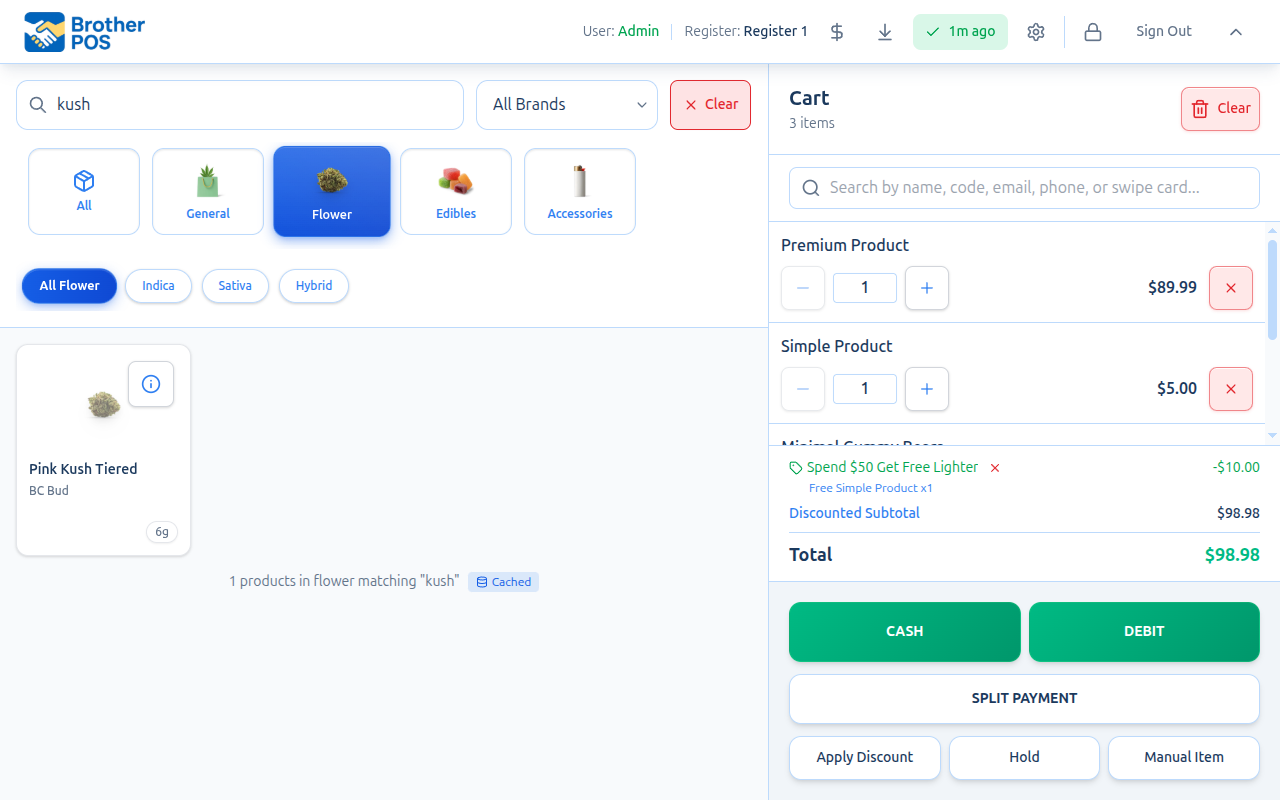
- Tap a category button to filter the product grid to only products in that category.
- The selected category is highlighted.
- Tap All to show products from every category again.
Category Icons
Category icons help cashiers recognize product types at a glance. Your admin picks each category's icon from a built-in library when editing the category. Icons can be hidden on a register by turning off Show category icons in the register's Settings → Display Settings.
Subcategory Filters
When a category is selected and that category has subcategories, a second row of filter buttons appears, starting with an All button for that category (for example All Flower). Tap a subcategory to narrow the results further. A subcategory with its own subcategories shows a small arrow; tapping it opens the next level, and a back arrow takes you up again.
For a Flower category, Indica, Sativa and Hybrid buttons are added automatically so you can filter by strain type.
Brand Filter
A brand dropdown sits beside the search bar. Use it to show only products from a specific brand or manufacturer.
- Tap the All Brands dropdown.
- Select a brand from the list.
- The product grid updates to show only that brand's products.
- Choose All Brands again to show every brand.
Brand filters combine with category filters. For example, you can view "Flower" products from "Brand X" by selecting both. If your store has no brands set up, the dropdown doesn't appear.
Combining Search and Filters
Search, category, subcategory, and brand filters all work together:
- Search + Category: Shows products matching the search term within the selected category
- Category + Brand: Shows products from a specific brand in a specific category
- Search alone: Searches across all categories and brands
Clearing any filter broadens the results. Clear the search bar to rely only on category/brand filters, or tap All to search across all categories.
More detail: the product grid and what tapping a card does
Product Grid
The product grid displays cards for all matching products. Each card can show the following. Most of these can be turned on or off per register in Settings → Display Settings:
- Product image (Show product images). A product with no image shows its category icon instead.
- Product name
- Brand (Show brand on product cards)
- Price (Show prices on product cards)
- Stock level (Show stock levels)
- Strain type and THC/CBD (Show cannabis details (THC/CBD))
- Badges such as a sale percentage or Bundle (Show sale/discount badges)
Product Card Behavior
Tapping a product card triggers different actions depending on the product type:
| Product Type | Tap Behavior |
|---|---|
| Standard unit product | Added to cart immediately |
| Weight-based product | Opens weight selection window |
| Product with variations | Opens variation picker |
| Product with modifiers | Opens modifier selection window |
| Fixed bundle | Added to cart immediately, unless it or its parts have options to choose |
| Combo with a choice slot | Opens a window to pick each choice (e.g., which pop) |
| Build-your-own platter or bucket | Opens the builder to pick what goes in it. See Cart Management. |
| Out-of-stock product | Hidden from the grid unless Show out of stock products is turned on in Display Settings. When shown, the card is greyed out with an OUT OF STOCK label and tapping it does nothing. |
| Product already fully in the cart | Tapping again shows Only 3 available and nothing more is added. |
When out-of-stock products are hidden, the count under the grid tells you how many were hidden, for example "(2 out of stock hidden)".
Products set to Allow Negative Stock are never greyed out, refused or hidden, however low their stock. They stay on the grid and in search results even when Show out of stock products is off.
Product Info Button
When Show product info button on cards is on (it is by default), a small info button appears on each product card. Tapping it opens the product's details — without adding the product to the cart.
The product info window is useful for answering customer questions about a product without navigating away from the register.
More detail: working offline
Offline Product Browsing
When the POS is offline, product data is served from a copy saved on the device. The product catalog is synced and stored locally, so browsing, searching, and filtering keep working without network connectivity. Typing part of a product name or SKU still finds the product offline, and scanning works too, including the barcode of a single variation (such as one size of a product).
Products added to the catalog while you are offline will not appear until the POS reconnects and syncs. Stock levels in the saved copy may also be out of date.
What's Next?
- Cart Management — what happens after a product is added to the cart
- Weight-Based Products — selecting weights for cannabis and deli products
- Modifiers and Variations — handling product options and add-ons