Time Tracking
Use this page to clock in and out, and to start and end breaks, at the register.
Quick steps
To clock in or out:
- Tap the clock button in the register's top bar. Not signed in yet? Tap Time Clock in the bottom-right corner of the sign-in screen instead.
- Enter your 4-digit PIN. It's checked as soon as you type the last digit.
- Tap Clock In at the start of your shift, or Clock Out at the end.
To take a break:
- Open the time clock and enter your PIN while you're clocked in.
- Tap Unpaid Break, Paid Break or Lunch (you only see the ones your store uses).
- When you're back, open the time clock again, enter your PIN and tap End Break.
An unpaid break or lunch keeps counting until you end it, and all of that time comes off your hours.
Common questions
I don't see a clock button. Time tracking isn't turned on for your store. Ask your admin to tick Enable Employee Time Tracking under Admin > Settings > Edit Settings, on the Operations tab.
I forgot to clock in (or out). Clock in now if you're working, then ask your manager to fix the time. Only managers and admins can change time cards, in the admin panel.
It says PIN not recognized. Type your 4-digit PIN again. If it keeps failing, ask your manager to check or reset your PIN.
Does the time clock work if the internet is down? Yes, as long as this register has synced since your PIN was set. Your punch is saved and sent when the connection comes back.
How do I ask for a day off? Open the time clock, enter your PIN and tap Request Time Off (shown when your store uses shift scheduling). Fill in the dates and tap Send Request.
More detail: before you begin, and opening the time clock
Before You Begin
- Time tracking must be turned on for your store.
- You can use the time clock without logging into the POS and without an open cash drawer. See Clocking In From the Login Screen.
- Your time card belongs to you, not to a register or cash drawer.
Time tracking is optional. If you don't see the time clock, ask your admin to turn on Enable Employee Time Tracking in Admin > Settings > Edit Settings, on the Operations tab under Time Tracking Settings.
Opening the Time Clock
When time tracking is on, a clock button appears in the register's top bar. A small green number on it shows how many employees are clocked in right now.
Tap the clock button to open the Time Clock window. It shows:
- A PIN keypad. Enter your 4-digit PIN and it's checked automatically.
- A Clocked In list of everyone currently on the clock, with how long they've been on and an On Break tag for anyone on break.
After you enter your PIN, the window shows your name, your current status and the buttons you can use.
Clocking In From the Login Screen
You don't have to log into the POS to use the time clock. When time tracking is on, a Time Clock button appears in the bottom-right corner of the login screen.
- On the POS login screen, tap Time Clock (bottom-right).
- Enter your 4-digit PIN.
- Clock in, clock out, or start or end a break, the same as from the top bar.
Because it only needs your PIN, this works before anyone logs in and without opening a cash drawer. That makes it a good fit for staff who arrive before the register is set up, or who don't use the register at all, such as kitchen or stock staff.
Walk up, tap Time Clock, enter your PIN, tap Clock In. No login, no drawer.
More detail: clocking in, breaks and clocking out
Clocking In
- Open the Time Clock and enter your PIN.
- If you're not on the clock, the window shows Not currently clocked in.
- Tap Clock In.
- A confirmation such as "Alex clocked in" appears, and after a couple of seconds the window returns to the PIN keypad.
Next time you enter your PIN, the window shows:
| Information | Description |
|---|---|
| Status | Currently Clocked In, with a green dot |
| Since | The time you clocked in (for example, 9:00 AM) |
| Duration | How long you've been clocked in (for example, 2h 15m) |
Taking a Break
The time clock can offer three break buttons:
| Button | Paid? |
|---|---|
| Paid Break | Yes. Counts toward your hours. |
| Unpaid Break | No. Taken off your hours. |
| Lunch | No. Taken off your hours. |
Which buttons you see depends on your store's Break tracking setting:
| Setting | Buttons shown |
|---|---|
| Paid & unpaid breaks | Unpaid Break, Paid Break, Lunch |
| Unpaid breaks only | Unpaid Break, Lunch |
| Paid breaks only | Paid Break |
| No breaks | None |
Starting a Break
- Open the Time Clock and enter your PIN while clocked in.
- Tap the break button you want.
- Your status changes to On Break and shows the break type and when it started.
Ending a Break
- Open the Time Clock and enter your PIN.
- Tap End Break.
- You're back to normal clocked-in status.
An unpaid break or lunch keeps counting until you end it, and all of that time comes off your hours. Always tap End Break when you're back.
Clocking Out
- Open the Time Clock and enter your PIN.
- Tap Clock Out.
- A confirmation such as "Alex clocked out" appears.
If you're on a break when you clock out, the break ends automatically at the same time.
What Gets Recorded
| Data | Description |
|---|---|
| Clock-in time | When you started |
| Clock-out time | When you finished |
| Breaks | Each break's type, start and end |
| Work time | Total time minus unpaid breaks and lunch (paid breaks count as work time) |
Viewing Your Current Status
After you enter your PIN, the window shows one of these:
Not Clocked In
- A grey box reads Not currently clocked in.
- The only button is Clock In.
Clocked In (Not on Break)
- A green box shows Currently Clocked In, the time you started and how long you've been on.
- Buttons: your store's break buttons, plus Clock Out.
On Break
- The box shows On Break, the break type and when it started.
- Buttons: End Break and Clock Out.
Your Schedule
If your store uses shift scheduling, two extra buttons appear after you enter your PIN, whether you are on the clock or not.
See My Schedule opens Upcoming Shifts — your next shifts, each showing the day, the times and the role you're on for. If there's nothing booked it reads No upcoming shifts scheduled. Tap Hide to close it.
Request Time Off opens the Time Off panel, where you can ask for days off and see how earlier requests were answered.
More detail: requesting time off
Requesting Time Off
- Open the Time Clock and enter your PIN.
- Tap Request Time Off.
- Fill in the form and tap Send Request.
| Field | What to enter |
|---|---|
| From / To | The first and last day you want off. For one day, leave both the same. |
| Only part of the day | Tick it if you only need a few hours. From becomes Day, and Start and End time boxes appear. |
| Reason (optional) | Why you need the time. Your manager sees it with your request. |
You'll see Request sent. Your manager will review it., and the request joins the list above the form.
Your Requests and the Answer
The panel lists your upcoming requests plus anything answered in the last 30 days, each with a tag:
| Tag | Meaning |
|---|---|
| Waiting | Sent, not answered yet. |
| Approved | Booked. No shift can be scheduled over it. |
| Not approved | Declined — any note from your manager shows underneath. |
| Cancelled | Called off by a manager. Those days can be scheduled again. |
You also get an email when a manager approves or declines, as long as you have an email address on your staff profile.
Unlike clocking in and out, time off requests can't be saved offline. If the register is offline you'll see Time off requests need an internet connection. Try again once you're back online, or ask your manager to add the time off for you.
Requests are refused if they start in the past, cover more than 90 days, or clash with a request you already have waiting or approved. For part of a day, fill in both times and keep it to a single date.
Managers answer requests in the admin panel — see Time Off Requests.
More detail: using the time clock offline
Using the Time Clock Offline
The time clock still works if the register loses its internet connection, as long as the register has synced with Brother POS since your PIN was set.
- The window shows Offline — your action will sync when you reconnect.
- Your clock-in, clock-out or break is saved and sent automatically when the connection comes back.
- This works for staff who don't use the register too (a driver, for example) — their PIN is accepted for the time clock even though it won't sign them in to the register.
- If the register can't tell whether you're on the clock, it shows both Clock In and Clock Out. Tap the one you're doing.
- If you see PIN not available offline — needs one online sync first., this register hasn't synced since your PIN was set (for example, you're new or your PIN was just changed). Wait until it's back online.
- A clock-in saved offline keeps the time you actually punched, as long as the register reconnects within 12 hours. If it's offline longer than that, your clock-in is recorded as 12 hours before it was sent — ask your manager to correct it.
See Offline Mode for more.
More detail: what managers can do
Manager Features
Managers and admins manage time cards in the admin panel under Time Tracking:
| Feature | What it does |
|---|---|
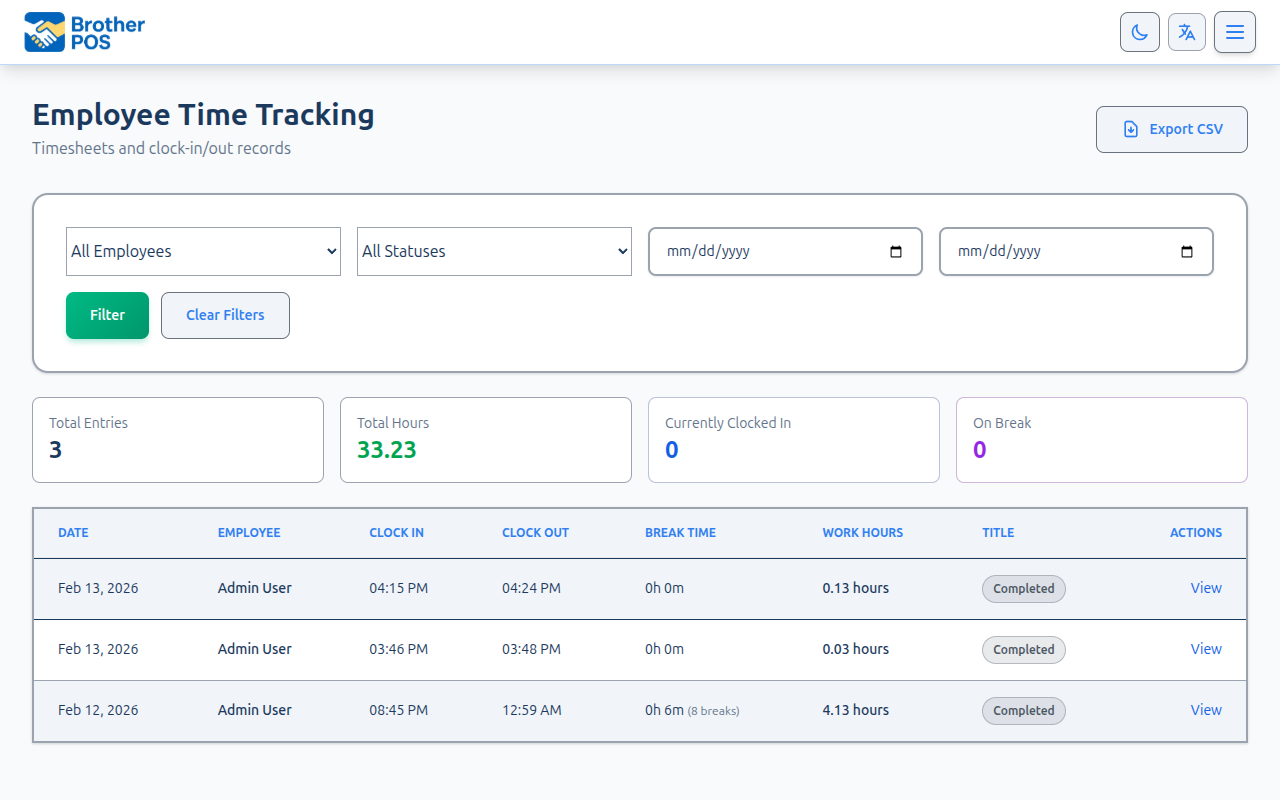
| View time entries | See everyone's clock-ins, clock-outs and hours |
| Edit a time entry | Fix clock-in or clock-out times for staff who forgot |
| Add a time entry | Enter a missed shift by hand |
| Delete a time entry | Remove an entry made by mistake |
| Export timesheets | Download time entries as a CSV file |
| Payroll | See regular and overtime hours for a date range, and export them |
Adding, editing and deleting time entries can only be done in the admin panel, not at the register, and only by managers and admins. If you made a mistake (for example, you forgot to clock out), ask your manager to fix it. A manager's own time card — including its breaks — has to be fixed by an admin. Every added, edited or deleted entry or break is recorded in the activity log with the name of the person who made the change.
Overtime on the payroll report follows your store's Overtime after (hours per week) setting.
More detail: common scenarios
Common Scenarios
Forgot to Clock In
- Clock in now. The current time is recorded.
- Ask your manager to change your clock-in time to when you actually started.
Forgot to Clock Out
- Next time you enter your PIN, you'll still show as clocked in.
- Ask your manager to set the correct clock-out time on that entry.
If your store has Auto clock-out after (hours) set, anyone still on the clock after that many hours is clocked out automatically (a common setting is 16). The shift is recorded as exactly that length, which is a safety cap and not your real hours, so still ask your manager to set the correct clock-out time before payroll.
Switching Registers
Your time card isn't tied to a register. If you move to another register during your shift, you stay clocked in. Enter your PIN on the new register's time clock if you want to check.
Taking Back-to-Back Breaks
While you're on a break, the only break button shown is End Break. End the current break before starting another.
More detail: troubleshooting and best practices
Troubleshooting
| Problem | Solution |
|---|---|
| No clock button in the top bar or on the login screen | Time tracking isn't turned on. Ask your admin to turn on Enable Employee Time Tracking (Admin > Settings > Edit Settings, Operations tab). |
| PIN not recognized | Re-enter your 4-digit PIN. |
| Account locked. Try again later. | Either too many PIN entries from your store's internet connection in the last minute (the time clock allows 30 a minute), or your account was locked after too many failed sign-in attempts. Wait a minute and try again; a locked account unlocks itself after 5 minutes. |
| Rate limit exceeded. Retry later. | The same one-minute limit, hit while clocking in or out or starting a break — usually a whole shift punching in at once. Wait a minute and tap the button again. |
| Time off requests need an internet connection. | Time off can't be sent offline. Wait for the connection, or ask your manager to add it for you. |
| PIN not available offline | This register hasn't synced since your PIN was set. Wait for the connection to come back. |
| Times look wrong | Check the date and time on the register device. |
| No break buttons | You need to be clocked in to see them. If you are and still see none (or fewer than expected), your store's Break tracking setting limits or hides breaks. |
Best Practices
- Clock in as soon as you arrive. Your shift starts when you start working.
- Record breaks accurately. Start and end each break at the clock so payroll is right.
- Always clock out at the end of your shift. Missed clock-outs create extra work for managers.
- Tell your manager about unusual shifts so they can correct your time card if needed.
What's Next?
- Time Off Requests: how your request is answered, and what managers see
- Shift Scheduling: how managers build and send out the week's schedule
- Offline Mode: what happens when the network is down
- Manager Override: how PIN-based authorization works
- Keyboard Shortcuts: keyboard keys in the register