Opening & Closing Cash Drawers
Use this page to open the till with a starting float at the start of a shift, and to count and close it at the end.
Quick steps
To open:
- Sign in on the register. If no drawer is open yet, the Open Cash Drawer screen appears (or Select Register if your store has more than one register).
- Count all the cash in the till and type the total in the box under Count the cash in the drawer now. Need to pop the till first? Tap Open Drawer to Count.
- If the screen says Last shift left $X — this should match, check your count agrees. If it does, you can tap Counted it — it matches $X instead of typing.
- Tap Open Cash Drawer (or pick your register and tap Open & Select). You're ready to sell.
To close:
- Tap Count / Close Drawer (the calculator button in the top bar). On a phone, it's under Settings > Quick Actions.
- Count all the cash in the till and type the total under Count the cash in the drawer.
- Pick End Shift to leave a float for the next person (check the Take out (deposit) and Bank left in drawer amounts), or End Day to take all the cash to the bank.
- Tap End Shift or End Day at the bottom. Read the summary, then tap Done. You are signed out.
The number you enter is the starting point for tonight's over/short. Always type the real count.
Common questions
My count doesn't match what the last shift left. The register stops and asks why. Pick The $X was deposited after close if someone took the cash to the safe or bank, Recount to count again, or open anyway and the difference is recorded for a manager.
I typed the wrong starting float. No need to close. Go to Settings > Quick Actions > Adjust Opening Float. A manager PIN may be needed.
Can I check how much should be in the drawer without closing it? Yes. Tap Count / Close Drawer to see the expected cash, then tap Cancel. Nothing is closed.
I'm handing the register to the next clerk. Tap the lock button (Lock / Switch User). The drawer stays open and the next person signs in with their PIN. To take over the cash yourself, see Taking Over a Drawer.
My count is over or short. Count again first. If it's still off, close anyway and tell your manager. Every difference is recorded.
More detail: opening the drawer
Before You Begin
Make sure the following are in place:
- Your role has the Manage Cash Sessions permission. This is not limited to managers — clerks have it by default, so the counter can run without a manager standing by. An admin can switch it off for clerks. Check or change it under Admin > Users > Role Permissions. See Roles & Permissions.
- A register has been configured for your POS terminal in Admin > Registers (accessible from the Settings or Cash Drawers page).
- You are ready to count the cash physically in the drawer. You are not entering a figure you expect — you are entering what is actually there.
The opening float is the cash in the drawer before any sales happen. It is what you use to make change. A typical float is between $100 and $300, but your store may have its own policy.
Whatever you enter becomes the baseline for the over/under at close, so it has to be a real count — not a guess and not the number the screen suggests.
Opening a Cash Drawer
Step-by-Step
- Log in to the POS with your PIN or credentials.
- If no drawer session is active for your register, the POS will display the Open Cash Drawer prompt automatically.
- The screen asks you to Count the cash in the drawer now. Count the bills and coins that are physically in the till and type that total.
- Tap Open Cash Drawer. (If your store has more than one register, pick the register first; the button then reads Open & Select.)
- The POS is now ready for sales.
The prompt reads "Count the cash in the drawer now" rather than "opening float amount" for one reason: the figure you enter becomes the baseline for the over/under at close. Accept a wrong number once and the drawer reads off by the same amount, in the same direction, every shift after it — the classic "this till is always $50 out" complaint.
If the last shift left cash behind, the screen shows "Last shift left $X — this should match" underneath. That is a cross-check, not a pre-fill: you still count and type the real amount.
Where the Starting Figure Comes From
What the count box shows depends on whether the last shift left cash in the till:
| Situation | What the box shows |
|---|---|
| The last shift left cash in the drawer | The box starts empty. A float default would be the wrong number here — a till carrying $3,400 overnight should never be shown $300. Count the drawer and type the total. If your count comes out exactly the same as what the last shift left, tap Counted it — it matches $X instead of typing it. |
| No cash was left and the register has its own Default Opening Float | That register's float. Each register can carry its own amount — a busy front till can default to $300 while a back register defaults to $100. Set it on the register under Admin > Registers. See Registers. |
| No cash was left and the register has no float of its own | The store-wide Default Opening Float, set under Settings > Operations > Cash Drawer Settings ($200 unless you change it). |
Switching to a different register on the selection screen re-applies that register's starting figure. Once you type your own number, the POS leaves it alone for as long as you stay on that register.
The button saves typing, not counting. Tap it only once you have physically counted the drawer and got the same figure. If your count is different, type what you counted so the difference is caught.
The suggested figure is a convenience, not a count. Always overwrite it with what you actually counted.
Counting the Drawer on Open
To count accurately you may want to pop the physical till before entering the amount. At shift start the normal top-bar drawer-kick button isn't available yet (it only appears once a session is open), so the Open Cash Drawer screen includes its own Open Drawer to Count button under the count field. Tap it to kick the drawer open, count the cash, then enter that total.
The button appears when the register has a receipt printer set up, or when this device has its own receipt printer paired to it (for example, a Bluetooth printer built into the stand). The drawer is kicked through the printer, so with no printer at all there is nothing to open. Before kicking the drawer, the POS reconnects to the device's saved printer, so it works even when nothing has been printed yet since the app was opened.
When Your Count Doesn't Match the Last Shift
If the last shift left cash in the till and your count differs from it — by even a cent — the POS stops you before the drawer opens with a confirmation you cannot scroll or tap past:
That doesn't match the last shift You counted $150.00, but the last shift left $200.00 — that's $50.00 short.
You get a clear choice:
| Choice | Use it when | What happens |
|---|---|---|
| The $X was deposited after close (only offered when you are short, and only when there is a previous closed shift to attach it to) | The missing cash isn't missing — someone took it to the safe or the bank after the shift closed. | The amount is recorded as a deposit against that closed shift. It lowers what the next shift should find, and it does not change the closed shift's over/short. Then your drawer opens. |
| Recount | You aren't sure. | Sends you back to the count field so you can count again. |
| Open drawer / No — open with it short | The count is right and the difference is real (or you are deliberately starting a fresh float). | The drawer opens with the amount you counted, and the difference is recorded as an opening variance for a manager to look at. |
Overnight deposits are the single most common reason a morning count comes up short, and the person opening the drawer is the one person who actually knows the answer. Answering here books the cash where it belongs instead of logging a loss that never happened — which is what used to happen, and what made the next shift open short through no fault of its own.
Opening Variance (close-to-open reconciliation)
If the previous shift closed with a carryover float (cash left in the till for the next shift), the POS reconciles your counted opening float against what that close left behind:
- As you type, a live note appears under the count:
- ✓ Matches the $X expected from last close when your count equals the carryover, or
- ⚠ Short/Over $Y vs $X expected — this difference will be recorded when it does not.
- On open, if your count differs from the expected carryover, a warning toast confirms it (for example, "Short $20 vs $200 expected from last close — recorded for audit").
The signed difference is saved on the session as the opening variance (negative = cash missing at open). This surfaces a shortfall that happens at the seam between one shift's close and the next shift's open — cash that goes missing overnight, for instance. Managers can review opening variance per session in the admin panel; see Cash Drawer Sessions.
Only when there was a prior shift close that left cash in the drawer and your counted float differs from it. The first session of a register's life, a session opened after an End Day close (which deposits everything), and a session opened after a shift close that left $0 in the drawer have no carryover to reconcile against, so no variance is recorded.
What Happens Behind the Scenes
When you open a drawer session, Brother POS:
- Creates a new Cash Drawer Session record tied to your register.
- Records who opened the session, when, and with how much.
- Sets the session status to Open.
- All subsequent transactions on this register are tracked against this session until it is closed.
More detail: during the shift
Working During an Active Session
Once the drawer is open, the POS operates normally. Here is what you need to know during the session:
Multiple Clerks, One Session
Any cashier who logs in to the same register will operate under the same drawer session. There is no need to close and reopen the drawer when shifts change — unless your store policy requires it. The session tracks which clerk processed each individual sale.
Tracking Payments
Every sale processed on the register is automatically associated with the active session. The session tracks:
| Payment Method | Tracked? |
|---|---|
| Cash | Yes — affects expected cash in drawer |
| Debit | Yes — recorded as electronic payment |
| E-Transfer | Yes — recorded as electronic payment |
| Split payments | Yes — each portion tracked by its method |
| Store credit | Yes — recorded separately |
Checking Session Status
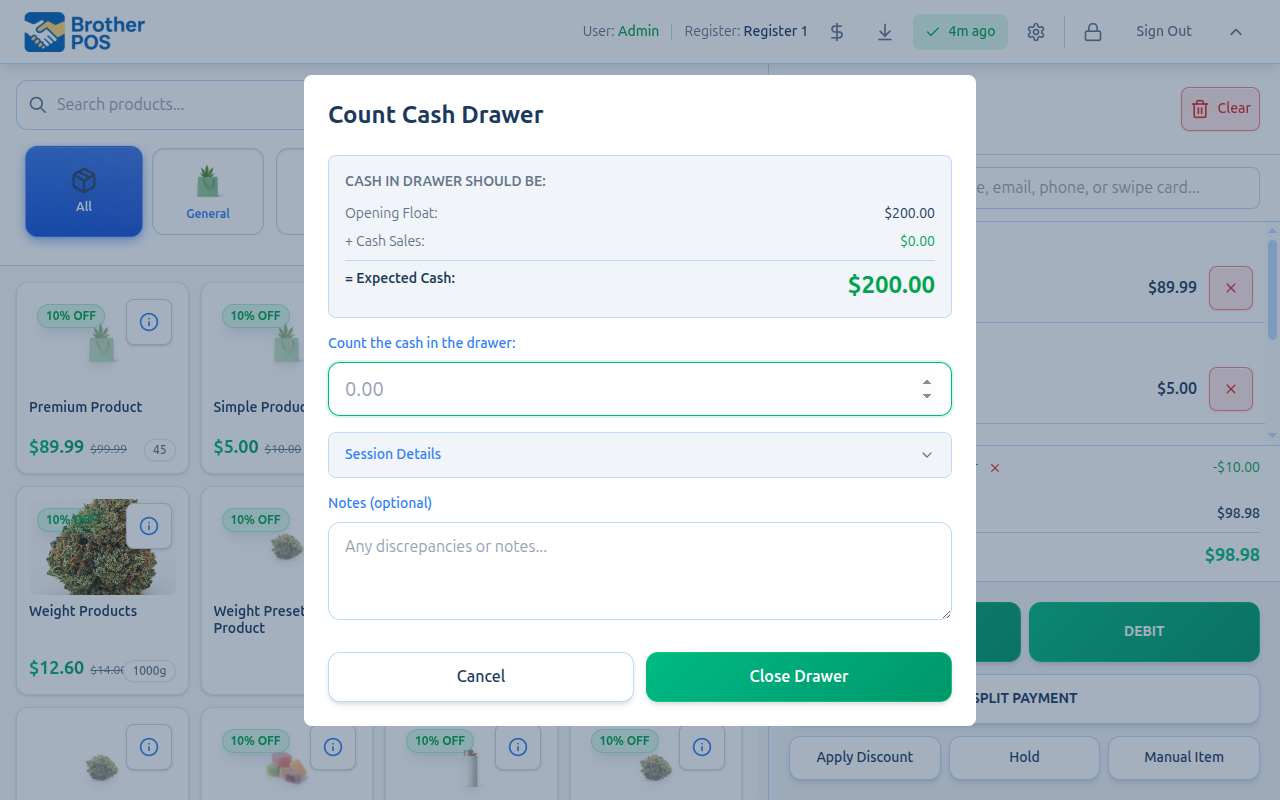
To see where the drawer stands mid-shift, tap Count / Close Drawer (the calculator button) in the header bar. On a phone or small screen it lives under Settings > Quick Actions instead. The count screen shows:
- Opening float amount
- Net cash sales so far
- Cash drops, payouts and pay-ins (if any), each listed individually
- Current expected cash in drawer
If your store uses Blind close, this breakdown is hidden.
Opening this screen does not close anything. Tap Cancel and you are back at the register, still signed in, with the drawer still open.
The $ button simply pops the physical till open (to make change, for example). It needs the Open Cash Drawer permission and a register with a receipt printer set up — the till is kicked through the printer, so it is hidden on a register with no printer. It does not open or close a drawer session.
The Cash Drop down-arrow, Pay In up-arrow and Count / Close Drawer calculator buttons need the Manage Cash Sessions permission and an open session.
The POS is a progressive web app. Closing the browser tab does not close the cash drawer session. The session remains open until someone explicitly closes it through the cash count process.
Adjusting the Opening Float Mid-Shift
If you entered the wrong opening float, you do not have to close and reopen the session to fix it. It can be corrected while the session is still open.
- Open the POS Settings modal (the gear/settings button).
- Under Quick Actions, tap Adjust Opening Float (the button shows for anyone with Manage Cash Sessions while a session is open).
- Choose a reason: Miscount, Denomination, or Other.
- Enter the corrected amount under Actual opening amount, and optionally a note.
- Tap Adjust Float.
Changing the opening float changes what the drawer is expected to hold, so it could quietly cover a shortage. Saving the change needs the Reverse Cash Drops / Adjust Opening Float permission, which managers and admins have by default and clerks do not. If your role doesn't have it, the window says "A manager has to approve this. Enter a manager PIN." and shows a Manager PIN box — a manager types their PIN and you tap Adjust Float again. Their name is added to the adjustment's notes, which appear on the session page in the admin panel.
Each adjustment is recorded as a signed correction with the before/after amounts, reason, and your user — it does not overwrite the original opening float, which is preserved as the audit value. The signed adjustment total feeds directly into the expected-cash calculation.
When you later close the drawer, the Count Cash Drawer modal shows a ± Float Adjustment line in the breakdown and lists each individual adjustment under Session Details, so the math reconciles cleanly (otherwise a corrected float would make the breakdown read as nonsense).
More detail: closing the drawer
Closing a Cash Drawer
Closing a cash drawer requires a forced cash count. You cannot skip this step. Brother POS requires you to count all the cash in the drawer and enter the total amount so that the system can calculate whether you are over, under, or exactly balanced.
Step-by-Step
- Tap Count / Close Drawer (the calculator button) in the header bar — or, on a phone, Settings > Quick Actions > Count / Close Drawer. Tapping Sign Out while the drawer is open first asks Switching staff? and suggests Lock instead; if you tap Sign out anyway, the same count screen opens instead of signing you out.
- Count all the cash in the drawer (bills and coins) and enter the total cash amount in the input field. The screen asks for one total, not a count per denomination.
- Review the amount you entered. Make sure it matches what you physically counted.
- Check the close mode (see below). It may already be set for you by the register.
- Split the counted cash between the bank you leave in the drawer and the deposit you take out (End Shift only — see below).
- Select your print options (see below).
- Tap End Shift or End Day depending on the mode you selected.
When the count screen opens, it waits a second or two until any cash drops or pay-ins saved on this device while offline are included, so the Expected Cash figure you see is the right one from the start rather than changing while you read it.
End Shift vs End Day
The Cash Count modal offers two close modes:
| Mode | What Happens |
|---|---|
| End Shift | Closes the session but leaves a bank in the drawer for the next person. You choose how much stays and how much comes out as a deposit. Optionally prints the Z-Report (register session summary). Use this for shift changes. |
| End Day | Closes the session and deposits the whole till — the drawer goes to $0. Optionally prints the Z-Report and the End-of-Day report (full day summary across all registers). Use this when shutting down the store for the day. |
Which Mode Is Selected When the Screen Opens
Each register can have its own Default Close Mode, set by an admin on the register under Admin > Registers:
| Register setting | What the close screen starts on |
|---|---|
| Ask each time (the default for every register) | End Shift |
| End of day | End Day — right for a counter or drive-through that should start every shift at its own fresh float. |
| Shift change | End Shift — right for a bar or gaming floor that carries its float across shifts. |
This is only the starting choice. You can always tap the other mode before closing, and once you do, the screen keeps your choice. See Registers.
Splitting the Deposit and the Bank (End Shift)
Once you have typed your count, an End Shift close asks you to split it in two:
| Field | What it means |
|---|---|
| Take out (deposit) | The cash you are physically pulling out and taking to the safe or the bank. Pre-filled with everything above the bank — in other words, the shift's takings. |
| Bank left in drawer | What stays in the till for the next shift. Pre-filled with what this shift started with (the opening float plus any float corrections). If you counted less than that, it is pre-filled with your count instead — you can't leave cash that isn't there. |
For example: the shift opened with $200, you count $1,000 at close. The screen suggests leaving $200 and taking out $800. Count only $150 and it suggests leaving the $150 and taking out nothing.
Type into either field and the other one follows automatically, so the two always add up to exactly what you counted. You can never leave more in the drawer than you counted — the End Shift button stays disabled until the numbers work.
Underneath, the POS cross-checks your deposit against what the register says actually came in:
- ✓ Matches today's cash take of $X — what you are taking out lines up with the day's cash.
- Today's cash take was $X — you're taking $Y more/less — it doesn't, which is worth a second look before you commit.
This is a sanity check, not a gate. You can close either way.
The Bank left in drawer figure is exactly what the next person is told to find when they open ("Last shift left $X — this should match"). Leave the right number and the next open is clean; leave the wrong one and the next shift starts with a variance that isn't theirs.
If cash comes out of the till after you have closed — the owner collecting the takings later that night, for instance — that gets recorded as a post-close deposit rather than left to surprise the next shift.
An End Day close skips the split entirely and shows a single Full deposit figure: everything you counted goes to the bank and the drawer resets to $0.
Print Options
Below the close mode selector, you will see checkboxes for printing. They appear when the register has a receipt printer set up, or when this device has its own receipt printer (for example, one paired over Bluetooth):
- Print Z-Report (register summary) — Prints the Z-Report receipt for this register session. Checked by default.
- Print End-of-Day report (all registers) — Only shown in End Day mode. Prints a store-wide summary of all sales for the day — your store's day, in your store's time zone. Checked by default.
Both options are on by default. Uncheck them if you do not need a physical printout. The Z-Report data is always saved digitally regardless of whether you print it.
If neither the register nor this device has a receipt printer, the print options are hidden. The session closes normally and the Z-Report is still saved.
The Over/Under Calculation
After you submit your count, Brother POS calculates the difference between:
- Expected cash: opening float ± float adjustments + cash taken in (sales, cash tips, pay-ins, and cash paid at the counter for a house account, store credit, gift card, invoice, service job or pawn loan repayment) − cash paid out (refunds, cash drops, payouts, cash paid to consignors, and pawn loan advances)
- Actual cash: The total you just counted
The count screen shows the opening float, any float adjustment, net cash sales, cash drops, payouts and pay-ins above the total — each individual drop, payout and pay-in with its time and reason, not just a lump sum. Any other cash that moved on the shift gets its own line too: cash tips, cash refunds, house account payments, store credit or gift cards bought with cash, invoice and service job payments, and cash paid out to a consignor. The lines add up to Expected Cash.
Below that, Other payment methods (not in drawer) lists what came in on card, e-transfer, gift cards and so on, for checking against the card terminal. When cards were refunded on the shift, the card line shows what the terminal should settle after the refunds — for example Card: $480.00 ($500.00 less $20.00 refunded).
Cash that moves for reasons other than a straight sale — cash tips, cash refunds, a customer paying down a house account, a gift card bought with cash, cash paid out to a consignor — is all included in the Expected Cash total, and each shows as its own line on the count screen when the shift had any. The session page in the admin panel shows the same calculation.
If a sale mixes ordinary goods with a payout line, only the net cash that actually changed hands is applied to the drawer. Sell $100 of goods and pay out $30 on the same ticket, and the drawer expects the $70 the customer handed over — the payout is not subtracted a second time.
A return can be raised on one shift and approved on the next — raised last night, approved by a manager this morning. The cash is paid out of the drawer that is open now on that register, and that is the drawer it is counted against. Last night's closed shift is left exactly as it was counted. A cash refund can't be completed while no drawer is open, because there is no till to pay it from.
For the same reason, a cash sale whose drawer has already been counted and closed can't be voided. The register says "This sale's drawer has been closed. Use a return to refund it from today's drawer." Process a return instead: the cash comes out of the drawer that is open now, and the closed shift stays exactly as it was counted.
If your store has Canadian Cash Rounding enabled, the nickel-rounding adjustment on each cash sale is tracked separately and already baked into the expected-cash figure. Rounding will not push your count over or under. This includes the cash half of a split payment — that portion is nickel-rounded too, and the Z-Report's rounding total now counts it.
As you type your count, the screen shows the difference:
| Result | Meaning |
|---|---|
| No difference box | Your count matches the expected amount exactly. |
| Over by $X.XX | You have more cash than expected. This could indicate a customer overpayment or a data-entry error. |
| Short by $X.XX | You have less cash than expected. This could indicate a missed transaction, a counting error, or theft. |
If the over/under amount is large, do not dismiss it. Recount the cash to rule out a counting mistake. If the discrepancy persists, report it to your admin. Brother POS logs every discrepancy for audit purposes.
After Closing
Once the drawer is closed:
- A Z-Report is automatically generated summarizing the entire session. See Z-Reports for details on what it contains.
- If you checked Print Z-Report, the receipt printer will print the register session summary.
- If you closed with End Day and checked Print End-of-Day report, the receipt printer will also print a store-wide daily summary.
- The screen shows Drawer closed (or Day closed after End Day) with the Z-Report's main figures: sales, transactions, tax, discounts, returns, voids, then the opening float, cash and card sales, expected cash, counted cash, Over / short, and the deposit and what was left in the drawer. On a register (or device) with a receipt printer there is also a Print Z Report button (Print Z Report again if it already printed). Tap Done when you have read it.
- The session status changes to Closed. No more sales can be processed against it.
- You are signed out of the POS. The next person to sign in on that register is asked to count the drawer and open a new session before any sales can be rung.
If you closed the drawer from the stale-drawer banner or overlay, you stay signed in on the same register so you can open a fresh drawer straight away.
Once you tap Done on the Drawer closed screen, the register has no way to print that Z-Report again. The report itself is always saved: a manager or admin can review the session in the admin panel under Cash Drawers and click Reprint Z-Report on its page to print it again. See Reprinting a Z-Report.
More detail: common situations and counting tips
Common Scenarios
Forgot to Open the Drawer
The POS does not show the register screen until a drawer session is open on that register. After signing in, you are taken to the Open Cash Drawer (or Select Register) screen first, so a sale can't be rung on a drawer nobody opened.
Drawer Was Left Open Overnight
If a session was accidentally left open:
- Count the current cash in the drawer.
- Close the session using the cash count process described above.
- Open a new session with a fresh count.
The Z-Report for the forgotten session will show all transactions that occurred, even if they span multiple days.
Brother POS can also help staff catch a forgotten drawer automatically — see Stale-Drawer Handling below. If your store genuinely never closes, see 24/7 Stores instead: an overnight drawer is normal there, and the reminders are switched off for you.
Need to Remove Cash Mid-Shift
Use a Cash Drop instead of closing the drawer. Cash drops let you move excess cash to the safe without ending the session. See Cash Drops & Payouts.
Shift Change Without Closing
If your store policy allows it, clerks can swap in and out without closing the drawer. Tap the lock button (Lock / Switch User) in the top bar and have the next clerk sign in with their own PIN. (Don't use Sign Out for this — it takes you to the cash count, and the next person would need their email and password as well as their PIN.) The drawer session continues. If the next person needs to take over responsibility for the cash, they can close the outgoing shift and open their own in one step with Close & open mine. See Taking Over a Drawer.
Tips for Accurate Cash Counts
- Count twice before submitting. It is faster to recount than to investigate a discrepancy.
- Separate the float from the day's revenue before counting. This makes it easier to verify the expected amount.
- Count by denomination (bills first, then coins) before totaling. Organizing your count makes it faster and less error-prone.
- Do not round. Enter the exact total. Rounding introduces small discrepancies that accumulate over time.
- Count in a quiet area if possible. Distractions lead to miscounts.
More detail: forgotten drawers left open overnight
Stale-Drawer Handling
ManagerA drawer that is left open past your store's business-day cutoff is considered stale. Brother POS offers two optional, opt-in tools to catch and resolve a forgotten drawer. Both are off by default — a small store that doesn't want the nudge sees no change.
If 24/7 / continuous operation is switched on, both tools below are suppressed automatically — an overnight drawer is normal for you. See 24/7 Stores.
Business-day cutoff
A session is flagged stale once it has been open past your store's business-day cutoff (in your store's local timezone). The cutoff is taken from your closing time under Settings > General > Store Hours. If store hours aren't set, the Business-day cutoff hour (fallback) under Settings > Operations > Cash Drawer Settings is used instead (default 4 AM).
Stale-drawer reminder banner (opt-in)
When enabled, a dismissible warning banner appears at the top of the POS for anyone with the Manage Cash Sessions permission when the register's drawer is stale: "This drawer has been open since {date} — close it out to start a fresh shift." A one-tap Count / Close Drawer button on the banner opens the cash count screen directly.
Enable it with the Stale-drawer reminder banner toggle under Settings > Operations > Cash Drawer Settings.
Force-close a stale drawer (opt-in)
For stricter control, the Require closing a stale drawer before reopening setting blocks the register until a stale drawer is counted and closed:
- A non-dismissible overlay covers the POS — "Close yesterday's drawer first."
- Anyone with the Manage Cash Sessions permission sees a Count & close drawer button that opens the cash count.
- Anyone without it sees "A manager must close this drawer before sales can continue" (the overlay reaches them too, so a forgotten drawer can't be worked around).
This is count-preserving enforcement: the next person does a real cash count. Brother POS never fabricates or skips a count, and there is no nightly auto-close job — a drawer that is simply never reopened stays flagged stale in the admin until someone closes it properly.
An earlier design auto-closed abandoned drawers on a schedule. That was removed because closing a drawer without a real count is destructive. The non-destructive layers — the reminder banner and force-close-on-next-open — cover the need without ever guessing at a count.
Enable it with the Require closing a stale drawer before reopening toggle under Settings > Operations > Cash Drawer Settings.
Blind close (opt-in)
A related option, Blind close, hides the expected-cash breakdown, the live over/under and the "today's cash take" cross-check from the cashier during the count, so they count without knowing what they "should" find. The over/short is still worked out and recorded after they submit. Enable it with the Blind close toggle under Settings > Operations > Cash Drawer Settings.
More detail: stores open 24/7
24/7 Stores (Continuous Operation)
AdminManagerSome stores never close — a gaming floor, a 24-hour convenience store. For them, a drawer that has been running since yesterday isn't a problem to fix, it's just Tuesday. The 24/7 / continuous operation toggle under Settings > Operations > Cash Drawer Settings tells Brother POS that, and three things change:
| What changes | Why |
|---|---|
| The close screen becomes shift-close-first. The End Shift / End Day buttons disappear, and the main button reads Close & Hand Off. | There is no "end of day" to press. Every close is a handover to the next person. |
| Full cash-out becomes a small secondary link — "Full cash-out instead — take drawer to $0 (maintenance / audit)." | Taking the drawer to zero is still possible, but it is a rare maintenance or audit action rather than a nightly routine, so it can't be tapped by mistake. |
| The stale-drawer reminder and force-close are switched off automatically. | A drawer running past the business-day cutoff is normal here. Left on, those warnings would fire every single morning and staff would learn to ignore them. |
The Deposit at a 24/7 Store
A Close & Hand Off splits the count exactly the way an End Shift does elsewhere: the bank defaults to what the till started the shift with, and the deposit defaults to the shift's takings on top of it. The "Matches today's cash take" cross-check appears here too.
If you genuinely want to leave all of the cash for the next shift, tap the link "Leave the whole $X for the next shift — no deposit." It is a deliberate tap rather than the default for a reason: if every close left the whole drawer, the amount the next shift is told to expect would grow by a full day's takings every single day, and every morning would open "short" by money that was simply never recorded as taken out.
If a register keeps opening short by roughly a day's takings, the balance handed from shift to shift has grown past what is really in the drawer. At the next open, count the real cash and, when asked, choose "The $X was deposited after close." That records the difference as a deposit against the last shift and resets the carried balance to what you actually counted. See When Your Count Doesn't Match the Last Shift.
Turning this on does not loosen anything. Every Close & Hand Off still requires a full cash count, still produces an over/short, and still generates a Z-Report. The only thing that changes is that the register stops pretending the store shuts at night.
While 24/7 mode is on, the stale-drawer reminder and force-close settings below it have no effect, even if their checkboxes are still ticked. One toggle governs the lot.
More detail: who can open, close and adjust the drawer
Permissions Summary
Drawer work is controlled by permissions, not job titles, and all of the permissions below can be granted to clerks. Newly set up stores grant clerks Manage Cash Sessions and Open Cash Drawer by default; older stores start with Manage Cash Sessions only. No store gives clerks Reverse Cash Drops / Adjust Opening Float by default. Adjust either under Admin > Users > Role Permissions.
| Permission (as it appears on the Role Permissions page) | What it lets someone do |
|---|---|
| Manage Cash Sessions | Open a drawer session, close it with a cash count, view the count screen mid-shift, take over someone else's drawer, record cash drops, payouts and pay-ins, reverse a pay-in, and print the count sheet. |
| Reverse Cash Drops / Adjust Opening Float | Reverse a cash drop or payout, and change the opening float mid-shift. Managers have it by default; clerks don't, and are asked for a manager's PIN instead. |
| Open Cash Drawer | Pop the physical till from the header bar to make change. Nothing to do with opening or closing a session. |
Processing sales on an already-open session needs neither — any signed-in clerk with register access can ring sales. Reviewing sessions afterwards in the admin panel is a manager/admin job; see Cash Drawer Sessions.
What's Next?
- Cash Drops & Payouts — Learn how to remove cash mid-shift or record business expenses.
- Taking Over a Drawer — Close someone else's shift and open your own in one step with Close & open mine.
- Z-Reports — Understand the end-of-session summary report.
- Deposits After Close — Record cash pulled from the till after a shift was already closed, so the next open doesn't read short.