Z-Reports
Use this page to understand the Z-Report — the summary of one drawer's shift that you get every time you close the drawer.
Quick steps
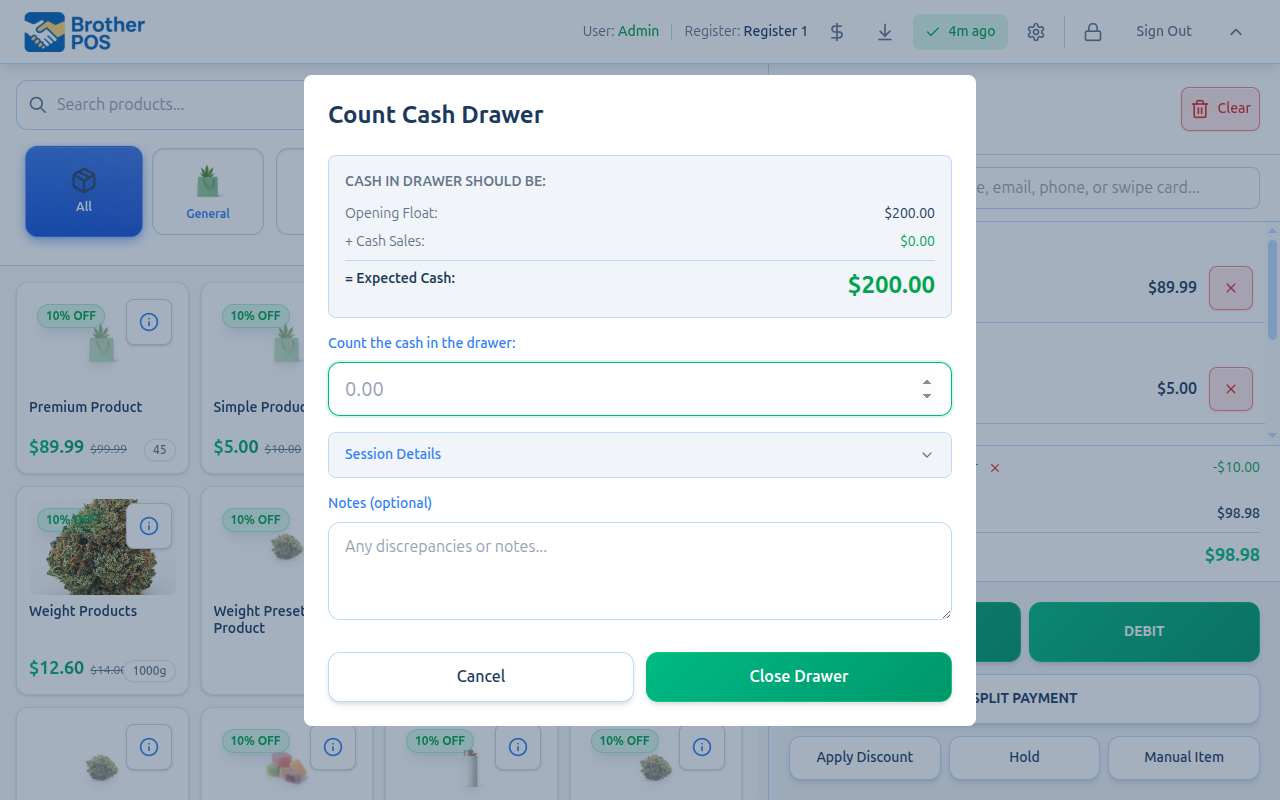
- Close the drawer as usual: tap Count / Close Drawer, count the cash, and tap End Shift or End Day. The Z-Report is made for you — there's nothing extra to do.
- To get a paper copy, leave Print Z-Report (register summary) ticked before you close (shown when the register has a receipt printer).
- Read the Drawer closed screen: sales, payments, Expected cash, Counted cash and Over / short.
- Missed the printout? Tap Print Z Report (or Print Z Report again) before you tap Done.
- After you tap Done, a manager can still find the report in the admin panel under Cash Drawers — open the session and click Reprint Z-Report.
The Over / short line is your count minus what the drawer should hold. A drawer off by the same amount every day usually means the opening count wasn't really counted.
Common questions
Can I see the Z-Report without closing the drawer? No, it's made when the drawer closes. To check mid-shift, tap Count / Close Drawer to see the expected cash, then tap Cancel — nothing is closed.
The printer jammed. Is the report lost? No. It's saved when the drawer closes, printed or not. A manager can reprint it from the session's page in the admin panel.
Can a Z-Report be changed? No. It's a permanent record of that shift.
What's the difference from Daily Close? A Z-Report covers one drawer's shift. Daily Close (Reports > Daily Close in the admin panel) covers the whole store for the day.
More detail: when a Z-Report is made
A Z-Report is the end-of-session summary generated when a cash drawer is closed. It provides a complete snapshot of everything that happened during the session: every sale, every payment method, every cash drop and payout, and the final over/under calculation.
Z-Reports are the foundation of daily cash reconciliation and are used by managers, admins, and accountants to verify that the register balanced correctly.
When Is a Z-Report Generated?
A Z-Report is generated automatically every time a cash drawer session is closed. You do not create it manually — it is a byproduct of the closing process.
The report covers the entire session from the moment the drawer was opened to the moment it was closed.
Each cash drawer session produces exactly one Z-Report. If your store hands drawers over with Close & open mine, each handover closes the current session (generating its Z-Report) and opens a new one. This means each shift gets its own Z-Report with its own cash reconciliation.
More detail: everything on the report
What Does a Z-Report Contain?
The Z-Report is divided into several sections. Here is what each one covers.
Session Information
Basic details about the session:
| Field | Description |
|---|---|
| Register | The name/number of the register this session was on |
| Opened By | Who opened the session |
| Opened At | Date and time the session started |
| Closed By | Who closed the session |
| Closed At | Date and time the session ended |
| Duration | Total time the session was open |
Sales Summary
An overview of all sales activity during the session. The money figures are counted exactly the way Daily Close counts them, so a drawer's Z-Report and Daily Close agree for the same sales:
| Field | Description |
|---|---|
| Transactions | Number of completed sales |
| Net sales (before tax) | What the sales brought in after every discount, less the returns processed at this drawer, not counting tax. Card surcharges and cash rounding are not sales, so they are not in this figure |
| Tax | All the tax collected, including any additional tax your store charges |
| Total collected (incl. tax) | Everything the till took in for those sales, tax included |
| Discounts | Every discount given, of every kind (only shown when there were discounts) |
| Returns (before tax) | Number of returns processed at this drawer and their value before tax (only shown when there were returns) |
| Voided | Number of voided sales and their amount (only shown when there were voids) |
Tax is also printed in its own Tax Collected section, broken down into GST, PST and any additional tax your store charges, with a total.
Voided sales are not included in the transaction count or the sales figures. They are shown on their own line as a count and a dollar amount.
Payment Methods Breakdown
A breakdown of how customers paid — the same payment totals Daily Close shows. Each payment method used during the session shows the number of sales and the total, tax included — for example:
| Payment Method | What it shows |
|---|---|
| Cash | Number of sales paid in cash and the cash total |
| Debit/Card | Number of card sales and their total |
| E-Transfer | Number of e-transfer sales and their total |
| Store Credit, Gift Card, House Account | Number of sales and total for each, when used |
| Card terminals your store uses | Number of sales and total per terminal type, when used |
A split payment is counted under each method it was paid with: a $50 sale paid $20 cash and $30 card adds $20 to Cash and $30 to Debit/Card. A note under the list says how many split sales there were. The payment totals add up to Total collected (incl. tax).
Methods that weren't used during the session are left off.
Cash Reconciliation
The critical section for verifying drawer accuracy:
| Field | Description |
|---|---|
| Opening Float | The amount counted into the drawer at opening. When the count was checked against what the previous shift left, the session page in the admin panel also shows Expected at open and the opening variance (these are not printed on the Z-Report slip). |
| Float Adjustments | Any mid-shift corrections to the opening float, listed individually |
| Cash Sales | Cash received from sales, including the cash portion of split payments |
| Cash Tips | Tips paid in cash, which land in the drawer. Tips paid on a card are not in the drawer, so they are not in this line — the full tip total is reported in its own section, broken down by how each tip was paid (for example Debit Tips). Those lines add up to the tip total, whether the sale was paid one way or split. |
| Counter cash | Cash taken at the counter outside a normal sale — house-account payments, store credit bought with cash, gift card activations and reloads, invoice payments, service-job payments |
| Pay-Ins (printed as Cash Added) | Cash added to the till mid-shift, listed individually |
| Pawn Cash In | Pawn loan repayments, extension fees and redemptions paid in cash (pawnshops only) |
| Cash Refunds | Cash handed back on returns |
| Cash Drops | Cash removed to the safe mid-shift, listed individually |
| Payouts | Cash paid out of the business, listed individually |
| Consignor Cash | Cash paid to consignors for their share of sold goods |
| Pawn Advances | Loan principal handed over in cash when a pawn loan is written (pawnshops only) |
| Expected Cash | Everything above, added and subtracted |
| Actual Cash | The amount counted at closing |
| Over/Under | Actual minus Expected (positive = over, negative = under) |
| Close Type | Shift Close (a bank was left in the drawer — printed with the Carryover Float and Deposit Amount) or End of Day (the whole till was banked — printed with the Full Deposit). A Close & open mine handover is a shift close. |
In plain terms:
Expected Cash = Opening Float
              + everything that put cash INTO the till
              - everything that took cash OUT of it
Over/Under    = Actual Cash - Expected Cash
The reconciliation section covers all the ways cash reaches or leaves the till, not only over-the-counter sales. Cash tips, a customer paying down a house account, a gift card bought with cash, a pay-in, a mid-shift float correction, cash paid to a consignor, pawn loan cash — each is printed as its own line. Add up the lines on the sheet and you reach the Expected Cash printed at the bottom of the same sheet. On a shift close, the carryover and deposit printed below it add back up to the cash you counted.
A Star receipt printer prints the same cash lines — including float corrections, pay-ins as Cash Added, pawn cash and cash tips — so its lines add up to the same Expected Cash figure.
Cash received as part of a split payment is included in the Cash Sales figure used for the expected cash calculation, so the expected total accounts for all cash that entered the drawer regardless of whether it was a full-cash sale or a split payment with a cash component.
The same applies to Canadian nickel rounding: the cash half of a split payment is rounded to the nearest nickel just like a full cash sale, and that rounding is already inside the expected cash.
Cash Drops Detail
A list of every cash drop recorded during the session:
| Time | Amount | Performed By | Note |
|---|---|---|---|
| Timestamp of each drop | Amount removed | Whoever recorded it | The reason (for example, Safe Drop) |
Payouts Detail
A list of every payout recorded during the session. It lists the same payouts the Payouts total counts, so the list adds up to the total:
| Time | Amount | Authorized By | Reason | Note |
|---|---|---|---|---|
| Timestamp of each payout | Amount paid out | Whoever recorded it | Payout or Supplier Payout at every store; gaming stores also Lottery Payout, Machine Payout and Progressive Payout | Any notes entered |
The session's payouts are also totalled by type — machine, gaming, supplier (with a total per supplier) and other — so a store that balances its books on the machine payout figure isn't reading vendor money mixed into it. In the admin panel this shows as the Payouts by Type card on the session page. See Cash Drawer Sessions.
Returns and Voids
A summary of returns and voided transactions:
| Field | Description |
|---|---|
| Returns | Number of return transactions and total refunded amount, tax included (the Sales Summary shows the same returns before tax) |
| Voids | Number of voided sales and their original amounts |
Sales by Category
A breakdown of the session's sales grouped by product category, so you can see at a glance which parts of the store sold the most. This replaces the old "Top Products" list.
Each category line shows the quantity sold and the dollar revenue for that category, and the list is sorted with the biggest-earning categories first. Categories print as a tree: a top-level department (for example, Flower), then any subcategories beneath it (for example, Indica, Sativa), indented under their parent.
| Field | Description |
|---|---|
| Category name | The department, subcategory, or sub-subcategory, indented to show where it sits in the tree |
| Quantity | Total units sold in that category during the session (shown in parentheses after the name) |
| Revenue | Total dollar sales for that category |
A department's quantity and revenue include the items tagged directly to it plus everything in its subcategories. So the department line is the full total for that part of the store, and the subcategory lines below it show how that total breaks down.
Sales of manually entered items or products that have no category are grouped together under Uncategorized.
Items Sold (optional)
By default the Z-Report shows category totals only. If your store wants to see exactly what sold, an admin can tick Show each item sold on the end-of-shift report under Settings > Hardware & System > Printing Features. It is off until someone turns it on.
With it on, every item sold on the shift is listed under its category, with how many sold and for how much. The list shows in three places:
- On the printed Z-Report.
- On the register's Drawer closed screen, under Items sold.
- On the session's page in the admin panel, in an Items Sold by Category card.
More detail: printing and the Drawer closed screen
Printing a Z-Report
Printing at Close
When closing a cash drawer on a register that has a receipt printer set up (or on a device with its own receipt printer, such as one paired over Bluetooth), the Cash Count modal includes a Print Z-Report (register summary) checkbox (checked by default). If it is ticked, the Z-Report prints on the receipt printer as part of the closing process. On a register with no receipt printer the checkbox is not shown.
The printed Z-Report receipt includes:
- Store name and register
- Session open/close times and who opened/closed it
- Duration of the session
- Cash management breakdown (float, sales, cash tips, pay-ins as Cash Added, drops, payouts, pawn cash where there is any, expected vs actual)
- Itemized cash drops, payouts and pay-ins — each one prints beneath its total as the time and reason (the operator's note is printed instead of the reason when there is one; reasons print in plain words such as Lottery, Machine, Progressive, Safe Drop, Supplier Payout), the same way float adjustments are listed
- On a shift close, what was left in the drawer and what was deposited
- Over/under result
- Sales summary (transaction count, Net sales (before tax), Tax, Total collected (incl. tax), discounts, returns, voided sales)
- Payment breakdown, Sales by Category, tax, tips, returns, loyalty, store credit, gift card and house account activity — each section only when there is something to show
- A separate list of cash drops and payouts with the time, who recorded each, and the reason in plain words such as Machine Payout (a supplier payout also names the supplier)
- Discount totals, broken down by type (item, campaign, order, promotions, loyalty and so on) — the same discounts Daily Close lists
A Star receipt printer prints the same cash section, with each drop, payout and pay-in listed beneath its total, and the same separate lists of drops and payouts with plain-word reasons.
The Drawer Closed Screen
Right after the drawer closes, the register shows a Drawer closed screen (Day closed after an End Day) with the Z-Report's main figures:
| Section | What it shows |
|---|---|
| Z Report | Net sales (before tax), Transactions, Tax, Total collected (incl. tax), Discounts, Returns before tax and Voids (each with its count and amount) |
| Payments | Each payment method used, with its number of sales and total — the same totals as Daily Close |
| Items sold | Only when your store lists each item on the Z-Report — see Items Sold |
| Cash | Opening float, Cash sales, Card sales, Expected cash, Counted cash, Over / short, Deposit, and Left in drawer when a bank stayed behind |
On a register (or device) with a receipt printer there is a Print Z Report button — it reads Print Z Report again if the report already printed as part of the close. Tap Done to finish; the register then signs you out (unless you were closing a leftover drawer from the stale-drawer prompt, in which case you stay signed in to open a fresh one).
Where It Prints
The Z-Report is sent from the POS device to the receipt printer that register uses for sales — a network, Bluetooth or Star printer, or one connected through the Printer Bridge. Because the device does the printing, it works the same for every store.
The report data is saved when the drawer closes, whether or not it printed, so a jam or an offline printer never loses it.
Reviewing a Z-Report Later
Once you tap Done on the Drawer closed screen, the register is ready for the next session and can't show that Z-Report again. To review a session afterwards, open it in the admin panel under Cash Drawers in the top navigation bar. From there you can also reprint its Z-Report.
More detail: the inventory count sheet
Inventory Count Sheet
If your store turns it on, closing the drawer can also print an Inventory Count Sheet — a paper checklist that staff use to physically count stock and tick off each item.
The count sheet prints automatically as part of the closing process (right after the Z-Report). Nobody has to request it — when the feature is on and the close qualifies, it comes out on its own.
Printing a count sheet without closing
You can also print the sheet at any time — for a mid-day count, or to replace one that went missing:
- Open the POS Settings modal.
- Under Quick Actions, tap Print Count Sheet.
- The sheet prints on this register's receipt printer ("Count sheet sent to printer").
The button appears for anyone with the Manage Cash Sessions permission once the count sheet is turned on for your store, and no drawer needs to be open. It uses the same settings as the sheet printed at close. If you see "No receipt printer available", set up a receipt printer for this register first.
What the count sheet shows
The sheet lists your active products grouped under their categories, the same department/subcategory tree used elsewhere. For each product it shows:
| Column | What it means |
|---|---|
| Product name | The item to count |
| Expected stock | How many the system thinks should be on hand (with a unit where it applies — for example, grams for weighed flower) |
Checkbox [ ] | A box to tick once you have counted that item |
At the bottom the sheet prints the total number of items listed and a "Counted by: ____" line for the person doing the count to sign.
When it prints
An admin controls this in Settings > Hardware & System, under Printing Features, with the Print Inventory Count Sheet option and these choices beneath it:
- Print on every close (not just End of Day): off, it prints only on an End Day close; on, it prints on every shift close too.
- Only list items with stock on hand: on, it skips items expected to be zero; off, it lists all active products (including ones expected to be zero, so staff can verify the zeros are really zero).
- Leave these categories off the sheet: tick the categories nobody hand-counts — accessories, for example. Ticking a category leaves out everything under it. With none ticked, everything prints.
Walk the shelves with the printed sheet, compare what you physically count against the Expected stock number, and tick each box. Flag any item where your count does not match so a manager can adjust the inventory.
The Inventory Count Sheet is off until an admin enables it under Settings > Hardware & System. See the admin guide on Daily Close for the settings.
More detail: reviewing Z-Reports in the admin panel
Reviewing Z-Reports in the Admin Panel
AdminThe admin panel lists every drawer session across all registers:
- Navigate to Cash Drawers in the top navigation bar.
- Use the filters to find the sessions you want.
- Open a session to see its detail page — session details, payment breakdown, cash drops, payouts (including Payouts by Type), float adjustments and the sales in that session.
Filtering
You can filter sessions by:
- Register — one register only.
- Status — open or closed sessions.
- Start and end date — sessions from a specific day or range.
Exporting
The Export CSV button on the Cash Drawers page downloads the sessions matching your current filters.
More detail: reading the over/under
Reading the Over/Under
The over/under result is the most important number on the Z-Report for daily cash management. Here is how to interpret it:
Balanced ($0.00)
The count matches exactly. The drawer is perfectly reconciled. This is the ideal outcome.
Over (positive amount)
There is more cash than expected. Common causes:
- A customer was accidentally given less change than owed.
- A cash sale was entered for less than the actual amount paid.
- The opening count was lower than the cash actually in the drawer — for example, someone accepted a suggested figure instead of counting.
Small overages (under $5) are common and usually not a concern. Larger overages should be investigated.
Under (negative amount)
There is less cash than expected. Common causes:
- A customer was accidentally given more change than owed.
- A cash drop or payout was not recorded in the system.
- The opening count was higher than the cash actually in the drawer.
- Cash was removed without authorization.
If the same register or the same personnel consistently show shortages, this warrants investigation. Brother POS logs every transaction, drop, and payout — your admin can review the full audit trail in the admin panel.
Acceptable Thresholds
Many stores set an acceptable threshold for over/under — for example, +/- $5.00. Anything within this range is considered normal variance. Amounts outside this range trigger a review. Your store admin can advise on your specific policy.
A drawer that is consistently off by an identical amount, always in the same direction, is almost never theft — it is a wrong opening count being repeated. Check that whoever opens the drawer is really counting it rather than accepting the suggested figure. See Opening a Cash Drawer.
More detail: Z-Reports and Daily Close
Z-Reports and End-of-Day Reports
A Z-Report covers one register session. Daily Close in the admin panel (Reports > Daily Close) covers the whole store for a day, giving a store-wide view of:
- Net sales (before tax), tax, total collected and transactions across all registers
- A combined payment summary
- Every drawer session that day, with its opening float and over/under
- Cash drops, payouts and deposits
When closing a drawer using End Day mode, the Cash Count modal offers an additional Print End-of-Day report checkbox. This prints the full End of Day summary receipt alongside the Z-Report, so you get both the register-specific and store-wide view on paper in one step. (At a 24/7 store there is no End Day button, so this option appears only if you switch to the full cash-out path.)
See the admin documentation on Daily Close for more details.
More detail: more questions
Frequently Asked Questions
Can I edit a Z-Report after it is generated?
No. Z-Reports are permanent, read-only records. They cannot be modified after the session is closed. This is by design — Z-Reports serve as an audit trail and must remain tamper-proof.
Can I generate a Z-Report without closing the drawer?
No. The Z-Report is generated as part of the closing process. If you want to see where the drawer stands mid-shift, tap Count / Close Drawer in the header bar to see the expected cash and its breakdown, then tap Cancel — nothing is closed (this is sometimes called an "X-Report" or interim check).
What happens if the printer jams during Z-Report printing?
The Z-Report data is saved digitally regardless of whether it prints successfully. A manager or admin can print it again from the admin panel: open Cash Drawers, click View on the closed session, and click Reprint Z-Report. See Reprinting a Z-Report. On the register, you can only print it again from the Drawer closed screen, before you tap Done.
How long are Z-Reports stored?
Z-Reports are stored indefinitely in Brother POS. You can access historical reports from any date through the admin panel.
Do Z-Reports include online orders?
Z-Reports only include transactions processed through the specific register tied to the cash drawer session. Online orders fulfilled through the admin panel are tracked separately in the order management system.
More detail: who can do what
Permissions Summary
| Action | What it needs |
|---|---|
| Close the drawer and print the Z-Report | The Manage Cash Sessions permission — the same one that lets you close the drawer. Clerks have it by default. |
| Review sessions later in the admin panel | Manager or Admin. |
| Reprint a closed session's Z-Report | Manager or Admin, from the session's page in the admin panel. |
| Print the count sheet without closing | The Manage Cash Sessions permission, with the count sheet turned on. |
| Turn on the Inventory Count Sheet, or the list of each item sold | Admin (store settings). |
What's Next?
- Opening & Closing Cash Drawers — Review the full drawer lifecycle including the cash count that generates the Z-Report.
- Cash Drops & Payouts — Understand the line items that appear in the cash reconciliation section.
- Daily Close — See how Z-Reports feed into store-wide daily summaries.