Hold & Recall Orders
Use this page to park a sale while the customer steps away, and bring it back when they're ready.
Quick steps
To hold a sale:
- With items in the cart, tap Hold.
- Type an Order Name the next cashier will recognize, like the customer's name or "Table 5".
- Tap Hold Order. The cart clears for the next customer.
To bring it back:
- With the cart empty, tap Recall.
- Tap the order in the Recall Held Order list.
- Tap Recall Order. The items, discounts and customer are back in the cart. Take payment as normal.
Held orders are shared across the store. You can hold on one register and recall on another.
Common questions
I can't see the Recall button. The cart has items in it. Finish or clear the current sale first.
The customer isn't coming back. Tap Recall, tap the trash icon on their order, then tap Delete. This can't be undone.
How long does a held order stay? While the drawer it was held on is still open, or 24 hours, whichever is longer.
Can someone else buy the items while the order is held? No. Held items are set aside until the order is recalled or deleted, or for 24 hours.
More detail: before you begin
Sometimes a customer needs to step away, grab a forgotten item, or wait for someone else. Instead of voiding the entire cart and starting over, you can hold (park) the sale and recall it when the customer is ready. This keeps the line moving and prevents lost work.
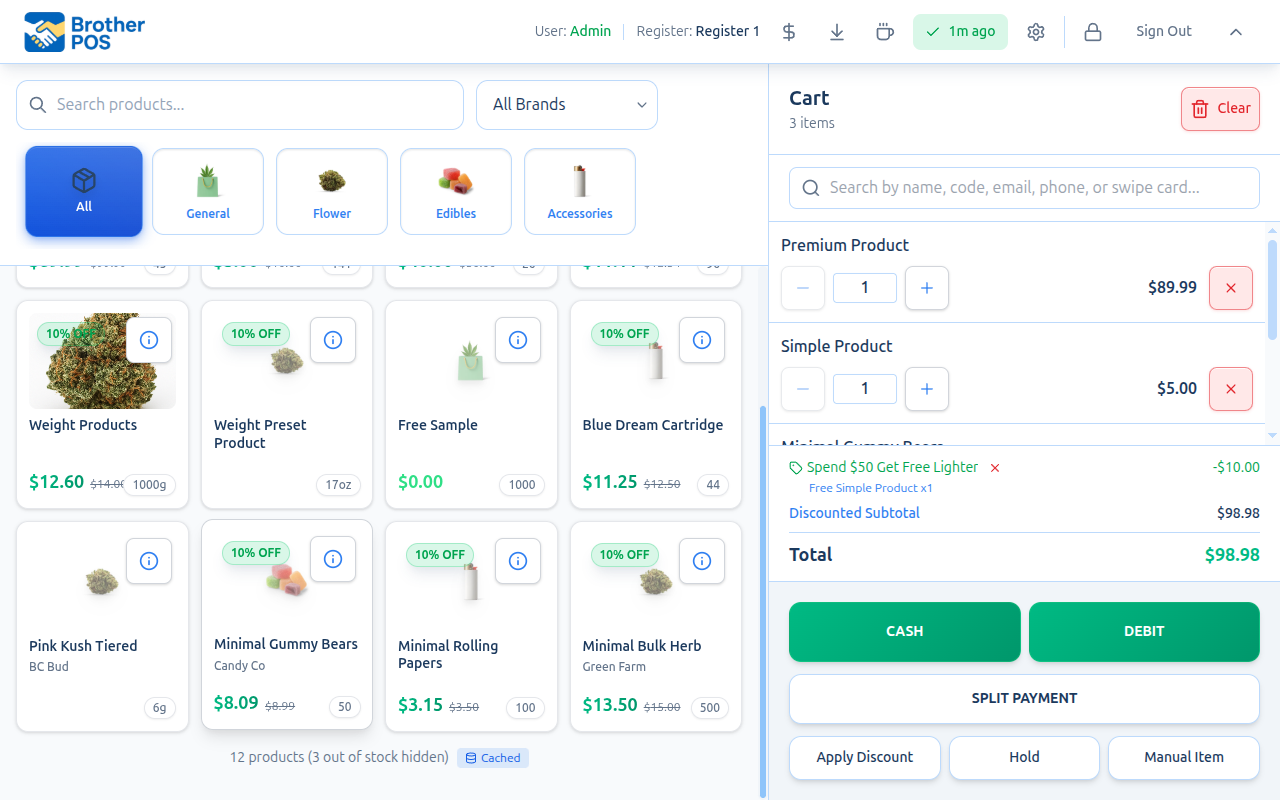
Before You Begin
- You must have items in the cart before you can hold an order. The Hold button only shows once something is in the cart. It doesn't show while you're building a phone order, which is saved as a pending order instead.
- A cash drawer session must be open.
- Held orders are shared across the whole store. An order held on one register can be recalled on any other register.
- A held order stays in the recall list while the drawer it was held on is still open, or for 24 hours after it was held, whichever is longer. Closing a drawer at shift change doesn't make orders held earlier that day disappear.
Items in a held order are set aside so they can't be sold to someone else while the order waits. They are released when the order is recalled or deleted, or after 24 hours.
More detail: holding an order, and what gets saved
Holding an Order
Step-by-Step
- Build the cart as you normally would — add products, set quantities and apply any discounts.
- Tap the Hold button in the cart pane. This opens the Hold Order window.
- Enter an Order Name. This is how you will identify it later. Use something descriptive, such as:
- The customer's name (e.g., "Sarah M.")
- A table or location (e.g., "Table 5")
- A description (e.g., "Waiting for ID")
- Tap Hold Order to confirm.
The cart clears and is ready for the next customer. The attached customer is taken off the cart too, so they don't carry over into the next sale. A message confirms the order has been held.
What Gets Saved
When you hold an order, the following is kept:
| Data | Saved? |
|---|---|
| All line items (products, quantities) | Yes |
| Manual items | Yes |
| Item-level discounts | Yes |
| Order-level discounts | Yes |
| Chosen free reward ("Choose Your Free Reward!") | Yes |
| Scanned promo win | Yes |
| Selected loyalty reward (point redemption) | Yes |
| Attached customer | Yes |
| Loyalty points cashed out for money off | No — redeem them again after you recall the order |
| Payment information | No — payment has not been collected yet |
Free rewards a customer picked from a "Choose Your Free Reward!" banner, a scanned promo win, and a selected loyalty reward are saved with the held order and restored when you recall it, so the free item or point redemption isn't lost. A loyalty reward comes back together with the customer it belongs to.
If multiple orders are held at the same time, generic names like "Order 1" make it hard to find the right one. Use the customer's name or a clear label so any cashier can identify it quickly.
Keyboard Shortcut
Press Enter after typing the order name to hold the order without tapping the button.
More detail: recalling an order
Recalling a Held Order
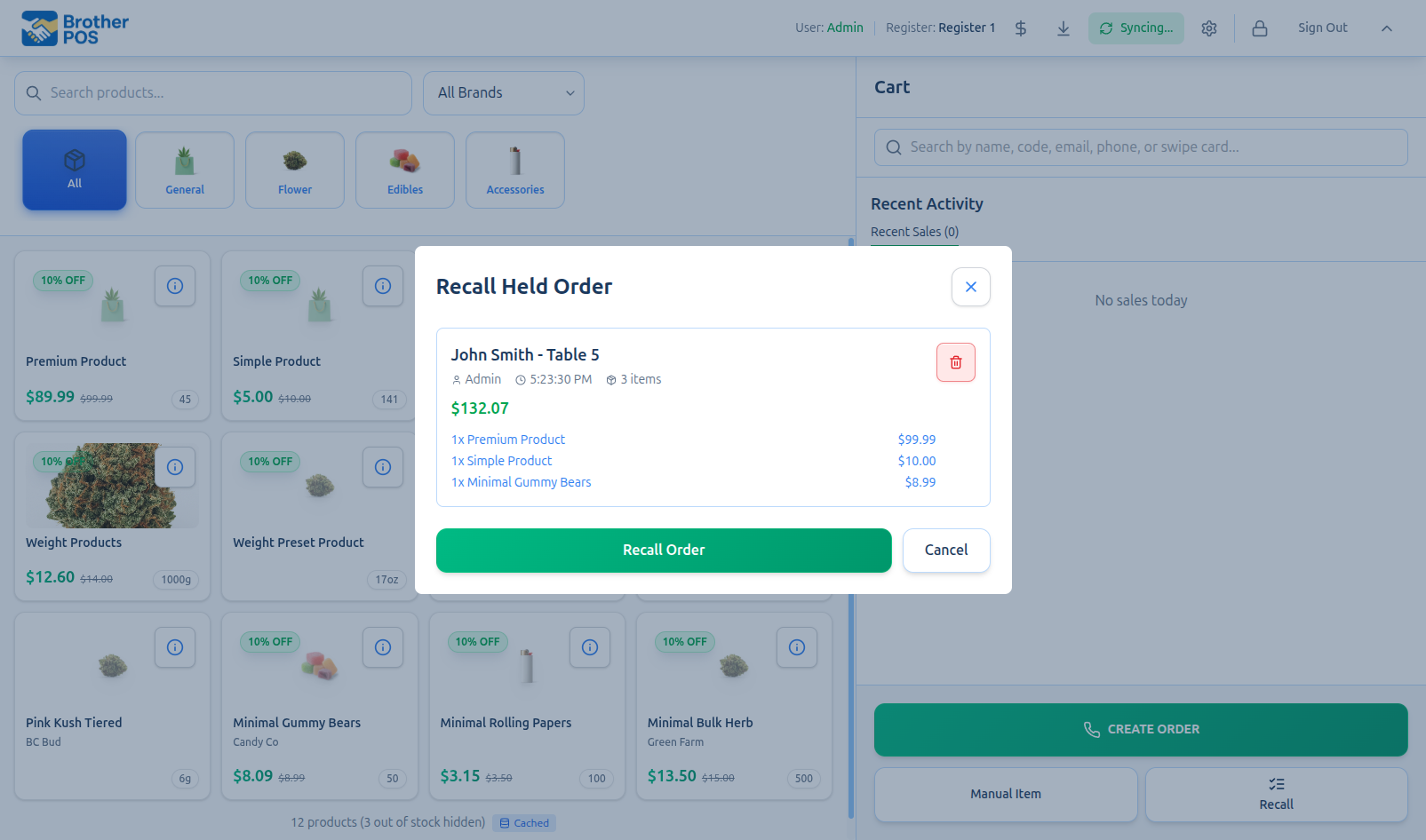
Step-by-Step
- Tap Recall at the bottom of the cart panel. The Recall Held Order window opens showing all currently held orders in the store, from every register, newest first.
- Review the list. Each held order shows:
- The order name you assigned
- Who held it and at what time
- The number of items and estimated total
- Each line item, including any discounts
- Tap the order card to select it. The card highlights to show your selection.
- Tap Recall Order to load it into the cart.
The held order's items, quantities, discounts and attached customer are restored to your cart. You can keep editing the order or go straight to payment.
The Recall button in the cart panel only appears when your cart is empty. Complete or clear your current cart before recalling a held order. On a phone-sized screen, Recall also sits in the bottom bar. If the cart has items in it, tapping it asks you to hold the current order first (tap Hold Order), then recall.
Order Details at a Glance
| Detail | Description |
|---|---|
| Order name | The name you entered when holding |
| Created by | The staff member who held the order |
| Time | When the order was held |
| Item count | Total number of items |
| Total | Estimated order total, including tax |
| Line items | Each product with quantity and price |
| Discounts | Any item-level or order-level discounts applied |
More detail: deleting a held order
Deleting a Held Order
If a customer does not return or the order is no longer needed, you can delete it instead of recalling it.
Step-by-Step
- Tap Recall at the bottom of the cart panel to open the Recall Held Order window.
- Find the order you want to remove.
- Tap the trash icon on the right side of the order card.
- A confirmation asks you to confirm the deletion.
- Tap Delete to permanently remove the held order.
Once a held order is deleted, it cannot be recovered. If you are unsure whether a customer will return, leave the order held rather than deleting it.
More detail: Pay Later (send to kitchen)
Pay Later (Send to Kitchen)
If your store uses the kitchen ticket workflow, a Pay Later button appears with the cart buttons (it is replaced by Tabs when open tabs are switched on). It sends the order to the kitchen to be made now and parks it for payment afterwards.
- Build the cart.
- Tap Pay Later.
- Enter a Table / Customer Name (e.g. "Table 5", "John Smith"). It prints on the kitchen ticket and shows in the recall list.
- Tap Send to Kitchen.
When the customer is ready to pay, tap Recall, pick the order and take payment as normal.
If your store's age verification is set to At checkout, tapping Pay Later asks for the age check before the order goes to the kitchen, just as the payment buttons do — the drink is not poured before ID is checked.
More detail: open tabs and splitting a bill
Open Tabs
When open tabs are switched on for your store, a Tabs button appears in the cart pane. A tab keeps a running bill for a customer or table that is paid at the end.
Saving the Cart to a Tab
- Build the cart.
- Tap Tabs, then Save cart as tab.
- Type a name for the tab (e.g. the customer's name) and tap Save to tab.
This always starts a new tab. To put more items on a tab that's already open, use Add Item on that tab (see below).
Modifiers and special instructions ("no onions", "Name on cake: Happy 40th") go onto the tab with the item and print on the kitchen ticket when the item is sent.
These items cannot go on a tab and are refused with a message — ring them up and pay for them directly instead:
- Build-your-own platters, buckets, and combos where you picked a choice
- Case or pallet (unit-of-measure) items
Working With an Open Tab
Tap Tabs and open a tab to see its items. From there you can:
- Add Item — items you ring up next go onto this tab.
- Send — sends items that haven't gone to the kitchen yet (shown when your store uses the kitchen ticket workflow).
- Split — pay for part of the tab (shown when the tab has more than one unpaid item).
- Close Tab — loads the whole tab into the cart for payment. The tab stays open until the sale is completed.
Splitting a Bill
- Open the tab and tap Split.
- Tap the items this customer is paying for (or tap All / None).
- Tap Pay Selected. The selected items are loaded into the cart, and a message shows how many items and how much remain on the tab.
- Take payment as normal.
The selected items are only marked paid on the tab once the sale is completed. If the card declines, the customer changes their mind or the cart is cleared, those items are still on the tab and still owed.
If the same tab item is loaded on two registers at once (for example, one person splits the bill on one till while someone else closes the whole tab on another), only the first sale goes through. The second is refused with a message such as Burger on this tab was already paid on another till. Clear that cart and open the tab again to see what's still owed.
More detail: examples
Common Scenarios
Customer Steps Away Mid-Sale
A customer realizes they forgot their wallet. Instead of voiding:
- Tap Hold, name it "Forgot Wallet - Mike".
- Serve the next customer in line.
- When Mike returns, tap Recall, select his order, and complete the sale.
Multiple Held Orders
You can hold as many orders as needed. They all appear in the recall list, newest first, on every register in the store. Each order is independent — recalling one does not affect the others.
Held Order With a Customer Attached
The customer is saved with the held order and taken off the cart while it waits. When you recall the order, the customer is attached again, along with any loyalty reward they had chosen, so their points and discounts apply.
More detail: troubleshooting and best practices
Troubleshooting
| Problem | Solution |
|---|---|
| No Hold button | Your cart is empty (add at least one item), or you're building a phone order with Create Order. A phone order is saved as a pending order instead. See Phone Orders, Delivery & Shipping. |
| Hold Order button is greyed out | The order name is blank. Type a name to identify the order. |
| "Please enter a name for the order" message | The order name can't be blank. Type a name to identify the order. |
| No Recall button | Your cart has items in it. Complete or clear the current sale first. |
| "No held orders found" | There are no held orders in the store. Orders held more than 24 hours ago on a drawer that has since closed no longer show. |
| Customer missing after recall | The order was held with no customer attached. Search for the customer and attach them. |
Best Practices
- Clear held orders regularly. Do not let orders sit for hours. If a customer has not returned within a reasonable time, delete the held order.
- Use the customer's name. This is the fastest way to find the right order when recalling.
- Check held orders before closing. At the end of the day, review the recall list and clean up any stale orders. Items in a held order are only set aside for 24 hours.
- Communicate with your team. If you hold an order and leave for a break, let the next cashier know so they can handle it when the customer returns.
What's Next?
- Sales History — View and manage completed sales from the POS
- Voiding Sales — Cancel a completed sale that should not have been processed
- Making a Sale — The complete end-to-end sales workflow