Returns
Use this page when a customer brings items back and you need to refund them.
Quick steps
- Find the sale. Today's sales are under Recent Sales on the right of the register (shown when the cart is empty). Tap the sale, then tap Return items.
- For an older sale: tap the gear icon in the top bar. Under Quick Actions, tap Report Issue / Process Return, then Process Return. Type the receipt number, or the customer's name, phone or email, into the search box and tap the sale.
- Tick the items coming back. Use - and + to return fewer than were bought. Tap Continue.
- Pick the refund method: Cash, Debit, Store Credit, Exchange or Gift Card. The way the customer paid is picked for you.
- Pick a return reason. Leave Restock returned items ticked if the items can be sold again. Untick it if they are damaged.
- Check the Return Summary, then tap Process Return — $X.XX. Hand over the refund.
A Debit refund goes back to the card by itself only if the sale was paid on a card terminal linked to BrotherPOS. Otherwise, refund the card on your terminal yourself.
Common questions
The customer has no receipt. You don't need it. Search for the sale by the customer's name, phone or email. Your store policy decides whether you accept the return.
I can't see Process Return in the gear menu. You need the Process Returns permission. Ask a manager to do the return, or ask your admin to give your role that permission.
Why are Store Credit and Exchange greyed out? The original sale had no customer on it, so there is no account to put the credit on. Choose another refund method.
The customer wants to swap for something else. Choose Exchange. The refund goes onto their store credit. Then ring up the new items as a normal sale and pay with Store Credit.
Is there a time limit? Not in BrotherPOS. A sale can be returned the same day or weeks later. Your store policy decides.
More detail: before you begin, and returns vs. voids
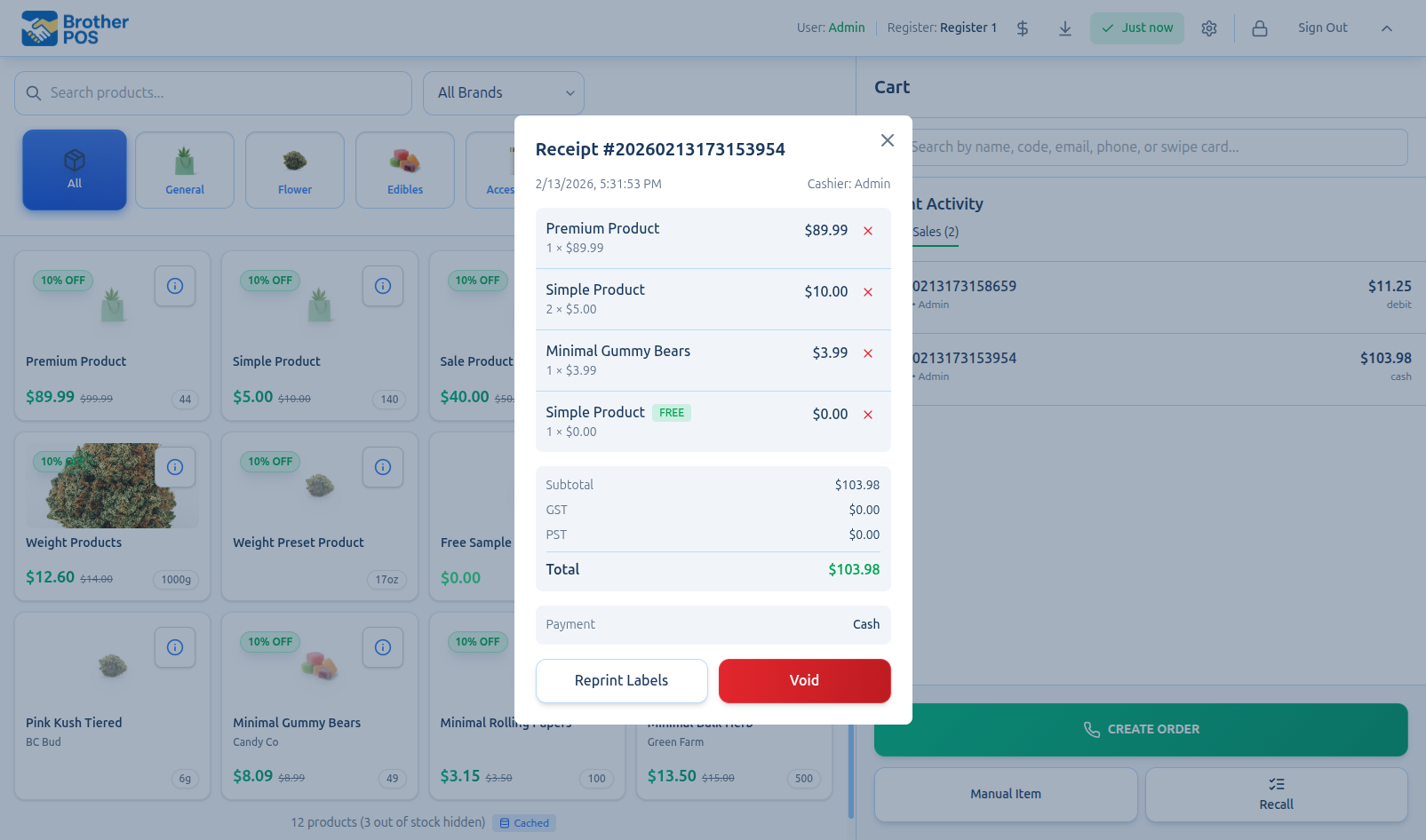
A return handles specific items and quantities from an earlier sale. It works out the refund, can put the stock back, and can add the refund to the customer's store credit. A void is different: it cancels a sale or a line.
Before You Begin
- You need the Process Returns permission. Managers and admins have it by default. Stores set up more recently give it to cashiers too. Your admin can change this.
- On the register, returns start from the Report Issue / Process Return button in the gear menu. It shows for anyone with the Process Returns permission.
- You do not need the paper receipt. You can find the sale by receipt number, customer name, phone or email.
- There is no time limit in Brother POS — a sale can be returned the same day or weeks later. Your store policy decides what you accept.
- Only completed, paid sales can be returned. A phone or online order that is still pending or ready was never paid — cancel the order instead.
- A sale that was voided can't be returned, and a sale that already has a return can't be voided. Return the remaining items instead.
Use a void when you need to cancel a sale or a line (wrong item, price error). Use a return when a customer brings items back after the fact. See Voiding Sales for the void workflow.
More detail: every step and every refund method
Processing a Return
Step-by-Step
-
Open the Returns screen. On the register, tap the gear icon in the top bar, then under Quick Actions tap Report Issue / Process Return. Choose Process Return.
-
Find the original sale. Today's completed sales are listed straight away. To find an older sale, type a receipt number, customer name, phone number or email into the search box. Tap the sale.
-
Select the items being returned. Tick each item the customer is bringing back. Items that were voided off the sale aren't listed — they were already refunded and put back in stock. Use the - and + buttons to return fewer than were bought (for example, 2 of the 3). Tap Continue.
-
Choose a refund method. The method the sale was paid with is picked for you (for a split payment, its largest part), so a card sale starts on Debit. Change it if you need to:
Refund Method What Happens Cash Hand the customer cash from the drawer. Needs an open cash drawer session on this register — the refund comes off that drawer's expected cash. Greyed out for a sale paid entirely by gift card, store credit or house account (see below). Debit For a card refund. If the original sale was paid through a Helcim or Kort terminal, or online through Helcim, Brother POS sends the refund to the payment processor automatically (a terminal refund needs the customer's card on the terminal). For any other card payment, the return is recorded in Brother POS only — process the card refund on your terminal yourself. Store Credit The refund is added to the customer's store credit balance. The original sale must have had a customer attached. If it didn't, the Store Credit button is greyed out. Exchange No money is paid out. The refund total goes onto the customer's store credit balance (recorded as "Exchange" and the return number), so it can pay for the replacement items. Then ring up the replacement items as a normal sale and pay with Store Credit. Like Store Credit, this needs a customer on the original sale — without one, the Exchange button is greyed out. Gift Card Only shown when the sale was paid (fully or partly) by gift card. The refund goes back onto the gift card the sale was paid with. The confirmation says, for example, $25.00 put back on gift card GC1A2B3C4D5E6F. If that card has since been voided (lost, say), the button reads New Gift Card and a note says the refund goes onto a new card: a new gift card is issued with the refund on it, and the confirmation shows its number — $25.00 put on new gift card GC... Give the new card to the customer. -
Pick a return reason from the list: Changed Mind, Defective, Wrong Item, Damaged, Expired or Other. The reason applies to every item in this return.
-
Choose whether to restock. Restock returned items is ticked by default. Untick it if the items are damaged or cannot be resold.
-
Add notes (optional) with any extra detail.
-
Check the Return Summary. It lists each item with its quantity and amount, then the Subtotal, Tax, any additional tax (such as a vapour products tax) and Cash rounding that apply, the Refund Total, and the refund method. The Refund Total is exactly what will be refunded. It reads Calculating refund… for a moment while it's worked out.
-
Tap Process Return — $X.XX (the button shows the Refund Total). The return is completed straight away and the confirmation shows the Return #.
If an automatic card refund fails (for example, the terminal is not set up for this register or the processor declines it), the return is still saved, but the card is not refunded. An error message appears, and the confirmation shows a red box: The card was NOT refunded, with the reason. Refund the card on the terminal or in your payment processor, or refund the customer another way.
Partial Returns
You do not have to return every item from a sale:
- Partial item selection — Tick only some items from a multi-item sale.
- Partial quantity — Return fewer units than were bought (for example, the customer bought 5 pre-rolls and returns 2).
The refund is worked out only for the items and quantities being returned.
More detail: how the refund amount is worked out
Return Details
What Gets Calculated
Brother POS works out the refund when the return is saved:
| Field | Calculation |
|---|---|
| Item amount | What the customer actually paid for that item on the original sale, including any line discounts and their share of order-level discounts (not the current product price) |
| Subtotal | Sum of the returned item amounts |
| Tax | Worked out at the rates and tax setup the original sale was charged under, only on items that were taxed. Additional taxes (such as a vapour products tax) are refunded too, never more than the sale collected |
| Refund total | Subtotal plus tax. Cash refunds are rounded to the nearest 5 cents when your store uses cash rounding |
The Return Summary works this out before you tap Process Return, so the amount on the button is the refund, tax included. If the register can't work it out (for example, the connection is poor), the button just reads Process Return and a note says tax and any order discount are applied when the return is processed. The full breakdown is also on the return in the admin panel.
A sale can never be refunded for more than it was worth. Brother POS adds up every earlier return on the same sale, and each item cannot be returned more times than it was bought. Tax is never refunded beyond what the sale actually collected, so a tax-exempt sale refunds no tax. Cash rounding doesn't count toward this limit: a full cash refund of a $10.03 card sale can round to $10.05.
Sales Paid by Gift Card, Store Credit or House Account
Money that was never cash doesn't come back as cash. If the original sale was paid entirely by gift card, store credit or house account (or a split of only those), the Cash and Debit buttons are greyed out:
- Paid by gift card — choose Gift Card to put the refund back on the card, or Store Credit if there's a customer on the sale. A walk-in gift card sale (no customer) is refunded to the gift card.
- Paid by store credit — choose Store Credit.
- Paid on house account — choose Store Credit. The refund first comes off what the customer owes on their house account; only anything beyond that (for example, if they have already paid the account off) is added to their store credit. The confirmation shows both, for example $25.00 taken off what Sarah Miller owes on account.
Return Number
Each return gets a unique return number (starting with RET). It shows on the confirmation screen and in the admin panel's Returns list.
More detail: store credit and exchanges
Store Credit
When you choose Store Credit as the refund method, the refund total is added to the customer's store credit balance, recorded as "Return" followed by the return number. The credit always goes to the customer on the original sale. The confirmation says, for example, $25.00 added to Sarah Miller's store credit. There is no separate credit code — the balance lives on the customer's account.
Store credit is added to the customer who was attached to the original sale. If the sale had no customer, the Store Credit button is greyed out with the message "Store credit needs a customer on the sale, and this sale has none. Choose another refund method." An Exchange also needs a customer, so its button is greyed out too.
How Customers Use Store Credit
- On a future visit, attach the customer to the sale.
- Tap Store Credit (the button appears when store credit payments are turned on for your store).
- The customer's available balance is shown. If it covers the total, tap Complete Sale. If not, tap Apply to use the balance, then take the rest with another payment method.
See Store Credits for more.
More detail: putting items back in stock
Restocking
Restock returned items is ticked by default. When it is on:
- Returned items are added back to stock. At a store that keeps stock on a Sales Floor and in Back Stock, they go back on the Sales Floor, ready to sell again.
- A weighed product that was poured heavy (for example, 10g in the bag for a 7g charge) puts back what was actually in the bag.
- Each returned item is marked as restocked, which you can see on the return in the admin panel.
- Bundles and gift boxes put back the components they were sold with, even if the bundle's recipe has been changed since. A gift box sold with 3 widgets returns 3 widgets, even if it is now made with 2.
- Build-your-own platters and buckets show on the refund screen as the platter or bucket at its price, plus a $0.00 line for each item that was picked into it. Stock is put back once, however you tick those lines. See Bundles & Combos.
Turn restocking off when:
- The product is damaged or defective and cannot be resold.
- The product is expired or past its sell-by date.
- The item was opened or used (for example, an opened cannabis product that cannot be resold under your regulations).
In regulated cannabis markets, returned products may not be eligible for restocking due to chain-of-custody requirements. Follow your jurisdiction's regulations when deciding whether to restock cannabis items.
Completing a return also:
- takes back the loyalty points the customer earned on the returned items,
- gives back, in proportion to what's returned, any points the customer spent on the sale (for a reward or points cashed out for money off),
- lowers the customer's total spend by the refund, and
- for consigned products, reduces what you owe the consignor.
This happens whether or not you restock.
More detail: who can do returns, and finding past returns
Permissions
| Action | Cashier | Manager | Admin |
|---|---|---|---|
| Process a return on the register | Depends on your store | Yes | Yes |
| Process a return in the admin panel | No | Yes | Yes |
| View return history (admin panel) | No | Yes | Yes |
Stores set up more recently let cashiers process returns. In older stores, cashiers who need to process a return call a manager or admin. Your admin can change what each role can do.
Viewing Return History
Managers and admins can see past returns in the admin panel:
- Open Returns in the admin panel (type "Returns" into the admin search).
- Returns are listed with the return number, date, customer, original sale, number of items, total, refund method and status. You can filter by status and refund method.
- Click a return to see the full details, including each item and whether it was restocked.
See Returns (Admin).
More detail: common situations
Common Scenarios
Customer Returns With Receipt
Search for the receipt number, tick the items being returned, choose the refund method, and process.
Customer Returns Without Receipt
If the customer is in your system, type their name, phone number or email into the sale search and pick the right sale from the results.
If the customer is not in your system and has no receipt, your store policy decides whether you can take the return.
Returning an Item From a Split Payment Sale
A return uses one refund method, and the refund amount is based on the items, not how the sale was split. Keep in mind that a card cannot be refunded more than it was charged: if a $100 sale was paid $20 by card and $80 cash, an automatic card refund of the full $100 will be refused by the processor. Refund the card portion to the card and the rest another way.
Customer Wants an Exchange Instead of a Refund
- Choose Exchange as the refund method and process the return. The refund total goes onto the customer's store credit balance.
- Ring up the replacement items as a normal sale, with the same customer attached.
- Pay with Store Credit. If the replacement costs more, take the rest with another payment method. If it costs less, the rest stays on the customer's store credit balance.
The confirmation shows how much was added to their store credit. The customer must be on the original sale. For a walk-in sale with no customer, refund it another way and ring up the replacement as a new sale.
More detail: troubleshooting and good habits
Troubleshooting
| Problem | Solution |
|---|---|
| Cannot find the original sale | With the search box empty, only today's sales are shown. Type the receipt number, or the customer's name, phone or email, to search older sales. Only completed sales appear. |
| Process Return option is missing | You need the Process Returns permission. Without it, the gear menu button reads Report Product Issue (or doesn't show at all) and only offers issue reporting. Ask your admin. |
| "No cash drawer is open on this register. Open the drawer, then process the cash refund." | A Cash refund needs an open cash drawer on this register. Open the drawer and try again, or choose another refund method. |
| A red message under the Return Summary, and Process Return is greyed out | The return can't go through as set up, and the message says why — for example, a Cash refund with no open cash drawer on this register, an item that has already been fully returned, or a refund that would go over what the sale was worth. |
| "Failed to create return" error | The rest of the message names the problem, such as an item that has already been fully returned or a refund that would go over what the sale was worth. Sales paid for a booking or registration must be refunded from that booking, not the register. |
| The return seemed to hang and you pressed Process Return again | The customer is only refunded once. A retry of the same return is recognised and not recorded a second time. If you go back to the item list and continue again, that counts as a new return. |
| Store Credit and Exchange buttons are greyed out | The original sale had no customer attached, so there's no one to credit. Choose another refund method. |
| Cash and Debit buttons are greyed out | The sale was paid with money that was never cash (gift card, store credit or house account). Choose Gift Card or Store Credit. |
| Inventory not restocked | Check whether Restock returned items was ticked. If it was unticked, items are not added back to stock. |
Best Practices
- Always check the original sale. Confirm the items and quantities match what the customer is actually returning.
- Inspect returned items before restocking. Make sure products can be resold, especially cannabis items with regulatory requirements.
- Choose accurate reasons. Return reasons help spot product quality issues and inform purchasing decisions.
- Confirm card refunds. After a Debit return, check the terminal or processor dashboard.
- Review returns regularly. Frequent returns on the same product may point to a quality issue.
What's Next?
- Voiding Sales — Cancel a sale or a line item
- Sales History — View and manage completed sales
- WooCommerce Orders — Handle returns for online orders