Voiding Sales
Use this page to cancel a sale, or one item on it, that was rung up by mistake.
Quick steps
To void a whole sale:
- Empty the cart. Find the sale in Recent Sales (Sales History, under the cart) and tap it.
- Tap Void at the bottom.
- Tap a reason, like Wrong Item or Price Error. Add a note if you like.
- Tap Confirm Void. If you're asked for a manager PIN, a manager enters theirs and taps Authorize.
- Hand back cash from the drawer, or refund a card on your card terminal. A void doesn't do that for you.
To void one item (cash sales only):
- Open the sale and tap the X next to the item (Void this item).
- Pick a reason and tap Void Item.
The customer came back later with the item? Use a return, not a void.
Common questions
Can my manager see the voids I do? Yes. Every void, who did it, who approved it and the reason are listed in the Voids & Discounts report.
The sale isn't in Recent Sales. Recent Sales only shows today's sales on this drawer. Use a return instead, or a manager can void it from the sale's page under Orders in the admin panel.
There's no X next to the item. Single items can only be voided on sales paid in cash. Use a return for that item.
It says the drawer has been closed. The sale was paid in cash on a drawer that's since been closed. Use a return so the cash comes out of today's drawer.
Does voiding put the stock back? Yes, for every item voided.
More detail: before you begin
Voiding a sale reverses a completed transaction. Brother POS asks for a reason for every void, and asks for a manager PIN when the person voiding does not have permission. Voided sales stay in the system for auditing — they are marked as voided, not deleted.
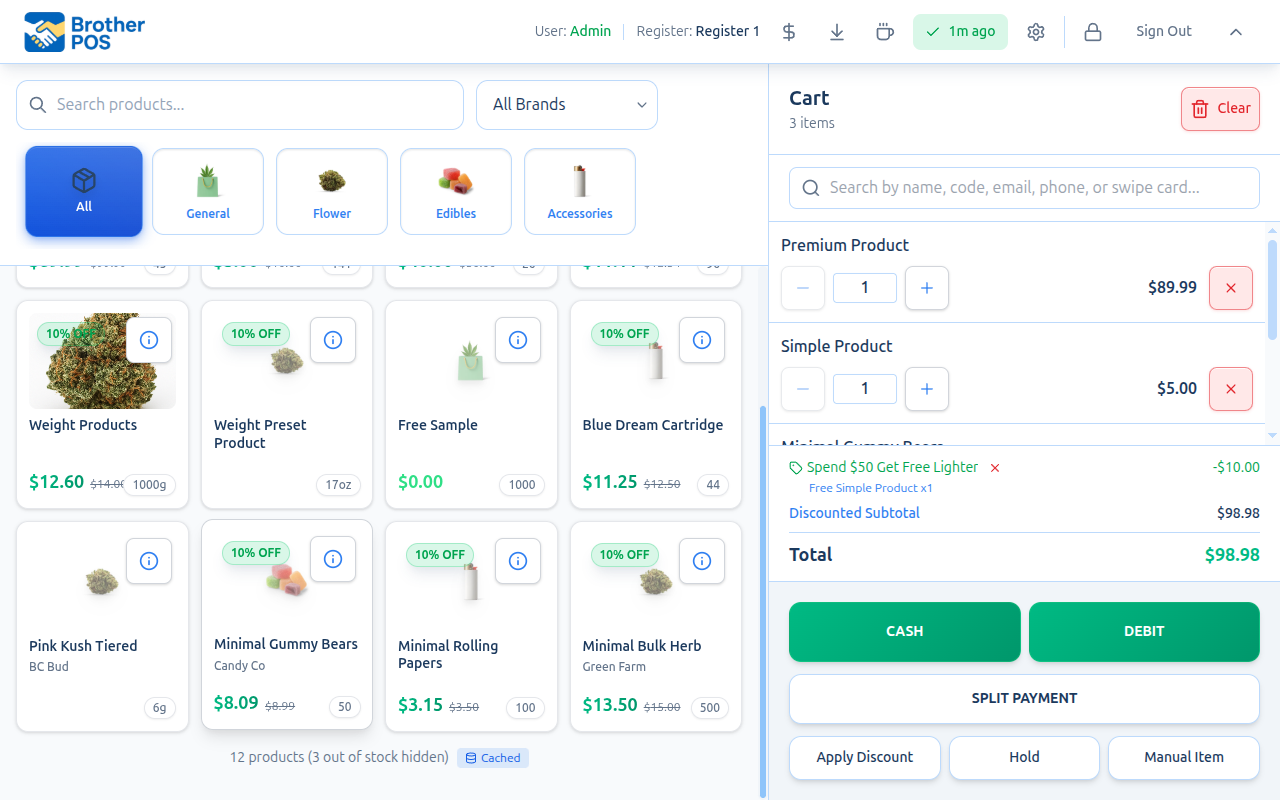
Before You Begin
- Users with the Void Sales permission (managers and admins by default) can void directly. Anyone else can start a void, and someone who can approve voids (an admin, or anyone whose role has Void Sales) enters their PIN to approve it.
- A sale that is already voided cannot be voided again — the Void button no longer shows on it.
- A cash sale (or a split sale with a cash part) whose drawer has since been counted and closed can't be voided. Use a return so the cash comes out of the drawer that's open now.
- A sale that already has a return can't be voided. Return the remaining items instead.
- A single line can only be voided on a sale paid in cash (with no store credit used). For a sale paid by card, gift card, store credit, house account or a split payment, use a return for that item so the money goes back the way it was paid.
- Voiding a completed sale puts the stock back for every item on it.
A void does not send money back for cash, card or e-transfer payments. Hand back cash from the drawer, and refund a card on your terminal or in your payment processor. Store credit, gift card and house account payments on a voided sale are put back on the customer's balance automatically. To refund only some items, use the Returns workflow instead.
More detail: voiding an entire sale, step by step
Voiding an Entire Sale
Step-by-Step
- When the cart is empty, the cart panel shows the Recent Sales list: today's sales for this register's cash drawer session. Find the sale you want to void.
- Tap the sale to open its receipt details.
- Tap Void at the bottom of the details.
- In the Void Sale window, under Reason for Void, tap a reason: Customer Request, Wrong Item, Price Error, Damaged, Duplicate, Suspicious, Training / Test or Other. You can add notes under Additional notes (optional). A reason or a note is needed.
- Tap Confirm Void.
- If you do not have the Void Sales permission, a Manager authorization required window appears: "Enter the PIN of someone who can approve this void." Someone who can approve (an admin, or anyone whose role has the Void Sales permission) enters their 4-digit PIN and taps Authorize, and the void goes through.
The sale is marked as voided and shows (VOIDED) in the list.
Voiding a whole sale needs an internet connection. It is not saved for later if the register is offline.
More detail: voiding a single line item
Voiding a Single Line Item
Sometimes only one item on a sale was wrong. Instead of voiding the entire sale, you can void a single line. This works on sales paid in cash only (see When a Line Can't Be Voided).
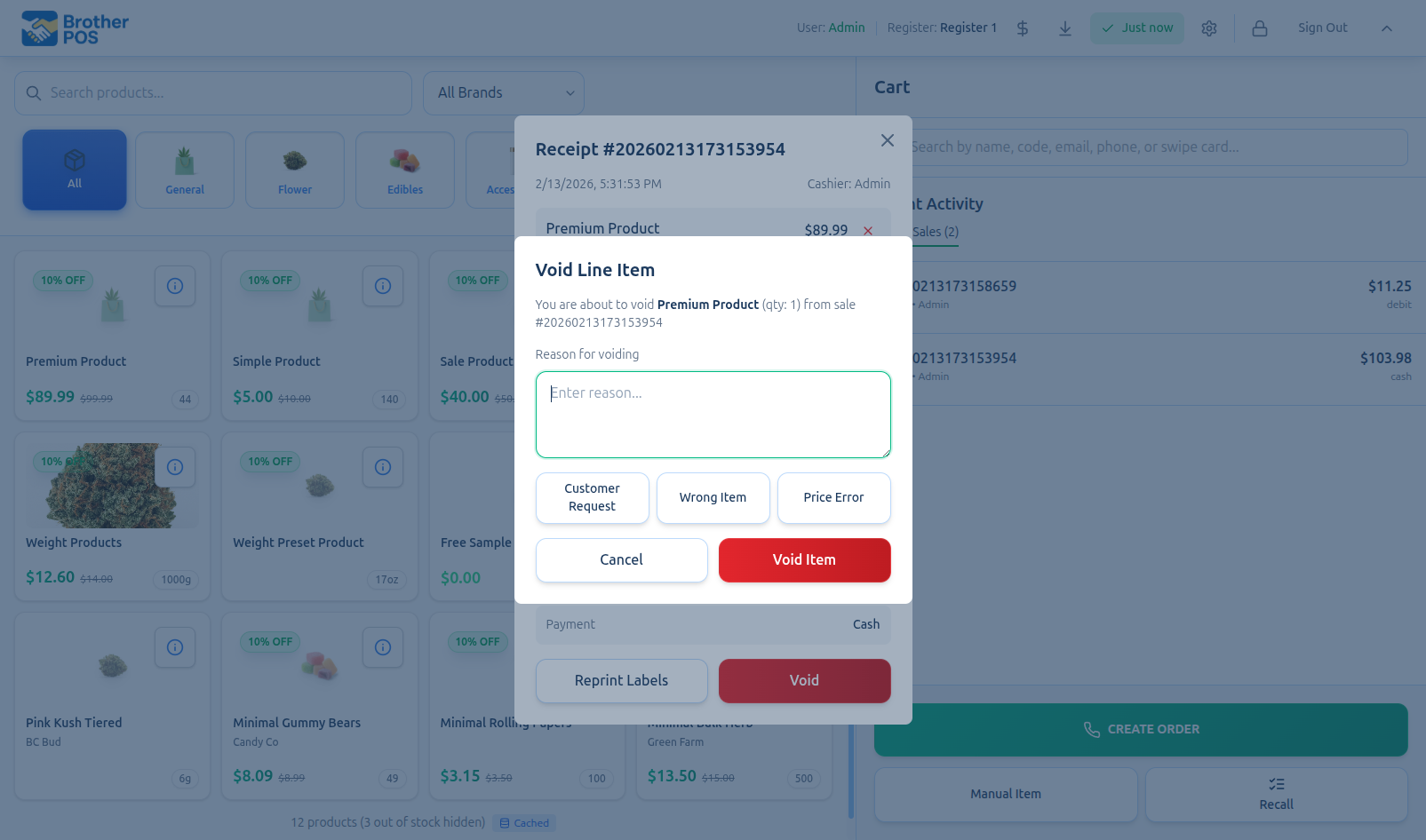
Step-by-Step
- In Recent Sales, tap the sale to open its receipt details.
- Find the item and tap the X button next to it (Void this item).
- The Void Line Item window shows the item, its quantity and the sale number.
- Tap a reason — the same list as for a whole sale. A reason must be picked. You can add notes too.
- Tap Void Item.
- If you do not have the Void Sales permission, someone who can approve voids enters their PIN to authorize.
The line is shown crossed out with a VOIDED badge, its stock is put back, and the sale totals are recalculated.
Voiding a line item does not void the entire sale. The remaining items on the sale stay completed and valid. If you later void the whole sale, the line you already voided isn't put back in stock or taken off the customer's points a second time.
When a Line Can't Be Voided
A line void only suits a sale paid in cash. On a sale paid any other way, the X button doesn't show and a note under the sale says to use a return instead. Some line voids can still be refused with a message. Use a return for the item instead:
| Message | Why |
|---|---|
| "This sale wasn't paid in cash. Use a return for this item so the refund goes back to the way it was paid." | The sale was paid by card, gift card, store credit or house account. A line void only suits cash, which you hand back across the counter. |
| "This sale was paid in more than one way. Use a return for this item so the refund goes back the right way." | The sale was a split payment. The return screen asks how to refund. |
| "This item was already returned — it can't be voided as well." | Part of that item already came back through a return. |
If the register is offline, a line void is saved and sent when the connection returns. Until then it shows at the top of Recent Sales with a QUEUED badge, for example Void Pop ×1 — receipt #1234.
A manager PIN cannot be checked while offline, so if you do not have the Void Sales permission yourself, wait until the register is back online. If the server refuses a queued void, the line is not voided. The void is marked FAILED with "Not applied — the line is still on the sale. Void it again from the sale; a manager may need to approve." and the reason. Void the line again while online, then tap Dismiss to clear the notice.
More detail: manager authorization and what gets logged
Manager Authorization
Brother POS uses a PIN-based override for voids.
How It Works
- If the person voiding is an admin, or their role has the Void Sales permission, the void goes straight through.
- Otherwise, the Manager authorization required window appears.
- The window reads "Enter the PIN of someone who can approve this void." That person enters their 4-digit PIN.
- The PIN must belong to an active admin, or to an active staff member whose role has the Void Sales permission.
- If the PIN is accepted, the void goes through. If not, an error message appears and the PIN field clears so you can try again.
What Gets Logged
Every void is recorded with:
- Who performed the void
- Who approved it with their PIN (when a manager override was used)
- The reason given
- The date and time
- The sale's receipt number
If you see frequent voids from a specific cashier, review the Activity Logs in the admin panel to spot training opportunities.
More detail: reasons, and what happens after a void
Quick Reasons
Both a whole-sale void and a line void use the same reasons: Customer Request, Wrong Item, Price Error, Damaged, Duplicate, Suspicious, Training / Test and Other, with optional notes.
- Whole sale: pick a reason or type a note. It can't be left blank.
- Single line: a reason must be picked.
What Happens After a Void
- Sale status changes from Completed to Voided.
- Stock is put back for the items on the sale. A bundle or gift box puts back the components it was sold with, even if its recipe has changed since. This is true whether you void the whole sale or a single line.
- Customer balances are restored — when you void a whole sale, store credit, gift card and house account payments go back on the customer's balance. Loyalty points earned on the sale (or on the voided line) are taken back, and points the customer spent on the sale are given back. If those points were turned into store credit by a loyalty reward, that reward credit is taken back off the customer's balance (as much of it as is left).
- Promo prizes are taken back — when you void a whole sale, any promo game prize won on it and any raffle entries it earned are cancelled.
- Consigned items — what you owe the consignor is reduced.
- Cash drawer and reports — only completed sales count towards the drawer's expected cash and your sales totals, so the voided sale drops out of them.
- A log entry is created with the reason and who voided it.
If the customer paid cash, you must physically return the cash to them from the drawer. Brother POS does not open the drawer for a void.
More detail: voiding vs. returns
Voiding vs. Returns
| Aspect | Void | Return |
|---|---|---|
| Purpose | Cancel a whole sale or one line | Refund selected items and quantities |
| Timing on the register | Today's sales in Recent Sales | Any completed sale, today or earlier |
| Refund | Cash, card and e-transfer handled by you; store credit, gift card and house account restored automatically | Cash, card, store credit or exchange, chosen at the time |
| Single items | Only on sales paid in cash | Any sale |
| Restocking | Always puts stock back | You choose whether to restock |
| Reason required | Yes | Yes |
| Who can do it | Void Sales permission, or anyone with a manager PIN | Process Returns permission |
A pending order that hasn't been paid shows Cancel order instead of Void. See Phone Orders, Delivery & Shipping.
Rule of thumb: Use void for mistakes caught straight away. Use return for items brought back later.
More detail: permissions, troubleshooting and best practices
Permissions
| Action | Cashier | Manager |
|---|---|---|
| Void a sale or line item | With a manager PIN | Yes |
| View voided sales in Recent Sales | Yes | Yes |
Your admin can change which roles have the Void Sales permission.
Troubleshooting
| Problem | Solution |
|---|---|
| The sale is not in Recent Sales | Recent Sales only shows today's sales for this register's drawer session. An admin or manager can void an older sale from its detail page in the admin panel's Orders section (Void Sale). |
| "PIN not recognized, or that person can't approve this. Ask a manager to enter their PIN." | The PIN must belong to an active admin, or to an active staff member whose role has the Void Sales permission. Check for typos. After 5 wrong PINs in a minute, wait 60 seconds before trying again. |
| "Your own PIN can't approve this." | Your role doesn't have Void Sales, so someone else has to enter their PIN. |
| "Failed to void sale" while offline | Whole-sale voids need a connection. Try again once the register is back online. |
| "This sale already has a return. Return the remaining items instead of voiding it." | Part of the sale was already returned. Use a return for the rest. |
| "This sale's drawer has been closed. Use a return to refund it from today's drawer." | The sale was paid in cash on a drawer that has since been closed. Use a return instead. |
| A line void is refused with "Use a return for this item" | The sale wasn't paid fully in cash. See When a Line Can't Be Voided. |
| Stock not restored after a void | Check the product's stock adjustment history in the admin panel for the void entry. |
Best Practices
- Void promptly. The sooner you void a mistake, the easier it is to reconcile at end of day.
- Always give a meaningful reason. Generic reasons like "mistake" make reviewing voids difficult.
- Use returns for next-day issues. If a customer comes back tomorrow with a problem, use the Returns workflow.
- Refund card payments straight away. A void does not touch the customer's card.
- Train cashiers on the difference between void and return. This reduces confusion and makes sure the right process is followed.
What's Next?
- Returns — Process returns and issue store credit
- Sales History — View and manage all completed sales
- Manager Override — How the PIN-based authorization system works