WooCommerce Orders
Use this page to hand over and take payment for orders from your WooCommerce online shop.
Quick steps
- With the cart empty, tap the Orders tab in Sales History (under the cart). The badge shows how many orders are waiting.
- Ask the customer for their name or order number, and tap their order (it has an ONLINE tag).
- Check the items and any customer note in the Online Order # window.
- Tap Load into Register. The order's items come into the cart.
- Take payment as normal. The order is set to Completed in WooCommerce by itself.
If you add or change items after loading, the whole cart is charged at register prices instead of the online price. To keep the online price, finish the online order first and ring up extras as a separate sale.
Common questions
The order isn't in the list. Only paid orders that haven't been completed show. Check your internet connection, and check the order's status in WooCommerce.
It says Cannot load order - missing products. Some items on the order don't match a product in Brother POS. Ask your admin to check the product sync.
The customer already paid online. Do I still load it? Staff with the Manage Orders permission can tick the orders and tap Complete ... Orders instead.
How do I cancel an online order? An admin opens it and taps Void Order. Refund the customer in WooCommerce or your payment gateway — voiding doesn't do that.
More detail: before you begin
When your store's WooCommerce online shop is connected to Brother POS, paid online orders waiting to be picked up appear in the register. You can view each order and load it into the cart to take payment in store. Staff with the Manage Orders permission can complete several orders at once, and admins can cancel an order.
Before You Begin
- Your admin must have connected WooCommerce in Settings > WooCommerce Integration. See WooCommerce Setup.
- WooCommerce orders show in the Orders tab of Sales History, which appears once WooCommerce is connected.
- The list refreshes every 10 seconds while the register is online.
More detail: viewing orders, and new-order alerts
Viewing WooCommerce Orders
- With the cart empty, look at the Sales History area of the cart panel.
- Tap the Orders tab. The badge shows how many orders are waiting.
- The list shows paid orders (status Processing in WooCommerce) that haven't been picked up or completed yet, newest first, up to 50. Each card shows:
- Order # with an ONLINE tag
- The customer's name and the time the order came in
- The order total and number of items
- Tap an order to open the Online Order # window. It shows the customer's name and email, billing address and phone, shipping address (when it's different), order time, any customer note, a loyalty reward the customer chose, the items, and the subtotal, discount, tax and total.
Storefront orders from your own Brother POS online store appear in the same tab. See Online Order Alerts & Tickets.
Getting Alerted to New Orders
You don't have to keep the Orders tab open to catch new orders. If your admin has turned on order notifications, the register chimes when a new online order arrives — even mid-sale. The chime works for WooCommerce and storefront orders. Auto-printed "new order" tickets are for storefront orders only; WooCommerce orders chime but don't print. See Online Order Alerts & Tickets and Online Order Notifications (Admin).
More detail: loading an order into the register
Loading an Order Into the Register
When the customer arrives to pick up and pay:
- Tap the order in the Orders tab.
- Tap Load into Register. The order's items come into the cart.
- Check the cart against the order.
- Take payment as normal.
When the sale is completed, the online order is marked as fulfilled in Brother POS and set to Completed in WooCommerce.
If the cart still holds exactly what was loaded, the register charges the online order's own subtotal, tax and total, including any coupon used online, and the sale is recorded at those same amounts.
The register charges the online order's total only while the cart holds exactly what was loaded. If you add, remove or swap an item, or change a quantity, the whole cart is charged as rung up on the register instead (the register's prices and tax), and the sale is recorded that way too, so anything added is paid for. To keep the online price, finish the online order first, then ring up the extra items as a separate sale.
If the window shows Cannot load order - missing products (with the missing items listed) instead of the button, one or more items on the online order don't match a product in Brother POS. Ask your admin to check the product sync.
More detail: completing several orders at once
Completing Several Orders at Once
When several orders have been handed over (for example, orders the customer already paid online), staff with the Manage Orders permission can mark them all completed in one go. Admins always have it and managers have it by default.
- Open the Orders tab.
- Tick the checkbox on each order, or tick Select All.
- Tap Complete ... Orders (the button shows how many are selected).
- The Bulk Complete Orders window lists the selected orders and their total. Tap Confirm Bulk Complete.
Each order is recorded as a completed sale, marked fulfilled, and set to Completed in WooCommerce.
Completing orders can't be undone from the register. Make sure every selected order has really been picked up or delivered.
The checkboxes only show for staff with Manage Orders.
More detail: voiding an order (admins)
Voiding a WooCommerce Order (Admins)
If an online order needs to be cancelled:
- Tap the order in the Orders tab.
- Tap Void Order.
- Add a reason if you like — tap Customer Request, Out of stock, Pricing error or Duplicate order, or type your own. The reason is optional.
- Tap Void Order to confirm.
The order is cancelled in Brother POS and set to Cancelled in WooCommerce, with your reason added as an order note. An order that has already been fulfilled can't be voided.
Voiding does not refund the customer. Refund the payment in WooCommerce or your payment gateway.
Only admins can void a WooCommerce order. Other staff don't see the Void Order button.
More detail: examples, troubleshooting and best practices
Common Scenarios
Customer Arrives for Pickup
- Ask for their name or order number.
- Find the order in the Orders tab.
- Check ID if your store requires it.
- Tap Load into Register and take payment.
Item Out of Stock
- Contact the customer to offer a substitute or a cancellation.
- To cancel, have an admin void the order with the Out of stock reason, and refund the customer in WooCommerce.
Troubleshooting
| Problem | Solution |
|---|---|
| Orders tab not visible | WooCommerce isn't connected. Ask your admin to set it up in Settings > WooCommerce Integration. |
| An order isn't in the list | Only paid (Processing) orders that haven't been completed show. Check your internet connection, and check the order's status in WooCommerce. |
| Cannot load order - missing products | Items on the order don't match a Brother POS product. Ask your admin to check the product sync. |
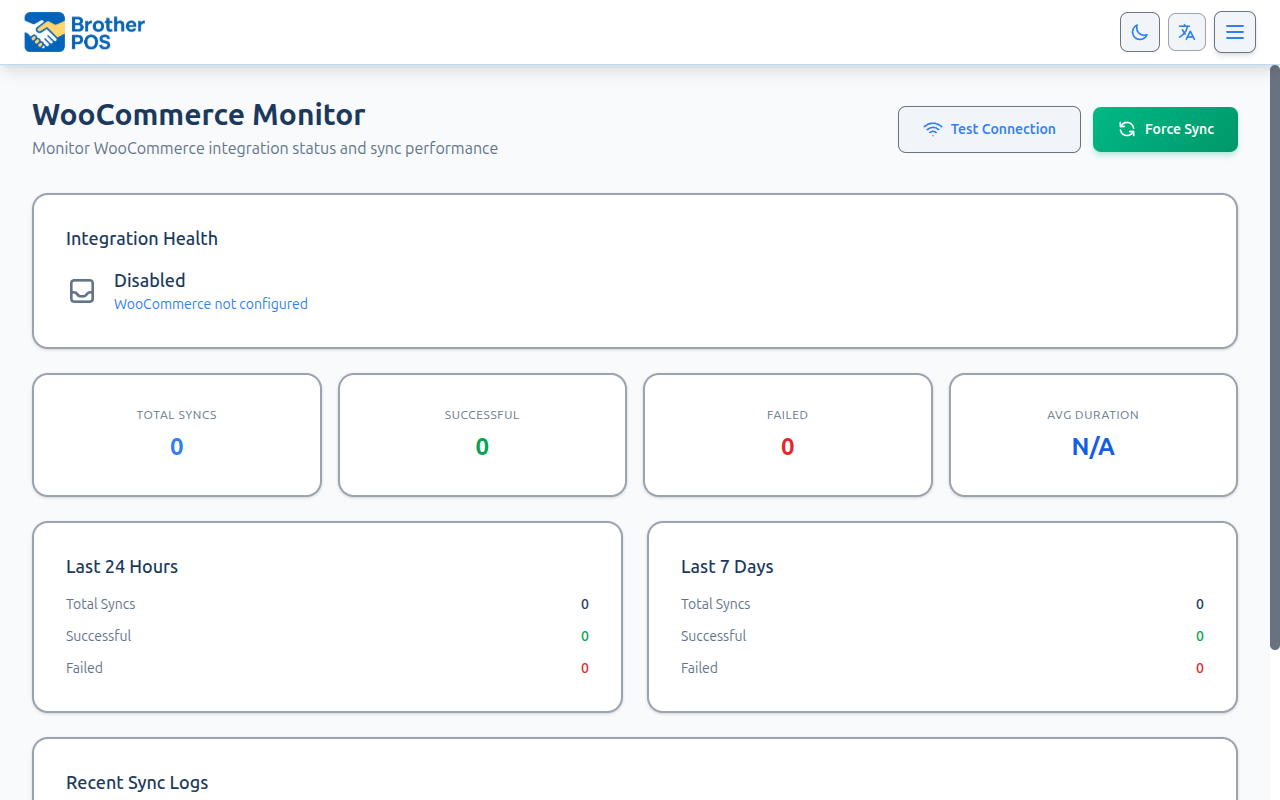
| Order status not updating in WooCommerce | Ask your admin to check the Health Monitor. |
| "Completing several orders at once needs the Manage Orders permission" | Ask a manager or admin, or ask your admin to give your role Manage Orders. |
| "Only administrators can void orders" | Ask an admin to void the order. |
Best Practices
- Check the Orders tab regularly so orders don't pile up.
- Confirm the customer's name and order number before handing over products.
- Contact the customer before they arrive if an order can't be filled.
What's Next?
- Online Order Alerts & Tickets — Chime and auto-printed ticket when a new online order arrives
- Phone Orders, Delivery & Shipping — Take phone orders and process delivery and shipping orders from the POS
- Sales History — View today's sales and online orders
- Hold & Recall Orders — Park a sale while handling an online order pickup