Sales History
Use this page to look up today's sales on your register, reprint a receipt, and find waiting orders.
Quick steps
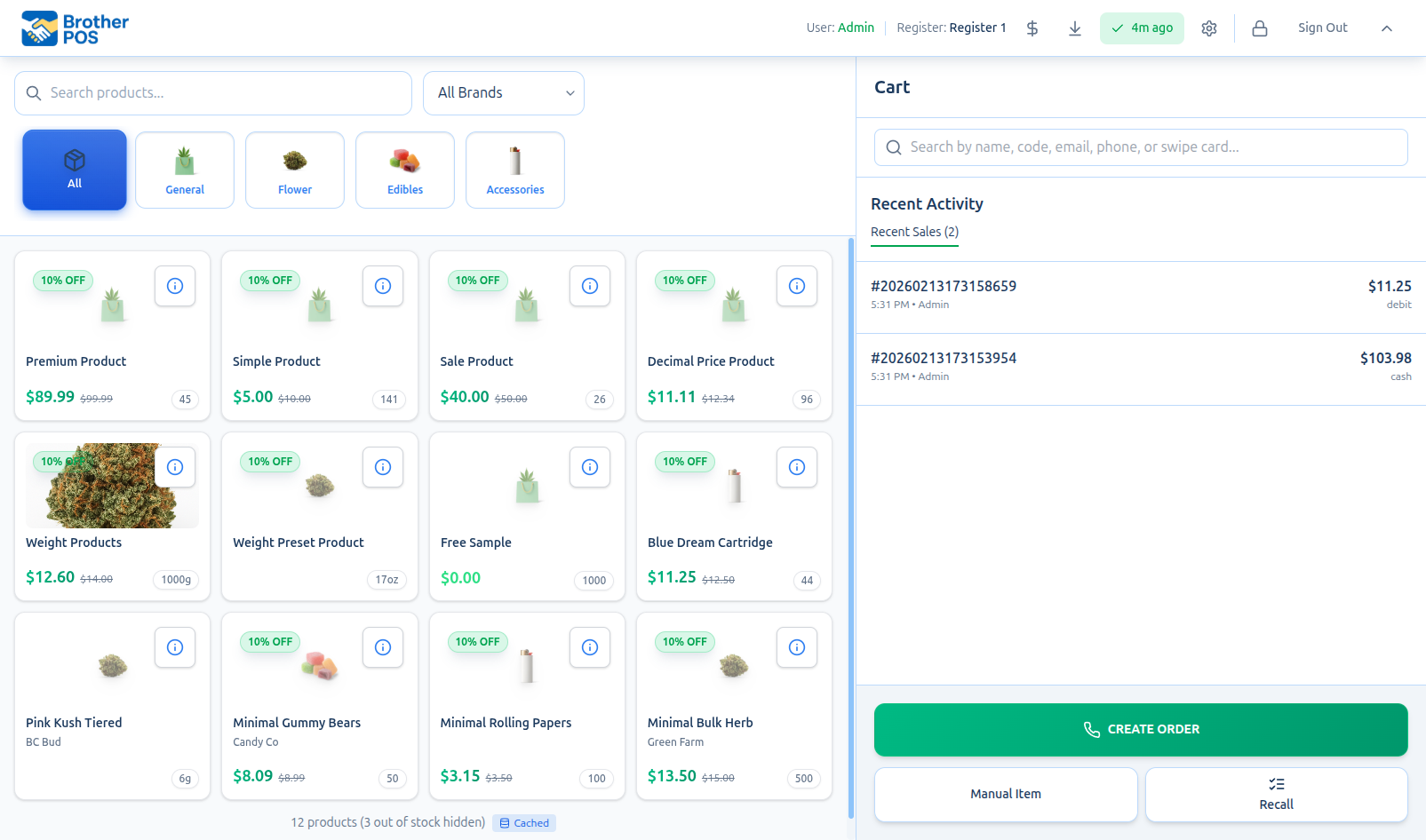
- Empty the cart. Sales History shows under it, on the right. On a phone, tap Sales History in the bottom bar.
- The Recent Sales tab lists today's sales on this drawer, newest first.
- Tap a sale to open it and see its items, discounts, tax and payment.
- Tap Print to reprint the receipt (or View receipt if your store doesn't print receipts).
- For phone and online orders waiting to be paid, tap the Orders tab.
Common questions
I can't find a sale from yesterday. Sales History only shows today's sales on this register's drawer. To refund an older sale, use Report Issue / Process Return in the gear menu — its search finds any sale. Managers can also look it up under Orders in the admin panel.
A sale says QUEUED. It was rung up while the register was offline and hasn't reached the server yet. It sends itself when the connection is back. You can also tap it and tap Retry Sync.
How do I void a sale from here? Tap the sale, then Void. See Voiding Sales.
Why don't I see Sales History at all? Your role doesn't have the View Sale History permission. Ask your admin.
More detail: viewing sales history, and the tabs
The Sales History panel gives you a live view of this register's sales for the day, including sales rung up offline that are still waiting to sync. You can open any sale, see its details, reprint the receipt and — with the right permission — void the sale or single line items.
Viewing Sales History
Sales history is shown in the cart panel on the right side of the POS screen whenever the cart is empty.
The Recent Sales tab shows today's sales for this register's open cash drawer session (the latest 50), newest first, with a count in brackets. Each sale shows its receipt number, time, cashier, total and payment method. For cash sales it also shows the amount tendered and the change. Voided sales stay in the list, faded and marked (VOIDED).
The list refreshes every 10 seconds while the register is online, so new sales appear without a manual refresh.
Navigating the Tabs
Which tabs you see depends on what is turned on at your store:
| Tab | What It Shows | When It Appears |
|---|---|---|
| Recent Sales | Today's sales on this drawer session, plus offline sales waiting to sync | Always |
| Orders | Waiting online orders (WooCommerce and your online store), plus phone orders waiting to be paid and delivery or shipping orders that haven't gone out yet | When WooCommerce, online ordering, local delivery or shipping is turned on |
A badge on the Orders tab shows how many orders are waiting. When both online and phone orders are waiting, they're listed under Online Orders and Pending Orders headings.
More detail: what's in a sale's details
Viewing Sale Details
- Find the sale in the Recent Sales list.
- Tap it. A Receipt # window opens showing:
- The date and time, and the cashier. An order placed earlier and paid later (a phone or online order) shows both Placed and Completed times.
- Every line item with its quantity and price (voided lines are crossed out with a VOIDED badge and their reason, and free items have a FREE badge)
- Discounts (item discounts, order discount, loyalty tier discount, promo code, loyalty reward, points cash-out and so on)
- Subtotal, tax and total. Each tax line shows its rate, for example GST (5%), and an additional tax such as a vapour tax has its own line.
- How it was paid (each part of a split payment is listed)
- For a delivery, shipping or pending order: where it's going, a tap-to-call phone number, the scheduled time and the notes
- The customer, with an Open profile button that opens their customer window
- Any Returned items from the sale, and any promo game prizes won on it
- Use the buttons at the bottom:
- Print — reprint the receipt (shown when receipt printing is set up for your store). Without receipt printing, View receipt shows the receipt on screen instead.
- Kitchen Ticket — reprint the kitchen ticket (stores using the kitchen ticket workflow).
- Void — void the whole sale. See Voiding Sales. A sale that already has a return shows Has returns — use Return instead.
- On a pending order: Edit Order, Mark Completed and Cancel order. See Phone Orders, Delivery & Shipping.
More detail: cash drops and payouts in the list
Cash Drops and Payouts in Recent Sales
The Recent Sales list isn't just sales — cash drops and payouts are merged in chronologically as distinct cash-out rows. You see the current drawer session's drops, plus every payout made on this register today, including earlier shifts.
- A payout row is titled Cash Out, with a tag for its reason: Lottery Payout, Progressive Payout, or Machine Payout followed by the gaming machine's name. Other payouts (such as Pay Out or Supplier) are tagged with the note entered for them, or Other if there is no note.
- A drop row is titled Safe Drop, tagged with its note if it has one.
- Cash added to the drawer mid-shift shows as a Cash In row.
They refresh on the same poll as sales, so a cash-out shows up without a manual refresh.
Tap a cash-out row to open its detail window, titled Payout or Cash Drop. It shows the reason (for example Supplier or Machine Payout with the machine's name), the amount, the time, who entered it and any note, with two actions:
- Reprint — re-send the cash-drop/payout receipt to your local printer.
- Reverse — put the amount back into the drawer's expected cash. The entry is kept for audit, not erased, but it drops out of the drop/payout totals and the drawer's expected cash rises back by that amount. Reversal is available only while the session is open. It needs the Reverse Cash Drops / Adjust Opening Float permission (managers have it by default). Anyone else sees "A manager has to approve reversing this. Enter a manager PIN." — a manager enters their PIN and taps Approve, and the approver is recorded.
See Cash Drops & Payouts for the full workflow.
More detail: finding an older sale
Finding an Older Sale
There is no search box in Sales History — scroll the list to find a sale by time. It only covers today's sales on this register's drawer session.
To find a sale from another day, managers and admins can use the Orders section of the admin panel. To refund an older sale at the register, use Report Issue / Process Return, whose search finds any sale by receipt number or customer. See Returns.
More detail: voiding a line item
Voiding a Line Item
If one item on a sale was a mistake, you can void that line rather than voiding the whole transaction. Line voids only work on sales paid in cash. For a sale paid by card, gift card, store credit, house account or a split payment, use a return for the item instead. See Voiding Sales for full details.
Quick Steps
- Tap the sale in Recent Sales.
- Tap the X button next to the line item (Void this item).
- Pick a reason and tap Void Item.
- If you do not have the Void Sales permission, someone who can approve voids enters their PIN.
- The line is marked as voided and its stock is put back.
More detail: offline sales waiting to sync
Offline Sales Waiting to Sync
Sales rung up while the register was offline appear at the top of Recent Sales with a QUEUED badge, and the tab shows how many are queued (for example 2 queued). Each one shows its item count, time, cashier, how many sync attempts have been made, total and payment method. After 5 failed attempts the badge changes to FAILED.
Tap a queued sale to open its Offline Sale window. It shows the items, totals, payment and the last error (if any), with two buttons:
- Retry Sync — try to send the sale to the server again.
- Delete Sale — remove it from the queue. You are asked to confirm first.
Deleting a queued sale means it will never be recorded. Only do this if you are certain the sale should not exist (for example, a test or a duplicate). A deleted sale cannot be recovered.
More detail: the Orders tab
Online Orders in the Orders Tab
When WooCommerce or online ordering is turned on, pending online orders appear in the Orders tab. From here you can:
- View order details — customer, items and delivery details
- Load into Register — pull a pickup order into the cart to take payment in store
- Complete several orders at once — tick WooCommerce orders and tap Complete ... Orders (needs the Manage Orders permission)
- Void Order — cancel a WooCommerce order, with an optional reason (admins only)
- Mark Ready (notify customer) and Cancel Order — for orders from your Brother POS online store (needs Manage Orders)
See WooCommerce Orders and Online Order Tickets for the full workflow.
More detail: permissions and troubleshooting
Permissions
| Action | Cashier | Manager |
|---|---|---|
| View sales history and sale details | Yes | Yes |
| Reprint a receipt | Yes | Yes |
| Void a sale or a line item | With a manager PIN | Yes |
| Cancel an unpaid pending order they took | Yes | Yes |
| Retry or delete a queued offline sale | Yes | Yes |
Your admin can change which roles have the Void Sales permission.
Troubleshooting
| Problem | Solution |
|---|---|
| "No sales today" | No sales have been completed on this register's drawer session today. Sales from other days, or from another register's drawer, don't show here. |
| Sale not appearing after completion | The list refreshes every 10 seconds. If the register is offline, the sale is at the top of the list with a QUEUED badge. |
| Orders tab not visible | WooCommerce, online ordering, local delivery or shipping has to be turned on for your store. Ask your admin. |
| No X to void a line | Single items can only be voided on cash sales. Use a return for other sales. |
| Cannot void a sale | You need the Void Sales permission, or someone who can approve voids must enter their PIN. |
| Queued sales stuck | Check your network connection. Once the register is back online, tap the sale and use Retry Sync. |
What's Next?
- Voiding Sales — Cancel a completed sale or individual line item
- Returns — Process returns and issue refunds
- WooCommerce Orders — Manage online orders from the POS
- Hold & Recall Orders — Park a sale and recall it later