Manager Override
Use this page when the register asks for a manager's PIN before it lets you do something.
Quick steps
- You try something your role isn't allowed to do on its own — like voiding a sale, giving a discount or going over a purchase limit. The register asks for a PIN instead of blocking you.
- Call over a manager (or anyone whose role is allowed to approve that action).
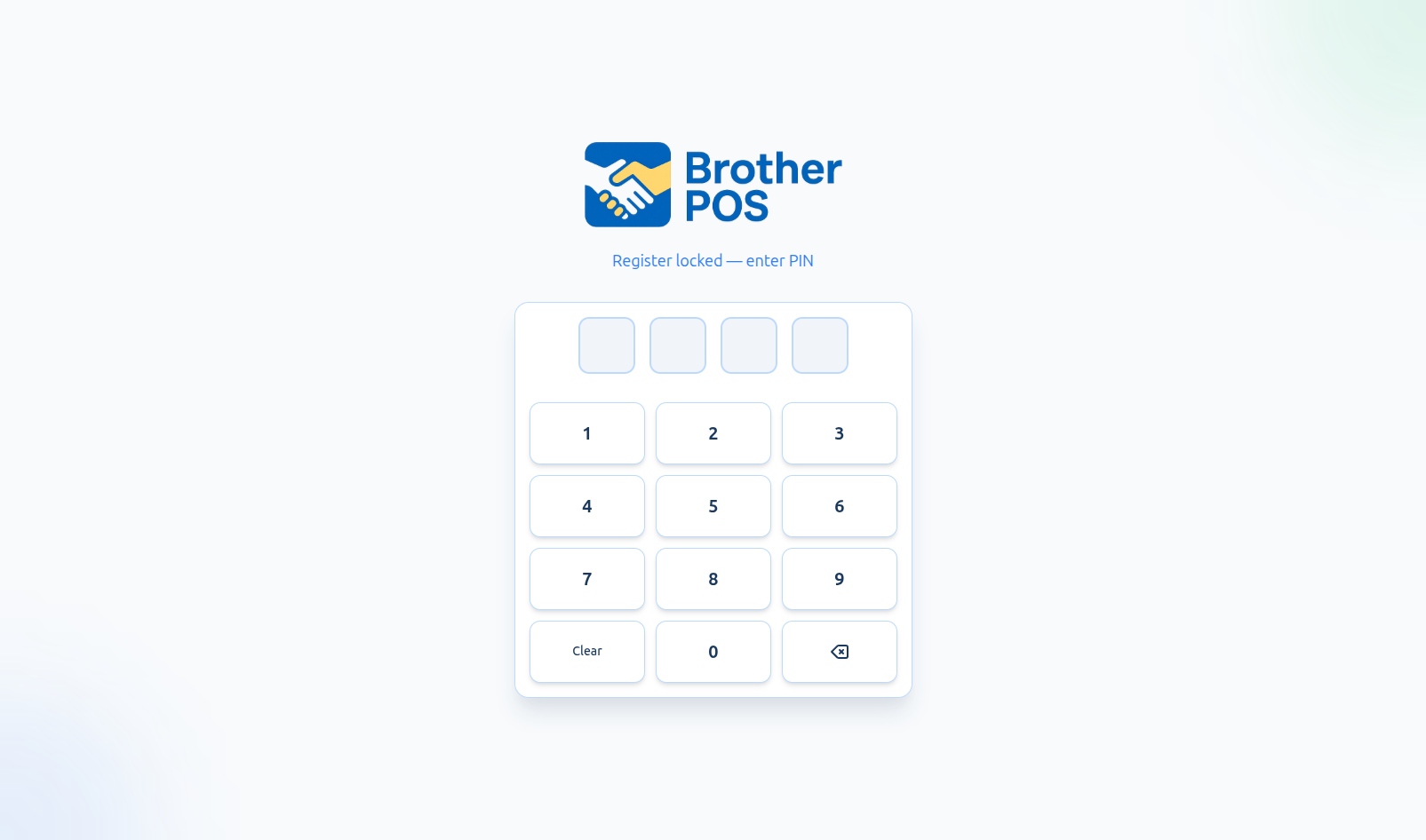
- They type their 4-digit PIN in the box on your screen and tap Authorize (or press Enter). Some windows name the button for the action, like Authorize Sale or Approve.
- If a Reason box shows, fill it in, for example "barcode damaged".
- The action goes through. You stay signed in, and the approver's name is saved with it.
The approval covers only that one action. It doesn't give you the permission for next time.
Common questions
It says "PIN not recognized, or that person can't approve this." The PIN is wrong, or that person's role isn't allowed to approve this action. Check the digits, or ask someone else.
It says "Your own PIN can't approve this." You typed your own PIN. Someone else who has the permission has to enter theirs.
No manager is here. Cancel the prompt and serve the next customer. The action can't be done until someone who can approve it is available.
It says "Please wait 60 seconds and try again." Too many wrong PINs in a minute. Wait a minute, then try again.
Why don't I get asked for a PIN any more? Your role now has that permission, so it goes straight through.
More detail: how the override works
Brother POS uses a PIN-based manager override for some sensitive actions. When a cashier tries one of these actions without the permission for it — such as voiding a sale, applying a discount, or going over a cannabis purchase limit — the register asks for a manager's PIN instead of simply blocking it. The cashier stays signed in, and the approval is recorded on the sale.
How It Works
The Override Flow
- A cashier attempts a restricted action (e.g., voiding a sale).
- Brother POS checks whether the cashier's role has the required permission.
- If it does, the action proceeds without interruption.
- If it does not, a Manager Authorization Required prompt appears.
- Someone whose role holds that permission — usually a manager or admin — enters their 4-digit PIN.
- The system checks that the PIN belongs to an active user at your store whose role holds the permission for this action.
- If it does, the action proceeds and the approver is recorded against the sale.
- If the PIN is wrong or the person lacks the permission, an error message appears.
Override Flow Details
Each restricted action has its own authorization step:
- Void sale / void line item: A PIN step inside the void window (when voiding a whole sale: "Enter the PIN of someone who can approve this void.").
- Discount: A PIN step inside the Discount window ("Enter the PIN of someone who can approve this discount.").
- Open-price / manual item: The Manual Item window opens on a "Manager Authorization Required" step instead of the usual form. After the PIN is accepted, the form appears with an extra required Reason box.
- Reweigh stock: A PIN step in the reweigh window.
- Sell past stock: A Manager PIN box in the Stock Override Required window, below the reason.
- Purchase limit: A Purchase Limit Exceeded window when the sale is being completed.
- Reverse a cash drop or payout: After you tap Reverse and confirm, the window asks "A manager has to approve reversing this. Enter a manager PIN." The manager types their PIN and taps Approve.
- Adjust the opening float: After you tap Adjust Float, the window asks "A manager has to approve this. Enter a manager PIN." and shows a Manager PIN box. The manager types their PIN and you tap Adjust Float again.
The PIN box is focused when the prompt appears. Pressing Enter submits it.
More detail: which actions need an override
Actions That Require Override
These actions ask for a PIN when the cashier's role does not have the permission:
| Action | Permission | Description |
|---|---|---|
| Void a sale | Void Sales | Cancel a completed transaction |
| Void a line item | Void Sales | Void a single item from a completed sale |
| Apply manual discount | Apply Discounts | Add a percentage or dollar discount |
| Sell an open-price / manual item | Sell Open-Price / Manual Items | Ring an item in as a typed name and price instead of scanning a product |
| Reweigh stock | Adjust Stock | Record a reweigh of a product's stock. Doing one needs Adjust Stock at the Register, which clerks have by default; the PIN that approves one must belong to a role with Adjust Stock. |
| Sell past stock | Adjust Stock | Add a scanned item that doesn't have enough stock (the Stock Override Required window). A reason is always required. |
| Override purchase limit | Override Purchase Limit | Approve a sale that exceeds the cannabis daily purchase limit |
| Reverse a cash drop or payout | Reverse Cash Drops / Adjust Opening Float | Undo a drop or payout while the drawer is still open. Managers have this permission by default; clerks don't. |
| Adjust the opening float | Reverse Cash Drops / Adjust Opening Float | Correct the starting float mid-shift. Both of these change what the drawer should hold, so they are supervised. |
Not every permission works this way. For example, the Open Cash Drawer button is simply hidden for roles without that permission, and returns are refused for roles without Process Returns — neither asks for a manager PIN.
Which roles have which permissions is set by an admin from the Staff Members page via the Role Permissions button. See Roles & Permissions.
More detail: purchase limit override
Purchase Limit Override
Cannabis stores can enforce daily purchase limits. When completing a sale would push a customer over their daily limit, a Purchase Limit Exceeded window appears with the details:
What the Override Window Shows
| Field | Description |
|---|---|
| Previously Today | How many equivalent grams the customer has already bought today |
| This Sale | The equivalent gram total of the current sale |
| Daily Total | The combined total if this sale is approved |
| Daily Limit | The configured limit (e.g., 30g) |
| Over by | How much the sale exceeds the limit |
Authorizing the Override
- A manager reviews the limit information.
- They enter their PIN in Manager PIN.
- Optionally, they fill in Override Reason (Optional) (e.g., "Medical exemption").
- They tap Authorize Sale. The sale completes, and the approving manager and reason are saved on the sale. The usual sale-complete screen follows, with the change due and the receipt options — and on a cash sale (or a split payment with a cash part) the till opens.
The window can also show:
- Counted at an estimate (no equivalent grams set): followed by product names — those cannabis products have no equivalent grams entered, so they were counted at a typical package size. Fix the product so the figure is exact next time.
- $X was already approved on the card terminal. If you cancel, void it on the terminal. — the card was already charged before the limit check. Either approve the sale, or cancel and void the charge on the card terminal.
Completing a pending phone order (Mark Completed) that would put the customer over their limit asks the same way: a Purchase Limit Exceeded window with a Manager PIN box, and Authorize to complete it.
The approver needs the Override Purchase Limit permission. Admins always have it and managers have it by default; clerks don't. A custom role granted it — a Shift Lead, say — can approve with their own PIN.
Overriding purchase limits should be done only in accordance with your jurisdiction's regulations. Frequent overrides may indicate a compliance issue that should be reviewed with your compliance officer.
More detail: open-price / manual item override
Open-Price / Manual Item Override
The Manual Item button lets a clerk ring something in by typing a name and a price. No product is attached, so nothing comes off the shelf count — which is why some stores want it supervised.
By default the permission is on for clerks and managers, so the button works without a PIN. If an admin unticks Sell Open-Price / Manual Items for a role, the button becomes an override:
- The clerk taps Manual Item.
- A Manager Authorization Required step appears: "Selling an item without scanning it needs approval. Scan the product instead if you can."
- Someone who holds the permission enters their 4-digit PIN and taps Authorize.
- The form opens, showing "Authorized by [name]" and a required Reason box — for example "barcode damaged" or "item not in catalogue".
- The item is added to the cart. When the sale completes, the line records who approved it and the reason given.
Managers can review every open-price line — approved or not — on the Sales Report's Open-price sales tab in the admin panel, and filter it by staff member.
More detail: stock override
Stock Override
When you scan an item that doesn't have enough stock, a Stock Override Required window opens. It shows the product, the Available Stock and the amount Requested.
- Type why in Reason for Override — for example "Delivery just arrived, not counted yet".
- A manager enters their PIN in Manager PIN.
- Tap Add to Cart. The item goes into the cart, or a message under the PIN says why it couldn't be approved.
The PIN must belong to someone whose role has the Adjust Stock permission. Admins always have it and managers have it by default; clerks don't. If your own role has it, the window doesn't ask for a PIN — just type the reason.
When the sale completes, the stock goes below zero and the override is added to the Activity Logs for a manager to review, with the reason and who approved it.
While the register is offline it can't check stock, so scanned items go into the cart without this window. If the connection drops while the window is open, it says the manager's PIN can't be checked; try again once the register is back online.
More detail: who can authorize
Who Can Authorize
Authorization goes by permission, not by job title. When a PIN is entered:
- The system looks for an active user at your store whose PIN matches.
- It checks whether that person's role holds the specific permission being overridden.
- Both must be true for the override to succeed.
Custom roles
A custom role — a Shift Lead granted Void Sales, Apply Discounts or Override Purchase Limit, say — can approve those actions with their own PIN without being made a manager. This works the same for every action in the table above, including voids, reweighs and purchase limit overrides. Equally, a manager whose role has had a permission taken away cannot approve that action any more.
Multiple approvers
Any qualifying person can approve. The system never demands one particular individual.
Admin Users
Admins can authorize anything.
Too many wrong PINs
Failed override attempts are rate limited. After five wrong PINs in a minute the register says "Please wait 60 seconds and try again."
More detail: what gets recorded, and PIN security
What Gets Recorded
Approvals are saved on the record they apply to:
| Action | What is saved |
|---|---|
| Void | The void reason and, when someone approved it with their PIN, who authorized the void |
| Discount | Who authorized the discount |
| Open-price / manual item | Who approved the line and the reason |
| Reweigh | Who approved the reweigh |
| Stock override | An Activity Logs entry with the reason and who approved it |
| Purchase limit | Who approved it and the override reason, if one was given |
| Cash drop or payout reversal | An Activity Logs entry naming the approver |
| Opening float adjustment | "Approved by [name]" in the adjustment's notes, shown on the session page in the admin panel |
For a system-wide history of changes, admins and managers can open Reports > Audit Trail, and admins can open the Activity Logs page.
Reviewing approvals regularly helps identify:
- Cashiers who frequently need overrides (training opportunity)
- Products that keep being rung in as manual items
- Patterns that may indicate process improvements are needed
Security Considerations
PIN Security
- PINs are 4-digit numeric codes assigned to each user.
- PINs are stored securely — nobody can look them up, including admins.
- PINs must be unique among active staff at a store. Saving a PIN that another active employee already uses is refused, so two people can no longer share one. Stores that shared PINs before this rule see an amber banner on the Staff Members page naming who to fix (see PIN Setup).
- PINs should be treated as confidential. Sharing PINs undermines accountability.
Override Prevention
- The manager enters their PIN on the cashier's register, on the same screen where the restricted action was triggered.
- An approval applies only to the action in front of it. It does not give the cashier ongoing extra permissions.
- Repeated wrong PINs trigger the 60-second wait described above.
More detail: examples
Common Scenarios
Cashier Needs to Void a Sale
- Cashier selects the sale to void from Recent Sales.
- The void window asks for manager authorization.
- Cashier calls a manager over to the register.
- Manager enters their PIN.
- Cashier enters the void reason.
- The void is processed with the approving manager recorded.
Customer Over Purchase Limit
- Cashier completes the cart and takes payment.
- The system detects the customer's daily total would exceed the limit.
- The Purchase Limit Exceeded window shows the limit details and how much the sale exceeds it.
- A manager reviews the situation and decides whether to authorize.
- If authorized, the manager enters their PIN, optionally gives a reason, and taps Authorize Sale.
- The sale completes with the override recorded.
Discount Requires Approval
- Cashier opens the Discount window without the Apply Discounts permission.
- The Manager Authorization Required prompt appears.
- Manager enters their PIN to approve.
- The cashier applies the discount.
Item Will Not Scan
- Cashier taps Manual Item to type the price in by hand.
- The Manager Authorization step appears.
- A manager enters their PIN.
- Cashier types the name, price and quantity, plus a reason such as "barcode damaged".
- The line is added, with the manager's name and the reason saved against it.
- Afterwards, someone fixes the product's barcode so it does not happen again.
Manager Not Available
If no manager is available to provide a PIN:
- The action cannot be completed. The cashier must wait for a manager.
- The cashier can cancel the prompt and serve the next customer in the meantime.
- Consider adjusting permissions so common actions do not require overrides during periods when a manager is not present.
More detail: troubleshooting and best practices
Troubleshooting
| Problem | Solution |
|---|---|
| "PIN not recognized, or that person can't approve this. Ask a manager to enter their PIN." | The PIN is wrong, or that person's role doesn't hold the permission for this action. Check the digits, or use someone whose role does. |
| "Your own PIN can't approve this. Ask a manager to enter their PIN." | You typed your own PIN, and your role doesn't have the permission. A manager has to enter theirs. |
| "Invalid manager PIN or insufficient permissions" on a void or reweigh | The PIN is wrong, or the approver's role doesn't have Void Sales (for voids) or Adjust Stock (for reweighs). |
| "Invalid manager PIN" on a purchase limit override | The PIN is wrong, or the approver's role doesn't have Override Purchase Limit. |
| "That PIN can't approve this." when reversing a drop, or "Invalid manager PIN or insufficient permissions" when adjusting the float | The PIN is wrong, or the approver's role doesn't have Reverse Cash Drops / Adjust Opening Float. |
| "Please wait 60 seconds and try again." | Too many wrong PINs. Wait a minute, then try again. |
| Override prompt not appearing | The cashier already has the required permission. This is expected — overrides are only needed for actions beyond the user's permissions. |
| Override succeeds but action fails | The approval only unlocks the action. If the action itself then fails (for example a connection problem during a void), try it again. |
Best Practices
- Keep PINs confidential. Do not share PINs between staff members. Each approval should be traceable to a specific person.
- Set appropriate permission levels. If cashiers frequently need overrides for routine actions, consider adjusting their permissions to reduce friction.
- Review approvals weekly. Regular review catches unusual patterns early.
- Ensure manager coverage. At least one person with override authority should be available during all operating hours.
- Use meaningful reasons. When prompted for a reason, provide enough detail for future auditing.
- Change PINs periodically. Rotate PINs every few months, especially when staff members leave.
What's Next?
- Voiding Sales — The most common action requiring an override
- Roles & Permissions — Decide which actions need an override at your store
- Open-price sales tab — Review every typed-in price, approved or not
- Keyboard Shortcuts — Speed up common POS tasks
- Time Tracking — Clock in/out at the POS