Cash Drops & Payouts
Use this page to record cash you take out of the till mid-shift (to the safe, or paid to someone) or put into it, so your count still balances at close.
Quick steps
To drop cash to the safe:
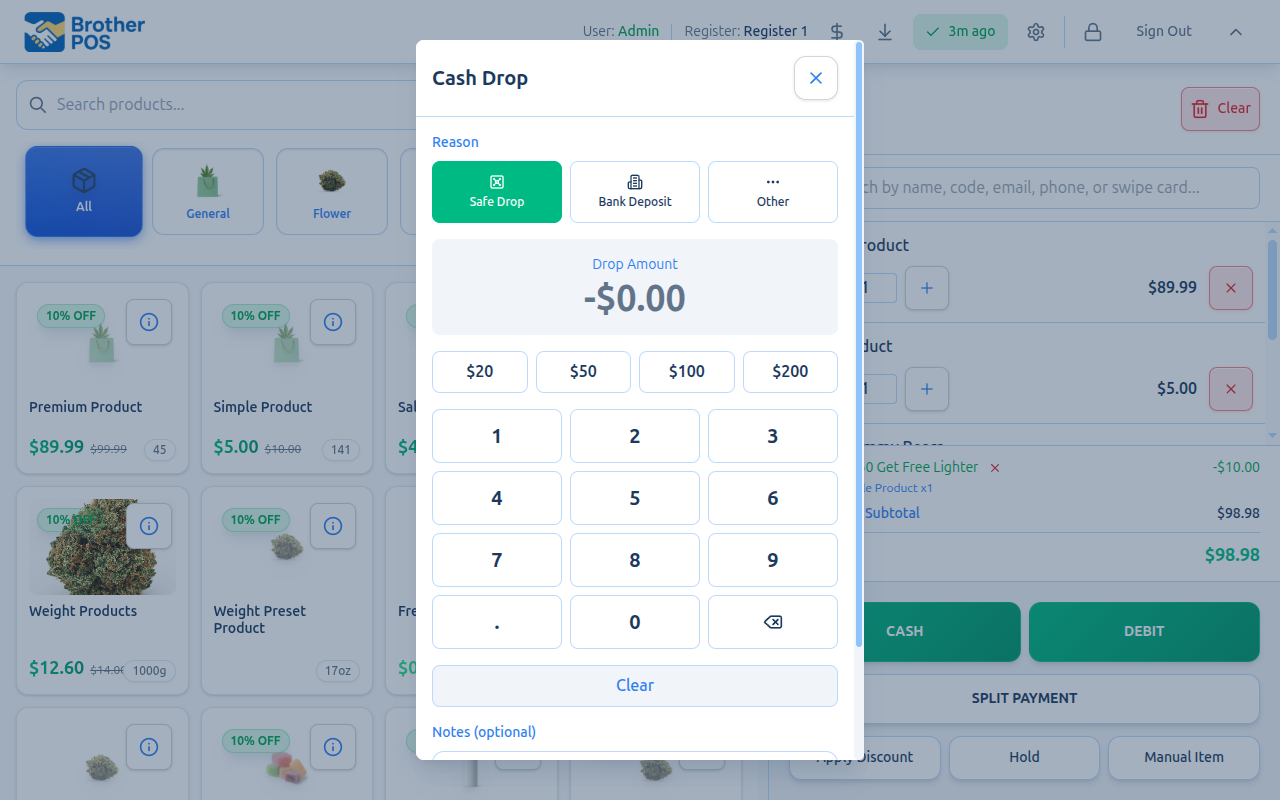
- Tap the Cash Drop button (the down arrow) in the top bar. On a phone, it's under Settings > Quick Actions.
- Leave the reason on Safe Drop.
- Type the amount, or tap $20, $50, $100 or $200. Add a note if you like.
- Tap Record Cash Drop, then put the cash in the safe.
To pay someone out of the till:
- Tap Cash Drop, then pick a reason: Pay Out for petty cash or small purchases, Supplier for paying a vendor (then pick the supplier). Gaming stores also see Lottery Payout, Machine Payout and Progressive Payout.
- Type the amount and tap Record Cash Drop. Hand over the cash.
To add cash to the till (pay-in):
- Tap the Pay In button (the green up arrow) in the top bar, or Settings > Quick Actions > Pay In on a phone.
- Type the amount, add a note under What's this for? if you like, and tap Record Pay-In.
Cash that leaves the till without being recorded shows up as short when you close. Record the drop before, or right after, you take the cash out.
Common questions
I typed the wrong amount. Tap the entry in the Recent Sales list and tap Reverse, then record it again. Reversing a drop or payout needs a manager — if you don't have that permission, a manager types their PIN to approve. This only works while the drawer is still open.
I don't see the Cash Drop button. It shows only while a drawer is open and your role has the Manage Cash Sessions permission. Clerks have it by default unless an admin has switched it off.
Can I give a customer their money back with a payout? No. Use a return so the sale is reversed and stock goes back.
Why is there a payout from before my shift in the list? The list shows the whole day's payouts on this register. They don't count against your shift.
More detail: cash drops
Cash Drops
A cash drop is the removal of excess cash from the drawer to a secure location — typically a safe or drop box. Cash drops are a standard security practice to minimize the amount of cash exposed in the register at any given time.
When to Do a Cash Drop
- When the cash in the drawer exceeds your store's threshold (e.g., over $500).
- At scheduled intervals during long shifts.
- Whenever there is more cash in the drawer than your policy allows.
Keeping large amounts of cash in the register increases risk. Regular drops keep only what is needed for making change, reducing exposure in case of theft or robbery.
How to Record a Cash Drop
- Log in to the POS with your PIN or credentials.
- Tap the Cash Drop button (down arrow icon) in the header bar. On a phone or small screen the button is under Settings > Quick Actions instead. Either way it needs the Manage Cash Sessions permission and an open drawer session.
- Leave the reason on Safe Drop — it is the big button at the top, because it is the everyday one.
- Enter the amount you are removing, using the numpad, a quick-amount button ($20 / $50 / $100 / $200), or the number keys on a keyboard. The amount stays in view at the top of the screen while you enter it.
- Optionally add a note describing the drop (e.g., "Mid-shift drop to safe").
- Tick Print receipt for cash drop if you want a paper record (only offered when your store has receipt printing on).
- Tap Record Cash Drop.
- Physically remove the cash and put it in the safe. If the till isn't already open, pop it with the $ button in the header bar.
Cash-drop and payout receipts are sent from the POS device itself to the receipt printer it uses for sales — a Star printer, a Bluetooth printer, a PAX terminal's printer, or a printer on the Printer Bridge — the same way sale receipts and Z-Reports print.
What Gets Recorded
Each cash drop creates a record that includes:
- The amount removed
- The date and time of the drop
- Who performed the drop (whoever is signed in)
- Any notes entered
- The session it belongs to
This information appears on the Z-Report when the drawer is closed and is also visible in the admin panel under Cash Drawers in the top navigation bar.
If the register has lost its connection, you can still record a cash drop, payout or pay-in. The POS saves it on the device and tells you it is queued (for example, "Cash drop of $50.00 queued — will sync when online"), then sends it once the connection is back. Until then, the count screen lists it separately as not yet synced, and it is still taken into account in the expected cash.
Each cash drop carries a unique key, so if the POS has to re-send it (spotty Wi-Fi, or an offline queue replaying), Brother POS recognizes the repeat and keeps the original single record instead of creating a duplicate. A duplicated drop would have made the drawer look short at close — that "phantom shortage" can no longer happen.
Cash Drops and the Closing Count
When you close the drawer at the end of the shift, the expected cash calculation accounts for all cash drops:
Expected Cash = Opening Float
              + all cash taken in (sales, tips, pay-ins, counter payments)
              - all cash paid out (refunds, cash drops, payouts)
If you dropped $200 during the shift, the system expects $200 less in the drawer. You do not need to remember or mentally subtract drops or payouts — Brother POS does this automatically, and the count screen lists each one individually so you can see where the number came from.
More detail: payouts and payout reasons
Payouts
A payout is cash taken from the drawer that leaves the business. Unlike cash drops (which move money to a safe), payout money is gone — for example, paying a supplier who delivered stock, buying cleaning supplies, reimbursing a petty cash expense, or paying out a gaming win.
When to Use a Payout
- Paying a supplier or vendor in cash — use the Supplier reason.
- Paying for supplies, food, or other small purchases for the store.
- Reimbursing an employee for a business expense.
- Any situation where cash leaves the drawer for a legitimate business reason.
Do not use payouts to give customers money back. Customer refunds should be processed through the Returns workflow, which properly reverses the original sale and updates inventory. (If your store uses Canadian Cash Rounding, cash refunds are rounded to the nearest nickel symmetrically with cash sales — another reason to use Returns rather than a manual payout.)
How to Record a Payout
Payouts are recorded through the same Cash Drop button as a safe drop — you just pick a different reason.
- Log in to the POS with your PIN or credentials.
- Tap the Cash Drop button (down arrow icon) in the header bar, or Settings > Quick Actions > Cash Drop on a small screen.
- Choose the reason (see the table below). Safe Drop sits on its own full-width button at the top; every other reason sits in the rows underneath, deliberately out of the way of muscle memory. A line under the buttons says what the chosen reason means for your books.
- If you picked Supplier, choose who the money is going to from the supplier list. If you picked Machine Payout, choose which machine it came from. Neither will save without that choice.
- Enter the amount being taken from the drawer.
- Optionally add a note.
- Tap Record Cash Drop.
- Physically remove the cash. If the till isn't already open, pop it with the $ button in the header bar.
The supplier list comes from the suppliers already set up in the back office under Products > Suppliers. If the register is offline, it shows the list it saved the last time it was online. It only comes up empty offline if this register has never loaded the list — reconnect and try again. The machine list works the same way.
Payout Reasons
| Reason | Who sees it | Use it for |
|---|---|---|
| Safe Drop | Every store | Moving takings to the safe. Not a payout — the money stays in the business. |
| Pay Out | Every store | Cash leaving the business that is not a supplier and not gaming: petty cash, a small purchase for the store, a no-sale cash-out. |
| Supplier | Every store | Paying a supplier or vendor in cash. Requires you to pick the supplier, so the slip and the reports show who was paid. Totalled separately from gaming payouts. |
| Other | Every store | Anything that doesn't fit. Treated as a drop, not a payout. |
| Lottery Payout | Gaming stores | Paying out a lottery win. Counts toward gaming payouts. |
| Machine Payout | Gaming stores | Paying out a gaming machine. Requires you to pick which machine, so payouts can be reported per machine. Counts toward gaming payouts. |
| Progressive Payout | Gaming stores | Paying out a progressive jackpot. No machine to pick. Counts toward gaming payouts. |
The gaming payout reason was renamed to match how gaming floors actually talk. It is the same thing under a clearer name, and existing records are unaffected — old entries display under the new label too. Progressive Payout was added alongside it for progressive jackpot wins.
Paying a vendor? Use Supplier, not Pay Out — that keeps vendor money in its own total, and at a gaming store it keeps it out of the gaming payout figures you balance on. Use Pay Out for other cash that genuinely leaves the business. Other is filed as a drop — money that stays inside the business — so using it for a vendor payment misfiles the money. All of them reduce your expected cash by the same amount at close; they are only reported differently.
Lottery Payout, Machine Payout and Progressive Payout only appear when your store runs gaming machines, so a normal store's menu stays short: Safe Drop / Pay Out / Supplier / Other.
What Gets Recorded
Each payout creates a record that includes:
- The amount taken
- The reason provided
- The supplier paid (Supplier payouts) or the machine (Machine Payouts)
- The date and time of the payout
- Who authorized the payout (whoever is signed in)
- The session it belongs to
If you print a receipt for it, the slip shows the reason in the same words as the button you pressed, plus Machine: with the machine name on a machine payout, or Paid to: with the supplier's name on a supplier payout. A Star printer's slip uses the same reason words and prints the same Machine: and Paid to: lines.
If you take cash out for a business expense, keep the receipt from that purchase. Brother POS records the payout digitally, but your admin or accountant will want the physical receipt for bookkeeping.
Payouts and the Closing Count
Payouts are subtracted from the expected cash, just like cash drops:
If you paid out $50 during the shift, the system expects $50 less in the drawer. Payouts are tracked individually and appear as a separate section on the Z-Report and session detail page.
If a payout ends up on the same ticket as ordinary goods, only the net cash that actually changed hands is applied to the drawer. Ring $100 of goods and a $30 payout on one sale and the drawer expects the $70 the customer handed over — the payout is not subtracted a second time on top.
More detail: pay-ins
Pay-Ins (Adding Cash to the Drawer)
A pay-in is the mirror image of a cash drop: cash going into the till mid-shift rather than out of it. Use it when a manager tops up the float from the safe, or when a change order is broken into the drawer.
- Tap the Pay In button (green up arrow) in the header bar, or Settings > Quick Actions > Pay In on a small screen.
- The Cash In screen opens. There is no reason to pick — every pay-in is recorded as a cash-in.
- Enter the amount and, optionally, a note under What's this for? (for example, "float top-up" or "change order").
- Tap Record Pay-In. Tick Print receipt for pay-in first if you want a paper record (only offered when your store has receipt printing on).
The amount is added to the expected cash in the drawer, so the till still balances at close. Pay-ins appear as green +$ rows in Recent Sales and are itemized on the count screen and the Z-Report, and can be reversed the same way a drop can while the session is open.
Use a pay-in when cash is physically going into the drawer that wasn't there before. Use Adjust Opening Float when no cash moved and the starting number was simply typed wrong. See Adjusting the Opening Float Mid-Shift.
More detail: seeing, reversing and reprinting drops
Viewing Drops and Payouts During a Session
Cash drops, payouts and pay-ins appear inline in the Recent Sales list alongside sales, listed newest first as their own rows. A drop shows as Safe Drop and a payout as Cash Out, each with a red −$ amount. A gaming payout is tagged with its type — Lottery Payout, Machine Payout (with the machine name), Progressive Payout — and other payouts are tagged with their note (or Other when there is no note). A pay-in shows as a Cash In row with a green +$ amount. They refresh on the same poll as sales. See Sales History.
Payout History Across the Day
Recent Sales shows every payout made on this register today, not just the ones from the session you are currently in.
That matters because a shift change closes one session and opens another. Payouts made before the handover used to vanish from the list the moment the drawer was reopened — which is why staff reported that "payouts don't reliably show." Now the day's payouts stay visible on the register across shift changes, so anyone can check what has already been paid out today without digging through the admin panel.
The day runs to your store's business-day cutoff, the same boundary the rest of the drawer uses. An End Day close also starts a fresh list: payouts carry over a shift change, but not into the drawer opened after End Day.
Seeing earlier payouts in the list does not mix the money between shifts. Reconciliation and Z-Reports are still strictly per session — an earlier shift's payout counts against that shift, never yours.
Reversing or Reprinting a Drop or Payout
Tap any cash-out row in Recent Sales to open a detail modal with Reprint and Reverse actions:
- Reprint — re-sends the cash-drop/payout receipt to your local printer.
- Reverse — puts the amount back into the drawer's expected cash. The entry is soft-deleted (kept for audit, not erased) and drops out of the drop/payout totals, so the expected cash rises back by that amount. Reversal is only available while the session is still open.
Reversing a Drop or Payout Needs a Manager
Reversing a drop or payout raises what the drawer is expected to hold — so a reversal could quietly cover a shortage. That is why it has its own permission, Reverse Cash Drops / Adjust Opening Float, which managers and admins have by default and clerks do not.
If your role doesn't have it:
- Tap Reverse and confirm as usual.
- The window shows "A manager has to approve reversing this. Enter a manager PIN."
- Someone whose role has the permission types their PIN and taps Approve.
- The entry is reversed, and the Activity Logs record who approved it. A PIN that can't approve gets "That PIN can't approve this."
Reversing a pay-in and reprinting any slip still only need Manage Cash Sessions — reversing a pay-in lowers the expected cash rather than raising it.
Reversing a drop or payout is the correct way to undo an incorrect entry (wrong amount, wrong reason). The original record is retained in the audit trail — it is marked reversed, not deleted.
Itemized at Close
When you close the drawer, the Count Cash Drawer modal does not show only lump-sum totals. Each individual drop, payout and pay-in is itemized beneath its total — time, reason (or the note you typed), and the machine name on a machine payout — so you can see where the expected figure comes from.
The Adjust Opening Float action lives alongside Cash Drop in the POS Settings modal under Quick Actions. Use it to correct a wrong starting float mid-shift without closing the session. See Opening & Closing a Cash Drawer.
More detail: reviewing drops in the admin panel
Managing Drops and Payouts in the Admin Panel
AdminAdmins and managers can review cash drops and payouts for any session from the admin panel:
- Navigate to Cash Drawers in the top navigation bar.
- Select the session you want to review.
- The session detail page shows:
- All cash drops with amounts, times, and who performed them
- All payouts with amounts, reasons, times, and who authorized them
- The overall session summary including the over/under result
This view is read-only. Drops and payouts cannot be edited or deleted from the admin panel — they are part of the permanent audit trail.
More detail: best practices
Best Practices
For Cash Drops
| Practice | Why |
|---|---|
| Drop at consistent intervals | Keeps drawer amounts predictable and reduces risk |
| Count the drop amount before recording | Ensures accuracy in the system |
| Two people present during drops | Reduces disputes about amounts |
| Note the drop in the POS and on a physical log | Provides a backup paper trail |
For Payouts
| Practice | Why |
|---|---|
| Always enter a specific reason | Vague reasons like "misc" make auditing difficult |
| Pay vendors under Supplier | Keeps vendor money out of your other payout totals and names who was paid |
| Keep the receipt | Your accountant needs it for expense tracking |
| Limit who has the Manage Cash Sessions permission | Reduces potential for misuse |
| Review payouts in end-of-day reports | Catch any unusual activity early |
More detail: more questions
Frequently Asked Questions
Can a clerk do a cash drop or payout?
Yes, if their role has the Manage Cash Sessions permission — clerks have it by default. The same permission covers drops, payouts, pay-ins and closing the drawer. Check it under Admin > Users > Role Permissions.
Can I undo a cash drop or payout?
Yes — while the session is still open. Tap the entry in Recent Sales and choose Reverse. Unless your role has Reverse Cash Drops / Adjust Opening Float (managers do by default), a manager has to approve it with their PIN. The amount returns to the drawer's expected cash, and the entry is soft-deleted (kept for audit, not erased). See Reversing or Reprinting a Drop or Payout. Once the session is closed, drops and payouts are permanent — contact your admin if a correction is needed; they can see the full audit trail in the admin panel.
What if I forget to record a cash drop?
If you removed cash without recording it, the closing cash count will show the drawer as under by that amount. To avoid this, always record the drop in the POS before (or immediately after) physically removing the cash.
Is there a limit on how many drops or payouts I can do per session?
No. You can record as many drops and payouts as needed during a session. Each one is tracked individually.
Do drops and payouts appear on the Z-Report?
Yes. The Z-Report includes a complete list of all cash drops, payouts and pay-ins for the session, along with their totals. See Z-Reports for more details.
Why can I see a payout from before my shift started?
Because Recent Sales shows the whole day's payouts on that register, across shift changes (but not from before the last End Day close) — see Payout History Across the Day. It is there so you can check what has already been paid out today. It does not affect your shift's cash count.
More detail: who can do what
Permissions Summary
| Action | What it needs |
|---|---|
| Record a cash drop, payout or pay-in | The Manage Cash Sessions permission and an open session on the register. Clerks have it by default. |
| Reprint a drop, payout or pay-in, or reverse a pay-in | The same permission. Reversing only works while the session is still open. |
| Reverse a drop or payout | Reverse Cash Drops / Adjust Opening Float — managers have it by default. Without it, a manager approves with their PIN. |
| See drops and payouts in Recent Sales | Register access — no extra permission. |
| Review drops and payouts in the admin panel | Manager or Admin. See Cash Drops & Payouts (Admin). |
What's Next?
- Opening & Closing Cash Drawers — Learn the full drawer lifecycle from open to close.
- Taking Over a Drawer — Close someone else's shift and open your own in one step.
- Z-Reports — See how drops and payouts appear on the end-of-session report.