Daily Close
Use this page at the end of the day to see what you sold, what you collected, and whether every cash drawer balanced.
Quick steps
- Close each register's drawer at the register first, so the cash gets counted.
- In the admin, click Reports, then Daily Close (under Sales & cash). It opens on today.
- Check the top of the page. If any drawer is still open, the Open drawers now panel lists it. The first card shows Net sales (before tax), and under it Total collected (incl. tax) — what customers actually paid.
- Check the cash. Scroll to Cash Drawer Sessions. Next to Over/Under you'll see ✓ Balanced, or how much the day's cash was short or over. Click a register's row to look into it.
- Keep a copy. Click Print at the top, or press Ctrl+P (Cmd+P on a Mac). Choose your office printer or Save as PDF.
Net sales leaves tax out. Total collected (incl. tax) is the number your drawers and card machine should add up to.
Common questions
How do I see yesterday, or last week? Click Yesterday or one of the dated buttons along the top. For an older day, pick it in the date field and click Go.
Where did End of Day Report, Consolidated Registers and Current Cash Drawer go? They are all part of Daily Close now. Old links and bookmarks open this page.
Why is net sales lower than the cash and card I took in? Net sales doesn't include tax. Compare your drawers and card batches to Total collected (incl. tax) instead.
Does it include online orders? Yes. Orders that come in from your website count on the day they were placed. In the By register table they have their own row, Online & phone orders (no register).
A drawer came up short. What now? Click its row under Cash Drawer Sessions to see that drawer's sales, drops and payouts. See "When the cash doesn't match" below for a checklist.
More detail: opening Daily Close, picking a day and printing
Opening Daily Close
- Log in to the Admin Panel.
- Click Reports in the top navigation.
- Click Daily Close (under Sales & cash).
Daily Close opens on today. The buttons along the top jump to Today, Yesterday or any of the five days before that; for an older date, pick it in the date field and click Go. If your store has more than one revenue center, a drop-down beside the date lets you narrow the page to one of them.
The page covers the calendar day, midnight to midnight in your store's time zone.
Looking at a Day
Today
- Go to Reports > Daily Close.
- Today loads straight away, with the open drawers at the top.
A Previous Date
- Go to Reports > Daily Close.
- Click Yesterday or one of the dated buttons for the past week — or pick a date in the date field and click Go.
- The page reloads for that day.
Make Daily Close part of your closing routine:
- Close all register sessions (forcing cash counts). The Open drawers now panel shows any you've missed.
- Open Daily Close.
- Verify that the cash variance is within your acceptable threshold.
- Print it, or save it as a PDF, for your records.
Printing
Daily Close is designed to be print-friendly: buttons and navigation are left off the printout.
- Click the Print button at the top of the page. If you don't see one, press Ctrl+P (Cmd+P on a Mac) instead.
- Your browser's print dialog will open.
- Select your office printer (not a receipt printer — this page is formatted for standard paper), or choose "Save as PDF" to keep a copy.
- Click Print.
More detail: open drawers, sales and payment figures
Open Drawers Now
When you're looking at today, an Open drawers now panel sits at the top of the page. It lists every cash drawer that is open right now:
| Column | What it shows |
|---|---|
| Register | The register the drawer belongs to. |
| Opened | When it was opened, and by whom. |
| Net sales (before tax) | What the drawer has sold so far, after discounts, without tax. |
| Tax | Tax collected on those sales. |
| Total collected (incl. tax) | What customers have paid into this drawer so far. |
Click View drawer on a row to open that drawer's own session page, with its sales, stock adjustments and product movement. When no drawer is open, the panel says so. The panel doesn't appear when you look at a past day.
What the Page Includes
Daily Close is organized into several sections, each summarizing a different aspect of the day's operations. Besides the sections below, it also shows a Top Products chart of the day's ten best sellers with a table of every product sold ranked by net sales (after discounts, before tax; a product's variations counted under it), deliveries (when there were any) and a full list of the day's transactions, voided ones included.
Sales Summary
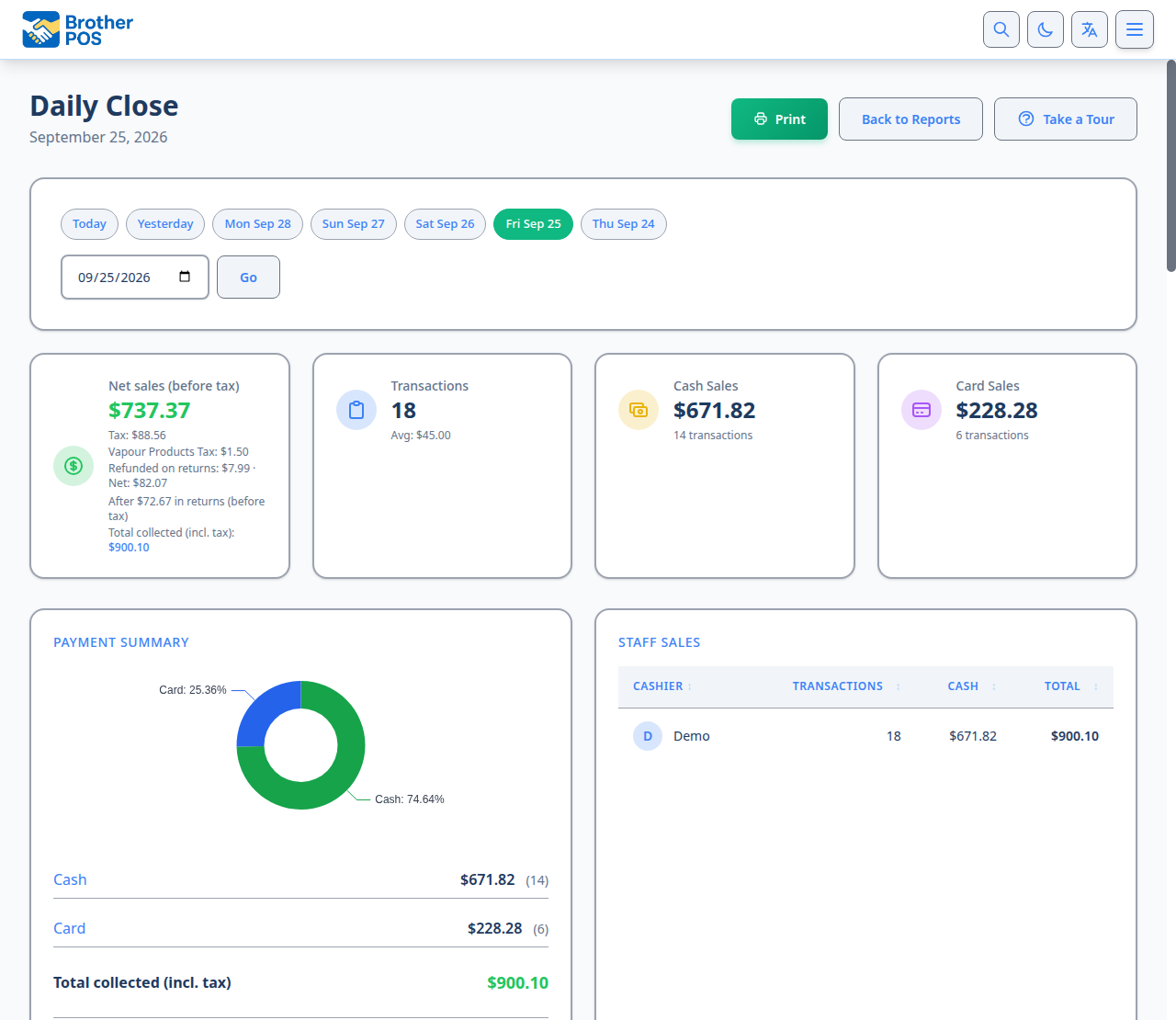
The top of the page displays four summary cards:
| Metric | Description |
|---|---|
| Net sales (before tax) | What the day's completed sales brought in after every discount, less the day's returns, not counting tax (delivery fees included). Underneath: the tax collected, and Total collected (incl. tax) — what customers actually paid, the number your drawers and card batches add up to |
| Transactions | Count of completed transactions (with average sale value, before tax) |
| Cash Sales | Total cash sales for the day |
| Card Sales | Total card sales for the day |
Payment Summary
The Payment Summary card breaks what was collected down by payment type. Cash and Card always show; Card terminal & online, E-Transfer, Store Credit, Gift Card, House Account, BrotherPay eDebit and Other appear only when there were sales that way. Split payments don't get a line of their own. The bottom line is Total collected (incl. tax) — payments include tax, so this is the figure to reconcile the till against.
Beneath the totals, the same card shows Total Discounts with each kind listed underneath, voided sales, Orders cancelled before payment (phone or online orders called off before anyone paid — they aren't voids, since no money changed hands), cash drops, tips collected and returns, when there were any. Total Discounts counts discounts the same way as the Sales Report — order discounts plus line discounts, sale campaigns and bulk (tier) savings — so the two reports agree for the same day.
By Register
On the Pro plan, a By register table puts every register side by side for the day, with a Grand Total row at the bottom:
| Column | What it shows |
|---|---|
| Register | Each register that is active or took sales that day (a register retired since still shows the sales it took). |
| Sales | Number of completed sales. |
| Net sales (before tax) | After every discount, less returns, without tax. |
| Tax | Tax collected. |
| Total collected (incl. tax) | What customers paid at that register. |
| Payment columns | One column per payment type used that day (Cash, Debit, Card terminal & online, E-Transfer, Gift Card and so on). |
| Discounts | All discounts given at that register. |
| Cash O/U | Cash over or short, from drawers closed that day. |
| Drops / Tips | Shown only when there were any that day. |
| Voided | Voided sales, with their value. |
| Sessions | How many drawer sessions the register had. |
Online, phone and delivery orders aren't rung on a register, so they get a row of their own (Online & phone orders (no register)). That way the Grand Total matches the day's figures at the top of the page. Click any column header to sort.
Returns / Refunds
When returns were processed on the report date, the Returns/Refunds block summarizes them and ends with Collected less refunds (incl. tax) — total collected minus what was refunded. The returns (before tax) are also already taken off the Net sales card. The block breaks refunds down two ways:
- By refund method — How the money was returned (cash, debit, store credit, etc.).
- By employee — Per-employee return totals, each showing the employee's name, the number of returns they processed (in parentheses), and the total refunded. This breakdown appears only when there are returns to display.
The per-employee breakdown makes it easy to see who is processing the most refunds. Recurring high refund totals for a single employee are worth a closer look during your daily review.
More detail: cash drawer sessions, cash to bank and payouts
Cash Reconciliation (Cash to Bank)
Inside the Cash Drawer Sessions card, above the register table, a cash summary strip answers the closing question — how much cash should actually go to the bank — and keeps three very different kinds of cash-out clearly separated. The strip appears once the day has any deposits, safe drops or payouts.
| Figure | What it means |
|---|---|
| Cash to Bank | The cash you should be depositing = the sessions' deposits + cash dropped to the safe. Because safe drops pull cash out of the drawer before the closing count, the deposit figure alone understates what's banked; adding the safe drops back gives the true bankable total. Only drops recorded as Safe Drop are added — a drop recorded as Other is not. |
| Cash Drops | All cash drops during the day, whatever the reason (shown in amber). |
| Payouts | All cash that left the business, whatever it was for — the note under the figure reads "all cash that left the business." Deliberately never lumped in with drops. |
When there were payouts, the strip also breaks that total down. Each figure only appears when it is more than $0:
| Figure | What it covers |
|---|---|
| Machine Payouts | Gaming machine payouts only (note: "machines only"). This is the number a gaming floor balances on. |
| Lottery Payouts | Lottery wins paid out. |
| Progressive Payouts | Progressive jackpots paid out. |
| Supplier Payouts | Cash paid to suppliers from the till (note: "paid to vendors"). |
| Other Payouts | Everything else — for example, a Pay Out for petty cash. |
Together these add up to the Payouts total, so no payout goes unaccounted for. Paying a vendor is kept out of the gaming figures, so Machine Payouts means machines and nothing else. For how clerks choose these reasons, see Cash Drops & Payouts.
An earlier version summed drops and payouts together, so a lottery payout could show up as a "cash drop" and inflate the drops total. They are now counted separately: drops (cash moved to your own safe) stay in the business, payouts (money paid out) leave it.
Register Sessions
The Cash Drawer Sessions card lists every drawer with activity on the report date — one that opened or closed that day, or that took a sale, cash drop or payout that day (so a drawer opened days earlier and still open is included) — each as a clickable row ("Click a register to reconcile its drawer.") with:
- Register — Which physical register was used.
- Opened — When the session was opened.
- Closed — When the session was closed.
- Opening Float — The starting cash amount.
- Sales — Total sales processed during the whole session.
- Cash Drops — Cash dropped during the whole session, with the number of drops.
- Over/Under — The cash variance (difference between expected and counted cash).
- Deposit — The cash banked from the session. For a shift close, the float left in the drawer is shown underneath.
- Status — Open or Closed, with a Shift or EOD tag on closed sessions.
The card header also shows a day-level Over/Under roll-up across the closed sessions in the list ("✓ Balanced" or "±$X short/over") so you can see at a glance whether the whole day's cash tied out. Click any register row to open its full drawer reconciliation.
If a register session is still open when you look at Daily Close, it appears as "Open", and a note above the list says so — for example "1 drawer on this list is still open, so its cash hasn't been counted yet and isn't in the over/short." For accurate closing figures, close all register sessions first.
More detail: sales by staff member
Staff Sales (per-clerk accountability)
Because several clerks can share one drawer, a single pooled over/short can't tell you who rang what. The Staff Sales table breaks the day down by the clerk who processed each sale:
| Column | What it shows |
|---|---|
| Cashier | The staff member who rang the sale. |
| Transactions | How many sales they processed. |
| Cash | Cash they collected (including the cash leg of split payments). |
| Total | Their total sales across all payment methods. |
The Total column adds up to the day's total sales. The same kind of table appears on each drawer reconciliation page under the heading "Sales by Clerk," covering just that session.
If a staff member was deleted after ringing sales, their sales are grouped under Unknown rather than dropped — so the per-clerk totals still tie out to the drawer and no false shortage appears.
More detail: printouts at the register (sales by category and the count sheet)
End-of-Shift Printouts at the Register
Two extras print at the register on the receipt printer when a drawer is closed. They complement Daily Close rather than appearing inside it.
Sales by Category
The printed Z-Report at drawer close includes a Sales by Category breakdown — that session's sales grouped by product category and sorted with the highest-earning categories first, each line showing quantity and revenue. Categories print as a tree (department, then subcategories indented beneath), with department totals including everything in their subcategories. This replaces the older "Top Products" list and gives the closing manager a quick read on which parts of the store sold the most. See the POS-side Sales by Category.
To see each item sold, not just category totals, tick Show each item sold on the end-of-shift report under Settings > Edit Settings > Hardware & System > Printing Features. Every item sold is then listed under its category with how many and for how much — on the printed Z-Report, on the screen when the drawer closes, and on the drawer session page in the admin (under Items Sold by Category). It's off by default.
Inventory Count Sheet
The Inventory Count Sheet is an optional checklist that prints at drawer close so staff can physically count stock. It lists every active product grouped under its category, with the expected stock level and a checkbox for each item, plus a total item count and a "Counted by" line at the bottom. Items with no category are grouped under Uncategorized.
It is off by default. An admin enables it under Settings > Edit Settings, on the Hardware & System tab under Printing Features, where these options live:
| Setting | What it does |
|---|---|
| Print Inventory Count Sheet | Turns the feature on. |
| Print on every close (not just End of Day) | On: prints at every drawer close. Off: prints only on an End-of-Day close. |
| Only list items with stock on hand | On: skips products expected at zero. Off: lists all active products, including expected-zero items, so staff can verify the zeros. |
| Leave these categories off the sheet | Tick categories nobody hand-counts, such as accessories. Ticking a category leaves out everything under it. None ticked = everything prints. |
When enabled and the close qualifies, the sheet prints automatically — no separate action is needed. Staff with the Manage Cash Sessions permission can also print one at any time, without closing a drawer, from Print Count Sheet under Quick Actions in the register's Settings. See the POS-side Inventory Count Sheet for what staff see and how they use it.
Pair the count sheet with your end-of-shift routine: print it at close, walk the shelves comparing each item against its expected number, tick the boxes, and flag anything that does not match so it can be adjusted.
More detail: when the cash doesn't match
Interpreting Cash Variances
The cash variance is the most critical number on Daily Close. It tells you whether the cash in the drawer matches what the system expected.
| Variance | Meaning |
|---|---|
| $0.00 | Perfect match. Cash in drawer equals expected cash. |
| Positive (e.g., +$5.00) | Drawer has more cash than expected. Could indicate a customer overpaid or a refund was not processed. |
| Negative (e.g., -$5.00) | Drawer has less cash than expected. Could indicate incorrect change given, unrecorded payout, or theft. |
Acceptable Thresholds
Small variances (under $2.00) are common and are usually counting or change-making slips. (Canadian nickel rounding does not cause them — the rounding is tracked separately and the drawer still balances.) Larger or recurring variances should be investigated.
Steps to investigate a variance:
- Review the register session's transactions for the day.
- Check for any voided sales that may not have been processed correctly.
- Look at the cash drop records to verify all drops were recorded.
- Compare Daily Close with the Z-Report from the specific register session.
A Z-Report covers a single register session. Daily Close brings all register sessions together for the entire day. If your store has multiple registers, Daily Close gives you the full picture while Z-Reports help you drill into individual registers.
Multiple Register Reconciliation
If your store operates more than one register:
- Each register session appears as a separate row in the Cash Drawer Sessions section.
- The Payment Summary adds up all registers together.
- On the Pro plan, the By register table puts each register's sales, payments and over/short side by side.
- Cash variances are shown per register, making it easy to identify which register had an issue.
Best Practice for Multi-Register Stores
- Close each register session individually as shifts end.
- Have the closing manager count each drawer separately.
- Review Daily Close only after all registers are closed.
- Review each register's variance independently.
More detail: comparing days and sessions that span midnight
Comparing Days
To compare performance across multiple days:
- Open Daily Close for each day you want to compare.
- Note the key metrics (revenue, transaction count, average sale).
- Alternatively, use the Sales Report with a multi-day range grouped by day for a side-by-side comparison.
Sessions That Span Midnight
The session row appears on both days — the day it opened and the day it closed. The day's totals count its money once: sales, cash drops and payouts are counted on the day each one happened, so for a session opened at 10 PM and closed at 2 AM, what was rung or dropped before midnight is in the first day's totals and the rest in the next day's. The session's deposit goes into Cash to Bank on the day the drawer was closed, because that is when it was banked. The session's own row, though, shows its whole-session Sales, Cash Drops and Deposit on both days.
What's Next?
- Sales Reports — Analyze sales over custom date ranges with more detail.
- Exporting Reports — Export sales data for a date range as CSV, Excel or PDF.
- Cash Drawer Sessions — Review individual register sessions in detail.