User Management
Use this page to give someone a login and a register PIN, change their details, or turn off their access when they leave.
Quick steps
- Click Settings in the top menu, then click Manage Users. The Staff Members page opens.
- Click Add Staff Member.
- Type their First Name and Email, and pick a Role. For a cashier, leave it on Clerk.
- Type a Password (at least 6 characters), then type it again in Password Confirmation.
- Type a 4-digit PIN in PIN (4 digits). This is what they use at the register.
- Click Add Staff Member at the bottom. They can sign in straight away.
Give them their email, password and PIN in person. Creating an account does not send them an email.
Common questions
How does a new cashier sign in to the register? On a device that isn't signed in yet, the register asks for an email and password, then a PIN. Once a register is signed in, each cashier only needs their own PIN.
Someone quit. Should I delete them? No. Click Deactivate beside their name. They can't sign in any more, but their sales and hours stay on file, and you can bring them back later.
They forgot their PIN or password. Click Edit beside their name, type a new PIN or password, and click Save changes. See PIN Setup.
A former employee is coming back. Click Deactivated above the list, then Reactivate beside their name. Don't make a new account, or their history is split in two.
Can a manager add staff? No. Only admins can open the Staff Members page.
More detail: finding the Staff Members page and the staff list
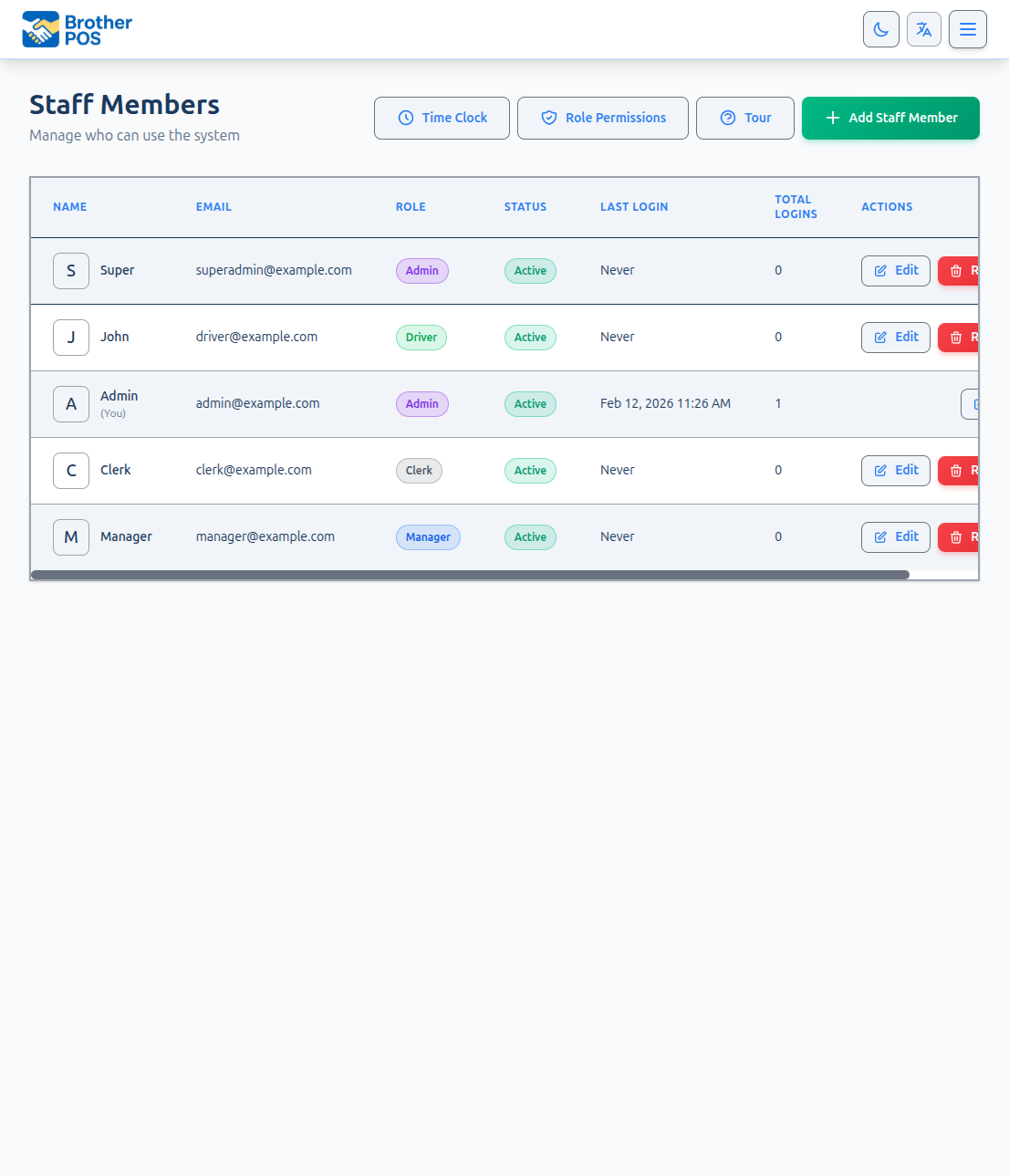
Accessing User Management
- Log in to the Admin Panel with an Admin account.
- Click Settings in the top menu, then click Manage Users at the top of the Settings page.
The list opens on your active staff.
Only admins can open the Staff Members page. Managers cannot view, create, edit, or deactivate user accounts — and ticking Manage Users for a role on the Role Permissions page does not change that.
Understanding the Users Table
| Column | Description |
|---|---|
| Name | The user's name. Click it to open their details page; Edit on the row opens their edit page. Your own row is marked (You). |
| Login email address. | |
| Role | Admin, Manager, Clerk, Driver, or the name of a custom role. |
| Status | Active or Deactivated. Only shown on the All list. |
| Last Login | Date and time of the user's most recent recorded sign-in, or Never. |
| Training | Which training courses they have finished (Register, Manager and/or Owner) and when, or Not yet — hover over Not yet to see how to start them. |
| Actions | Edit and Deactivate for active staff; Edit and Reactivate for deactivated staff. There is no Deactivate button on your own row. |
Buttons at the top
- Role Permissions — choose what each role can do. See Roles & Permissions.
- Add Staff Member — create an account.
- More Actions — Time Clock (when time tracking is on), Shift Schedule (when shift scheduling is on), Square Team (when Square is connected), Export CSV (downloads your active staff list) and the tour.
User List Display
The Staff Members page lists staff sorted by last name, then first name. It opens on Active staff.
Once at least one person has been deactivated, three filter buttons appear above the list:
| Filter | Shows |
|---|---|
| Active | Everyone who can currently sign in (the default) |
| Deactivated | Former staff, with a count beside the button. Each has a Reactivate button. |
| All | Active and deactivated staff together |
If a filter matches nobody — for example the Deactivated list after you have brought everyone back — the page says so and offers View active staff to return to the main list.
More detail: every field when adding someone
Creating a New User
Step-by-Step
- Click the Add Staff Member button at the top of the page.
- Fill in the form. It's in three parts, in the order you'd fill them in:
Who they are
| Field | Required | Description |
|---|---|---|
| First Name | Yes | User's first name. |
| Last Name | No | User's last name. |
| Yes | Must not already be used by someone else at your store. | |
| Phone | No | User's phone number. |
| Role | Yes | Clerk, Manager or Admin, plus any custom roles you have created. Driver is also offered when local delivery is on — see Drivers below. A link beside it opens Role Permissions. |
Signing in
| Field | Required | Description |
|---|---|---|
| Password | Yes | At least 6 characters. |
| Password Confirmation | Yes | Type the password again. |
| PIN (4 digits) | Drivers only | Used to sign in and approve things at the register, and to sign in to the TrafficDelivery app. Must not match another active employee's PIN. Required for a Driver; for other roles it can be set now or later. |
Pay — only shown when time tracking is on (or the person already has a rate on file)
| Field | Required | Description |
|---|---|---|
| Hourly Rate | No | The user's hourly pay rate, used to work out labour costs from time tracking. |
- Click Add Staff Member at the bottom of the form.
After Creation
- New staff start active, so the user can sign in straight away.
- To use the POS register the user needs a PIN. On a device that isn't signed in yet, the register first asks for an email and password, then the PIN. Once the register is signed in, other staff unlock it with just their own PIN (the sign-in screen tells clerks to ask a manager to sign the register in once).
- Share the email, password, and PIN with the new user securely. Do not send credentials over unencrypted channels.
Create the account with a temporary password and ask the user to change it from Account Settings after they first sign in. Creating a user does not send them an email.
More detail: editing someone and changing a password
Editing a User
- On the Staff Members page, click Edit beside the user.
- Update any fields as needed:
- Name — Correct a misspelling or a name change.
- Email — Change the login email. The user must use the new email next time they sign in.
- Role — Change the user's role.
- PIN — Type a new 4-digit PIN. Leaving the box blank keeps the current PIN; there is no way to clear a PIN from this form.
- Hourly Rate — In the Pay part, when time tracking is on.
- Click Save changes.
An admin can't edit, deactivate or reactivate the account of the store's owner — the person who owns the store (and possibly other stores) — or of Brother POS support staff. Trying it returns you to the list with "Only [name] can change their own account." The owner changes their own password and email from Account Settings. This stops a store admin from taking over an owner's login, and with it every store the owner has.
When you change a user's role, the admin panel uses the new role on their next page load. A register that is already signed in picks up the new role and permissions on its next background sync, which runs every few minutes.
Changing a User's Password
Edit the user and type a new password in the Password (leave blank to keep current) field, then enter it again in Password Confirmation. Then click Save changes. Leaving both blank keeps the current password. Tell the user their new password securely.
Users can change their own password afterwards: open the user menu in the admin panel and choose Account Settings. Changing a password there asks for their current password.
More detail: deactivating and bringing someone back
Deactivating a User
When an employee leaves or no longer needs access, deactivate them. Deactivating is not permanent — you can bring the same account back at any time.
There are two ways to deactivate someone:
- From the user list (recommended): Click Deactivate next to the user. The confirmation reads "They will not be able to sign in, but their sales, hours and history stay on file. You can reactivate them any time."
- From the edit form: Open the user's edit page, untick Active, and click Save changes. (The Active box only appears when editing someone else.)
What Happens When You Deactivate
- The user can no longer sign in to the admin panel or the POS register. Their PIN stops working.
- If they were still clocked in, their open shift is closed automatically. This happens whether you used the Deactivate button, unticked Active on the edit form, or deactivated them from the owner portal.
- All their history (sales, cash sessions, hours, activity log entries) is kept.
- They move off the Active list and onto the Deactivated list.
Brother POS does not delete staff accounts. Deactivating removes access while keeping every record that person is attached to.
Reactivating a User
When a former employee comes back, reactivate their original account rather than creating a new one. A second account splits their sales, hours and history across two names.
- On the Staff Members page, click the Deactivated filter (the number beside it is how many deactivated staff you have).
- Find the person and click Reactivate.
- Confirm "Bring [name] back on their original account?"
They can sign in again straight away with their existing email, password and PIN.
You can also reactivate from the edit page by ticking Active and clicking Save changes.
PINs must be unique among active staff. If you handed this person's PIN to a colleague while they were away, reactivating is refused and you are taken to their edit page with the reason. Give one of them a different PIN, then reactivate. See PIN Setup.
More detail: roles and drivers
Role Assignment
Each user has exactly one role. The role determines what the user can access:
| Role | Admin Panel | POS Register | Primary Use |
|---|---|---|---|
| Admin | Full access | Yes | System configuration, user management, all features |
| Manager | Most features | Yes | Day-to-day operations, reports, inventory, cash management |
| Clerk | No — sent to the register | Yes | Sales processing at the register |
| Driver | No | Not used | Deliveries, using the delivery app |
You can also create custom roles (for example a Shift Lead) built on the Clerk, Manager or Driver role. For a detailed breakdown of what each role can do, see Roles & Permissions.
Choosing the Right Role
- New cashier? Assign the Clerk role. They only need POS access.
- Shift supervisor? Assign the Manager role, or a custom role in between. They need to open/close drawers, handle returns, and view reports.
- Store owner or IT admin? Assign the Admin role. They need full system access.
- Delivery staff? See Drivers below.
Keep the number of Admin accounts to a minimum. Every admin has full access to user management, store settings, and sensitive data. Most daily operations can be handled with Manager accounts.
Drivers
The Driver role is offered in the Role dropdown on the create and edit forms once local delivery is switched on for your store, so stores that don't deliver never see it. To add a driver, create a staff member as usual and choose Driver.
Editing someone who is already a Driver always shows Driver in the dropdown, even if local delivery has since been switched off, so saving other changes keeps them a Driver.
Drivers sign in to the TrafficDelivery app with your store code, their email and password, and then their PIN. A PIN is required for drivers: the form won't save a Driver without one, whether you're creating them or changing someone's role to Driver. See Drivers. To stop a driver signing in, deactivate them.
More detail: common workflows
Common Workflows
Onboarding a new cashier
- Click Add Staff Member.
- Enter the cashier's first name, last name and email.
- Set a temporary password (and type it again in Password Confirmation).
- Set a 4-digit PIN.
- Leave the role on Clerk.
- Click Add Staff Member.
- Give the cashier their email, password and PIN. On a register that is already signed in, they only need their PIN.
Promoting a cashier to manager
- Click Edit beside the cashier.
- Change the Role from Clerk to Manager.
- Click Save changes.
- The user can now use the admin panel, and the manager defaults apply to them at the register.
Offboarding an employee
- On the Staff Members page, click Deactivate beside the employee.
- Confirm.
- The employee immediately loses access to the admin panel and the register, and any shift they left open is closed.
Rehiring a former employee
- On the Staff Members page, click Deactivated.
- Click Reactivate beside their name and confirm.
- If you are told their PIN is in use, give them (or the colleague who has it) a new PIN and try again.
Their past sales, hours and history stay on the same account.
More detail: troubleshooting
Troubleshooting
| Problem | Solution |
|---|---|
| User cannot log in to the admin panel | Verify their email and password are correct. Check that they are not deactivated. Clerks are sent to the register instead of the admin panel. |
| User cannot log in to the POS | Check that they have a PIN set, that they are using the right email and password, and that they are active. |
| "Email has already been taken" | Someone at your store already uses that email — possibly a deactivated account. Check the All filter, and reactivate that person instead of creating a duplicate. |
| User does not see expected features | Check their role, then check that role's column on the Role Permissions page. See Roles & Permissions. |
| Cannot find a deactivated user | Click the Deactivated or All filter at the top of the list. |
| "Only [name] can change their own account." | That person is the store owner (or Brother POS support). Only they can change their own account. |
| A driver sees Invalid PIN in the TrafficDelivery app | They have no PIN set, or typed it wrong. Click Edit beside them and set a 4-digit PIN. |
What's Next?
- Roles & Permissions — Understand the permission grid and customize per-role access.
- PIN Setup — Learn about setting, resetting, and securing POS PINs.