PIN Setup
Use this page to give staff the 4-digit PIN they use at the register, and to reset a forgotten one.
Quick steps
To set or reset a PIN:
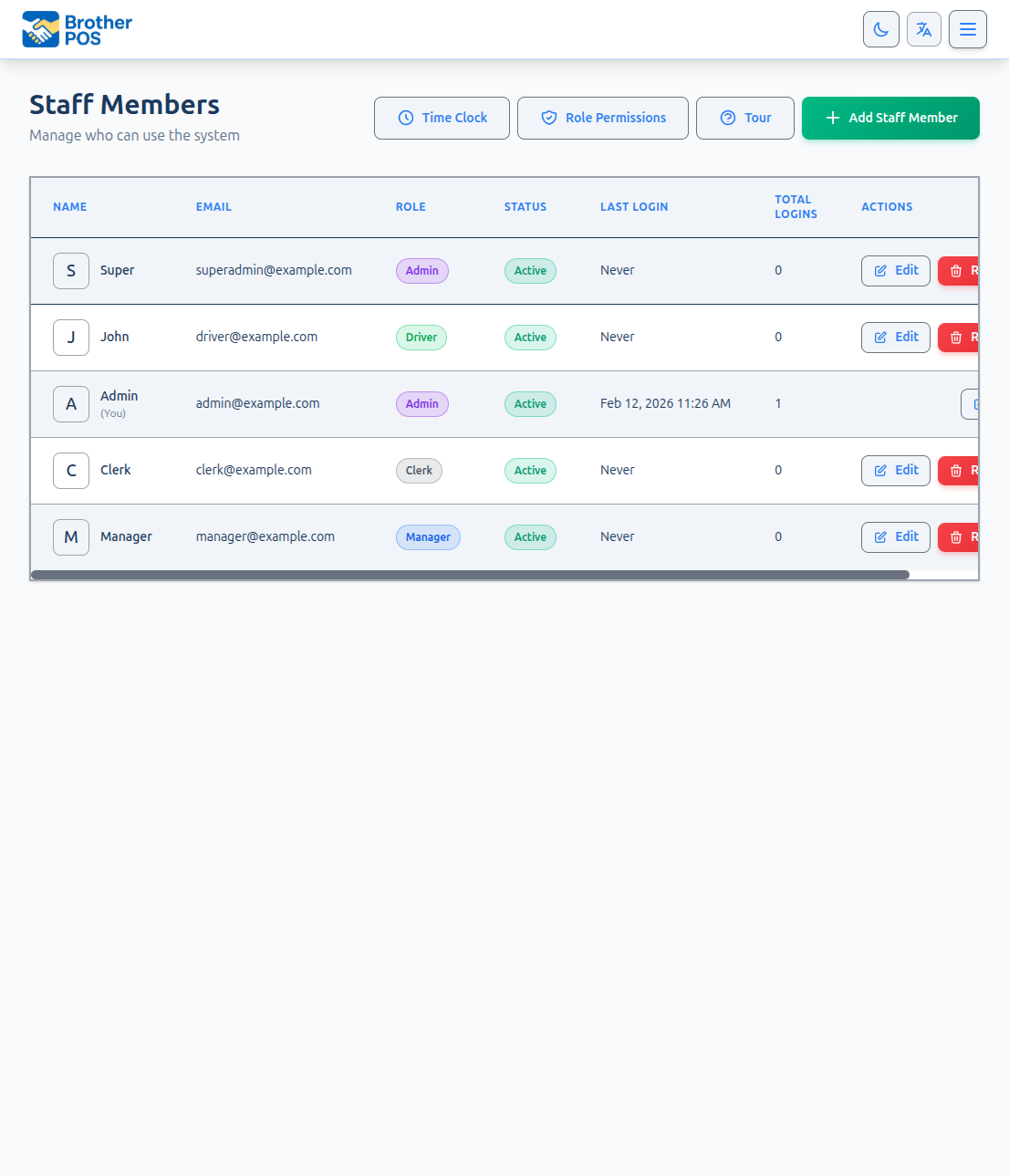
- Go to Settings and click Manage Users. The Staff Members page opens.
- Click Edit beside the person (or Add Staff Member for someone new).
- Type a 4-digit number in PIN (4 digits). Nobody else active at your store can have the same one.
- Click Save changes (or Add Staff Member). The new PIN works straight away.
- Tell the person their PIN privately — never write it on the register.
A manager with no PIN can't approve a clerk's discount, void or open-price item. The PIN is the approval.
Common questions
Someone forgot their PIN. Can I look it up? No — nobody can see a PIN, including you. Set a new one as above.
Saving says "Pin is already used by another active employee". Someone active at your store already has that number. Pick a different one.
The register says "PIN not recognized". Check the digits, and check the person is still active at this store. A deactivated person's PIN is also not recognized.
What if I leave the PIN box empty when editing? The current PIN stays. To stop someone using the register, deactivate them instead.
Can two of my stores use the same PIN? Yes. PINs only need to be different within one store (and anyone who works at several of your stores needs a PIN nobody uses at any of them).
More detail: how PINs work
PINs are how staff identify themselves at the POS register. After signing in once on a device, cashiers and managers use a fast 4-digit PIN to unlock the register, switch users, punch in and out, or authorize an override. This page covers setting PINs, resetting them, the unique-PIN rule, and PIN security.
How PINs Work
PINs are used at the POS register only. The admin panel uses email and password.
| Feature | Email/Password | PIN |
|---|---|---|
| Admin panel login | Yes | No |
| First sign-in at the POS register | Yes | Yes — email and password first, then the PIN |
| Unlocking or switching users on a locked register | No | Yes |
| Time clock punch | No | Yes |
| Manager override at the register | No | Yes |
| Length | 6+ characters | 4 digits |
When someone enters their PIN at the register, it is matched against the securely stored PINs of active staff at that store. PINs cannot be viewed or recovered — only reset.
Each store has its own set of PINs. Two different stores can each have someone using 4821 without any conflict. The rule below is about staff within the same store — including anyone from another store who is also assigned to work at yours.
More detail: the unique-PIN rule
PINs Must Be Unique
No two active employees in a store may share a PIN. If you try to save a PIN that another active employee already has, the save is refused with:
Pin is already used by another active employee — give this user a different PIN
This is checked in two places: when you set or change a PIN, and when you reactivate an employee who was previously deactivated. That second case is the one that used to catch stores out — deactivate a clerk, give the new hire their PIN, then switch the old account back on, and you would suddenly have two active people on one PIN.
Why it is enforced
The register knows staff by PIN. When two people share one, the system cannot tell them apart, and the consequences show up somewhere unpleasant:
- A time punch is recorded against the wrong person, and nobody notices until payroll.
- A discount or void approval is logged under the wrong manager's name.
Stores that shared PINs before this rule existed may still have those pairs. The Staff Members page shows an amber banner at the top — "Two staff members share a PIN" — naming everyone affected with a link to each person's edit page. Open one of them and give that person a different PIN. The banner disappears once no active employees share.
What the time clock does about it
If a PIN is ambiguous, the time clock refuses the punch instead of guessing:
Two employees share this PIN, so we can't tell who is punching. A manager can give one of them a new PIN in Settings → Manage Users (Staff Members).
Refusing is deliberate. Attributing hours to a coin-flip is worse than a clerk having to fetch a manager.
More detail: setting, changing and resetting PINs, and the rules
Setting a PIN for a New User
- Go to Settings and click Manage Users.
- Click Add Staff Member.
- Fill in the name, email, password and role.
- In the PIN (4 digits) field, enter a 4-digit number that nobody else at the store is using.
- Click Add Staff Member at the bottom of the form.
A PIN someone picked themselves is a PIN they remember. Have them tell you the number, or let them type it on your screen.
Changing or Resetting a PIN
PINs cannot be looked up, so a forgotten PIN is simply replaced.
- Go to Settings and click Manage Users.
- Click Edit beside the user.
- Enter a new 4-digit number in the PIN (4 digits) field.
- Click Save changes.
- Tell the user their new PIN.
The new PIN replaces the old one as soon as you save.
On the edit page the PIN box is always empty, with the hint "Leave blank to keep the current PIN.". Saving the form without typing a PIN does not clear it — it leaves the existing PIN in place. There is no way to blank out a PIN from this form; to stop someone using the register, deactivate their account.
An admin can also change their own PIN from Account Settings in the admin panel's user menu (it asks for their current password). Other staff see "Contact an administrator to change your PIN" there.
Do not write PINs on sticky notes attached to registers. Tell the person verbally or by a private message. Treat a PIN like a password.
PIN Requirements
| Rule | Details |
|---|---|
| Length | Exactly 4 digits |
| Characters | Numbers only (0-9) |
| Uniqueness | Enforced — must not match another active employee at the same store |
| Across stores | Not an issue; PINs are matched within your own store (staff assigned to several stores must have a PIN no one else uses at any of them) |
| Obvious PINs | Not blocked, but 1234 and 0000 are a bad idea |
More detail: deactivated employees and who needs a PIN
Deactivated Employees
Deactivating someone (the Deactivate button on the Staff Members page) keeps their history but ends their access:
- Their PIN no longer works. On a locked register's PIN pad it is treated like a wrong PIN ("PIN not recognized"), so the pad doesn't reveal that it was a former employee's. On the full sign-in screen, once their email and password are entered, they see "Account is disabled. Ask a manager to reactivate it."
- Any shift they left open is closed automatically, so they stop showing as clocked in. This happens whether you use the Deactivate button or untick Active on their edit page.
- Their PIN becomes free for someone else to use.
- They move from the Active list to the Deactivated list. Click Reactivate there to bring them back on their original account — and the unique-PIN check runs again at that moment, so a clash created while they were away cannot sneak back in.
Deactivation handles the leaver's own PIN. If you suspect they knew a colleague's PIN, change that colleague's PIN too.
Who Needs a PIN?
| Role | Needs a PIN? | Why |
|---|---|---|
| Clerk | Yes | To sign in to the register and ring sales |
| Manager | Yes | Register sign-in, drawer sessions, and approving overrides |
| Admin | Yes, if they use the register | Needed to sign in to the register and to approve anything there |
| Custom roles | Depends | Any role that works the counter or approves overrides needs one |
| Driver | Yes, required | To sign in to the TrafficDelivery app, after their email and password. The form won't save a Driver without a PIN. |
A manager with no PIN cannot authorize a clerk's discount, void or open-price item, even though their role allows it. The PIN is the approval.
More detail: PIN security and manager overrides
PIN Security Best Practices
Choosing good PINs
| Do | Don't |
|---|---|
| Use an unpredictable 4-digit number | Use 0000, 1111, or 1234 |
| Choose something the person will remember | Use their birth year or phone digits |
| Change it if it may have been seen | Share a PIN between two people |
| Keep it different from their bank PIN | Reuse a PIN a leaver knew |
Day to day
- Never post PINs at the register. They should be memorized.
- Shield PIN entry the way you would at an ATM.
- Change PINs when staff leave, if there is any chance they were shared.
- Review sales history. Sales, voids and approvals are recorded against the person whose PIN was used.
Manager Override PINs
A manager's PIN does double duty: it signs them in, and it authorizes actions a clerk's role does not cover.
- The clerk tries something restricted — for example a discount, a void, or an open-price item.
- The register asks for a PIN.
- Someone who holds that permission enters theirs.
- The action goes ahead. The clerk stays signed in.
The register checks whether the PIN belongs to an active person whose role holds the specific permission being overridden. That includes custom roles: a Shift Lead granted Void Sales can approve a void without being made a manager. The same goes for discounts, open-price items, reweighs (Adjust Stock), purchase limit overrides (Override Purchase Limit), and reversing a cash drop or changing the opening float (Reverse Cash Drops / Adjust Opening Float). Admins can approve anything.
Repeated wrong PINs on an override prompt are rate limited — after five failures in a minute the register asks you to wait 60 seconds before trying again.
Which actions ask for a PIN depends on your permission setup. See Roles & Permissions and Manager Override.
More detail: bulk setup and common workflows
Bulk PIN Management
Setting up a whole team at once:
- Write out the staff list and the PIN each person will get before you start.
- Check the list for duplicates — the system will refuse them anyway, but it is quicker to catch on paper.
- Create each user with their PIN.
- Hand out PINs individually. Never post a list.
Blocks by role are easy to administer: managers on 10xx, clerks on 20xx. Just keep them unpredictable enough not to be guessable from the pattern.
Common Workflows
Setting up a new store
- Create all the accounts with names, emails and roles.
- Assign PINs, managers first.
- Test each person's sign-in at the register.
- Hand out PINs during onboarding.
Handling a suspected compromise
- Change that person's PIN immediately.
- Review the Activity Logs page (admins only) for anything unusual under their name.
- Remind staff of PIN hygiene.
Periodic rotation
- Pick a rotation day (for example the start of each quarter).
- Issue new PINs, checking as you go that each one is accepted — a refusal means it is already in use.
- Confirm everyone can sign in before the shift starts.
More detail: troubleshooting
Troubleshooting
| Problem | Solution |
|---|---|
| "PIN not recognized" at the register (or "Invalid PIN" on the time clock) | Check the digits, and check the account is still active and belongs to this store. A deactivated person's PIN is also "not recognized" on the PIN pad. |
| "Account is disabled" | The account has been deactivated. On the Staff Members page, click Deactivated, then Reactivate beside their name — if their old PIN has since been given to somebody else, reactivating is refused until you give one of them a different number. |
| "Pin is already used by another active employee" when saving | Someone active at your store already has that number. Pick a different one. |
| Amber "Two staff members share a PIN" banner on the Staff Members page | A pair from before the unique-PIN rule. Open one of the linked people and change their PIN. |
| Time clock says it cannot tell who is punching | Same cause as above — two people share that PIN. Change one of them, then punch again. |
| Someone shows as clocked in who has left | Deactivating an employee — with the Deactivate button or by unticking Active on their edit page — closes their open shift. If they are still active, check the Time Clock page. |
| "Your role doesn't have access to the POS register" at sign-in | An admin has unticked Access POS Register for that person's role on the Role Permissions page. Tick it again, or move them to a role that has it. |
| Manager override refused | The PIN must belong to an active person whose role holds the permission being overridden. Check the role's column on the Role Permissions page. |
| Forgot who has which PIN | Nobody can see a PIN, including you. Set a new one and tell the user. |
What's Next?
- User Management — Create and manage user accounts.
- Roles & Permissions — Configure what each role can do.
- Manager Override — How PIN approvals work at the register.