Roles & Permissions
Use this page to decide what each role — Manager, Clerk, Driver or your own custom role — is allowed to do.
Quick steps
To change what a role can do:
- Go to Settings, click Manage Users, then click Role Permissions at the top of the Staff Members page.
- Find the permission down the side and the role across the top. Tick or untick the box.
- Click Save Permissions. Registers pick up the change within a few minutes.
To add your own role (for example a Shift Lead):
- On Role Permissions, in the Custom Roles card, type a Role Name.
- Pick what it's Based on (Clerk, Manager or Driver), then click Add Role.
- Tick the permissions for the new column and click Save Permissions. The role now shows in the Role list when you add or edit staff.
The Staff Members, Role Permissions and Store Settings pages are admin-only. Admins always have every permission.
Common questions
Cashiers can void and discount without asking. How do I keep track? That's the default for new stores. Every void and discount is listed, with who did it and who approved it, in the Voids & Discounts report. To make the register ask for a manager's PIN instead, untick Void Sales or Apply Discounts for the Clerk role.
What can a clerk do out of the box? Use the register, run the cash drawer, set up the scale, sell open-price items, adjust stock at the register, add customers, see sale history, and redeem loyalty rewards. Newer stores also give clerks discounts, voids, returns and a few more.
What happens when a clerk doesn't have a permission? For discounts, voids, open-price items, reweighs, purchase-limit overrides and cash-drop reversals, the register asks for the PIN of someone who has it. Other actions are simply hidden.
How do I stop clerks typing in prices? Untick Sell Open-Price / Manual Items in the Clerk column and save. Clerks then need a manager's PIN and a reason.
Can I give one person extra access? Permissions belong to a role, not a person. Move them to another role, or make a custom role for them.
I want everything back how it was. Click Reset to Defaults at the top of Role Permissions and confirm. It can't be undone.
More detail: the built-in roles
Brother POS uses role-based access control. Every user is assigned a role, and the role decides what they can see and do. Admins can tick and untick individual permissions per role on the Role Permissions page, and can create their own roles on top of the built-in ones.
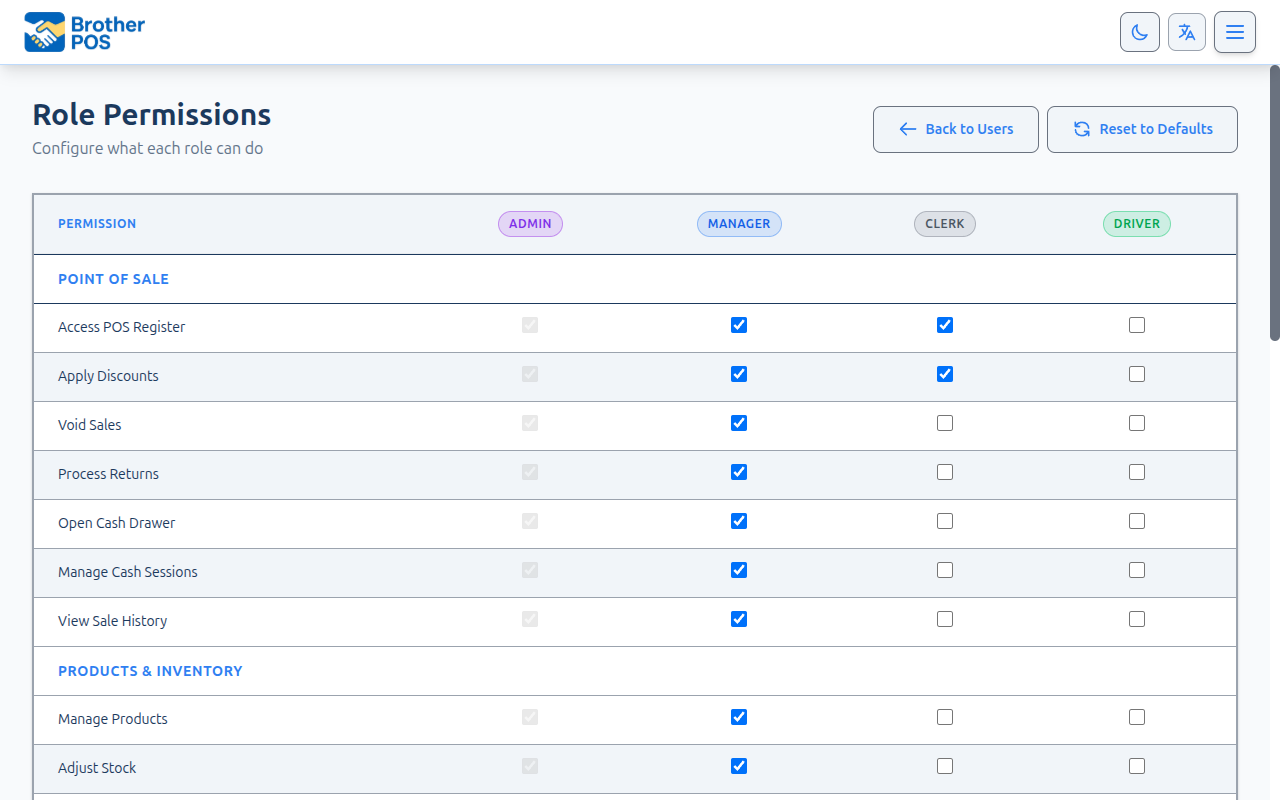
Built-In Roles
Admin
Full, unrestricted access to everything. Admins always have every permission — the Admin column on the Role Permissions page is ticked all the way down and greyed out, because there is nothing to configure.
Manager
Everything except three owner-level permissions. By default a manager has every permission on the page except:
- View Financial Data
- Manage Users
- Manage Settings
Managers can use the admin panel. A few admin-panel pages are admin-only no matter what is ticked: the Staff Members page, Role Permissions, Store Settings and Activity Logs.
Clerk
Counter access only. By default a clerk has:
| Permission | On by default |
|---|---|
| Access POS Register | Yes |
| Manage Cash Sessions | Yes |
| Configure Scale | Yes |
| Sell Open-Price / Manual Items | Yes |
| Adjust Stock at the Register | Yes |
| Create Customers | Yes |
| View Sale History | Yes |
| Redeem Loyalty Rewards & Points | Yes |
| Everything else | No |
Stores set up recently are provisioned with a wider clerk set out of the box: Apply Discounts, Void Sales, Process Returns, Edit Pending Orders, Open Cash Drawer and Configure Printers are switched on as well. Older stores keep the shorter list above until an admin turns the extras on. (Clicking Reset to Defaults puts any store back to the shorter list.)
Clerks who sign in to the admin panel address are sent to the POS register. A clerk who goes to a back-office page directly only gets what the Clerk role's permissions allow: with the defaults they can look up and add customers (Create Customers) and set up scales (Configure Scale), but they cannot open the product pages, edit a customer's details or points, or import or export the customer list. Tick Manage Products, Manage Loyalty or Import / Export for clerks if you want them to.
Driver
The Driver column starts with every box unticked. Drivers use the delivery app. They can't sign in to the register, and a driver who opens the admin panel is taken to the driver app instead. When local delivery is turned on, Driver appears in the Role list when you add or edit a staff member — see User Management.
More detail: custom roles
Custom Roles
If none of the built-in roles fits — a Shift Lead who sits between Clerk and Manager, for example — you can create your own.
- Go to the Staff Members page and click Role Permissions.
- In the Custom Roles card at the top, type a Role Name (e.g.
Shift Lead). - Choose what it is Based on: Clerk, Manager or Driver. The new role starts from that role's defaults.
- Click Add Role.
- The new role appears as its own column in the permissions grid below. Tick the permissions it should have and click Save Permissions.
The role then appears in the Role dropdown on the user create and edit forms, under a Custom Roles heading. Staff on a custom role are listed wherever your staff are: the shift schedule and its PDF, time off, appointment bookings and the register's list of servers.
Most permission checks treat a custom role exactly like a built-in one. A Shift Lead granted Sell Open-Price / Manual Items can approve a clerk's manual item with their own PIN — they do not have to be promoted to Manager first. The same applies to approving voids, discounts, reweighs and purchase limit overrides — see Manager Override.
What it is based on also matters beyond the starting ticks: a role based on Manager can use the admin panel like a manager, and a role based on Clerk is sent to the register like a clerk.
To remove a custom role, click the x beside it and confirm. A role that still has users assigned cannot be deleted — the card shows how many users have it, and the message tells you to reassign them first.
More detail: every permission, explained
The Permission List
These are the permissions exactly as they appear on the Role Permissions page, grouped by the same headings.
Point of Sale
| Permission | What it allows |
|---|---|
| Access POS Register | Sign in to the register, and look up stock at your other stores from it. Unticking it for a role stops those people signing in to the register, including with a PIN while the register is offline. They see "Your role doesn't have access to the POS register. Ask an administrator to turn on Access POS Register." |
| Apply Discounts | Apply a manual discount at the register without a manager PIN |
| Void Sales | Void a sale or a line item without a manager PIN |
| Process Returns | Record a return and refund. It also shows Report Issue / Process Return in the register's settings panel. |
| Edit Pending Orders | Change the items on a pending (online or phone) order before it's completed. It isn't needed to ring up sales. (Stores that set up roles earlier may remember it as Process Sales.) Adding the tip a customer gives on the screen after a sale, and handing over (completing) a pending phone order, only need Access POS Register, so clerks can do both without it. |
| Redeem Loyalty Rewards & Points | Apply a customer's earned rewards and cash out their points without a manager PIN. Clerks have it by default. Untick it to make redemptions need the same approval as a manual discount. |
| Sell Open-Price / Manual Items | Ring an item in as a typed name and price instead of scanning a product |
| Open Cash Drawer | Show the Open Cash Drawer button in the register header and pop the drawer without a sale. The button only appears on a register that has a receipt printer set up, because the printer is what opens the drawer. |
| Manage Cash Sessions | Open, close, count and take over cash drawer sessions; cash drops, payouts and cash-ins (pay-ins), reprinting their slips, reversing a pay-in, and printing the inventory count sheet |
| Reverse Cash Drops / Adjust Opening Float | Reverse a cash drop or payout, and change the opening float mid-shift. Both change what the drawer should hold, so either could hide a shortage. Managers have it by default; a role without it is asked for a manager's PIN. |
| View Sale History | Browse past sales at the register (the Sales button and the sales history panel) and open the Orders page in the admin panel |
| Override Purchase Limit | Approve a sale that goes over a customer's cannabis daily purchase limit by entering their PIN |
| Configure Scale | Set up and pair the scale, including the Scales page in the admin panel |
| Configure Printers | Change register hardware settings |
Products & Inventory
| Permission | What it allows |
|---|---|
| Manage Products | Create and edit products, brands and categories from the register, and open the admin panel's product pages — editing, prices and costs, importing and deleting products, and the Brands page. (The stock screens there follow Adjust Stock, and printing a product's labels also opens to Manage Labels.) |
| Adjust Stock | Change how much stock exists from the admin panel — see the note below this table |
| Adjust Stock at the Register | Record stock adjustments and reweighs at the register, and see a product's adjustment history there. Clerks have this by default; Adjust Stock is not needed as well. |
| Manage Categories | Create and edit categories, including opening the Categories page in the admin panel (the Categories button on the Products page). It also opens the Brands page. |
| Import / Export | Import and export the customer list in the admin panel |
| Manage Labels | Open the Label Templates and Print Barcode Labels pages |
| Quick Add Products | Create a product on the fly from the register |
| Manage Suppliers | Open the Suppliers page (and its link in the Products page menu) |
| Manage Stock Transfers | Move stock between locations (not enforced yet — see below) |
| View Product QR Code | See a product's QR code in the register's product details |
Changing how much stock exists is split between two permissions, so a clerk can receive a delivery at the till without also gaining the admin stock screens.
Adjust Stock — the admin panel:
- The quick stock edit (the pencil) on the Products list — both opening it and saving it
- Counting a single location on a product page
- Checking stock in and out on a product's Inventory tab
Adjust Stock at the Register — the till:
- The Stock Adjustment screen at the register
- Reweighing, including the Shake / Reweigh (or Reweigh) button in the register's settings panel, which only appears for roles that have it
- A product's adjustment history at the register
Admins always have both. Managers have both by default. Clerks have Adjust Stock at the Register only, so the admin stock screens stay shut to them. A store that wants even the till behind a manager unticks the register box, which also hides those buttons. Someone without Adjust Stock who tries an admin stock screen is sent back with a message saying they need stock-adjustment permission.
Moving stock between locations on the Products page needs Manage Products or Adjust Stock, because it moves the same total between shelves rather than changing how much you have. A move made from the register counts as a till action, so either stock box allows it — a clerk with Adjust Stock at the Register can move stock as well as adjust it. Bulk-updating stock across a product's variations is limited to admins.
A change you save on the Role Permissions page reaches a signed-in register on its next background sync, within a few minutes — see Permission Caching below.
For the adjustment workflow itself, see Stock Adjustments.
Reports
| Permission | What it allows |
|---|---|
| View Reports | Open the reports section (not enforced yet — see below) |
| View Financial Data | See product cost and margin figures at the register |
Orders & Fulfillment
| Permission | What it allows |
|---|---|
| Manage Orders | Complete, void or load online and WooCommerce orders at the register; work on wholesale orders |
| Manage Deliveries | Book and manage DoorDash deliveries |
| Manage Kitchen | Open the Kitchen Orders page in the admin panel. The Kitchen Display screen itself is not affected. |
Promotions & Loyalty
| Permission | What it allows |
|---|---|
| Manage Campaigns | Open the Sale Campaigns page (Products → More Actions → Sales Campaigns) to set up sale, BOGO and freebie campaigns |
| Create Customers | Add a new customer at the register, and look up and add customers on the admin panel's Customers page. Cashiers have this by default. Without it, Create New Customer does not appear in the register's customer search. A customer added by someone without Manage Loyalty starts with no points and no tier. |
| Manage Loyalty | Edit or delete a customer and adjust their loyalty points, at the register or in the admin panel. Kept separate from Create Customers on purpose: points can be redeemed for money, so taking a new customer's name doesn't hand out the ability to credit a card. Granting it also allows creating customers. |
| Manage Store Credits | Issue store credit and take house-account payments |
| Manage Gift Cards | Activate and reload gift cards at the register (the Gift Cards button), and issue or void gift cards in the admin panel. Taking a gift card as payment does not need it. |
Wholesale / B2B
| Permission | What it allows |
|---|---|
| Manage Wholesale | Wholesale catalog, price lists, retailer connections and portal access |
| Manage Purchase Orders | Not enforced on the admin panel's Purchase Orders page yet — managers and admins can use that page whatever is ticked. |
Memberships & Classes
| Permission | What it allows |
|---|---|
| Manage Memberships | The Memberships area: dashboard, plans, members, discounts and auto-billing. Unticking it also hides Memberships from that role's navigation bar. See Memberships. |
| Manage Classes | Enrol and unenrol people in classes at the register |
| Manage Check-Ins | Check members in |
| View Membership Reports | The Membership Reports card on the Reports page, and the retention, churn and plan-breakdown reports behind it. See Membership Reports. |
Administration
| Permission | What it allows |
|---|---|
| Manage Users | Not enforced yet — see below. The Staff Members page is admin-only. |
| Manage Settings | At the register: Report Product Issue (shown as Report Issue / Process Return for roles that also have Process Returns), the Diagnostic Log and changing the store's language. The Store Settings page itself is admin-only. |
| View Activity Log | Open Reports → Audit Trail. The Activity Logs page itself stays admin-only. |
| Manage Registers | Change register settings (as does Configure Printers) |
Several boxes control things a role can already reach because of its job: Access POS Register, View Sale History, Manage Labels, Manage Suppliers, Manage Kitchen, View Activity Log, Manage Memberships, Manage Check-Ins and View Membership Reports. For these:
- Unticking the box for a role that has it by default removes that access. For example, untick View Sale History in the Manager column and managers lose the register's Sales button and the Orders page.
- Unticking a box the role doesn't have by default changes nothing. For example, clerks don't have View Activity Log by default, so that box only matters for roles that do.
- Clerks have View Sale History by default, so they can find recent sales for reprints and returns. Untick it in the Clerk column to hide past sales from clerks at the register.
- Ticking one of these boxes doesn't open admin-panel pages to clerks. Clerks are always sent to the register.
The same goes for a custom role: what counts is the defaults of the role it is based on.
Manage Users, View Reports and Manage Stock Transfers are saved with the role but do not currently change what anyone can do, and Manage Purchase Orders does not yet control the admin panel's Purchase Orders page. Import / Export currently controls only the customer import and export.
Ticking Manage Users, Manage Settings or View Activity Log for a manager or custom role does not open the Staff Members, Store Settings or Activity Logs pages — those stay admin-only.
More detail: open-price / manual items
Open-Price / Manual Items
Sell Open-Price / Manual Items controls the Manual Item button at the register — the one that lets a clerk type a name and a price instead of scanning a product. Because no product is attached, nothing comes out of stock and the line never shows up in product-level sales figures. The money is right; the inventory is not.
It is on by default for clerks and managers, so nothing changes at your store until you decide to turn it off.
When the permission is off for a role
- The clerk taps Manual Item.
- Instead of the usual form, a Manager Authorization Required prompt appears: "Selling an item without scanning it needs approval. Scan the product instead if you can."
- Someone with the permission enters their 4-digit PIN and taps Authorize.
- The Add Manual Item form opens with an extra required Reason box (e.g. "barcode damaged, item not in catalogue"), and "Authorized by [name]" is shown underneath.
- The line is added. The sale records who approved it and the reason against that line.
Every open-price line — approved or not — is listed on the Sales Report's Open-price sales tab.
Whoever enters the PIN only needs to hold Sell Open-Price / Manual Items themselves. A custom Shift Lead role with that permission can approve; a manager whose role has had it taken away cannot. Admins can always approve.
Leave it on if your team regularly sells things that genuinely are not in the catalogue. Turn it off if you want everything to come off a real product record — then use the reason field and the report to find the barcodes that keep failing to scan.
More detail: customizing permissions, step by step
Customizing Permissions
- Go to the Staff Members page.
- Click Role Permissions.
- The grid shows every permission down the side and every role across the top — Admin (locked on), Manager, Clerk, Driver, plus any custom roles you have created.
- Tick or untick the boxes you want to change.
- Click Save Permissions.
Reset to Defaults at the top of the page puts every role back to its built-in defaults. It asks you to confirm first, because it cannot be undone.
Common changes
Stop clerks ringing open-price items: untick Sell Open-Price / Manual Items in the Clerk column under Point of Sale, save. Clerks now get a manager-PIN prompt and must give a reason.
Let clerks void without a manager: tick Void Sales in the Clerk column, save.
Hide cost figures at the register from managers: leave View Financial Data unticked in the Manager column (that is already the default).
After changing permissions, log in as someone with that role and check they can do what they need to — and cannot do what they should not.
More detail: manager override (PIN override)
Manager Override (PIN Override)
For some actions, when a role does not hold the permission the register does not simply block it — it asks for a PIN from somebody who does hold it. The clerk stays logged in.
Actions that work this way:
- Applying a manual discount (Apply Discounts)
- Voiding a sale or a line item (Void Sales)
- Selling an open-price / manual item, which also requires a reason (Sell Open-Price / Manual Items)
- Reweighing stock (doing it: Adjust Stock at the Register; approving someone else's with a PIN: Adjust Stock)
- Letting a sale go over a customer's cannabis daily purchase limit (Override Purchase Limit)
- Reversing a cash drop or payout, or changing the opening float mid-shift (Reverse Cash Drops / Adjust Opening Float)
Other permissions — such as Open Cash Drawer or Manage Gift Cards — simply hide or block the action for roles without them.
See Manager Override for the full flow.
A permission lets someone do the action on their own. A manager override means they can do it only when someone with the permission is standing there entering a PIN. Use overrides for things you want supervised, not blocked.
More detail: how permissions are stored, caching and audit trail
How Permissions Are Stored
Permissions are stored per role, per store — not per user. Everyone with the same role in the same store has the same permissions. To give one person more access, either move them to a different role or create a custom role for them.
Permission Caching
Permissions are cached so the register stays fast. When you save a change:
- The server-side cache is cleared immediately, so the next request uses your saved values.
- Signed-in registers pick it up automatically. The register runs a background sync every few minutes; on the next sync it applies the signed-in user's updated permissions. Gates like the discount prompt and the manual-item prompt start behaving correctly without anyone signing out.
- Switched-off permissions too. When you untick a box a role has by default (for example View Sale History for managers), the button it hides — such as the register's Sales button — disappears on that same sync. The server refuses the action straight away either way.
- Admin-panel users see the change on their next page load.
Audit Trail
Permission changes are recorded on the Activity Logs page (admins only) as critical events flagged for review, including:
- Which admin made the change
- When it happened
- The before-and-after of the permission grid when you save it
- Resets to defaults
- Custom roles created or deleted
More detail: best practices and troubleshooting
Best Practices
- Start with the defaults. They cover most stores. Change only what you have a reason to change.
- Least privilege. Grant what the job needs, not what it might one day need.
- Prefer overrides to blanket permissions for sensitive actions — you get the action and a name against it.
- Use a custom role instead of promoting someone. A Shift Lead role is safer than making a senior clerk a manager.
- Re-read the grid quarterly. Stores change; permission sets drift.
- Test after every change by logging in as that role.
Troubleshooting
| Problem | Solution |
|---|---|
| User sees features they should not | Check which role they are on, then check that role's column on the Role Permissions page. Remember that a few boxes do not control anything yet, and some only take access away from roles that have it by default (see the notes above). |
| "Your role doesn't have access to the POS register" at sign-in | Access POS Register has been unticked for that person's role. Tick it again, or move them to a role that has it. |
| A manager can't find the Gift Cards button at the register | Manage Gift Cards has been unticked for their role. |
| Permission change not taking effect | The register applies it on its next background sync, including permissions you switched off. Give it a few minutes; if it still has not changed, check the register is online (a register that is offline picks it up when it reconnects). |
| Cannot find the Role Permissions button | It is on the Staff Members page, which only admins can open. Managers cannot configure permissions. |
| A custom role will not delete | People are still assigned to it. Move them to another role first — the message tells you how many. |
| A clerk is asked for a manager PIN to reverse a cash drop or change the opening float | Expected: clerks don't have Reverse Cash Drops / Adjust Opening Float by default. Tick it for the Clerk role if you want them to do it alone. |
| Someone gets a permission-denied message on a Products, Customers, Brands or Scales page in the admin panel | Those pages now check the matching permission — Manage Products for products, Create Customers to look up and add customers, Manage Loyalty to edit or delete one, Import / Export to import or export the customer list, Configure Scale for scales. Tick it for their role if they need it. |
| Clerk suddenly asked for a manager PIN on the Manual Item button | Sell Open-Price / Manual Items has been unticked for their role. That is the intended behaviour — see above. |
| Someone is told they need stock-adjustment permission when editing stock on the Products page | Their role does not have Adjust Stock. Tick it for that role, or have a manager or admin make the change. Moving stock between locations on that page works with either Manage Products or Adjust Stock. |
| No Shake / Reweigh button in the register's settings panel | That button only shows for roles with Adjust Stock at the Register (or Adjust Stock). Clerks have it by default; if it is missing, check the box hasn't been unticked for their role, and allow a few minutes for the change to reach the till. |
| A PIN is refused when approving | The approver needs the specific permission being overridden — Void Sales for voids, Adjust Stock for reweighs, Override Purchase Limit for purchase limits, Reverse Cash Drops / Adjust Opening Float for drop reversals and float changes. Custom-role PINs work as long as the role has that permission. |
What's Next?
- User Management — Create and manage user accounts.
- PIN Setup — Configure POS login PINs for your staff.
- Open-price sales tab — See every item rung in as a typed amount.