General Settings
Use this page to set your store's name, contact details, time zone, logo and opening hours, and to switch customer tracking and loyalty on.
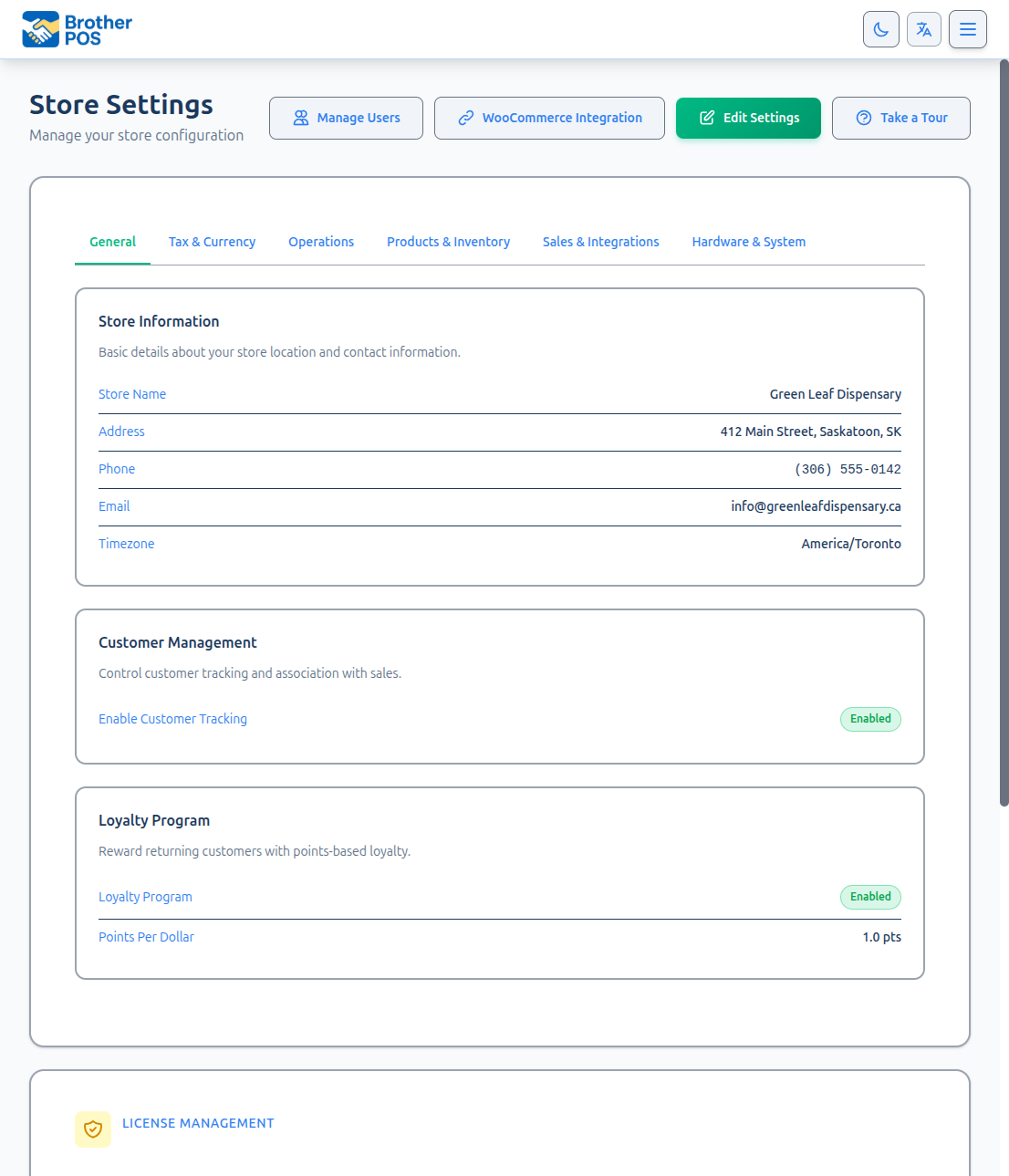
Quick steps
- Go to Settings and click Edit Settings. The General tab opens first.
- Under Store Information, fill in Store Name, Phone, Address and Email, and pick your Timezone.
- Under Store Logo, choose your logo file (PNG with a transparent background works best).
- Under Store Hours, enter the open and close time for each day, and tick Closed on days you don't open.
- Scroll to the bottom and click Update Settings.
All the settings tabs are one form. If you leave without clicking Update Settings, changes on every tab are lost.
Common questions
Why does the time zone matter? It decides which day a sale lands on in reports and when the cash drawer's business day rolls over. Set it at setup and avoid changing it later.
Where do I set the currency symbol? On the Tax & Compliance tab. It changes only the symbol shown — it doesn't convert prices.
Can receipts show a different name? The store name is the same everywhere. For extra text at the top of receipts (like a legal name), use Receipt Header under Hardware & System → Receipt Content Settings.
What happens if I leave phone or address blank? They're simply left off receipts.
More detail: the settings tabs
Accessing General Settings
- Log in to the Admin Panel as an admin.
- Click Settings in the navigation.
- Click Edit Settings. The General tab opens first.
The Edit Settings page has seven tabs: General, Tax & Compliance, Operations, Products & Inventory, Sales & Integrations, Hardware & System, and Notifications.
More detail: store information and time zone
Store Information
| Field | What it's used for |
|---|---|
| Store Name | Printed at the top of receipts. It's also the header and sender name on email receipts. |
| Phone | Printed on receipts when filled in, and shown in your storefront's contact details. |
| Address | Printed on receipts and email receipts when filled in, and shown on your storefront. It's a single line, so enter the full address in one field. |
| Shown in your storefront's contact details. | |
| Timezone | Sets the store's local time. See below. |
Use the name your customers know. If you also need text such as a legal name or a welcome message at the top of receipts, use Receipt Header under Hardware & System → Receipt Content Settings.
Timezone
Timezone is a dropdown of cities grouped by region:
| Group | Options |
|---|---|
| Canada (East) | Toronto — Eastern, Halifax — Atlantic, St. John's — Newfoundland |
| Canada (Central) | Winnipeg — Central, Regina / Saskatoon — CST (no DST) |
| Canada (West) | Edmonton / Calgary — Mountain, Vancouver — Pacific |
| United States | New York, Chicago, Denver, Phoenix, Los Angeles, Anchorage, Honolulu |
For a Canadian store, choosing a province on the Tax & Compliance tab sets the matching timezone. For example, Saskatchewan sets Regina. If you had already picked a different timezone on purpose, changing the province leaves your choice alone.
The timezone decides which date a sale falls on in daily reports, and when the cash drawer's business day rolls over. Set it correctly during setup and avoid changing it afterward.
Currency and SLGA Site ID
These aren't on the General tab:
- Currency Symbol is on the Tax & Compliance tab. It changes only the symbol shown on amounts. It doesn't convert any prices.
- The SLGA Site ID for Saskatchewan reporting is on the Tax & Compliance tab, under Saskatchewan Compliance.
More detail: store logo and store hours
Store Logo
Upload your logo once and it's used wherever your store's logo appears, such as the wholesale portal. PNG or SVG with a transparent background works best (JPEG and WebP are accepted too).
Leave the file box empty to keep the current logo.
Store Hours
Set your open and close times once, and Brother POS uses them in several places.
Setting your hours
- Find the Store Hours section on the General tab.
- For each day, Monday through Sunday, enter an open time and a close time.
- Check Closed for any day the store does not open.
- Click Update Settings at the bottom of the page.
What store hours are used for
| Area | How hours are used |
|---|---|
| Cash drawer business day | A drawer's business day ends at your most recent closing time. That keeps one day's sales from running into the next in reports. |
| Appointment booking times | Days marked Closed offer no appointment slots. On open days, slots run between your open and close times, unless the staff member being booked has their own schedule for that day. |
| Storefront hours | The Visit Us section of your storefront shows these hours, with "Closed" on closed days. |
If you leave them blank, the cash drawer uses the Business-day cutoff hour (fallback) on the Operations tab (see Operations Settings), and your storefront shows the hours you entered in the storefront editor instead.
More detail: customer tracking and loyalty
Customer Management
- Enable Customer Tracking — Shows customer search and selection on the POS, so sales can be linked to customers for history and loyalty. When unchecked, customer search is hidden from the POS register and the admin navigation. Existing customer data is kept.
Loyalty Program Settings
This section appears when your plan includes the loyalty program.
| Setting | What it does |
|---|---|
| Enable Loyalty Program | Turns loyalty points on or off for the store. |
| Points Per Dollar Spent | How many points a customer earns per dollar. Decimals are allowed (e.g. 1.5). |
| Cash value per point ($) | What one point is worth in dollars. Staff see this value next to a customer's balance. For example, 0.02 means a customer earning 1 point per dollar gets $2 back per $100 spent. |
When loyalty is turned off, customers still build up lifetime spend and visit counts, but they don't earn new points.
For tiers and rewards, see Loyalty Setup.
More detail: saving, and multi-store
Saving Changes
All the tabs on the Edit Settings page are one form. When you're done:
- Scroll to the bottom of the page.
- Click Update Settings.
If you leave the page without clicking Update Settings, your changes on every tab are lost.
Settings and Multi-Store
If you run more than one store, each store has its own settings. Changing one store's settings doesn't affect the others.
More detail: more questions
Common Questions
Can I use a different name on receipts than in the admin panel? The store name is the same everywhere. To add extra text to the top of printed receipts, use Receipt Header under Hardware & System → Receipt Content Settings.
What happens if I leave phone or address blank? They're simply left off receipts. No blank line is printed.
What's Next?
- Tax Configuration — Set up your tax rates and split-tax rules.
- Operations — Cash drawer defaults and payment types.
- Product Display — Control which product details appear in the POS.