Registers
Use this page to add, rename or retire registers — the named tills in your store, each with its own cash drawer, printers and Z-Report.
Quick steps
To add a register:
- Click Cash Drawers in the top navigation, then Manage Registers.
- Click Add Register.
- Enter a Register Name (for example "Front Counter") and a short Identifier (for example
pos-002). - Optionally set a Default Opening Float and Default Close Mode for this till.
- Click Create Register.
To rename or retire one: click Edit on its row, change the name (or untick Register is active to retire it), and click Update Register.
At the till, staff pick the register on the Select Register screen after signing in.
Common questions
Do I need to set anything up with one till? No. New stores start with Register 1. You can rename it, but nothing else is needed.
Why can't I delete a register? Only a register that has never had a cash drawer session can be deleted, so past sessions and Z-Reports stay intact. Untick Register is active instead.
Can two devices share a register? It's not recommended. Each register should be one station with one cash drawer, or you can't tell whose cash is whose.
How many registers can I have? It depends on your plan. If you reach the limit, you'll see a message when you try to add another.
More detail: getting there, and why named registers matter
Accessing Register Settings
- Log in to the Admin Panel as an admin or manager.
- Click Cash Drawers in the top navigation bar.
- Click Manage Registers at the top of the page.
Admins can also get there from Settings: when receipt or label printing is switched on, the Printer Hardware Configuration section has a Configure Registers button.
Each active register in the list shows its Customer display: address underneath its name. Open that address on a second screen to show the customer that register's cart. See Customer Display.
Why Named Registers Matter
Named registers provide:
- Cash accountability — Each register has its own cash drawer session. When a variance occurs, you know exactly which register is affected.
- Reporting clarity — Daily Close and Z-Reports are tied to specific registers, making reconciliation straightforward.
- Staff tracking — You can see which cashier was working on which register at any given time.
- Hardware mapping — Printers and cash drawers can be associated with specific registers.
New stores start with one register, called Register 1. You can rename it to something meaningful (e.g., "Main Register" or "Front Counter") but no additional configuration is required.
More detail: creating a register, and cash drawer defaults
Creating a Register
- Navigate to the Registers page (Cash Drawers > Manage Registers).
- Click the Add Register button.
- Enter the Register Name (e.g., "Register 1", "Front Counter", "Express Lane"). Each name must be unique in your store.
- Enter an Identifier — a short unique code for the register, such as
pos-002. It is required. - Optionally add a Location and Notes, and set the cash drawer defaults described in Cash Drawer Defaults.
- Click Create Register.
Some plans include a set number of registers. If you have reached yours, saving shows "Your plan includes 1 register. Upgrade to add more."
Cash Drawer Defaults
Two fields on the register form control how this till's cash drawer opens and closes. Both are only starting points — staff can still change them at the register.
| Field | What it does |
|---|---|
| Default Opening Float | The float suggested when a drawer is opened on this register. Leave it blank to use the store-wide default. It is not used when the last shift left cash in the drawer — then staff count what is actually there. |
| Default Close Mode | Which close option is selected when staff count and close this till. See below. |
Default Close Mode
| Option | Close screen starts on | Good for |
|---|---|---|
| Ask each time (default) | End Shift | Stores that haven't decided, or tills that close both ways. This is how every register behaves until you change it. |
| End of day — bank everything, start fresh next shift | End Day | A counter or drive-through that should start every shift at its own float. The whole till is deposited at close, so the next shift opens against its default float rather than against cash carried over. |
| Shift change — leave a float in the till for the next shift | End Shift | A bar or gaming floor that carries its float (and its payouts) across shifts. |
Each register decides for itself, so a store can have a drive-through that always starts fresh and a bar till that carries over. The clerk can still switch modes on the close screen, and once they tap a mode, the screen keeps their choice.
If a till should always start fresh but staff forget to press End Day, the drawer carries cash over and the next shift opens against a figure nobody expects. Setting the till to End of day makes the right choice the default.
At a store with 24/7 / continuous operation switched on, the close screen shows Close & Hand Off as the main button. A register set to End of day starts that screen on the full cash-out option instead. See 24/7 Stores.
Naming Conventions
Choose names that are meaningful to your staff:
| Approach | Examples |
|---|---|
| Numbered | Register 1, Register 2, Register 3 |
| Location-based | Front Counter, Back Counter, Drive-Through |
| Function-based | Main Register, Express Lane, Online Pickup |
Pick a naming convention and stick with it. Staff learn the names quickly and will use them when discussing cash discrepancies or shift handoffs.
More detail: editing and deleting a register
Editing a Register
- Navigate to the Registers page (Cash Drawers > Manage Registers).
- Find the register you want to edit.
- Click Edit in its row.
- Update the register name or other settings.
- Click Update Register.
If a register has an active cash drawer session, you can still edit its name. The session will continue under the new name. However, avoid renaming registers during business hours to prevent confusion.
Deleting a Register
Only a register that has never had a cash drawer session can be deleted, and only those registers show a Delete link on the Registers page. Click Delete, then confirm Are you sure? to remove the register.
Once a register has had a cash drawer session, it can't be removed, so its past sessions and Z-Reports stay intact. To retire a register you no longer use, click Edit, untick Register is active, and click Update Register. Inactive registers no longer appear on the POS register list.
More detail: assigning a register to a device
Assigning a Register to a Device
When a cashier logs into the POS on a specific device, they select which register they are working on. This associates the device with the register for the duration of the session.
Per-Register Configuration
Each register has its own hardware settings on its edit form. Some sections only appear when the matching feature is on for your store:
- Receipt Printer (when receipt printing is on) — the printer for this register, and Auto-print receipts after sales.
- Label Printer (when label printing is on) — the label printer for this register.
- Payment Terminal (when PayFacto, Square, Helcim or Payfirma is connected) — the card terminal for this register.
- Revenue Center and Default Scale, where your store uses them.
How It Works
- A cashier opens the POS at
storename.brotherpos.ca/pos. - After signing in, they pick a register on the Select Register screen. A store with a single register whose drawer is already open goes straight in.
- Using Lock / Switch User to let the next clerk sign in keeps the device on the same register. A full sign-in asks for the register again.
- All sales processed on that device are attributed to the selected register.
Changing the Register on a Device
If a device needs to switch to a different register (e.g., a tablet moved from front counter to back counter):
- If that till is finished, close its drawer with Count / Close Drawer first. (For anyone with the Manage Cash Sessions permission, Sign Out opens the count screen while the drawer is open.)
- Sign back in on the device. The Select Register screen appears.
- Choose the new register — Use Register if its drawer is already open, or count the cash and open a drawer on it.
More detail: registers and cash drawer sessions
Register and Cash Drawer Sessions
Each register can have one active cash drawer session at a time. The session lifecycle is:
- Open — Someone with the Manage Cash Sessions permission counts the drawer and opens the session.
- Active — Sales are processed, cash drops and payouts are recorded.
- Handover (optional) — The next person closes the outgoing shift and opens their own in one step with Close & open mine. See Taking Over a Drawer.
- Close — Someone counts the cash and closes the session, as End Shift or End Day. A Z-Report is generated.
For details on managing sessions, see Cash Drawer Sessions.
Register Status Overview
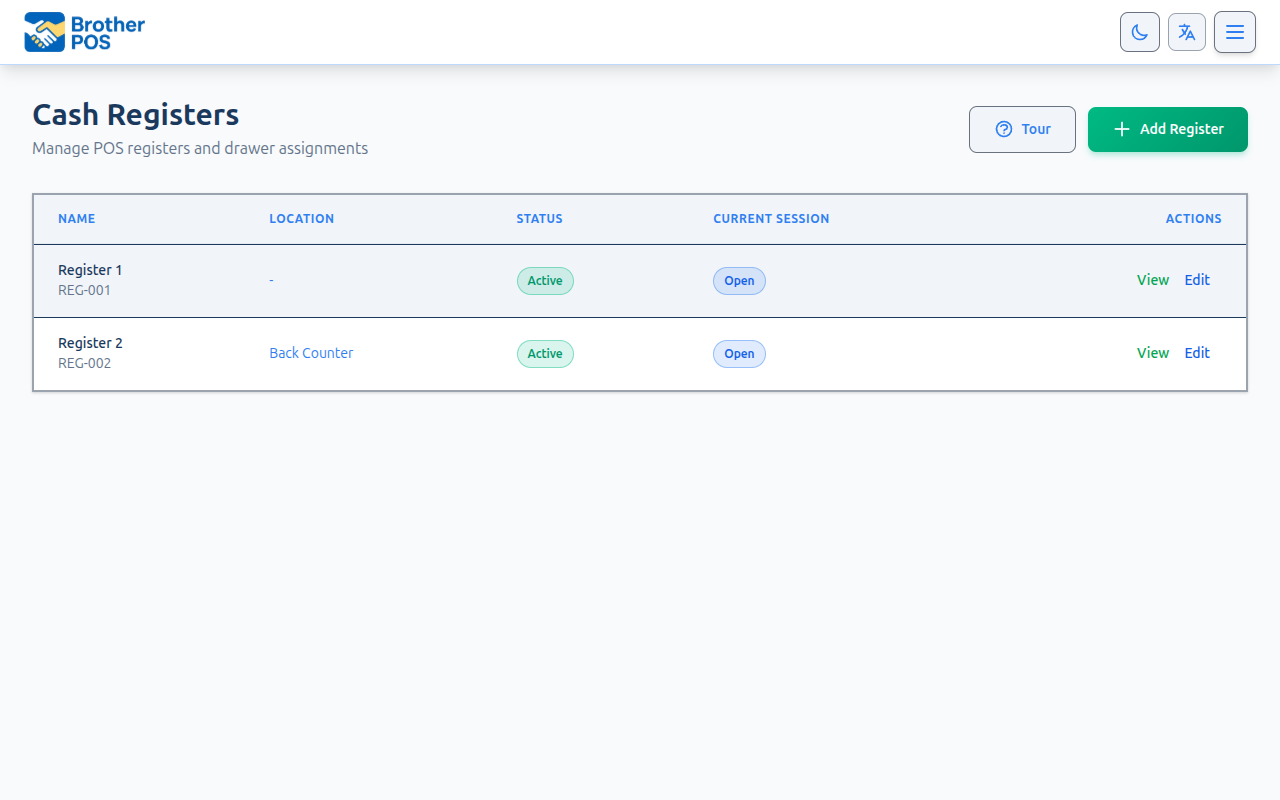
The Registers page lists each register with its Name, Location, Status (Active or Inactive), and Current Session (Open when a cash drawer session is open on it, otherwise Closed). Stores connected to PayFacto or Square also see a Payment Terminal column. For past sessions on a register, use Cash Drawers and filter by register — see Cash Drawer Sessions.
More detail: multi-register best practices
Multi-Register Best Practices
Starting the Day
- Open a cash drawer session on each register before business begins.
- Verify the opening float matches the physical cash in each drawer.
- Assign each register to the correct device.
During the Day
- Each register processes its own sales independently.
- Cash drops and payouts are recorded per register.
- If a register needs to be temporarily closed (e.g., slow period), close the session. You can open a new session later.
Closing the Day
- Close each register session individually.
- Count each drawer separately. Each close produces that register's Z-Report automatically.
- Review Daily Close for the whole day, with each register side by side.
More detail: more questions
Common Questions
How many registers can I have? That depends on your plan. Some plans include a single register; others have no limit. If you reach your plan's limit, Brother POS tells you when you try to add another.
Can two devices use the same register? It is not recommended. Each register should be associated with one physical station and one cash drawer. If two devices share a register, cash accountability becomes impossible to maintain.
Do I need a separate receipt printer for each register? Not necessarily. Multiple registers can share a network printer. However, for speed and convenience, one printer per register is recommended. See Receipt Printers for setup.
What happens if I do not set up registers? New stores start with a register called Register 1, and all sales and sessions are attributed to it. You can rename it, but single-register stores do not need additional configuration.
What's Next?
- Cash Drawer Sessions — Review open and past register sessions.
- Receipt Printers — Set up printers for each register.
- Cash Drawers — Connect cash drawers to your registers.
- Operations — Store-wide cash drawer defaults and payment types.