Cash Drawers
Use this page to hook up a cash drawer. The drawer plugs into your receipt printer (not the computer), and the printer pops it open after a cash sale.
Quick steps
- Set up the register's receipt printer first (see Receipt Printers).
- Find the port marked DK (or with a drawer icon) on the back or bottom of the receipt printer.
- Plug the drawer's phone-style cable (RJ11/RJ12) into the printer's DK port, and the other end into the drawer.
- On the register, open the printer settings (gear button) and make sure Print receipts after sales or Open drawer without printing (cash sales only) is on.
- Ring up a small cash sale. The drawer should pop open when the sale completes.
Most printers and drawers use 24V. If you mix brands, make sure they match — a 12V drawer on a 24V printer can be damaged.
Common questions
How do I open the drawer without a sale? Tap the dollar-sign icon (Open Cash Drawer) in the register's top bar. You need the Open Cash Drawer permission. At the start of a shift, use Open Drawer to Count on the opening screen.
Why doesn't a card sale open the drawer? By design, only cash sales pop it. Split payments with a cash part don't either — pop it by hand.
Can I plug the drawer into my computer by USB? No. The drawer must connect through the receipt printer's DK port.
The printer is off and I need the cash. Use the key on the front of the drawer. It always works.
More detail: how drawers connect, and which drawers work
How Cash Drawers Connect
POS Device ──(network)──> Receipt Printer ──(DK port / RJ11 cable)──> Cash Drawer
The cash drawer does not connect to your computer or network directly. It connects to the receipt printer using an RJ11 or RJ12 cable (the same type of cable used for landline telephones, but with a different pin configuration).
The receipt printer can be one set up on the register, or one paired directly to the tablet or phone running the POS (for example, a Bluetooth printer built into the stand). Either can open the drawer.
Once physically connected, the drawer needs no driver or setup of its own. Brother POS tells the receipt printer to open the drawer, and the printer does the rest. What does matter is how the register's receipt printer is set up — see Automatic Opening.
Supported Cash Drawers
Most standard POS cash drawers with an RJ11 or RJ12 interface are compatible. The drawer must support printer-triggered opening via a DK port.
Recommended Drawers
| Drawer | Interface | Notes |
|---|---|---|
| APG Vasario | RJ12 | Reliable, heavy-duty. Common in retail environments. |
| Star Micronics CD3-1616 | RJ12 | Compact, good for small countertops. |
| MMF Val-u Line | RJ12 | Budget-friendly option. |
| Any RJ11/RJ12 POS drawer | RJ11 or RJ12 | Must be compatible with your printer's DK port voltage. |
Most Epson printers use a 24V DK signal, and most POS cash drawers expect 24V. If you are mixing printer and drawer brands, verify that the voltage matches. A 12V drawer on a 24V signal may be damaged.
More detail: physical setup, step by step
Physical Setup
Step 1: Position the Cash Drawer
- Place the cash drawer on or under the counter at the register station.
- Ensure there is enough clearance for the drawer to open fully.
- Position it within cable reach of the receipt printer.
Step 2: Connect the Cable
- Locate the DK port on the back or bottom of your receipt printer. It is usually labeled "DK" or has a drawer icon.
- Plug one end of the RJ11/RJ12 cable into the printer's DK port.
- Plug the other end into the input port on the back of the cash drawer.
Step 3: Test the Connection
- Log in to the POS.
- Process a test cash sale.
- When the sale completes, the cash drawer should pop open automatically.
If the drawer does not open, check the cable connections and try again.
More detail: when the drawer opens, and opening it by hand
Automatic Opening
The cash drawer opens automatically in the following situations:
| Event | Drawer Opens? |
|---|---|
| Cash sale completed | Yes — when the register's receipt printer is on and it is set to print receipts after sales, or to open the drawer without printing |
| Split payment (even with a cash part) | No — pop the drawer by hand |
| Card or e-transfer sale | No |
| Store credit sale | No |
| Voiding a sale | No |
Recording a cash drop, payout or pay-in, and opening a new drawer session, do not pop the drawer on their own. Use one of the buttons below.
On the register, the printer settings have Print receipts after sales and Open drawer without printing (cash sales only). A cash sale pops the drawer when either one is on. With both off, cash sales don't open the drawer.
Opening the Drawer by Hand
| Where | Button | When to use it |
|---|---|---|
| POS top bar | The dollar-sign icon (Open Cash Drawer) | To make change, or before a cash drop or payout. Shown when you have the Open Cash Drawer permission, the register has a receipt printer set up, and Show cash drawer button in header is on in the register's display settings (it is on unless someone turned it off). |
| Opening screen | Open Drawer to Count | At the start of a shift, before a drawer session is open, so staff can count the float. Shown when the register has a receipt printer set up or the device has its own paired receipt printer. |
Before Open Drawer to Count kicks the drawer, the POS reconnects to the device's saved printer. That way it works even when nothing has been printed since the app was opened.
Manual Drawer Open (Key)
Every POS cash drawer includes a physical key lock on the front. This key serves two purposes:
- Manual open — If the printer or POS is offline, you can turn the key to open the drawer manually.
- Lock — When the store is closed, lock the drawer to prevent unauthorized access.
Keep the cash drawer key in a secure location. Only managers and authorized personnel should have access to the key. The key should not be left in the lock during business hours.
More detail: multiple drawers, and how drawer sessions fit in
Multiple Cash Drawers
If your store has multiple registers, each register needs its own cash drawer:
- Connect each cash drawer to its respective receipt printer via the DK port.
- Each register's POS session tracks its own drawer independently.
- Cash counts and variances are per-register, so there is no cross-contamination between drawers.
Dual Drawer Setup
Some receipt printers can drive two drawers. Brother POS has no setting for choosing between two drawers on one register, and each register still has a single drawer session. Check your printer's documentation before relying on a two-drawer setup.
Cash Drawer Session Workflow
The cash drawer integrates with Brother POS's session management:
- Someone opens a session by counting the float. Open Drawer to Count pops the drawer so it can be counted.
- Cashier processes sales. Cash sales open the drawer (when the register's receipt settings allow it — see Automatic Opening). Card sales do not.
- Cash drops are recorded when cash is removed from the drawer to the safe. Pop the drawer with the dollar-sign button if it isn't already open.
- Someone closes the session with Count / Close Drawer. A forced cash count is required: they count the cash in the drawer and enter the amount.
- Z-Report is generated showing expected vs. actual cash and any variance.
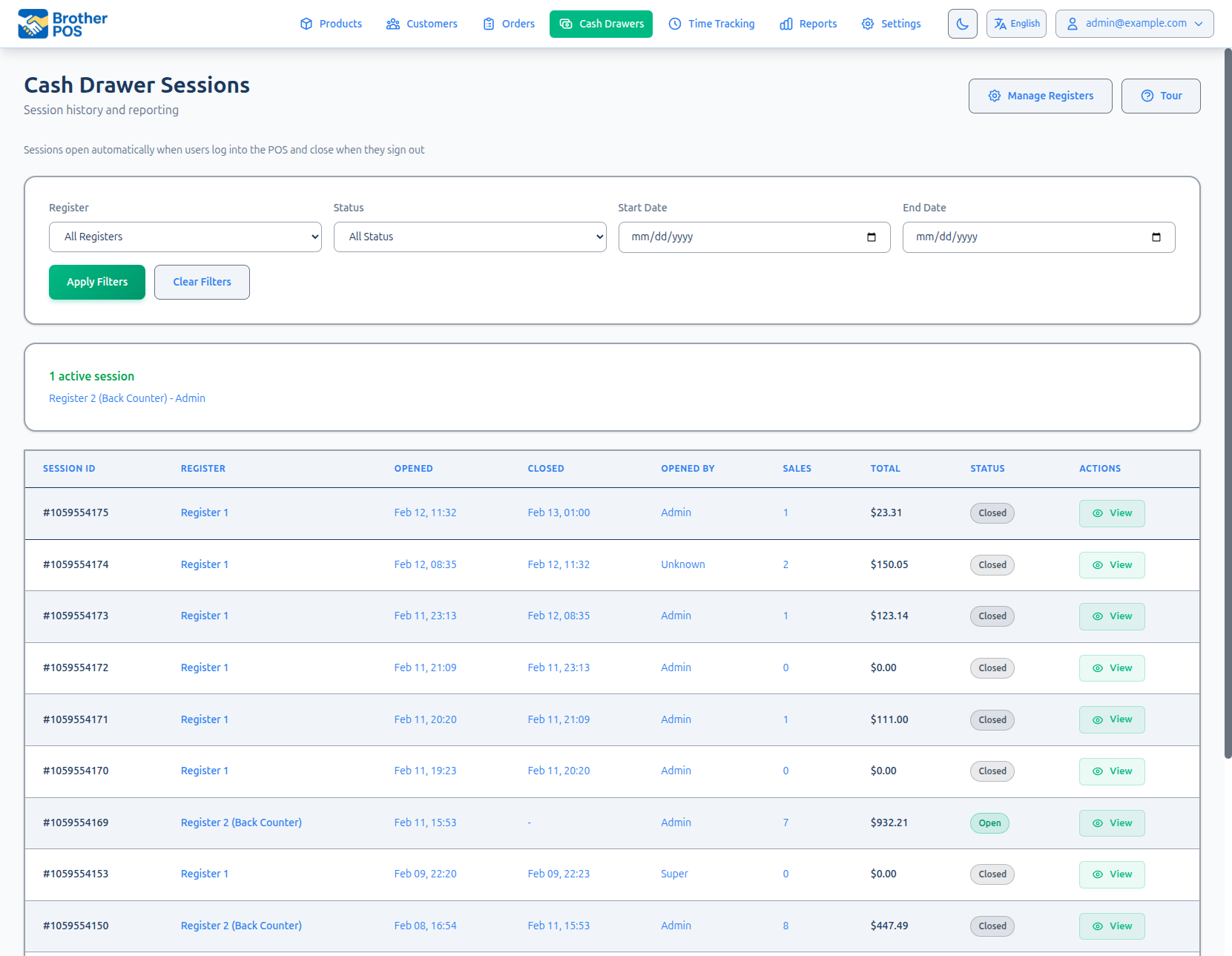
See Cash Drawer Sessions for detailed session management instructions.
More detail: troubleshooting
Troubleshooting
Drawer Does Not Open on Cash Sale
- Check the register's printer settings. A cash sale only pops the drawer when Print receipts after sales or Open drawer without printing (cash sales only) is on.
- Check the cable. Ensure the RJ11/RJ12 cable is securely connected to both the printer and the drawer.
- Check the receipt. Did a receipt print? If not, the issue is with the printer connection, not the drawer.
- Check the DK port. Try plugging the cable into a different DK port on the printer (if available).
- Try a different cable. RJ11 cables can fail. Swap with a known-good cable.
- Manual test. Use the key to open the drawer manually. If it opens, the drawer mechanism is fine and the issue is electrical.
"Open Drawer to Count" Does Not Open the Drawer
- Check that a printer is set up. The button uses the register's receipt printer, or the receipt printer paired to this device. If neither exists, the button is not shown at all.
- Make sure the printer is on and in range. For a Bluetooth printer, confirm it is powered on and paired with this device.
- Try printing a test receipt from the POS printer settings. If that fails, fix the printer first — the drawer is opened through it.
- Use the key to open the drawer if you need to count right away, then sort out the printer.
If it still won't open, contact support. The POS keeps a note of what it tried, which support can use to find the cause.
Drawer Opens but Receipt Does Not Print
On a cash sale the POS opens the drawer first and then sends the receipt, so a drawer that opens tells you the printer is reachable. If no receipt follows, check that Print receipts after sales is on — with only Open drawer without printing (cash sales only) turned on, no receipt prints by design. Otherwise, check the receipt printer settings and try a test print.
Drawer Makes a Click but Does Not Open
- The drawer may be jammed. Open it with the key, check for obstructions (coins, receipts, pens), and close it again.
- The latch mechanism may need lubrication. Apply a small amount of dry lubricant to the latch.
Drawer Opens Randomly
This is rare but can happen if:
- A loose cable is making intermittent contact. Reseat the DK cable firmly.
- Electrical interference is triggering the DK signal. Move cables away from power adapters or other electrical sources.
More detail: more questions
Common Questions
Can I connect the cash drawer directly to my computer via USB? No. Brother POS does not support USB-connected cash drawers. The drawer must connect through the receipt printer's DK port.
Does the drawer still work if the internet goes down? Usually. The POS opens the drawer by talking to the receipt printer directly — over your local network, Bluetooth, or the printer bridge — so as long as the device can still reach the printer, cash sales keep popping the drawer. The key always works as a fallback.
Can I disable automatic drawer opening? Yes, per register. A cash sale only opens the drawer when Print receipts after sales or Open drawer without printing (cash sales only) is on in the register's printer settings. Turn both off and cash sales won't pop the drawer — but receipts won't print automatically either. Staff can still open it with the dollar-sign button or the key.
What's Next?
- Receipt Printers — Set up the receipt printer your cash drawer connects to.
- Cash Drawer Sessions — Learn how to manage drawer sessions.
- Registers — Set up named registers for multi-drawer stores.
- Barcode Scanners — Set up barcode scanning at the register.