Scales
Use this page to connect a scale at the register so products sold by weight are priced from the real weight.
Quick steps
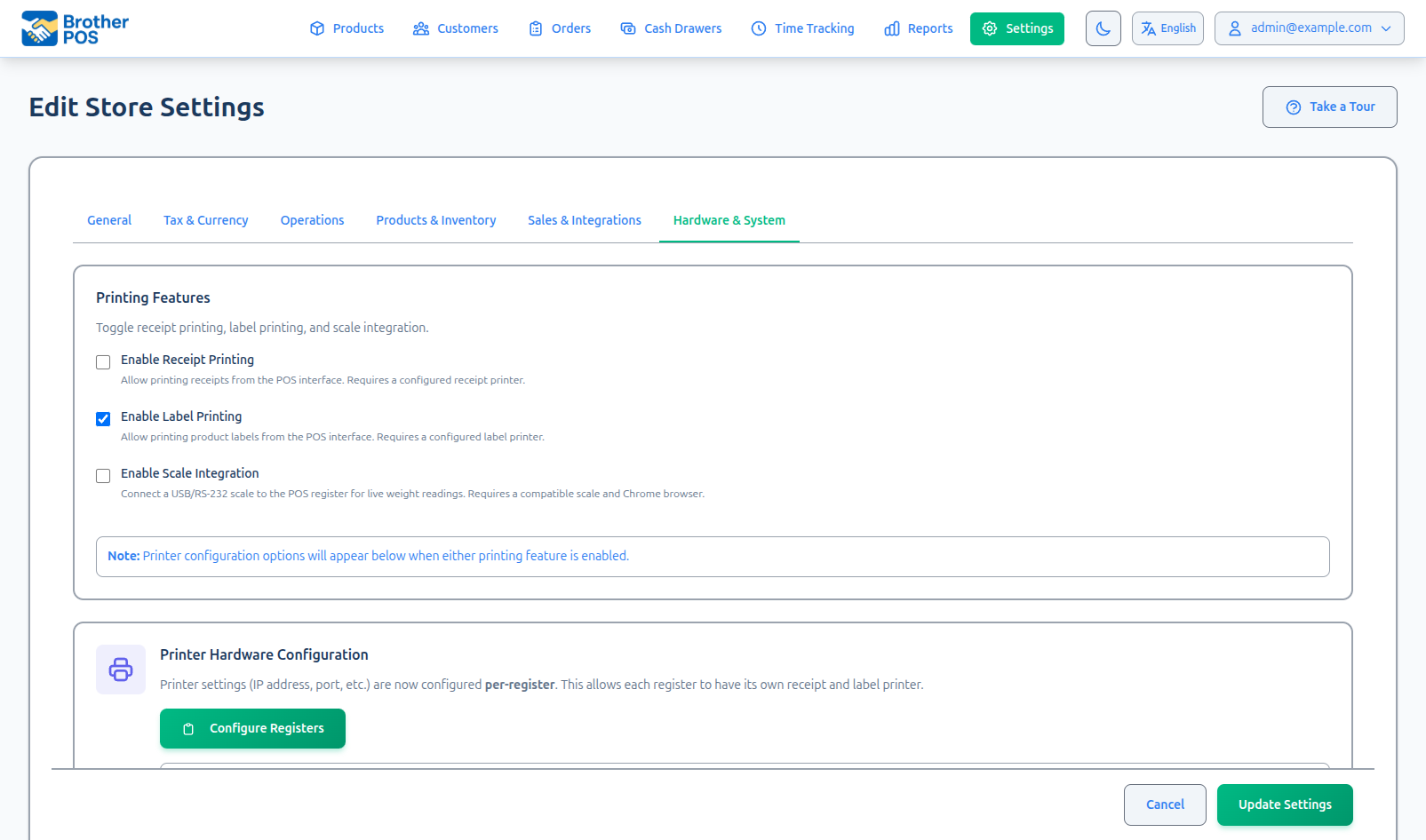
- In the admin, tick Enable Scale Integration under Settings → Edit Settings → Hardware & System (in the Printing Features section) and click Update Settings.
- Plug in and turn on the scale.
- On the register, tap the gear (Settings) button in the top bar and find the Scale section.
- USB scale on a computer (Chrome or Edge): tap Auto-Detect, pick your scale in the list the browser shows, and click Connect.
- Wi-Fi scale: tap Scale on Wi-Fi instead (USR-W610 or similar) if you're on a computer (an iPad goes straight there), then Scan for scale, Test, and Save.
- Tap a weight-based product, put the product on the scale, wait for Stable, and tap Use Scale Weight.
A web browser can't reach a Wi-Fi scale by itself. Run the Printer Bridge on that computer. The iPad app doesn't need it, and the Android app reads USB scales only.
Common questions
The scale isn't working and a customer is waiting. Type the weight on the number pad (or tap a preset) instead. Manual entry always works — a scale problem never blocks a sale.
Auto-Detect says nothing was received. Some scales only send a weight when you press their Print or Output key. Tap Read Raw Data and press that key while it listens.
How do I weigh product in a bag? Put the empty bag on the scale and tap Tare in the weight window, then add the product. Tap Untare to clear it.
Can I use a Bluetooth scale? No. Brother POS connects to USB scales and to Wi-Fi scales on a USR-W610 adapter.
Do I need a scale if everything is pre-packaged? No. Weight presets may be all you need.
More detail: which connection your device uses, and prerequisites
Brother POS can read a scale at the register so products sold by weight are priced from the real weight. Turn it on with the Enable Scale Integration setting (see below). How the register reaches the scale depends on the device:
- Wi-Fi scale (recommended): A small USR-W610 Wi-Fi adapter (the "bridge") plugs into the scale and puts it on your store's network. The iPad app reads it directly. A computer's browser reads it through the Printer Bridge running on that computer. This is the setup used for the deli-style weighing workflow.
- USB scale on a computer: connects straight through Chrome or Edge, with no drivers needed.
- USB scale on an Android POS terminal: connects through the Android app itself. The Android app reads USB scales only. It doesn't read a Wi-Fi scale.
Once a Wi-Fi scale is saved for a register, or if you are on an iPad, the POS scale settings show the Wi-Fi scale panel. Otherwise a computer (Chrome or Edge) shows the USB scale panel, which has a Scale on Wi-Fi instead (USR-W610 or similar) button for setting up a Wi-Fi scale. The Android app always shows the USB scale panel, with no Wi-Fi option.
Prerequisites
Before setting up a scale:
- Turn on Enable Scale Integration under Settings > Edit Settings > Hardware & System tab, in the Printing Features section.
- For a USB scale on a computer, use Google Chrome or Microsoft Edge. Firefox and Safari can't connect to a USB scale.
- For a USB scale, the scale must send its weight over a serial connection (usually through a USB-to-serial adapter).
More detail: supported scales, and how weighing works
Supported Scales
Brother POS works with scales that keep sending their weight reading on their own (often called "continuous" output). It recognises the common reading formats automatically, and reads weights in grams, kilograms, ounces and pounds.
| Connection | What you need |
|---|---|
| USB (computer) | A serial scale on a USB-to-serial adapter. The port list only shows adapters with Prolific, FTDI, Silicon Labs or CH340/CH341 chips, which covers most adapters. |
| USB (Android app) | A serial scale plugged into the Android terminal's USB port. |
| Wi-Fi | A serial scale plugged into a USR-W610 Wi-Fi adapter on your store's network. |
The register shows weights to 0.1g. For cannabis sales, use a scale with at least 0.1g precision.
How It Works
- The cashier taps a weight-based product in the POS. The weight selection window opens and shows the live scale reading.
- The cashier places the product on the scale and waits for the reading to settle.
- The cashier taps the capture button (Use Scale Weight or Use _N_g). With Auto-capture when steady on, a settled pour is captured without a tap.
- The product is added to the cart, priced by the weight tier it reached or by the gram.
More detail: setting up a USB scale, and baud rate
Setting Up a USB Scale
Step 1: Connect the Scale
- Plug the USB scale into an available USB port on your POS device.
- Power on the scale.
- Allow it to calibrate (most scales auto-calibrate on power-up).
Step 2: Enable Scale in Brother POS
- Log in to the Admin Panel.
- Navigate to Settings > Edit Settings > Hardware & System tab.
- Tick Enable Scale Integration.
- Click Update Settings.
Step 3: Connect the Scale in the POS
The first time you use the scale on a computer, the browser asks which device to connect to:
- Open the POS register at
storename.brotherpos.ca/pos. - Tap the gear (Settings) in the top bar. The Scale section is in that window.
- Tap Connect Scale (or Auto-Detect if you don't know the scale's speed).
- The browser shows a list of serial devices. Choose the one that is your scale.
- Click Connect.
The browser remembers this permission, so you won't be asked again unless you clear browser data or use a different browser.
After you connect a scale with Connect Scale or Auto-Detect, Brother POS reconnects it without asking, with the same speed and data format: when the POS is reloaded or reopened (as long as Auto-connect on startup is ticked in the POS scale settings), and on a computer when the scale is powered back on. A saved Wi-Fi scale also connects on startup in the iPad app and in a computer's browser (with the Printer Bridge running). This stops after you tap Disconnect Scale. See the POS Scale guide for the cashier-side behaviour.
If the device list does not appear:
- Make sure you are using Chrome or Edge (not Firefox or Safari).
- Check that no browser extensions are blocking access to serial devices.
Baud Rate Auto-Detection
A USB scale sends at a set speed (the baud rate) and in a set data format. If the register listens with the wrong one, it hears nothing. Different scales use different settings.
Automatic Detection
Tap Auto-Detect in the POS scale settings and pick your scale in the device list. Brother POS tries these speeds: 9600, 4800, 2400 and 1200.
The auto-detection process:
- Brother POS tries every speed in the standard data format (8N1) first. Then it tries every speed again in 7E1, 7O1 and 8E1, the formats lab and pharmacy balances are often set to. The button shows each attempt, for example Trying 9600 7E1....
- It only listens for weight readings. It does not send any command to the scale.
- When readings come through, it connects and shows the speed and format it found, for example Detected and connected at 9600 baud, 7E1. The speed (shown as the Baud Rate) and the format are saved on this device.
In the Android app, Auto-Detect tries the speeds in the standard format only.
Connect Scale, Read Raw Data and the automatic reconnect all use the speed and format Auto-Detect found. A scale set to 7E1, for example, only needs Auto-Detect once on each device.
Some balances only send a weight when you press their Print or Output key, so Auto-Detect hears nothing at any speed and says so. Tap Read Raw Data in the POS scale settings and press the scale's Print or Output key while it listens (3 seconds).
Manual Baud Rate Setting
If auto-detection fails:
- Check your scale's manual for the correct baud rate.
- In the POS scale settings, pick it from the Baud Rate list and tap Connect Scale.
- Place a known weight on the scale and check the live reading.
If you cannot find the baud rate in your scale's manual, try the most common value first: 9600.
More detail: Wi-Fi scales
Wi-Fi Scale via the Bridge
For a Wi-Fi scale, the scale plugs into a USR-W610 adapter, which joins your store's network.
- iPad app: connects to the adapter directly. No extra software is required.
- Computers (browser): a browser can't reach the adapter by itself, so it goes through the Printer Bridge running on that computer. The Printer Bridge passes the live weight to the register and also runs Scan for scale for the browser.
- Android app: doesn't read a Wi-Fi scale, and its scale settings don't offer the Wi-Fi option. Use a USB scale on Android.
Reserve the W610's IP on your router (a DHCP reservation) so the address never changes and you don't have to re-configure the scale.
Setting Up a Wi-Fi Scale From the Register
Staff with the Configure Scale permission can find, test, and save a Wi-Fi scale right from the POS, with no admin trip required. This works in the iPad app and on a computer (Chrome or Edge). Open the POS scale settings. On an iPad the Wi-Fi scale panel opens directly. On a computer with no Wi-Fi scale saved yet, tap Scale on Wi-Fi instead (USR-W610 or similar) first.
Scan, Test, Save
- Tap Scan for scale. The register looks for scale bridges on the network, which can take up to about 15 seconds. If one is found, its address is filled in. If several are found, tap the right one.
- On a computer, the search is run by the Printer Bridge on that computer, so it must be running (and up to date).
- On an iPad, allow the Local Network permission if asked.
- If nothing is found, enter the Bridge IP, Port (default
8899), Name, and Protocol manually. - Tap Test to connect and confirm a live weight reads back below.
- Tap Save. The scale is saved on the server as this register's scale, so every device using that register picks it up.
The message under the button says why: the iPad is blocking local network access, this app version can't search, no Printer Bridge is running on the computer, or the search ran and nothing answered. When an iPad's search ran, the message names the network it looked at, which helps you spot a scale on a different network. See If Scan Finds Nothing for what to do about each.
Scanning for and saving the scale requires the Configure Scale permission. Staff without it see the saved bridge address and a Reconnect button. If no scale is saved, they see No scale configured for this register. Ask an admin to assign one. An admin can also pick a register's scale with the Default Scale setting on that register's edit page.
More detail: deli scale (weigh-heavy) settings
Deli Scale (Weigh-Heavy) Workflow
For deli-style weighing, where a budtender pours product onto the scale to a target tier, Brother POS adds a set of store-level settings plus POS-side conveniences (tare, auto-print). The store-level settings live under Settings > Edit Settings > Hardware & System tab, in the Printing Features section, directly beneath the Enable Scale Integration toggle.
Admin Settings
| Setting | Description |
|---|---|
| Weigh-heavy threshold (g) | How far over a tier a budtender may pour while still charging the tier price (the extra is a free give-away). Set to 0 to turn weigh-heavy off. |
| Scale capture mode | Inline (weigh while adding): select a product, then weigh. Scale Mode (weigh many, attach after): capture a list of weights first, then tap products to attach each captured weight. |
| Per-gram rounding | For per-gram products, round a scale capture down to this step so the customer isn't charged for the fractional grams. Options: Off (charge exact weight), Down to 0.5g, Down to 1g. Default Off. |
| Auto-capture when steady | When on, a fresh pour that holds steady is captured automatically, with no "Use Scale Weight" tap needed. Off by default. |
| Auto-capture hold (seconds) | How long the scale must hold steady before auto-capture fires. Default 5 (minimum 1). Higher is less twitchy; 5–10s is recommended for a reliable hands-free add. |
When weigh-heavy is enabled, the free grams handed out over each tier are recorded on the sale line, along with how the weight was entered (scale, preset, or manual). The Give-Away (Weigh-Heavy) report summarizes the free grams handed out over a date range and includes a Scale usage by budtender breakdown so you can see who's actually using the scale. See Weigh-Heavy Give-Away Report.
Per-gram rounding only ever rounds a scale capture down (e.g. 11.3g → 11.0g at the 0.5g step), so the customer is never charged for the fraction above a clean step. The actual un-rounded weight is still recorded on the line, so inventory deducts the real grams poured and the difference is tracked as a give-away. It applies to scale captures only. A manually typed weight is charged as entered.
Capture Modes
- Inline: the cashier selects a weight-based product, then reads the scale. With Auto-capture when steady on, the item is added as soon as a fresh pour settles. A tier reading adds at the tier price, and a per-gram reading adds at the rounded-down weight.
- Scale Mode: the cashier weighs several portions in a row, building a list of captured weights in a Scale Mode window opened from the cart action bar, then taps products to attach each weight afterward. This is faster when bagging multiple items before ringing them up. With Auto-capture when steady on, a fresh pour held steady drops into the list automatically. See the POS Scale guide for the cashier-side flow.
Tare / Weigh-in-Bag
The POS provides a software Tare for weighing product in a bag or tray:
- Place the empty bag or tray on the scale.
- Tap Tare in the weight window (or in the Scale Mode window) to zero out its weight.
- Add the product. Only the product weight is captured.
- Tap Untare to clear the offset. The tare also clears when you disconnect the scale.
This offset is applied in Brother POS, so it works with both Wi-Fi and USB scales, even if the scale has no Tare button of its own.
Auto-Print Exit Label
When a register has Auto-print labels after sales turned on (in the POS Settings (gear), label printer section), weighed adds print an exit label for the weighed item automatically. That includes a preset tap, a per-gram entry, a scale capture, an add to an open tab, and a Scale Mode attach. This is set per register, not as a store-level scale setting.
More detail: using the scale at the register, and weight presets
Using the Scale at the Register
Weighing a Product
- Tap a weight-based product in the POS.
- The weight selection window opens with the live scale reading.
- Place the product on the scale and wait for Stable.
- Tap Use Scale Weight (tier name) to add it at that tier, or Use _N_g for a per-gram product. A per-gram capture is added to the cart straight away.
See the POS Scale guide for the full cashier flow.
Brother POS reads weights in grams (g), kilograms (kg), ounces (oz), and pounds (lb). Whichever unit the scale reports is converted for pricing. Most cannabis scales output in grams.
Manual Weight Entry
If the scale is unavailable, disconnected, or malfunctioning, cashiers can enter the weight manually:
- Tap the weight-based product.
- Type the weight on the number pad (or tap a preset) instead of using the scale.
- Add the item to the cart.
Manual weight entry is always available, even when a scale is connected. A scale problem never blocks a sale.
Taring
Use the in-app Tare button described in Tare / Weigh-in-Bag. Pressing the Tare button on the scale itself also works, because Brother POS reads whatever weight the scale reports.
Weight Presets vs. Scale
For common pre-packaged weights (1g, 3.5g, 7g, 14g, 28g), you can use weight presets instead of the scale:
- Turn on weight presets in Settings > Edit Settings > Products & Inventory tab.
- Set up your presets (see Weight Presets).
- When adding a weight-based product, cashiers see preset buttons alongside the scale reading.
- Tapping a preset sets the weight without using the scale.
This is faster for pre-packaged products. Use the scale when a customer orders a custom weight or for deli-style pours.
More detail: troubleshooting
Troubleshooting
Scale Doesn't Appear in the Device List
- Check the USB connection: Is the scale plugged in and powered on?
- Check the browser: Are you using Chrome or Edge?
- Check the adapter: The list only shows USB-to-serial adapters with Prolific, FTDI, Silicon Labs or CH340/CH341 chips. Try a different adapter.
- Try re-pairing: Clear the serial device permission in browser settings and try connecting again.
"Scan for scale" Finds Nothing
Read the message under the button. Each one points to a different fix; see If Scan Finds Nothing. You can always enter the bridge IP manually.
Auto-Detect Receives Nothing
- Check the cable and that the scale is powered on.
- If the scale has a Print or Output key, it may only send when that key is pressed. Tap Read Raw Data and press the key while it listens.
Scale Reads 0.00g With Product On It
- Check the scale display: Does the physical scale show a weight? If not, the scale itself has an issue.
- Check the baud rate: An incorrect speed or data format can cause the POS to misread the data. Run Auto-Detect, which tries both, or set the baud rate manually.
- Check the serial cable: Some USB-to-serial adapters can cause issues. Try a different adapter.
Weight Readings Are Inconsistent
- Place the scale on a flat, stable surface away from vibrations or drafts.
- Calibrate the scale using a known weight (see the scale's manual for calibration instructions).
- Wait for the reading to show Stable before capturing it.
Scale Works in Another Program but Not in POS
If the scale shows readable data in another program but not in Brother POS:
- Set the scale to send its weight continuously. Brother POS never asks the scale for a reading, so a scale that only answers requests stays silent.
- Use Read Raw Data to see exactly what the scale is sending.
- Contact support with your scale model and what Read Raw Data shows.
More detail: more questions
Common Questions
Can I use a Bluetooth scale? No. Brother POS connects to USB scales (on a computer in Chrome or Edge, or in the Android app) and to Wi-Fi scales on a USR-W610 adapter.
Do I need a scale at every register? Only at registers where weight-based products are sold. If all your cannabis is pre-packaged, weight presets may be sufficient and no scale is needed.
What happens if the scale disconnects mid-sale? The cashier can enter the weight manually to complete the sale.
Can the scale auto-read when I place a product on it? Yes, if you turn on Auto-capture when steady. A fresh pour that holds steady for the Auto-capture hold (seconds) duration (default 5s) is captured automatically, with no tap needed. It only fires after the scale has returned near-empty, so it won't grab a stray reading. Auto-capture is off by default; with it off, the cashier confirms each pour with the capture button.
What's Next?
- Printer Bridge — Lets a computer's browser read and scan for a Wi-Fi scale.
- Weigh-Heavy Give-Away Report — Review free grams handed out under the deli weigh-heavy workflow.
- Barcode Scanners — Set up barcode scanning at the register.
- Receipt Printers — Configure receipt printing.
- Weight Presets — Set up preset weight buttons for common quantities.
- Feature Flags — Enable or disable optional features.