Weight Presets
Use this page to set the standard weights you sell by (1g, 3.5g, 7g…) so they can be priced in your pricing templates.
Quick steps
- Turn it on once: Settings > Edit Settings > Products & Inventory, tick Enable Weight Presets, click Update Settings.
- Go to Products, click More Actions, then Weight Presets. A new store already has 0.5g, 1g, 2g, 3.5g, 7g, 14g and 28g.
- To add one, click New Weight Preset, enter a Name (for example "4.5g") and the Weight Value (grams).
- Leave Active and Show in POS & Product Wizard ticked, then click the save button.
- Open each pricing template (Products > More Actions > Tier Pricing) and give the new weight a price — a new preset has no price anywhere until you add one.
Deleting a weight preset drops that weight's price from every pricing template, and can't be undone.
Common questions
I don't see Weight Presets under More Actions. Enable Weight Presets is off. Tick it under Settings > Edit Settings > Products & Inventory. Admins and managers can open the page.
I added a preset but it isn't on the register. The register shows the weights the product's pricing template has a price for. Add a price for the new weight in the template.
Can a weighed product have its own prices instead of a template? Yes. On the product's Pricing tab, choose Custom Weight to set a price for each weight, or Simple Pricing for one price per gram.
Can I scan a barcode that adds an exact weight?
Yes. Each weight gets its own barcode (for example 12345678-7G). Scanning it adds the product at that weight.
More detail: the default presets and the presets table
Weight presets define the standard weight options available for cannabis products sold by weight. Instead of manually entering a price for every product-weight combination, you configure preset weights once and pair them with Pricing Templates to generate a full pricing matrix.
A product whose unit is grams, ounces, pounds, kilograms or Weight is treated as a weighed product on the register: tapping it opens the weight entry instead of adding one unit, and the cart shows the weight (for example "2.5g") rather than a count. This includes products imported with a unit spelled "g", "gm" or "grams".
Weight presets are only available when Enable Weight Presets is ticked in your store settings. Navigate to Settings > Edit Settings > Products & Inventory tab, tick Enable Weight Presets and click Update Settings. Turning on Enable Pricing Templates ticks it for you, because templates need it.
Default Weight Presets
A new store starts with these standard weights:
| Default Name | Weight |
|---|---|
0.5g (Half Gram) | 0.5 grams |
1g (Gram) | 1 gram |
2g | 2 grams |
3.5g (Eighth) | 3.5 grams |
7g (Quarter) | 7 grams |
14g (Half Oz) | 14 grams |
28g (Ounce) | 28 grams |
You can modify these defaults, add additional presets, or remove ones you do not use.
Accessing Weight Presets
- Go to Products, click More Actions, then select Weight Presets.
- The Weight Presets page loads, showing all configured presets.
Admins and managers can open it. The link only appears when Enable Weight Presets is on.
Understanding the Weight Presets Table
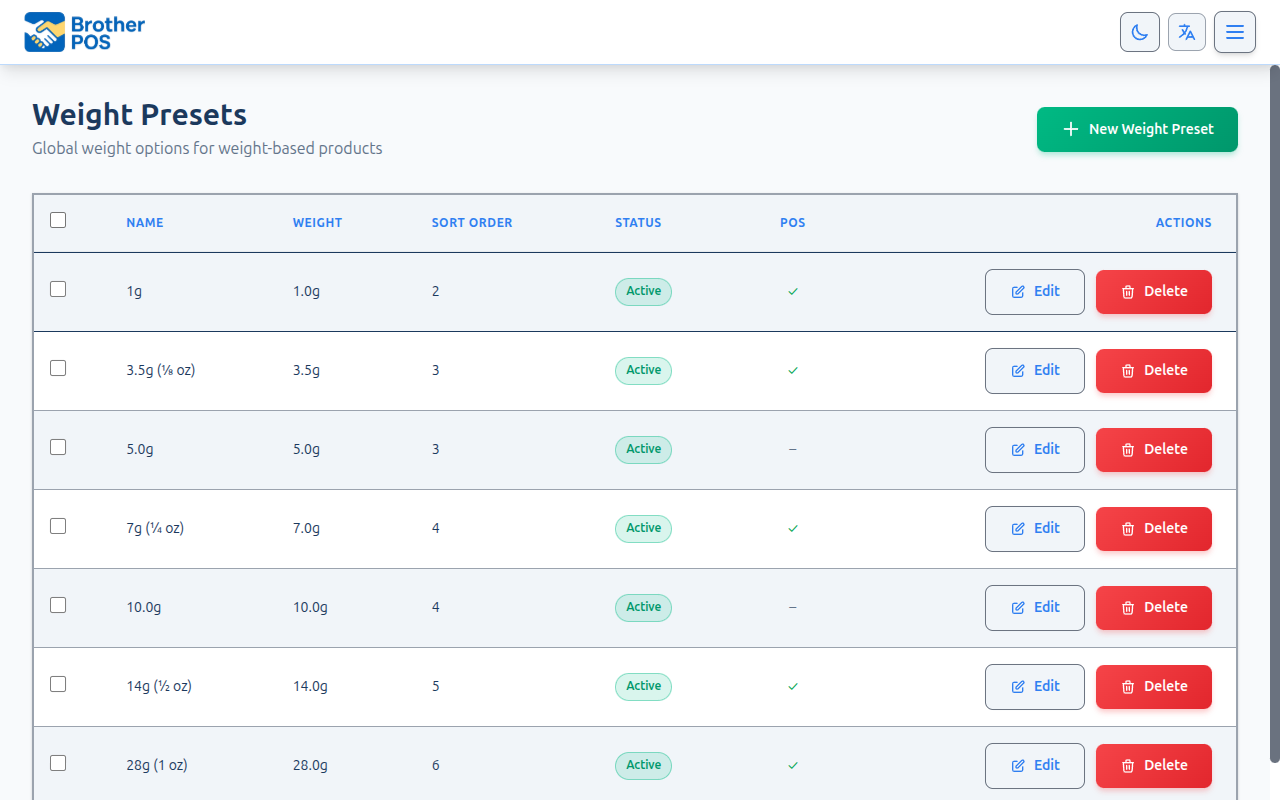
The index page displays a table with the following columns:
| Column | Description |
|---|---|
| Checkbox | Select presets for bulk actions. |
| Name | The display label for the weight (e.g., 3.5g (⅛ oz)). |
| Weight | The weight value in grams (e.g., 3.5g). |
| Sort Order | Set automatically from the weight when a preset is added, so lighter weights come first. The list is shown in this order. |
| Status | Active / Inactive badge. |
| POS | ✓ if Show in POS & Product Wizard is ticked, – otherwise. |
| Actions | Edit and Delete buttons. |
A checkbox in the header row selects all presets. Selected presets can be removed using the Delete Selected button (which appears once at least one row is checked).
More detail: adding, editing and removing presets
Adding a New Weight Preset
- Click the New Weight Preset button.
- Fill in the fields:
Name
The display name shown on the POS register and in reports.
- Required: Yes
- Example: "3.5g", "Half Oz", "2g"
Weight Value (grams)
The weight value in grams — the amount sold when this preset is picked.
- Required: Yes
- Format: Decimal (e.g.,
3.5) - Must be greater than zero.
Active
Checkbox to set whether the preset is active. Inactive presets are not available for use.
Show in POS & Product Wizard
Checkbox to control whether this weight is offered when you set up a product's weights (for example in the new-product wizard). For products on a pricing template, the register shows the weights that template prices, and the template's own POS boxes decide which of them appear as buttons.
- Click the save button at the bottom of the form.
Some stores add a 0.5g preset for pre-rolls or a 2g preset for budget options. Add whatever weights make sense for your product catalog.
Editing a Weight Preset
- Click the Edit button on the preset row.
- Modify the name, weight value, active status, or POS visibility.
- Click the save button at the bottom of the form.
Changing the weight value, or unticking Active, re-checks every pricing template against your active presets. A template price for a weight that no longer matches an active preset is dropped. Historical sales keep their original weights. If you need a different weight, consider creating a new preset instead.
Removing a Weight Preset
- Click the Delete button on the preset row.
- Confirm the deletion.
You can also delete multiple presets at once:
- Select presets using the checkboxes.
- Click Delete Selected.
- Confirm the deletion.
Deleting a weight preset rebuilds every pricing template's prices from the presets that are still active. Any prices stored for the deleted weight are dropped from all templates. There is one safety net: if a template would be left with no prices at all (no active weights remain, or none of the remaining weights had prices), that template is left untouched. In normal operation, expect deletions to remove prices permanently — this action cannot be undone.
More detail: presets, pricing and barcodes
Weight Presets and the Pricing Matrix
Weight presets form the rows of the pricing template pricing matrix. Each preset gets a price for each active pricing template:
              AA      AAA     AAAA    AAAA+
  1g        $8.00   $10.00  $12.00  $14.00
  3.5g     $25.00   $32.00  $40.00  $48.00
  7g       $45.00   $58.00  $72.00  $88.00
  14g      $80.00  $105.00 $135.00 $165.00
  28g     $140.00  $190.00 $250.00 $310.00
A new weight preset has no price in any template, and adding one never changes the prices your templates already have. Open each template (Products → More Actions → Tier Pricing) and add a price for the new weight.
Preset Barcodes
For products that use weight presets, Brother POS auto-generates a unique barcode per weight so a single scan adds the exact weight to the cart. The format is the product's compact barcode followed by the weight suffix:
{barcode}-{weight}G → e.g. 12345678-7G
- Short prefix. The prefix is the product's barcode (the SKU is used only if the product has no barcode). Barcodes Brother POS generates are 8 digits, which keeps the code narrow and scannable on a 2"×1" label.
- The
-{weight}Gending matters. Both scanning at the register and Scan to Receive read the weight from it. - Existing codes are left untouched. Codes that were already generated are not regenerated; only missing ones are created in the new format.
When a budtender scans a weight-specific barcode at the register, the product is added at that weight automatically — skipping the weight-selection step.
You can print these per-weight barcodes onto Avery sheets (no thermal printer needed) with the Barcode Labels tool, or onto a thermal label printer via Label Templates.
More detail: the register, compliance and scales
How Weight Presets Work on the POS
When a budtender selects a product with pricing template pricing:
- A weight selector appears showing the weights the product's pricing template has a price for (only those ticked POS on the template, if any are ticked).
- Each option displays the weight label and its price from that template.
- The budtender taps the desired weight.
- The item is added to the cart with the correct weight and price.
Products Without Pricing Templates
A weight product doesn't have to use a template. On the product's Pricing tab, the pricing toggle offers:
- Simple Pricing — one per-gram price; any weight is that price × the grams.
- Custom Weight — the product's own price for each weight (for example 1g $8, 3.5g $15, 7g $30), set in the product's weight pricing grid.
- Quality Tier — the prices come from a pricing template.
A Custom Weight product rings up at exactly the price you set for each weight. A weight you didn't price — a custom amount off the scale, say — is worked out the same way as on a template: the per-gram rate of the nearest priced weight below it, never more than the next priced weight up. See Per-Gram Fallback Pricing.
A weight product with no pricing of any kind — no per-gram price, no template and no priced weights — shows No pricing set on its page, so you can fix it before it rings up at $0.00.
Weight Presets and Compliance
The preset's weight value is the amount recorded on the sale, so it feeds the equivalent-gram figures used for daily purchase limits and compliance reports. See Compliance.
Incorrect weight values in presets will produce incorrect compliance data. Always verify that the weight value matches the actual product weight. A "3.5g" preset must have a weight value of exactly 3.5.
Scale Integration
If your store uses a digital scale (Enable Scale Integration under Settings > Edit Settings > Hardware & System tab), budtenders can weigh products directly on the POS:
- Place the product on the scale.
- The POS reads the weight from the scale.
- The weight window shows the reading against the preset weight being sold.
- The budtender confirms or adjusts the selection.
This is useful for products sold as loose flower where the exact weight may vary slightly.
More detail: good habits
Best Practices
- Stick to standard weights — 1g, 3.5g, 7g, 14g, and 28g cover the vast majority of use cases. Only add custom presets if you have a genuine business need.
- Keep labels short — "3.5g" is better than "3.5 grams (eighth)" on the POS register. Space is limited.
- Audit quarterly — Remove presets for weights you no longer sell. Fewer options means faster checkout.
- Test on the POS — After making changes, open the POS register and verify that the presets appear correctly.
What's Next?
- Pricing Templates — Set up the pricing matrix using these weight presets.
- Compliance — Understand how weight data feeds into regulatory reporting.
- Strain Library — Browse the strain catalog.
- Creating Products — Assign weight and tier data to products.