Welcome to Brother POS
Use this page to find where to start in Brother POS, whatever your job in the store.
At a glance
- Brother POS is a cloud point-of-sale system for cannabis dispensaries and retail stores. Your store has its own web address, like
yourstore.brotherpos.ca. - The register (
yourstore.brotherpos.ca/pos, or the register app on a tablet) is where cashiers ring up sales. It keeps working for a while if the internet drops. - The admin panel (
yourstore.brotherpos.ca) is where managers and admins handle products, stock, staff, reports and settings. - Drivers use the separate TrafficDelivery app.
- Your role (Clerk, Manager, Admin or Driver) decides what you can see and do.
Where to start:
- Cashiers: POS Quick Start, then Navigating the POS.
- Managers: Admin Quick Start, then Navigating the Admin.
- Admins setting up a new store: Setup Wizard, then Store Setup.
- Drivers: The Driver App.
Quick Links
| I want to... | Go to... |
|---|---|
| Ring up my first sale | POS Quick Start |
| Set up my store for the first time | Store Setup |
| Understand how the system fits together | System Overview |
| Learn how to log in | Logging In |
| See what each role can do | User Roles & Permissions |
| Change the language or theme | Language & Theme |
| Find my way around the admin panel | Navigating the Admin |
| Learn the POS register layout | Navigating the POS |
Getting Help
If you cannot find what you need in this knowledge base:
- Search — Use the search bar at the top of any page to find topics quickly. In the admin panel, Help & guides in the account menu (top right) opens this help site.
- Ask your manager or admin — They may have store-specific procedures not covered here.
- Contact support — In the admin panel, open the user menu in the top-right corner and select Get Support. See Submitting Support Tickets.
More detail: where to start for each role
Who Is This Documentation For?
This knowledge base is organized around the roles you play in your store. Find your role below and jump straight to the content that matters most to you.
Cashier Cashiers & Sales Staff
You work the register. Your day revolves around the POS Register — a fast, touch-friendly screen where you scan products, take payments, and serve customers.
Start here:
- POS Quick Start — Get selling in 5 minutes
- Navigating the POS — Learn your way around the register screen
- Logging In — How to sign in to the register
Then explore:
- Making a Sale — The complete sales workflow
- Language & Theme — Switch languages or toggle dark mode
If this is your first day, start with the POS Quick Start. It walks you through your first sale in under 5 minutes.
Manager Managers
You handle the day-to-day: opening and closing cash drawers, reviewing sales reports, managing inventory, and supervising cashiers. You have access to both the POS Register and the Admin Panel.
Start here:
- Admin Quick Start — Your first look at the admin panel
- Navigating the Admin — Find your way around the admin interface
- User Roles & Permissions — Understand what each role can do
Then explore:
- Cash Drawer Management — Opening, closing, and reconciling drawers
- Sales Reports — Track your sales and performance
- Inventory Management — Stock levels and adjustments
Admin Administrators
You configure the system, manage staff accounts, set up integrations, and keep everything running smoothly. You have full access to every feature in Brother POS.
Start here:
- Setup Wizard — The guided setup a brand-new store sees first
- Store Setup — First-time configuration checklist
- System Overview — How the pieces of Brother POS fit together
- Admin Quick Start — Add your first product and configure settings
Then explore:
- User Management — Create accounts, assign roles, set PINs
- Tax Configuration — Set up HST, GST/PST, or additional taxes
- WooCommerce Integration — Connect your online store
Driver Delivery Drivers
You handle deliveries using the driver app on your phone to see your deliveries and confirm drop-offs.
Start here:
- The Driver App — Sign in to TrafficDelivery and do your deliveries
- Language & Theme — Set your preferred language
More detail: how this help site is organized
How This Knowledge Base Is Organized
The documentation is divided into major sections that mirror the structure of Brother POS itself:
| Section | What It Covers |
|---|---|
| Getting Started (you are here) | First-time setup, orientation, and quick starts |
| POS Register | Everything about the sales screen — making sales, returns, discounts, cash drawers |
| Admin Panel | Product management, inventory, reports, staff accounts, settings |
| Integrations | WooCommerce, B2B wholesale, and other third-party connections |
| Troubleshooting | Common issues, error messages, and how to resolve them |
More detail: key terms
Key Concepts
Before diving in, here are a few terms you will encounter throughout this documentation:
POS Register vs. Admin Panel
Brother POS has two distinct interfaces:
- POS Register — The touch-friendly sales screen where cashiers ring up sales. It runs in a web browser or in the Brother POS app for iPad and Android tablets, and it keeps working if the internet drops for a while — sales are saved on the device and sync when the connection returns.
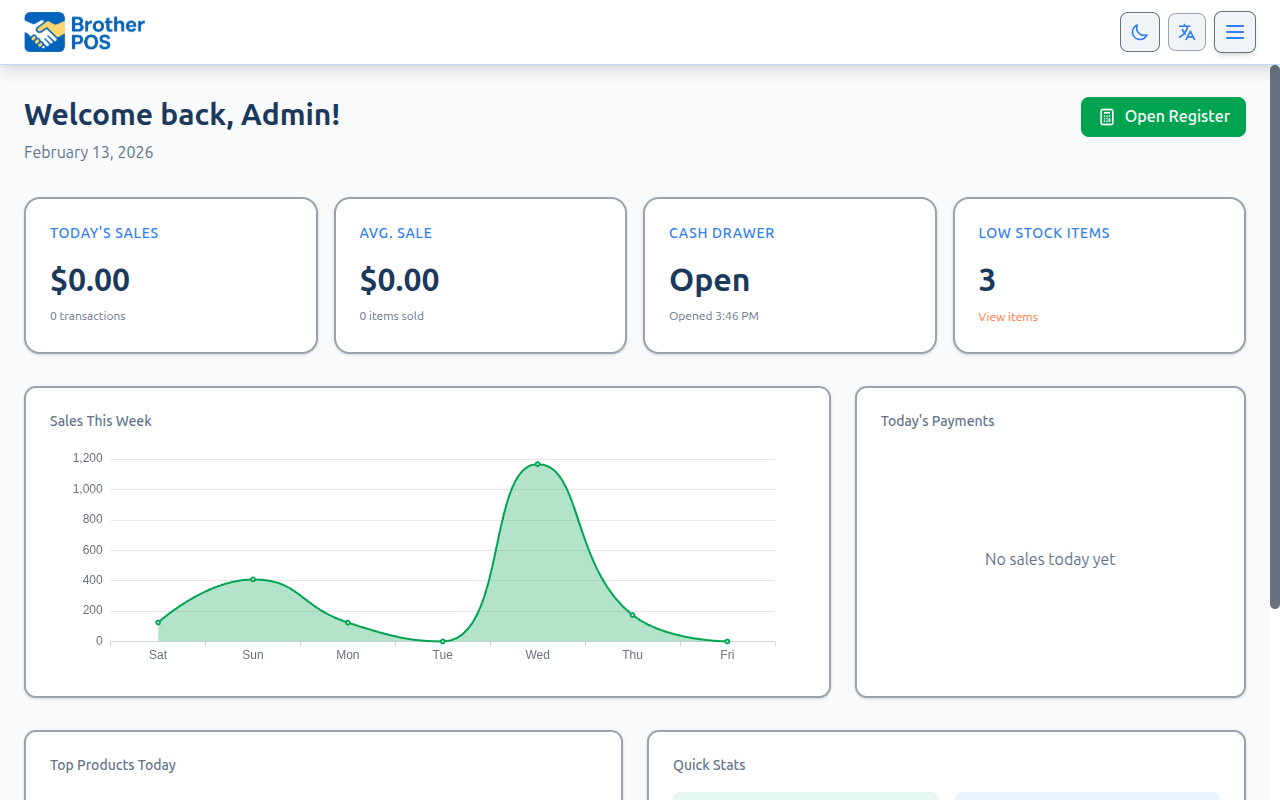
- Admin Panel — The back-office website for managing products, inventory, staff, reports, and settings. You open it in a standard web browser.
Cloud-Hosted
Brother POS runs in the cloud. Each store gets its own web address — for example, greenleaf.brotherpos.ca. Your store's data is kept separate from every other store's.
Roles
Every user has a role that determines what they can see and do. See User Roles & Permissions for the full breakdown.
Cannabis-Specific Features
Brother POS includes features tailored for cannabis retail:
- THC/CBD content on products
- Strain types (Indica, Sativa, Hybrid)
- Compliance reporting for Saskatchewan (SLGA)
- Purchase limits tracked in equivalent grams
- Pricing templates for products sold by weight
Cannabis features are switched on when your store is set up as a cannabis store (the Setup Wizard asks what you sell). Stores that sell other things don't see them — Brother POS works for general retail too.
What's Next?
- New to Brother POS? Start with System Overview to understand how everything fits together.
- Just need to start selling? Jump to POS Quick Start.
- Setting up a new store? Head to Store Setup.