Language & Theme
Use this page to switch Brother POS between English, French and Spanish, or between dark and light mode.
Quick steps
To change the language on the register:
- Tap the gear icon in the top bar to open Settings.
- Under Language, pick from the Interface Language list. The screen changes right away. This only changes this register.
To change the language in the admin panel:
- Click the language button in the top bar (it shows the current language, for example English).
- Pick English, Français or Español. This changes the admin panel for everyone at your store.
To switch dark or light mode:
- On the register: tap the gear icon, then under Display Settings tap Switch to Dark (or Switch to Light).
- In the admin panel: click the sun/moon icon next to the language button.
Common questions
Why didn't my product names change language? Only the screen's own buttons and messages are translated. Product names, categories and receipt text stay exactly as your store typed them.
Does changing the register's language change it for other cashiers? Only on that register. Each register keeps its own language, so the next person on it sees whatever was picked last.
Are receipts printed in my language? No. Printed receipt labels (Subtotal, Tax, Total) are always in English.
My language or theme keeps resetting. The browser is probably clearing its saved data when it closes. Turn that off in the browser or kiosk settings.
More detail: which languages are available
Supported Languages
Brother POS offers three languages in both the POS Register and the Admin Panel:
| Language | Shown as |
|---|---|
| English | English |
| French | Français |
| Spanish | Español |
Screen text — buttons, labels, menus, messages and prompts — switches to the selected language.
Product names, category names, descriptions, receipt headers and other content your store has entered appear exactly as typed. Only the system interface text is translated. If your store serves customers in multiple languages, consider using bilingual product names.
More detail: changing the language
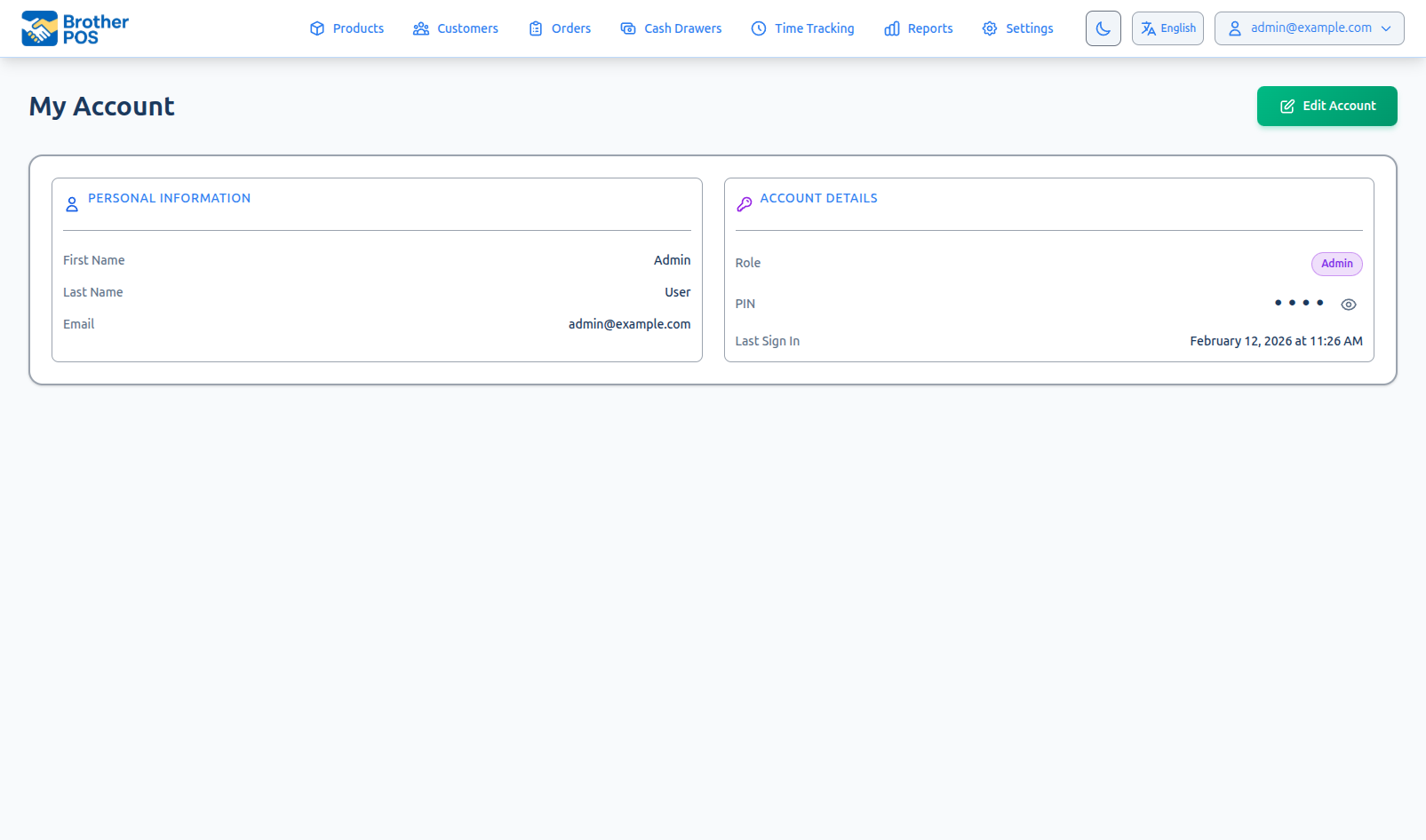
Changing the Language on the POS
CashierManagerAdminStep-by-Step
-
On the POS Register, tap the gear icon in the header bar (its tooltip says "Settings" — it opens the register's Settings panel).
-
Scroll to the Language section.
-
Choose from the Interface Language dropdown:
- English
- Français
- Español
-
The interface updates immediately without a page reload.
-
Close the settings panel to return to the POS.
When to Change Language
- At the start of your shift if the previous cashier used a different language.
- When training new staff who are more comfortable in another language.
Until someone picks a language on it, a register follows your store's language (the one set in the Admin Panel). Changing the language on the POS changes it for the current device/browser only, and from then on that register keeps its own choice. It does not change the language for other registers or other users. Each register can run in a different language at the same time.
Changing the Language in the Admin Panel
AdminManagerThe Admin Panel's language is a store-wide setting. When someone changes it, the admin panel switches language for everyone at your store.
Changing the Admin Language
- In the top navigation bar, click the language button (it shows the current language, for example "English").
- Choose English, Français or Español.
- The page reloads in the new language with a confirmation message, and the store's language is saved. Everyone using the admin panel now sees that language.
The change is recorded on the Activity Logs page.
Registers where nobody has picked a language follow the store's language, so they switch too the next time they load your store settings. A register where someone chose a language in its Settings panel keeps that choice.
More detail: dark and light mode
Dark Mode and Light Mode
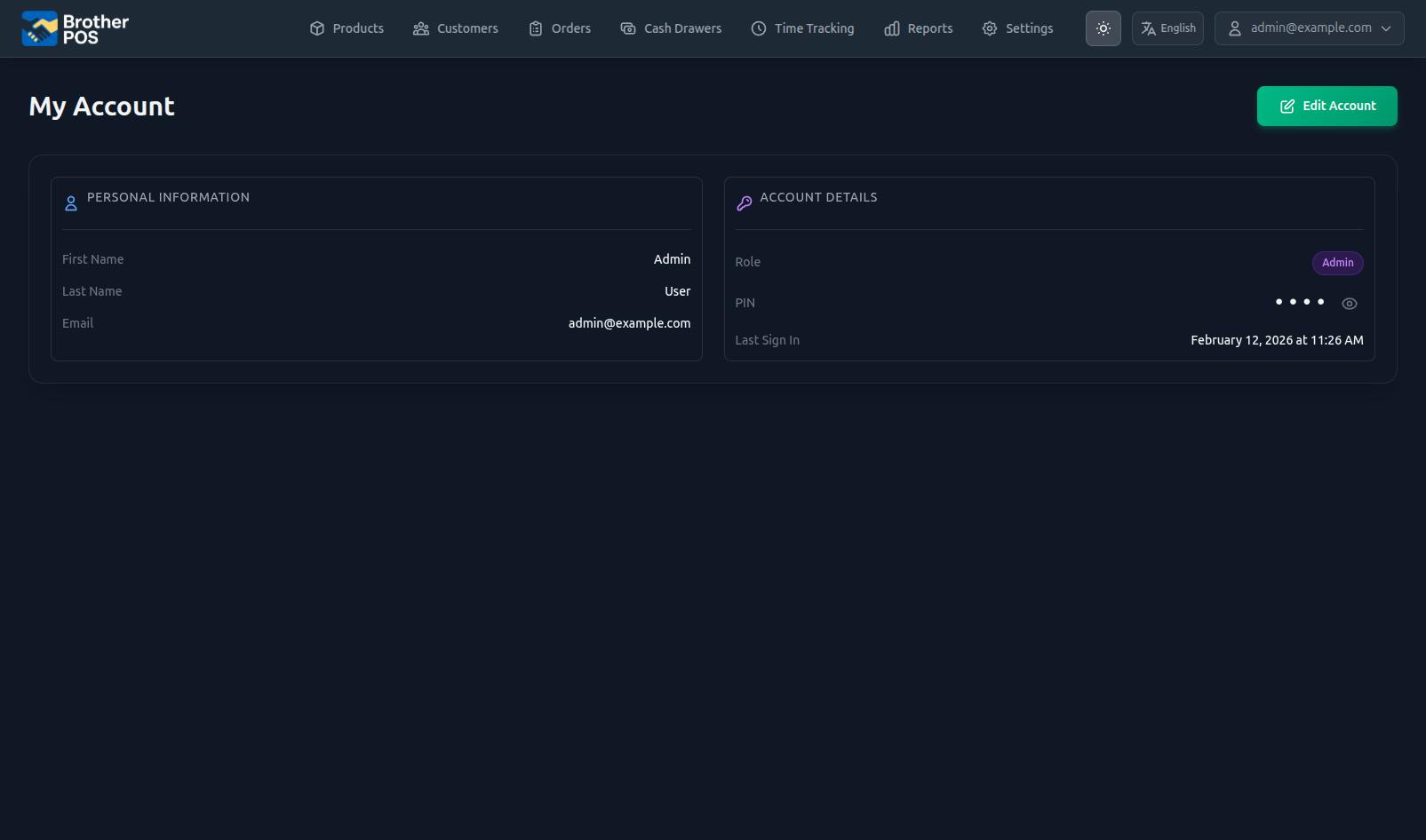
Brother POS includes a theme toggle that switches between a dark theme (light text on dark backgrounds) and a light theme (dark text on light backgrounds). Light is the default.
Why Dark Mode?
| Benefit | Description |
|---|---|
| Reduced eye strain | In dim store environments, a bright white screen can be tiring during long shifts |
| Less glare | Dark screens can be easier to read in low light |
| Preference | Many staff simply prefer it |
Light Mode
Light mode uses bright backgrounds with dark text. This can be preferable in:
- Well-lit store environments
- High-ambient-light settings
- For users who find dark mode harder to read
Toggling Dark/Light Mode on the POS
CashierManagerAdminStep-by-Step
-
Tap the gear icon in the header bar to open the Settings panel.
-
In Display Settings, tap the Switch to Dark (or Switch to Light) button.
-
The interface updates instantly.
-
Close the settings panel.
Spend a shift in each mode to see which one works best for your store's lighting. There is no "correct" choice — pick whatever is most comfortable.
Toggling Dark/Light Mode in the Admin Panel
AdminManager- In the top navigation bar, click the sun/moon icon (next to the language button).
- The admin interface switches between dark and light mode.
The theme is saved in the browser. If you use the POS and the admin panel in the same browser on the same device, they share the saved theme choice.
More detail: how your choices are saved, and receipts
How Preferences Are Saved
POS Preferences
Language and theme on the POS Register are saved in the browser on the device where you make the change. This means:
| Behavior | Explanation |
|---|---|
| Per-device | Changing the language on Register 1 does not affect Register 2. |
| Store language by default | A register where nobody has picked a language uses your store's language. |
| Persist across sessions | Your preferences survive refreshes and closing and reopening the browser or app. |
| Not tied to your PIN | When you sign in on a different register, that register keeps its own language and theme. |
| Cleared with browser data | If the browser's site data is cleared, the POS goes back to your store's language and the light theme. |
Admin Panel Preferences
- Language is a store-wide setting saved on the server. When anyone changes it with the language button, it changes for everyone using the admin panel.
- Theme (dark/light mode) is saved in the browser, so each device can have a different theme.
On shared registers where multiple cashiers work throughout the day, the language and theme stay set to whatever the last person chose. If your team uses different languages, each cashier may need to switch the language at the start of their shift.
Receipts and Language
Printed receipts use English labels (Subtotal, Tax, Total, and so on) regardless of the POS language setting. The POS language only affects what you see on screen.
| Receipt Element | Language |
|---|---|
| Labels (Subtotal, Tax, Total) | Always English |
| Product names | As entered by your store |
| Receipt header/footer text | As configured in Settings |
More detail: troubleshooting and summary
Troubleshooting
Language Did Not Change
| Issue | Solution |
|---|---|
| Text did not update after selecting a language | Try refreshing the page. If using an installed app, close and reopen it. |
| The admin panel is in a different language from the POS | Someone picked a language on that register, so it no longer follows the store's language. Change it in the register's Settings panel. The admin language is changed with the language button in the admin panel. |
| Product names did not change | Product names are not translated — they appear as entered. Only system interface text changes. |
Theme Did Not Change
| Issue | Solution |
|---|---|
| Colors did not update | Try refreshing the page or toggling the theme again. |
| Theme resets after restart | Your browser may be clearing site data. Check browser settings for automatic data clearing. |
Preferences Keep Resetting
If your language or theme resets every time you open the POS:
- Check if your browser is set to clear data on exit — this erases saved preferences.
- Check if the device has any kiosk management software that resets the browser periodically.
If your registers run in kiosk mode with browser data cleared on restart, the POS will go back to your store's language and the light theme each time. Make sure your kiosk software keeps site data to preserve language and theme.
Summary
| Setting | Where to Change | Saved | Scope |
|---|---|---|---|
| POS Language | POS > gear icon > Language | In the browser | Per device (follows the store's language until changed) |
| POS Theme | POS > gear icon > Display Settings | In the browser | Per device |
| Admin Language | Language button in the top navigation bar | On the server | Store-wide (all admin users) |
| Admin Theme | Sun/moon icon in the top navigation bar | In the browser | Per device |
What's Next?
- POS Quick Start — Start processing sales on the POS.
- Navigating the POS — Full tour of the POS interface.
- Navigating the Admin — Full tour of the admin panel.
- User Roles & Permissions — Understand access levels for your role.