Admin Quick Start
Use this page to get your store ready for its first sale in about 5 minutes.
Quick steps
- Sign in at your store's address (for example
https://yourstore.brotherpos.ca) with your Email and Password, then click Sign In. A brand-new store opens the Setup Wizard first. - Add a product: click Products, then Add New Product. Pick a Category and pricing model, type the name and price, then click Create Product.
- Set your tax: click Settings, then Edit Settings, and open the Tax & Compliance tab. Choose your tax mode and rates, then click Update Settings.
- Add your staff: on the Settings page click Manage Users, then Add Staff Member. Give each person a name, email, password, 4-digit PIN and role.
- Open a cash drawer: on the register (
https://yourstore.brotherpos.ca/pos), sign in, count the cash in the till, type the total and tap Open Cash Drawer. - Try a test sale on the register and check the tax is right.
Drawers are opened on the register, not in the admin panel. The Cash Drawers page in the admin only shows the history.
Common questions
Do I have to add products one at a time? No. Go to Products → More Actions → Import from File to bring them in from a spreadsheet (CSV).
Can two staff members share a PIN? No. Brother POS won't save a PIN that another active staff member already uses, so every sale is tracked to the right person.
Which role should my cashiers get? Clerk. Clerks only use the register. Give shift leads Manager and owners Admin. See User Roles & Permissions.
Can I run the Setup Wizard again later? Yes. On the Settings page, click Run setup wizard again.
More detail: signing in to the admin panel
Step 1: Log In to the Admin Panel
-
Open your browser and go to:
https://storename.brotherpos.caReplace
storenamewith your store's name in the address. -
Enter your Email and Password.
-
Click Sign In.
-
You will land on the Admin Dashboard — a summary of your store's activity.
If you are the first admin of a brand-new store, the Setup Wizard opens first. It walks you through the essentials in a few minutes. You can change your answers later in Settings, or run the wizard again from the Settings page with Run setup wizard again.
More detail: what the dashboard shows
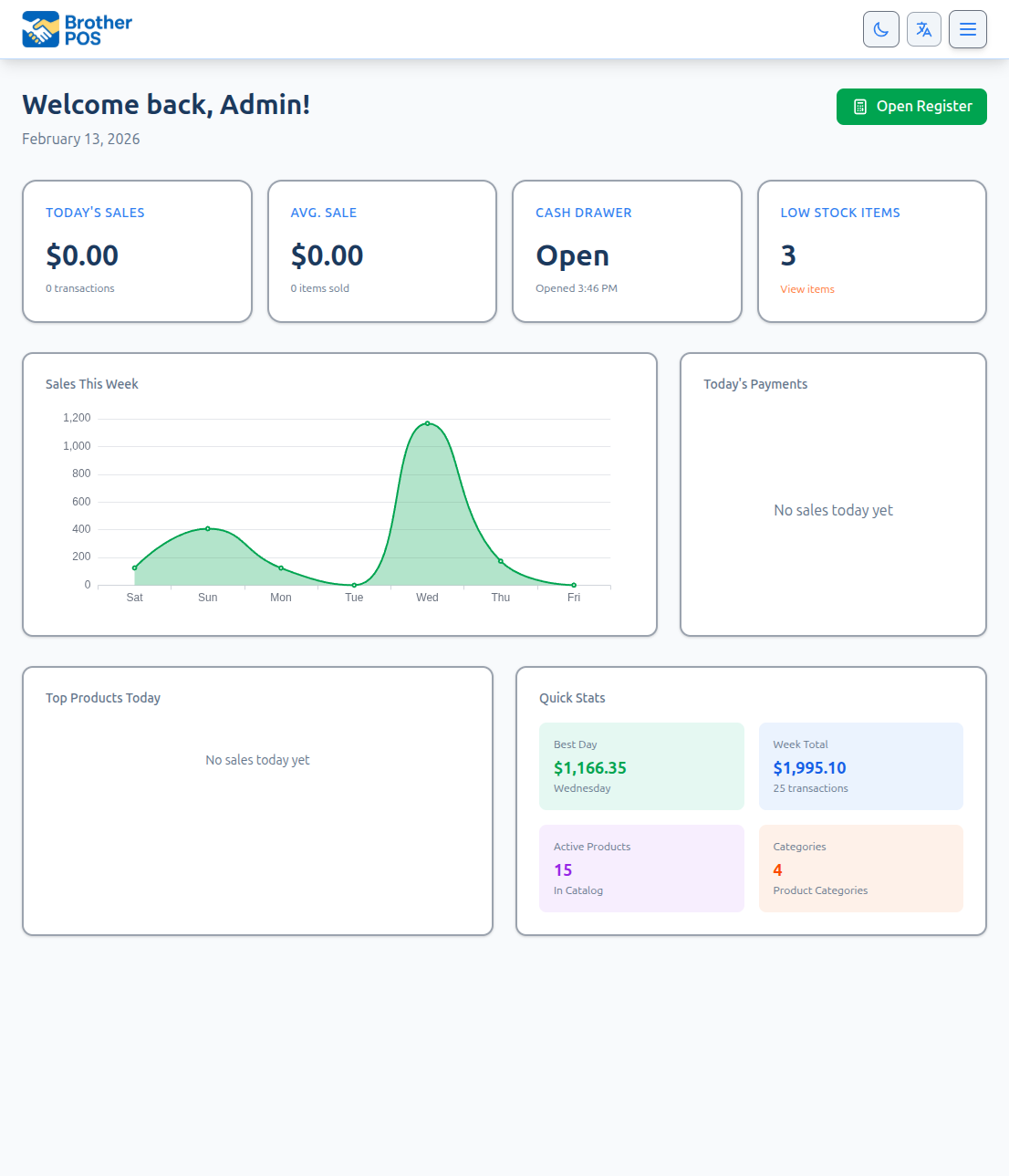
Step 2: Explore the Dashboard
The Admin Dashboard gives you a quick overview of your store:
- Today's Sales — Today's revenue and number of transactions
- Avg. Sale — The average sale today and items sold
- Cash Drawer — Whether a drawer is currently open
- Low Stock Items — Products running low on inventory
- Quick Stats — Best Day (last 7d), 7-Day Total, Active Products, and Categories
The top navigation bar is your main way to move between sections. We explore it in detail in Navigating the Admin.
More detail: adding your first product
Step 3: Add Your First Product
Let's add a product so your cashiers have something to sell.
-
In the top navigation bar, click Products.
-
Click Add New Product.
-
Work through the steps — Category, Pricing Model, Details, and Variations:
Field Description Example Category Where the product appears on the POS and in reports "Flower" Pricing model Sold by the unit, by weight, as a bundle, and so on Unit-based Product Name The product's display name "Blue Dream 3.5g" Price The pre-tax retail price 35.00 SKU (Optional) A unique product code — leave blank and Brother POS generates one "BD-35-001" Barcode (Optional) The code printed on the package, for scanning "0123456789012" Current Stock How many units you have on hand 50 -
If your store has cannabis features turned on, you will also see optional fields such as Strain Type, THC Content, CBD Content, Terpenes, and Effects.
-
Click Create Product.
Your product is now in the system and will appear on the POS register.
If you enter your own SKUs, keep the format consistent. For example:
FLO-BD-35for Flower - Blue Dream - 3.5gEDI-CHO-10for Edible - Chocolate - 10mgACC-GRN-01for Accessory - Grinder - Model 01
Each SKU must be unique.
More detail: setting up tax
Step 4: Configure Tax Settings
Tax configuration is critical — getting it wrong means incorrect totals on every sale.
-
In the top navigation bar, click Settings, then Edit Settings.
-
Click the Tax & Compliance tab.
-
Configure tax for your province:
Single tax (e.g., Ontario HST):
- Set Tax Mode to Single Tax (HST).
- Enter the Tax Rate (%) (e.g., 13) and a Tax Name (e.g., HST).
Split tax (e.g., Saskatchewan GST + PST):
- Set Tax Mode to Split Tax (GST + PST).
- Enter the GST Rate (%) (e.g., 5) and the PST Rate (%) (e.g., 6).
Additional tax (e.g., SK Vapour Products Tax):
- Tick Enable Additional Tax and enter the Additional Tax Name, then set the rate on the categories or products it applies to.
-
Click Update Settings.
After setting up taxes, add a product to the cart on the POS and check the tax against your own calculation. Incorrect tax configuration can cause compliance issues.
More detail: adding staff and choosing roles
Step 5: Create User Accounts
Your staff need their own accounts. Let's create a cashier account.
-
Go to Settings and click Manage Users.
-
Click Add Staff Member.
-
Fill in the details:
Field Description Example First Name / Last Name The staff member's name "Sarah Johnson" Email Their login email "sarah@greenleaf.ca" PIN (4 digits) Their POS PIN "4821" Password / Password Confirmation Their login password — Role Their access level "Clerk" -
Click Add Staff Member at the bottom of the form.
The first time the staff member signs in to the POS on a device, they enter their email and password, then their PIN. After that, their PIN is enough.
Recommended Roles
- Clerk for cashiers who only need the POS register
- Manager for shift leads who need the POS plus admin features (reports, inventory, cash drawers)
- Admin for people who manage the entire system
You can also create custom roles. See User Roles & Permissions for a detailed breakdown of what each role can do.
Two active staff members can't share a PIN — Brother POS won't save a PIN that another active employee is already using. Each person should have their own PIN so every sale is tracked to the right person.
More detail: opening the first cash drawer
Step 6: Open a Cash Drawer
Before cashiers can start selling, a cash drawer needs to be open on the register. Drawers are opened from the POS register, not from the admin panel — the Cash Drawers page in the admin shows the history of drawer sessions.
-
On the register, open the POS at
storename.brotherpos.ca/posand sign in. Anyone with the Manage Cash Sessions permission can open a drawer (cashiers have it by default). -
If no drawer is open, the POS prompts you to open one.
-
Choose the register (if your store has more than one).
-
Count the cash in the drawer and enter the amount — your starting float.
-
Confirm to open the drawer.
The drawer is now open. Any cashier can sign in on that register and start selling. The session also appears on the Cash Drawers page in the admin panel.
A cash drawer session belongs to a physical register, not to one cashier. Several cashiers can sell on the same register during one drawer session, and each sale is tracked to the cashier who completed it.
More detail: what to do in your first week and beyond
Your First 5 Minutes: Checklist
- Logged in to the admin panel
- Explored the dashboard
- Added your first product
- Configured tax settings
- Created a user account for a cashier
- Opened a cash drawer
Your store is ready for its first sale. Ask a cashier to sign in to the POS register and try a sale.
What To Do Next
Immediate Priorities
| Task | Where | Why |
|---|---|---|
| Add all your products | Products → Add New Product | Cashiers can't sell what isn't in the system |
| Set up all user accounts | Settings → Manage Users → Add Staff Member | Every staff member needs their own account |
| Set up receipt printing and text | Settings → Edit Settings → Hardware & System tab | Turn on receipt printing and add your header and footer text |
Within the First Week
| Task | Where | Why |
|---|---|---|
| Configure the loyalty program | Settings → Edit Settings → General tab | Start rewarding customers from day one |
| Set up product categories | Products → Categories | Organize products for easy browsing on the POS |
| Import products in bulk | Products → More Actions → Import from File | Import a CSV instead of adding products one by one |
| Configure compliance settings (Saskatchewan cannabis stores) | Settings → Edit Settings → Tax & Compliance tab | Required for SLGA reporting |
| Connect WooCommerce | Settings → Edit Settings → Sales & Integrations tab → Enable WooCommerce Integration, then the WooCommerce Integration button on the Settings page | Sync your online store with your POS |
Ongoing
| Task | How Often | Why |
|---|---|---|
| Review sales reports | Daily | Track performance and catch issues early |
| Reconcile cash drawers | End of each shift | Ensure cash accountability |
| Check inventory levels | Weekly | Reorder before products run out |
| Review user access | Monthly | Deactivate departed staff, update roles as needed |
Tips for New Admins
-
Start simple. Get the basics working (products, users, tax) before exploring integrations and B2B.
-
Test everything. After any configuration change, do a test sale on the POS to make sure things work as expected.
-
Use categories. Well-organized categories make the POS faster for cashiers and reports more meaningful for you.
-
Back up your product data. Export your product list regularly (Products → More Actions) so you have a copy outside the system.
-
Train your staff. Share this knowledge base with your cashiers and managers. Point them to the POS Quick Start for their first day.
-
Explore the settings. Brother POS has many options. Spend some time in Settings to tailor the system to your store.
What's Next?
- Store Setup — Complete the full first-time configuration checklist.
- Navigating the Admin — A detailed tour of every section in the admin panel.
- User Roles & Permissions — Understand the full permission matrix.
- POS Quick Start — Walk through the cashier experience yourself.