POS Quick Start
Use this page on your first day to sign in to the register and ring up your first sale.
Quick steps
- Open the register. In your browser, go to your store's address followed by
/pos(for example,yourstore.brotherpos.ca/pos). Using the Brother POS app instead? Open it, type your Store Code and tap Connect (only the first time). - Sign in. Type your Email and Password and tap Continue. Then enter your 4-digit PIN. You're signed in as soon as the fourth digit goes in.
- Open the drawer if asked. Count the cash in the drawer, type the amount, and tap Open Cash Drawer. (If your store has several registers, pick yours first, then tap Open & Select.)
- Add items. Scan the barcode, type the name in the search bar, or tap a category and then the product.
- Take payment. Tap CASH or CARD. For cash, tap the amount they gave you (or Exact), then tap Complete Sale. The screen shows the change.
- When you see Payment Successful!, tap Start New Sale for the next customer.
Stepping away? Tap the padlock icon in the top bar (Lock / Switch User). The next person only needs their PIN to sign in.
Common questions
I don't know my email, password or PIN. Ask your manager. They set up your account and can reset your PIN. A manager can also sign the register in once, and after that you only need your PIN.
How do I reprint a receipt? With the cart empty, your recent sales show where the cart usually is (on a phone, tap Sales at the bottom). Tap the sale, then tap Print.
I made a mistake after the customer paid. Open the sale from your recent sales and void it, or do a return from the gear menu (Report Issue / Process Return). If you don't see these options, ask a manager. See Voiding Sales and Returns.
How do I take something off the cart before paying? Tap - on that line to lower the quantity, or the remove button to take it off. Clear Cart empties the whole cart.
More detail: what you need before your first sale
Make sure your manager or admin has:
- Created your user account with an email, password, and 4-digit PIN
- Loaded products into the system
- Either opened a cash drawer on your register, or given your role permission to open one
If any of these are missing, ask your manager for help.
More detail: opening the register and signing in
Step 1: Open the POS
Open your browser and go to:
https://storename.brotherpos.ca/pos
Replace storename with your store's name in the address.
If your store uses the Brother POS app on an iPad or Android tablet, or the POS has been installed on your register, just open it from the home screen or desktop. The first time you open the app, it asks for your Store Code. Type it and tap Connect.
Step 2: Sign In
To sign in, enter your Email and Password, tap Continue, and then enter your 4-digit PIN. The POS signs you in as soon as the fourth digit is entered.
While the register stays set up, the next person only needs a PIN. When you step away, tap the padlock icon (Lock / Switch User) in the top bar, next to Sign Out. The screen shows Register locked — enter PIN, and anyone on staff can sign in with their own PIN. (Tapping Sign Out instead means the next person enters an email and password again.)
A cashier who doesn't know an email and password can ask a manager to sign the register in once. After that, the cashier only needs their PIN.
If your PIN is not accepted:
- Double-check that you are entering the correct digits.
- Ask your manager to verify or reset your PIN.
- Make sure you are on your own store's address.
If no drawer is open on your register, the POS asks you to open one before you can sell. Count the cash in the drawer, type the amount under Count the cash in the drawer now, and tap Open Cash Drawer (or pick your register and tap Open & Select if your store has several). Opening a drawer requires the Manage Cash Sessions permission. Cashiers have it by default; if your store has turned it off, ask your manager to open the drawer. See Opening and Closing.
More detail: finding products and building the cart
Step 3: Find a Product
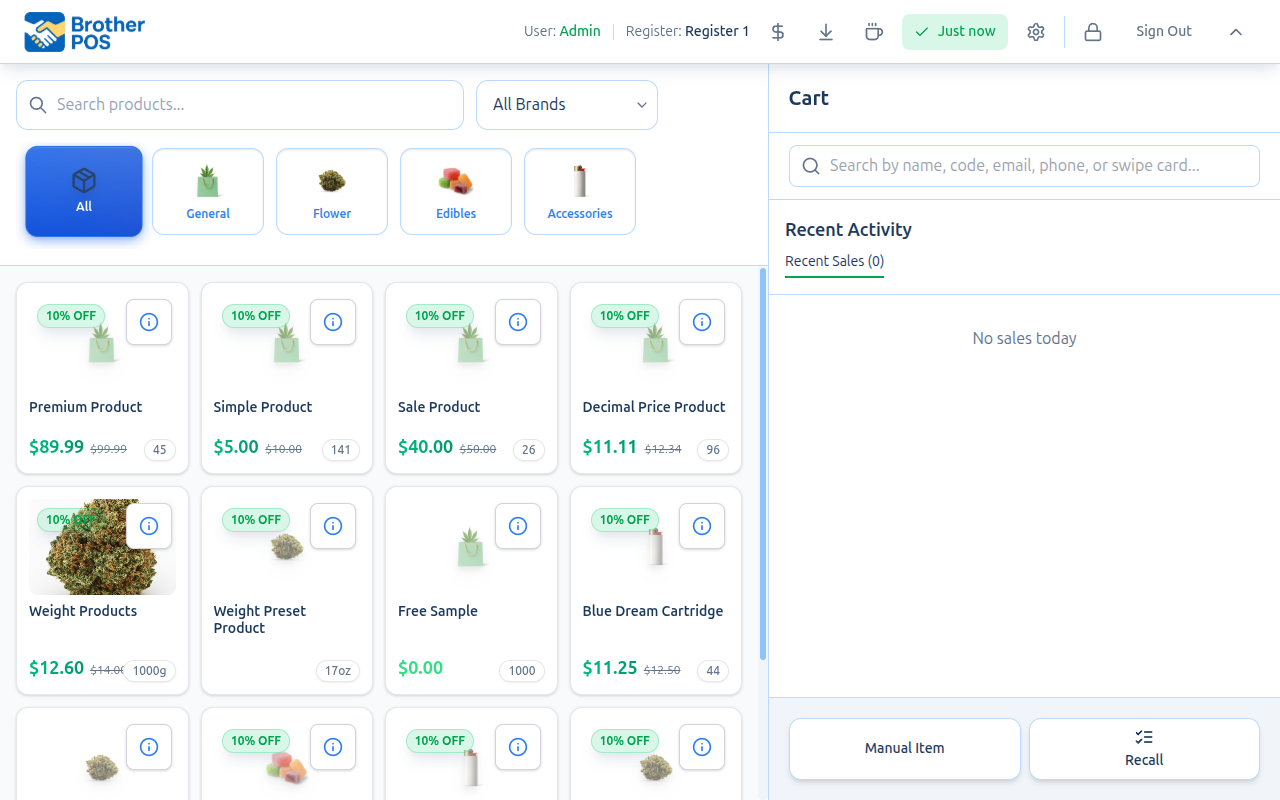
Once signed in, you will see the main POS screen with your products. There are several ways to find the product you need:
Browse by Category
- Tap a category to show only the products in that category.
- Tap All to show all products again.
Search by Name
- Tap the search bar.
- Start typing the product name. Results filter as you type.
- Tap the matching product to add it to the cart.
Scan a Barcode
- If your register has a barcode scanner, simply scan the product's barcode.
- The POS finds the matching product and adds it to the cart.
For busy stores, scanning is the fastest and most accurate way to add products.
Step 4: Add Items to the Cart
Tap a product to add it to the cart.
Adjusting Quantity
- Use the − and + buttons on the cart line to change the quantity.
- Tap the quantity to type an exact number.
Weight-Based Products
Some products (especially cannabis flower) are sold by weight. When you add a weight-based product:
- A window opens where you pick the weight.
- Choose one of the preset weights, or type your own under Custom Weight.
- If a scale is connected, place the product on the scale and tap Use Scale Weight.
- The price is calculated automatically from the product's pricing.
Reviewing the Cart
The cart shows:
- Each product with its name, quantity, and line total
- The subtotal before tax
- The tax
- The total due
To take an item out of the cart, use the remove button on that cart line.
More detail: taking payment and receipts
Step 5: Complete the Sale
When the cart is ready, take payment.
-
The payment buttons sit below the cart totals: CASH, CARD, and — if your store has turned them on — others such as E-TRANSFER, STORE CREDIT or GIFT CARD. When more than one payment type is available, there is also a Split Payment button.
-
Tap the button for how the customer is paying:
- CASH — Enter the amount the customer gave you; the POS calculates the change.
- CARD — The customer pays by card on your payment terminal.
- E-TRANSFER — Record an e-transfer payment.
- STORE CREDIT — The customer pays from their store credit balance.
- Split Payment — The customer pays with more than one method.
-
Confirm the payment. You'll see a Payment Successful! screen. Tap Start New Sale when you're ready for the next customer.
If your store has a card terminal connected to Brother POS, the card button sends the amount straight to the terminal instead.
Cash Payments
- Tap CASH.
- Enter the amount the customer gave you. For example, if the total is $23.45 and the customer gives you $25.00, enter
25.00. - The POS shows the change — in this case, $1.55.
- Give the customer their change and tap Complete Sale.
The cash screen has quick buttons for $10, $20, $50, and $100 so you can tap instead of type. Tap Exact when the customer hands you the exact total. If you tap Complete Sale without entering an amount, the sale is also recorded as paid exactly, with no change due.
Card Payments
- Tap CARD.
- The customer pays on the payment terminal.
- Once the terminal approves the payment, tap Complete Sale on the POS.
Step 6: Receipt
- If your store has a receipt printer set up, the receipt prints when the sale completes.
- If your store doesn't print receipts, the success screen has a View receipt button so you can show or email it.
- To reprint a receipt later, empty the cart so your recent sales show in the cart area (on a phone, tap Sales at the bottom of the screen). Tap the sale, then tap Print.
More detail: the whole first sale at a glance
Quick Reference: Your First Sale
| Step | Action |
|---|---|
| 1 | Open storename.brotherpos.ca/pos (or the Brother POS app) |
| 2 | Sign in (email, password, then your PIN; after the padlock (Lock / Switch User), just a PIN) |
| 3 | Open the drawer if the POS asks (count the cash and enter the amount) |
| 4 | Find the product (browse, search, or scan) |
| 5 | Tap the product to add it to the cart |
| 6 | Adjust quantity if needed |
| 7 | Tap a payment button (CASH, CARD, or another method your store offers) |
| 8 | For cash: enter the amount tendered and give change |
| 9 | For card: the customer pays on the terminal |
| 10 | Tap Complete Sale |
| 11 | Tap Start New Sale for the next customer |
More detail: common situations at the till
Common Scenarios
Customer Wants to Add More Items
No problem — just keep adding products to the cart before you tap a payment button.
Customer Changed Their Mind About an Item
Remove the item from the cart, or lower its quantity. The totals update automatically.
Customer Wants a Discount
If you have permission to apply discounts:
- To discount one item, tap that item in the cart. To discount the whole order, tap Apply Discount.
- Enter the discount as a percentage or a dollar amount.
- The cart totals update to show the discount.
Whether cashiers can apply discounts depends on your store's settings. If your role isn't allowed, a manager PIN is needed to authorize the discount.
Customer Has a Loyalty Account
- Use the customer search to look up the customer by name, code, email, or phone, or swipe their card.
- Select the customer from the results.
- Their loyalty tier discount, if they have one, is applied automatically.
- Complete the sale as normal — loyalty points are earned automatically.
Cancelling a Sale Before Payment
To start over before taking payment, tap Clear Cart. This removes all items from the cart.
Once a sale is completed you can still reverse it. To cancel the whole sale, open it from your recent sales and Void it. To take items back, tap the gear icon in the top bar, then Report Issue / Process Return. Whether cashiers can void or process returns depends on your store's settings; if you can't, a manager can help.
More detail: tips for new cashiers
Tips for New Cashiers
-
Practice first. Ask your manager whether you can do a few practice sales before going live.
-
Learn the categories. Knowing which category a product belongs to helps you find it faster.
-
Use the barcode scanner. It is faster and avoids adding the wrong product.
-
Count cash carefully. Always count the cash before entering the amount tendered. The POS calculates the change, but only from the amount you enter.
-
Ask for help. If something does not look right, ask your manager. It is better to ask than to process an incorrect sale.
-
Stay logged in as yourself. Always use your own PIN. Never process a sale under someone else's PIN.
What's Next?
- Navigating the POS — Learn about every part of the POS interface in detail.
- Making a Sale — The complete guide to the sales workflow.
- Language & Theme — Customize the POS language and appearance.
- User Roles & Permissions — Understand what you can and cannot do with your role.