User Roles & Permissions
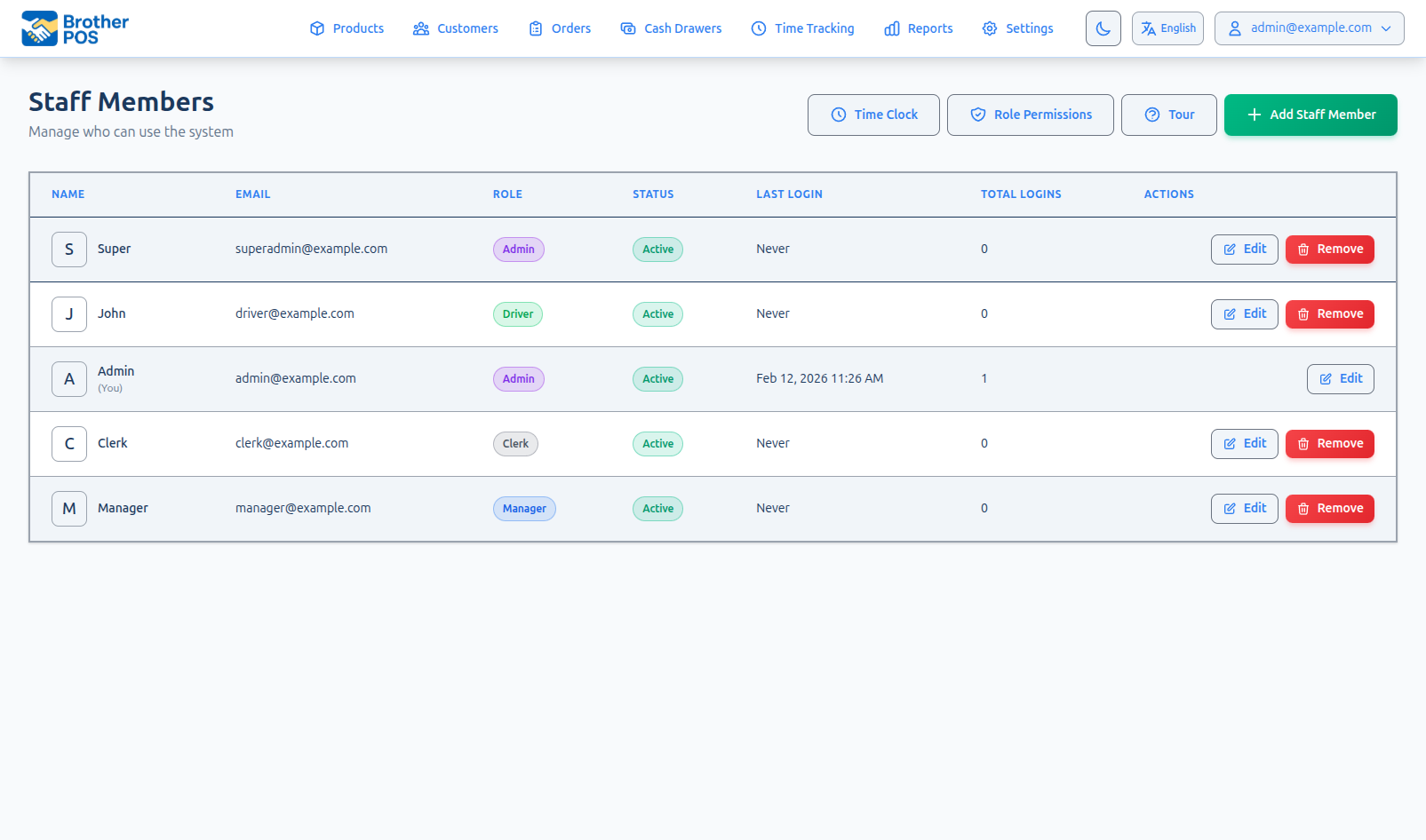
Use this page to pick the right role for each staff member and to change what a role is allowed to do.
Quick steps
To give someone a role:
- In the admin panel, go to Settings and click Manage Users.
- Click the person's name (or Edit beside it). For a new person, click Add Staff Member.
- Pick their Role: Clerk, Manager or Admin — plus Driver if your store does local delivery, and any custom roles your store has made.
- Click Save changes (or Add Staff Member for a new person).
To change what a role can do:
- On the Staff Members page, click Role Permissions.
- Tick or untick the permissions for that role.
- Click Save Permissions. It applies to everyone with that role.
Someone who only rings sales should be a Clerk. Keep Admin to a few trusted people.
Roles at a Glance
| Role | Interface Access | Primary Purpose |
|---|---|---|
| Admin | Admin Panel + POS | Full system configuration, user management, all features |
| Manager | Admin Panel + POS | Day-to-day operations, reports, inventory, cash drawers |
| Cashier | POS only | Process sales and serve customers |
| Driver | Delivery app | Deliveries |
Common questions
What's the difference between a manager and an admin? Managers run the store day to day — products, inventory, reports, cash drawers. Only admins can change store settings, add or change staff accounts, edit Role Permissions and see the Activity Logs.
Can a clerk give a discount or void a sale? Only if the Clerk role has been given that permission. Otherwise the register asks for a manager's PIN.
A clerk tried to open the admin panel and landed on the register. That's expected. Clerks work on the register only.
I changed someone's role while they were signed in. When does it take effect? In the admin panel, on their next page load. On the register, within a few minutes.
Can two people share a PIN? No. Every active staff member needs their own PIN, and the system won't save a duplicate.
More detail: the Admin role
Admin Administrator
Administrators have unrestricted access to every feature in Brother POS. This is the most powerful role and should be reserved for store owners, IT administrators, or trusted managers who need to configure the system.
What Admins Can Do
Everything. Every permission is always on for admins. On top of what managers can do, only admins can:
- Create, edit, deactivate and reactivate user accounts, and set PINs
- Assign and change user roles, and edit Role Permissions
- Change store settings — store details, tax, receipts, features, integrations, compliance and hardware settings
- View the Activity Logs (who changed what and when)
When to Use the Admin Role
- For the store owner or primary account holder
- For the IT person who manages the system
- For a trusted manager who needs full system access
- Keep it to a small number of people per store to minimize security risk
An admin can change any setting and see all information. Assign this role carefully. If someone does not need user management or store settings, the Manager role is more appropriate.
More detail: the Manager role
Manager Manager
Managers have broad access to day-to-day features but cannot change store settings or manage user accounts. This role is designed for shift supervisors and assistant managers who run the store day-to-day.
What Managers Can Do
With the default permissions:
POS Register:
- Process sales and returns
- Apply discounts to line items and orders
- Void sales and line items
- Open, count and close cash drawer sessions, and record cash drops
- Reverse a cash drop or payout, and correct the opening float mid-shift
- Take over someone else's open drawer with Close & open mine — see Taking Over a Drawer
- Approve a clerk's discount, void, open-price item, cannabis purchase limit override, drop reversal or float correction with their PIN
- Activate and reload gift cards
- Process returns from the register menu's Report Issue / Process Return option
Admin Panel:
- View and manage products, categories and inventory
- Manage sale campaigns
- View reports
- View customer accounts and loyalty information
- View compliance reports (cannabis stores)
- Manage delivery (if delivery is enabled)
- View the WooCommerce health monitor (if the integration is on)
What Managers Cannot Do
- Create, edit, deactivate or reactivate user accounts, or reset PINs
- Change user roles or Role Permissions
- Change store settings (including tax, receipt and feature settings)
- View the Activity Logs (admin-only)
By default managers also do not have View Financial Data or Manage Settings. An admin can tick those for the Manager role, but that does not open the admin-only pages above. An admin can also untick things managers normally have — for example Manage Gift Cards or View Sale History — to take that access away. See Roles & Permissions.
When to Use the Manager Role
- For shift supervisors who open and close the store
- For assistant managers who handle daily operations
- For any employee who needs access to reports, inventory, or cash management beyond basic sales
More detail: the Clerk (cashier) role
Cashier Clerk (Cashier)
Clerks (also referred to as cashiers) work at the POS Register. If a clerk signs in at the admin panel address, they are sent to the register. This role is designed for front-line sales staff whose primary job is processing transactions.
What Cashiers Can Do
POS Register:
- Sign in, and unlock the register with their PIN
- Browse and search products
- Add items to the cart, change quantities and remove lines
- Attach a customer to a sale
- Take payments (cash, card, and any other payment types your store has turned on, including split payments)
- Complete sales, and add the tip a customer gives on the screen afterwards
- Hand over a pending phone order by completing it at the register (online-store orders need Manage Orders)
- Open and close cash drawer sessions (on by default)
Discounts, voids and open-price items either work directly or ask for a manager PIN, depending on the role's permissions — see below. Reversing a cash drop or payout and changing the opening float always ask for a manager PIN unless an admin gives the Clerk role Reverse Cash Drops / Adjust Opening Float.
What Cashiers Cannot Do
- Use the Admin Panel
- Change store settings of any kind
- Apply discounts or void sales on their own, unless the Clerk role has been given those permissions (otherwise a manager PIN is needed)
- Open the admin stock screens (the quick stock edit, per-location counts, checking stock in and out), unless the Clerk role has been given Adjust Stock. Clerks can still record stock adjustments and reweighs at the register, which is a separate permission they have by default
Configurable Cashier Permissions
These register permissions can be switched on or off for the Clerk role:
| Permission | Default (older stores) | Description |
|---|---|---|
| Apply Discounts | Off | Apply line or order discounts without a manager PIN |
| Void Sales | Off | Void sales without a manager PIN |
| Process Returns | Off | Record returns and refunds |
| Open Cash Drawer | Off | Pop the cash drawer without a sale |
| Manage Cash Sessions | On | Open, close and count cash drawer sessions; cash drops |
| Reverse Cash Drops / Adjust Opening Float | Off | Reverse a cash drop or payout, or change the opening float, without a manager PIN |
| Sell Open-Price / Manual Items | On | Ring in a typed item without a manager PIN |
| Adjust Stock at the Register | On | Record stock adjustments and reweighs at the register |
| Adjust Stock | Off | Change stock from the admin panel: the quick stock edit, per-location counts, checking stock in and out |
Stores set up recently start with Apply Discounts, Void Sales, Process Returns and Open Cash Drawer (and a few others) switched on for clerks. For the full list and current defaults, see Roles & Permissions.
Your admin can fine-tune what cashiers can do. If you need a capability that is currently restricted, ask your admin — they can switch it on for the Clerk role (which applies to every clerk at the store), or move you to a custom role that has it.
When to Use the Clerk Role
- For all front-line cashiers and sales staff
- For part-time or temporary employees
- For anyone whose job is only to process sales at the register
More detail: the Driver role
Driver Driver
Drivers use the delivery app on their phone to handle deliveries. They do not use the Admin Panel. When local delivery is on, Driver appears in the Role list when you add or edit a staff member — see User Management. Drivers sign in to the TrafficDelivery app with your store code, their email and password, and their PIN, so a PIN is required — the form won't save a driver without one. See Drivers.
A driver can't use the register: signing in there with a driver's account or PIN is refused with Drivers sign in on the driver app, not the register. A driver who opens your store's web address in a browser is taken to the driver app.
When to Use the Driver Role
- For delivery drivers
- Only relevant if your store has the local delivery feature enabled
The Driver role is only useful if your store has local delivery enabled. If your store does not offer delivery, you do not need Driver accounts.
More detail: the full permission matrix
Full Permission Matrix
This table shows the default access for each built-in role. "Configurable" means an admin can change it on the Role Permissions page.
Interface Access
| Capability | Admin | Manager | Cashier |
|---|---|---|---|
| Admin Panel | Yes | Yes | No |
| POS Register | Yes | Yes | Yes |
POS Capabilities
| Capability | Admin | Manager | Cashier |
|---|---|---|---|
| Process sales | Yes | Yes | Yes |
| Apply customer to sale | Yes | Yes | Yes |
| Take payments | Yes | Yes | Yes |
| Apply discounts | Yes | Yes | Configurable (manager PIN otherwise) |
| Process returns | Yes | Yes | Configurable |
| Void transactions | Yes | Yes | Configurable (manager PIN otherwise) |
| Open cash drawer without a sale | Yes | Yes | Configurable |
| Open / close cash drawer session | Yes | Yes | Configurable (Manage Cash Sessions, on by default) |
| Take over someone else's drawer | Yes | Yes | Configurable (Manage Cash Sessions) |
| Cash drop | Yes | Yes | Configurable (Manage Cash Sessions) |
| Reverse a drop or payout, adjust the opening float | Yes | Yes | Configurable (manager PIN otherwise) |
| Activate and reload gift cards | Yes | Yes | Configurable (Manage Gift Cards) |
| Approve a purchase limit override | Yes | Yes | Configurable (Override Purchase Limit) |
Admin Panel Capabilities
| Capability | Admin | Manager |
|---|---|---|
| View dashboard | Yes | Yes |
| Manage products and categories | Yes | Yes |
| Manage inventory | Yes | Yes |
| Stock adjustments | Yes | Yes (Adjust Stock for the admin screens, Adjust Stock at the Register for the till) |
| View reports | Yes | Yes |
| View compliance reports | Yes | Yes |
| Manage customers | Yes | Yes |
| Manage delivery | Yes | Yes |
| WooCommerce health monitor | Yes | Yes |
| Manage sale campaigns | Yes | Yes (Manage Campaigns) |
| Manage users | Yes | No |
| Role Permissions | Yes | No |
| Store settings (tax, receipts, features, integrations) | Yes | No |
| Activity Logs | Yes | No |
More detail: changing a user's role
Changing a User's Role
AdminOnly administrators can change a user's role.
- Go to Settings and click Manage Users.
- Click Edit beside the user.
- Change the Role dropdown to the desired role.
- Click Save changes.
If the user is currently signed in:
- In the admin panel, the new role applies on their next page load.
- On the register, the new permissions are picked up on the next background sync, which runs every few minutes.
Coordinate with the user before changing their role while they are working, so they are not cut off in the middle of something.
More detail: best practices
Best Practices
Principle of Least Privilege
Assign each user the minimum role they need to do their job:
- If they only process sales, make them a Clerk.
- If they manage shifts but do not need store settings, make them a Manager.
- Only make someone an Admin if they need full system access.
Account Management
- Create individual accounts. Never share accounts between multiple people.
- Remove access promptly. When an employee leaves, deactivate their account right away. If they come back, reactivate the same account instead of making a new one.
- Audit roles periodically. Review the staff list monthly to ensure roles are still appropriate.
- Use distinct PINs. Every cashier needs their own PIN — the system will not let two active staff share one.
Security Considerations
- Admin accounts should use strong passwords (well beyond the 6-character minimum, mixed character types).
- Keep the number of Admin accounts small.
- If a PIN is compromised, change it immediately from the staff member's edit page.
- Changes to user accounts are recorded on the Activity Logs page.
What's Next?
- Navigating the Admin — Learn the admin panel layout and features available to your role.
- Navigating the POS — Understand the POS interface.
- Store Setup — Complete your store's initial configuration.
- Logging In — Understand how to sign in.