Navigating the Admin Panel
Use this page to find your way around the admin panel — where your products, orders, reports and settings live.
Quick steps
- Go to your store's address (for example
yourstore.brotherpos.ca) and sign in. You land on the Dashboard, which shows today's sales, the cash drawer and low stock at a glance. - Use the top navigation bar to move around: Products, Customers, Orders, Cash Drawers, Reports and, for admins, Settings. Other items appear only when your store uses that feature.
- To find something fast, click the search icon at the top right (or press Ctrl+K).
- On most pages, the buttons at the top hold the main tasks. Less common ones are under More Actions. Click Take a Tour for a guided walk-through of the page.
- Click the person icon at the top right for Account Settings, Help & guides, Get Support and Sign Out.
Common questions
I can't find a menu item this guide mentions. Many items only show when your store uses that feature, and some are for admins only. Ask your store's admin to check Settings or your role's permissions.
Where do I add or change staff? Admins open Settings, then click Manage Users. It isn't in the navigation bar.
Where are sale campaigns? Go to Products, then More Actions > Sales Campaigns.
How do I get to the register from here? Click Open Register at the top of the Dashboard.
Can I use the admin on a tablet or phone? Yes. The menu collapses into a button on small screens. A computer is easiest for admin work.
More detail: signing in and the navigation bar
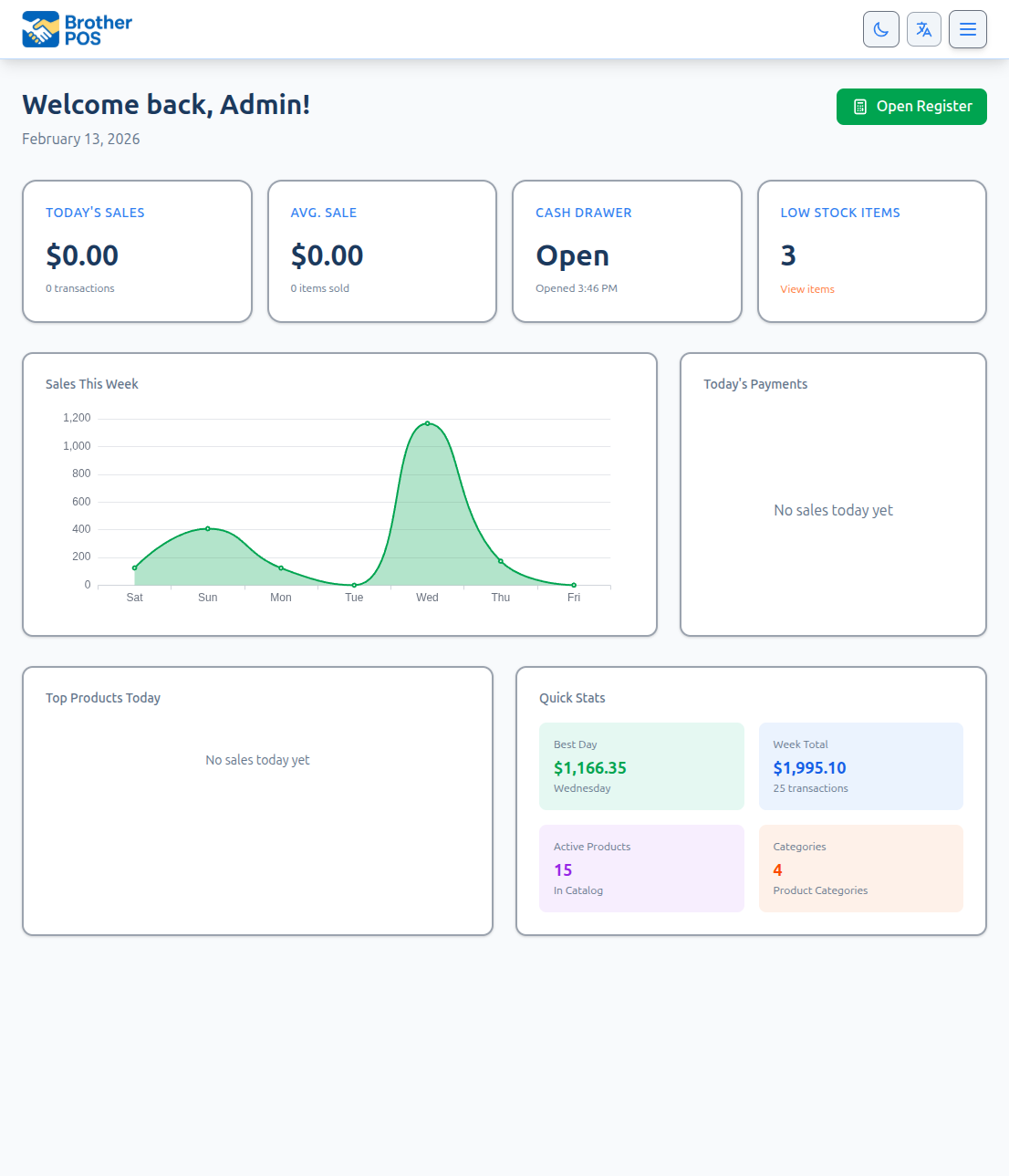
Accessing the Admin Panel
Open your browser and go to your store's address:
https://yourstore.brotherpos.ca
Log in, and you will land on the Dashboard — the admin panel's home page.
Many menu items only appear when your store uses that feature. For example, Time Tracking only shows when time tracking is turned on in Settings. Some items are also limited to admins. If you can't find something described here, it may be switched off for your store or not available to your role. See User Roles & Permissions.
The Navigation Bar
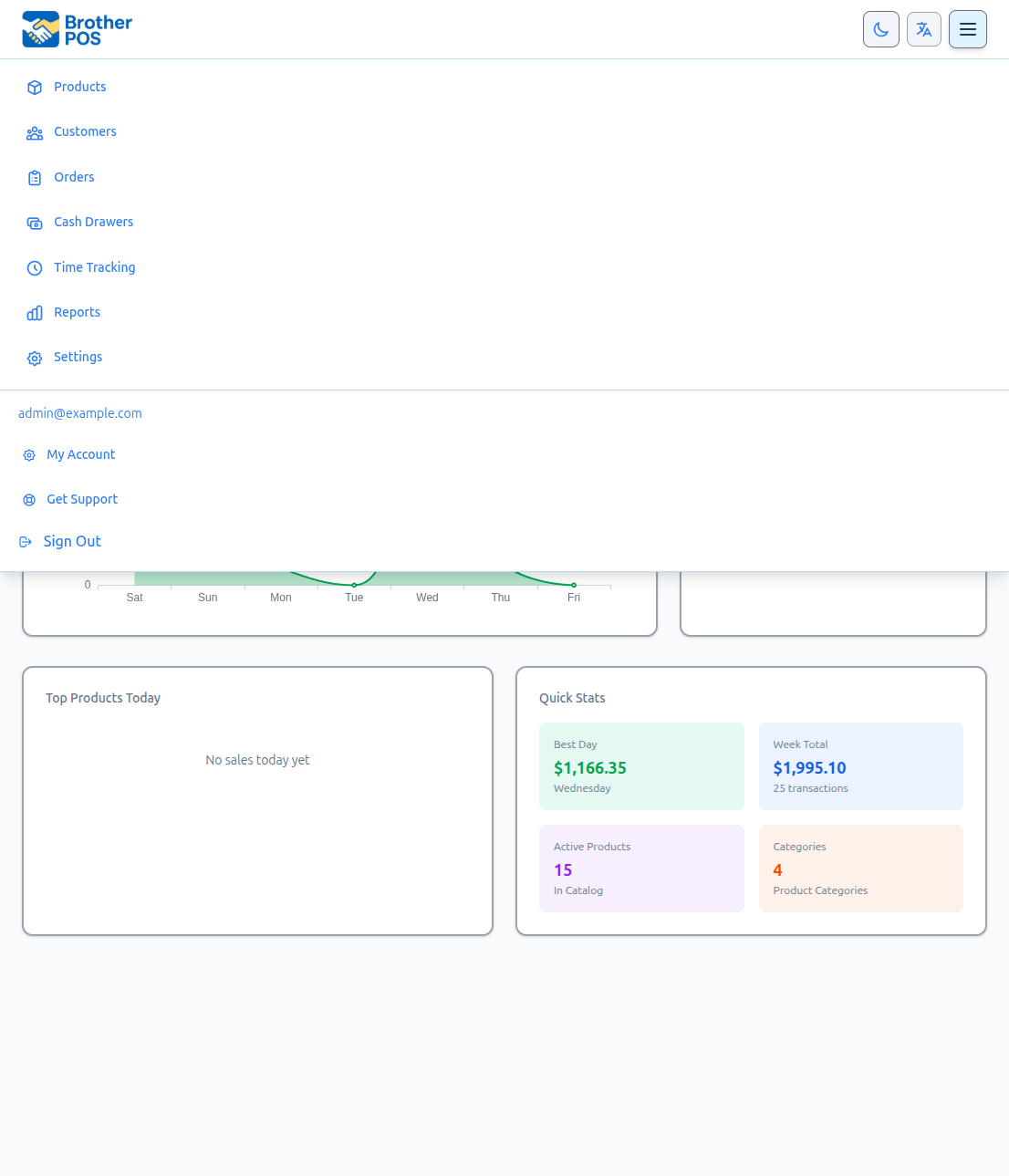
The top navigation bar is always visible. The main items are:
| Nav Item | What It's For |
|---|---|
| Logo | Returns to the Dashboard |
| Products | Your product catalog |
| Customers | Customer records and loyalty (when customer tracking is on) |
| Orders | Sales history and orders |
| Cash Drawers | Cash drawer sessions and registers |
| Time Tracking | Staff clock-in and clock-out records (when time tracking is on) |
| Reports | Sales, inventory and analytics reports (admins and managers) |
| Settings | Store configuration (admins only) |
Other items appear when your store uses them — for example Gift Cards, Storefront, Promo Games, Memberships, Distributor Connections or Retailers.
The right side of the bar has:
- Search — Search the admin (Ctrl+K).
- Theme toggle — Switch between light and dark mode.
- Language selector — Change the admin panel language.
- User menu — Your account settings, support, installing the app, and signing out.
More detail: the Dashboard
Dashboard
The Dashboard is your landing page when you log in. It gives a quick picture of your store today:
- Today's Sales — Revenue and number of transactions today.
- Avg Sale — Average sale value and items sold today.
- Cash Drawer — Whether a drawer is open, and when it opened.
- Low Stock Items — How many products still have stock but have dropped to their low stock level. Click the card to open exactly those products on the Products page; the number and the list always match. When anything is out of stock, that count is shown underneath as its own figure.
- Today's Revenue Mix — Today's revenue split into Product, Service and Manual sales. Only shown once there is revenue today.
- This Week's Outlook — How this week compares with last week, and products at risk of running out. Shown when there's enough sales history.
- Sales This Week — A chart of daily sales this week.
- Today's Payments — Today's sales by payment type.
- Top Products Today — Today's best sellers.
- Quick Stats — Best day this week, week total, active products and categories.
Stores that use service jobs or wholesale see extra sections for those. The Open Register button at the top opens the POS register.
Check the Dashboard when you arrive. It shows at a glance whether a drawer is open, whether anything needs restocking, and how the day is going.
More detail: Products, Customers and Orders
Products
Nav item: Products
This is where you manage your whole catalog.
Product List
Products are shown as a grid of cards:
- Search by name, SKU, barcode or category (Ctrl+K jumps to the search box).
- Filter by category, brand, status (active, inactive, on sale) and stock level (in stock, low stock, out of stock).
- Quick edits — Pencil icons on a card change the name, price, stock, image, categories, brand or unit type without opening the product.
- Card actions — Edit, plus a ⋯ menu with Sales, Duplicate, Barcode, Deactivate and Delete. An inactive product also shows Activate on the card.
- Order — Active products first, then inactive ones.
Buttons at the top include Categories, Quick Add (with pricing templates) and Add New Product. The More Actions menu holds product locations, the tour, import and export, brands, sales campaigns, bulk operations, suppliers and purchasing, and label printing.
The Product Page
Click a product to open its page, titled with the product's name. Fields are grouped into tabs, all part of one form — change fields on any tab, then click Update Product once to save them all.
| Tab | What's on it |
|---|---|
| Details | Name, product type, categories, brand, description, SKU and barcode, images, and whether it's available for sale |
| Pricing | Price, weight pricing and bulk pricing |
| Specials | Sale discount, promotion exclusions and campaigns |
| Inventory | Stock, reorder settings, reservations and low stock alert |
| Options | Modifiers, kitchen routing and bundles (when your store uses them) |
| Variations | The product's variations |
| Cannabis | Cannabis details plus compliance and tax fields (named Compliance in stores without cannabis features) |
| History | Who changed what, and when |
| Advanced | Settings such as auto-printing a label after sale (when one applies) |
See Managing Products for each tab in detail.
Customers
Nav item: Customers
Manage your customer records:
- Customer list — Name, email, phone, loyalty, purchases, total spent and notes, with search and tag filters.
- Customer profile — Click a customer to see their details and purchase history.
- Add New Customer — Create a customer by hand.
- Buttons at the top — Loyalty settings and Add New Customer. More Actions holds Import, Export CSV, Tags, the tour, and delivery, shipping and wholesale links when your store uses them.
Orders (Sales History)
Nav item: Orders
The Orders page (titled Sales on the page) lists every transaction.
- Summary cards — Sales count, revenue and voided transactions at the top.
- Filters — Search (receipt number, customer name, phone or email), status and date range in one row. Fulfillment, payment method and source are under More filters.
- Transaction table — Order ID, type (with the fulfillment when it wasn't over the counter), date/time, customer, items, total, payment, status and actions.
- View — Opens an order's full details, line items and payments.
Online Orders (when your store takes orders through its storefront) and Fulfillment (deliveries and shipments still to go out, where your store delivers or ships) stay at the top. More Actions holds Export CSV, the tour, and related pages when your store uses them, such as delivery routes, packing slips, kitchen orders, Purchase Orders, Wholesale Orders and consignment.
More detail: Cash Drawers, Time Tracking and Reports
Cash Drawers
Nav item: Cash Drawers
View cash drawer sessions:
- Open drawers — A banner at the top shows any drawer that's open right now.
- Filters — Register, status (open or closed) and date range.
- Session table — Each session with its register, when it opened, who opened it, sales count, total and status.
- Manage Registers — Set up your registers.
- Export CSV — Download the session list.
- View — Opens a session's details and cash count.
Cash drawer sessions don't open or close when staff sign in or out of the register. A drawer is opened with a starting float and closed with a cash count.
Time Tracking
Nav item: Time Tracking (only when time tracking is turned on)
View staff timesheets, clock-in and clock-out records, and breaks. You can also get here from Reports (Employee Time Tracking) and from the Staff Members page (More Actions → Time Clock).
Reports
Nav item: Reports
The Reports page links to every report available to your store, grouped under four headings:
| Group | Includes |
|---|---|
| Sales & cash | Sales Report, Daily Close, Financials, BrotherPay eDebit, Your Mix vs Your Region |
| Inventory & products | Inventory, Receiving Variance, Give-Away, Flower / Weight Variance, Product Issues, Wholesale |
| Customers & staff | Customer Analytics, Audit Trail, Employee Time Tracking |
| Compliance & more | Compliance Reports, where they apply |
More reports appear when your store uses the matching features. A heading with no reports for your store isn't shown. See Sales Reports for the full list.
More detail: Settings and Staff Members
Settings
Nav item: Settings
Admin Settings are for admins only.
The Settings page shows your current settings. Click Edit Settings to change them. The edit form has seven tabs:
General
- Store information: name, address, phone, email and timezone
- Store logo and store hours
- Customer management
- Loyalty program
Tax & Compliance
- Province, tax mode and tax rates
- Additional tax
- Age verification and delivery ID verification
- Compliance settings, where they apply
Operations
- Cash drawer settings
- Online order notifications
- Time tracking, consignment and POS payouts
- Payment types
Products & Inventory
- Product management features
- Discount presets
- Stock management
- Cannabis detail fields
- Print menu
Sales & Integrations
- Storefront website and the Big Brother AI assistant
- WooCommerce integration
- Payment terminals
- Restaurant features
- Digital menu boards and customer display
- Delivery and shipping, and tax on delivery and shipping fees
- Wholesale settings
Hardware & System
- Camera barcode scanning
- Printing features and printer setup
- Label printing
- Kitchen printer and kitchen display settings
- Receipt content
- Automated backups
Notifications
- Email Receipts — Email receipts to customers after a sale
- Scheduled Report Digests — Sales summaries emailed on a schedule
- Auto-Reorder Alerts — Alerts or draft purchase orders when products reach their reorder point
- SMS notifications and waivers, where your store uses them
Buttons at the top of the Settings page include:
- Manage Users — Opens the Staff Members page
- WooCommerce Integration — When WooCommerce is part of your plan and turned on
- WooCommerce Monitor — Once your WooCommerce connection is set up and enabled
- Edit Settings — Opens the settings form
- Take a Tour — A guided tour of the page
Staff Members (Users)
Admin Admins only — open from Settings → Manage Users
The Staff Members page is where you manage staff accounts. It isn't in the navigation bar — use Manage Users on the Settings page.
- Staff table — Name, email, role, last login and actions (plus status on the All list). Click a name to edit that person.
- Active / Deactivated / All — Filter the list (shown once someone has been deactivated)
- Role Permissions and Add Staff Member — Buttons at the top
- Edit — Change a staff member's details, role or PIN
- Deactivate — Turn off a staff member's account
- More Actions — Time Clock, Shift Schedule, Export CSV and the tour, when your store uses them
More detail: campaigns and integrations
Campaigns & Pricing
Campaigns don't have their own navigation item. Find them under Products → More Actions → Sales Campaigns. From there you can run:
- Sale campaigns — Percentage or dollar discounts on chosen products, categories or brands for a date range
- Freebie campaigns — A free item once a customer spends over a set amount
To see which campaigns a single product is on, open the product's Specials tab.
Integrations
- WooCommerce — Use WooCommerce Integration on the Settings page to connect your online store.
- Wholesale — When your store uses wholesale features, Distributor Connections (retailers) or Retailers (distributors) appear in the navigation bar.
More detail: search, filters, tours and screen sizes
Tips for Efficient Navigation
Search
Press Ctrl+K to search. On the Products page it jumps to the product search box, which finds products by name, SKU, barcode or category.
Filters
Most lists in the admin have:
- Filters above the list to narrow by status, date and so on
- Page controls to move through long lists
- A button to clear your filters
Guided Tours
Many pages have a Tour button that walks you through the page. It's a good way to learn the interface when you start.
Mobile and Tablet Access
The admin panel works on tablets and phones, though it's designed for larger screens. On smaller screens:
- The navigation bar collapses into a menu button
- Wide tables scroll sideways
- Forms stack into one column
For admin work, a desktop or laptop is easiest. The POS register is built for touch screens and tablets; the admin panel is built for computers.
More detail: what managers see
Manager vs. Admin View
Managers see most of the admin, with a few differences:
| Section | Admin | Manager |
|---|---|---|
| Products | Yes | Yes |
| Customers | Yes | Yes |
| Orders | Yes | Yes |
| Cash Drawers | Yes | Yes |
| Time Tracking | Yes | Yes |
| Reports | Yes | Yes |
| Settings | Yes | No (managers can still change their language) |
| Staff Members | Yes | No |
What managers can do is also shaped by your store's role permissions. If you need something you can't see, ask your store's admin.
What's Next?
- Navigating the POS — Learn the POS register interface.
- Store Setup — Complete first-time store configuration.
- User Roles & Permissions — Review what each role can access.
- Admin Quick Start — Add your first product and get selling.