System Overview
Use this page to understand the big picture: where Brother POS lives, the two screens your team uses, and what you need in the store.
At a glance
- It runs in the cloud. There's no server in your store. Your store has its own web address, like
yourstore.brotherpos.ca, and updates arrive automatically. - The register (
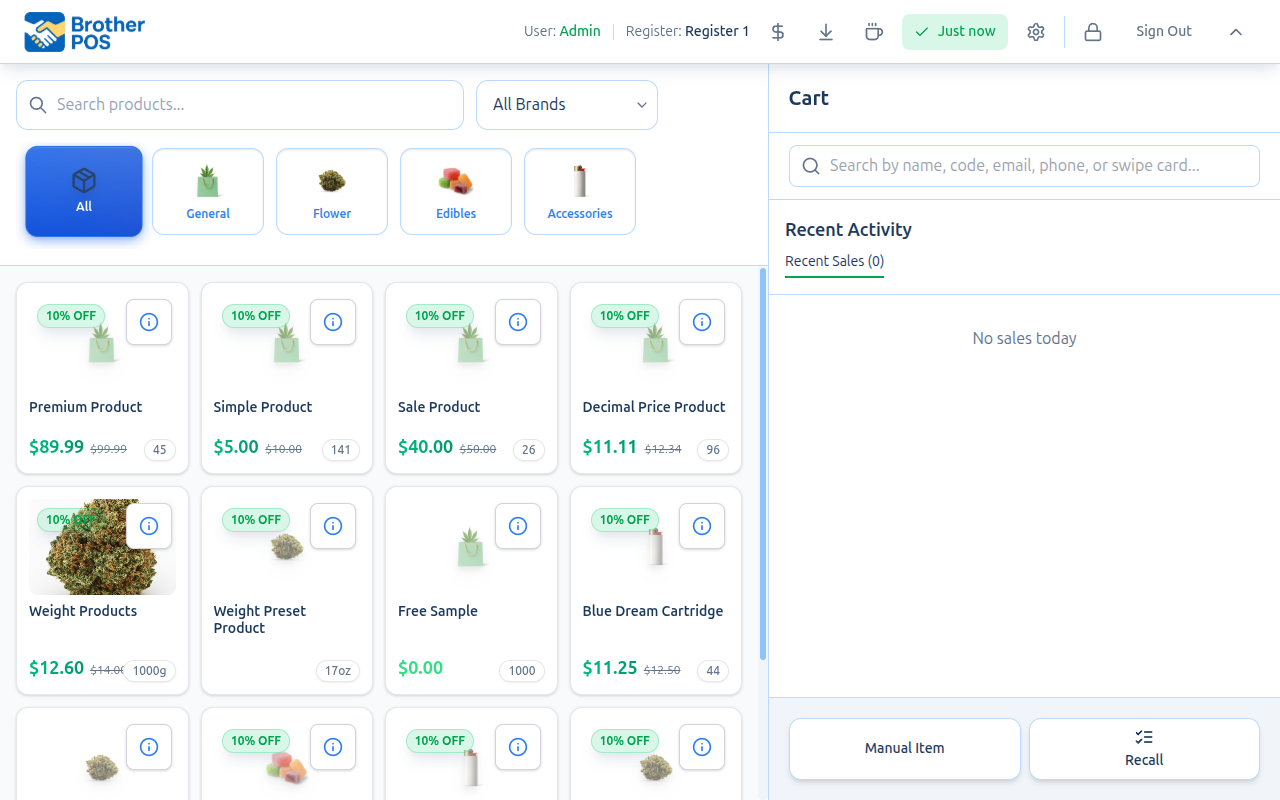
yourstore.brotherpos.ca/pos) is the touch-friendly sales screen cashiers use. Staff switch in and out with a 4-digit PIN, and it keeps selling if the internet drops. - The admin panel (
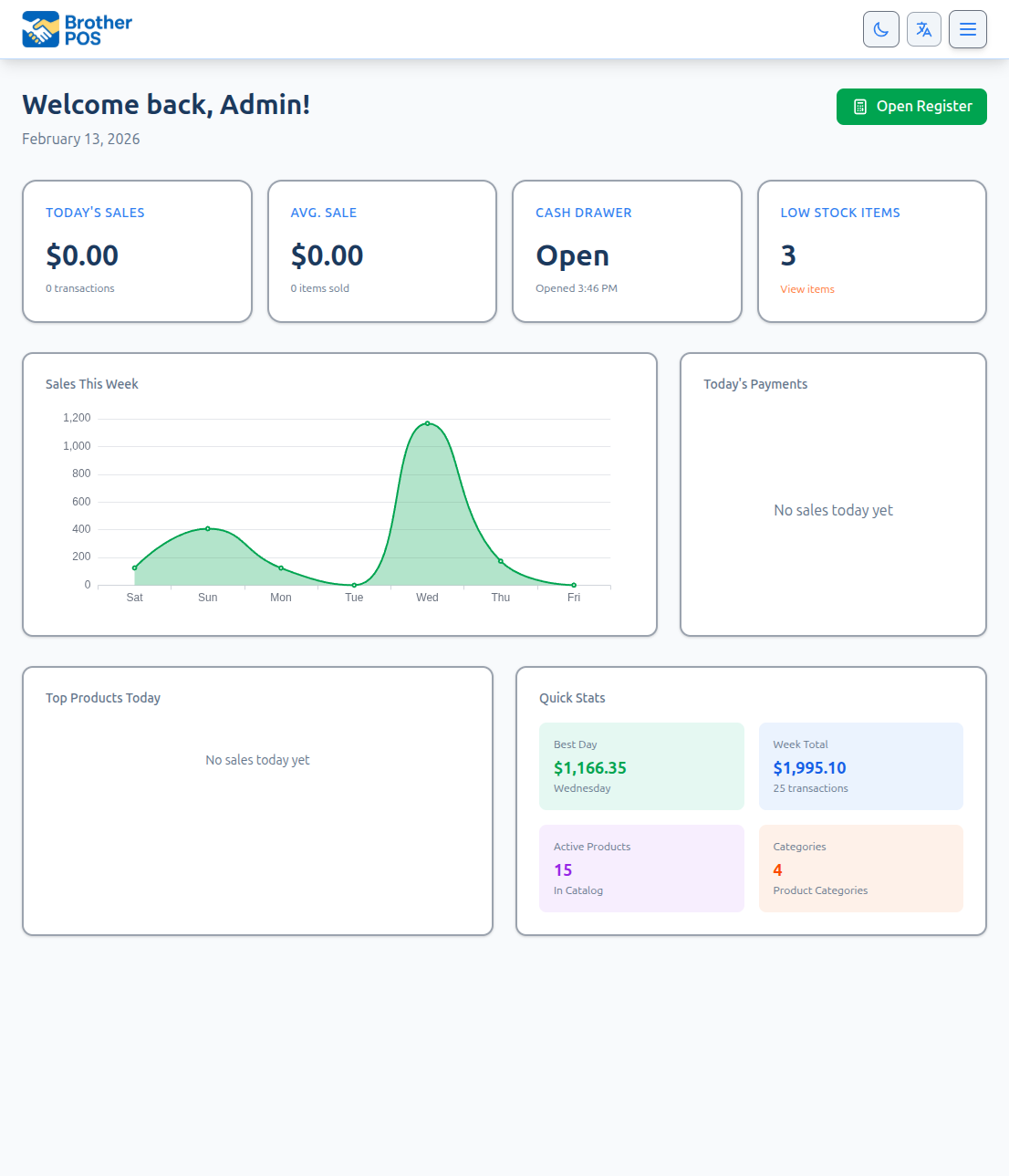
yourstore.brotherpos.ca) is where managers and admins look after products, inventory, customers, reports and settings. Clerks who sign in there are sent to the register. - Both share the same data. Add a product in the admin and it shows up on the register; ring a sale on the register and it shows up in the reports.
- Printing from a computer's web browser needs the free Printer Bridge program. The iPad and Android apps print directly.
- Optional features (cannabis details, delivery, wholesale, time tracking and more) are switched on by an admin under Settings > Edit Settings. Features that are off stay hidden.
Where to go next: Logging In, POS Quick Start, Admin Quick Start.
Common questions
Do I need to install anything? Not for the admin panel — any web browser works. On an iPad or Android tablet, use the Brother POS app. On a computer register, install the Printer Bridge if you print receipts or labels.
What happens if the internet goes down? The register keeps working. Sales are saved on the device and sent up when the connection comes back. Card payments through a linked terminal need the internet. See Offline Mode.
Can other stores see my data? No. Each store's products, sales, customers and settings are kept separate.
I changed a price but the register still shows the old one. The register refreshes its products in the background, so it can take a short while. Reloading the register picks up the change right away.
More detail: hosting and your store's address
Deployment
Brother POS is a cloud-hosted system — there is no server to run in your store.
-
Your store gets its own web address. When your store is created, you receive a unique address like
yourstore.brotherpos.ca. This is where you open both the admin panel and the POS register. -
Your data is kept separate. No other store can see your products, sales, customers, or settings.
-
Automatic updates. New versions reach your store automatically — there is nothing to update yourself.
-
Access from anywhere. You can open your admin panel from any device with a web browser and an internet connection. The POS register is designed for in-store use on a touchscreen but works in any modern browser.
-
What you install. A register running in a desktop web browser needs the free Printer Bridge program if you want to print receipts or labels. On an iPad or Android tablet, you use the Brother POS app instead, which prints directly.
Your store's address follows the pattern: storename.brotherpos.ca
For example:
yourstore.brotherpos.cagreenleaf.brotherpos.cadowntown-shop.brotherpos.ca
More detail: the register and the admin panel
Two Interfaces, One System
Brother POS has two distinct user interfaces that serve different purposes but share the same data.
POS Register — The Sales Interface
Address: storename.brotherpos.ca/pos
The POS Register is a fast, touch-friendly sales screen. This is where cashiers work.
Key characteristics:
- Touch-optimized. Large buttons and a layout designed for touchscreen registers and tablets.
- Fast. Product searches, cart updates, and payments happen without page reloads.
- Keeps working offline. If your internet connection drops, the register saves sales on the device and syncs them when the connection returns.
- PIN login. The first time you sign in on a device, you enter your email and password, then your 4-digit PIN. After that, staff switch in and out with just their PIN.
- Focused. The POS shows what cashiers need: products, the cart, payment options, and customer lookup. Back-office settings and reports stay in the admin panel.
On a desktop or laptop register, you can install the POS from your browser so it opens full-screen like an app. On an iPad or Android tablet, use the Brother POS app.
Admin Panel — The Management Interface
Address: storename.brotherpos.ca
The Admin Panel is designed for back-office work. This is where managers and admins work.
Key characteristics:
- Full-featured. Product management, inventory, sales reports, staff accounts, settings, integrations, and more.
- Browser-based. Works in any modern web browser — Chrome, Firefox, Safari, or Edge.
- Role-restricted. What you see depends on your role. Admins see everything. Managers see most day-to-day features but not Settings, Staff Members, or Activity Logs. Clerks who sign in are sent to the POS register instead.
- Email/password login. Admin panel users sign in with their email address and password.
How the Pieces Fit Together
Data Flow
- Products, customers, and settings are created and managed in the Admin Panel.
- The POS Register uses this data to show products and customer information.
- When a cashier completes a sale at the POS, the sale is recorded.
- Reports in the Admin Panel include new sales when you open or refresh the report.
- Inventory levels update automatically when sales are completed, and managers can make adjustments in the Admin Panel.
How Data Stays Current
The POS Register and Admin Panel share the same data, but they refresh it differently:
- Products on the POS are stored on the register device and refreshed in the background. If an admin changes a price, the register may take a short while to show it. Reloading the POS picks up the change.
- Sales and inventory are recorded as soon as a sale completes (or as soon as an offline sale syncs). Admin reports show new sales when you open or refresh the report page.
- Settings changes (tax rates, payment types, and so on) reach the registers after a short delay.
- Kitchen Display System (KDS) screens update live — new orders appear on the kitchen screen as they are placed.
More detail: supported hardware
Supported Hardware
Brother POS works with common POS hardware:
| Hardware | Connection | Notes |
|---|---|---|
| Receipt Printer | Network (Ethernet/Wi-Fi), USB, or Bluetooth | ESC/POS compatible (Epson TM-m30II recommended). Star CloudPRNT printers are also supported. Bluetooth printers are for the tablet apps. |
| Label Printer | Network or USB | ZPL/EPL compatible printers for product labels with barcodes. |
| Barcode Scanner | USB or Bluetooth | USB scanners act like a keyboard — plug in and scan. No drivers needed. |
| Cash Drawer | Printer DK port | Opened through the receipt printer via an RJ11/RJ12 cable. |
| Scale | USB/serial or network | For weight-based products. Brother POS can detect the scale's connection speed, with a manual setting if detection fails. |
When the POS runs in a web browser on a Windows or Linux computer, all printing goes through the Printer Bridge — a small free program that runs on the register computer. A Mac can run the register but can't print, because the bridge doesn't run on macOS. The iPad and Android apps print directly and don't need it. See Printer Bridge for details.
More detail: security
Security
- Data separation. Each store's data is kept separate from every other store's.
- Role-based access. Permissions for each role can be customized, so staff only reach the features appropriate to their job.
- Encrypted connections. Everything between your devices and Brother POS travels over an encrypted (HTTPS) connection.
- Password and PIN security. Passwords and PINs are stored as secure one-way hashes, never as plain text.
- Activity history. Important changes are logged, so you can see who changed what and when.
- Wholesale encryption. B2B wholesale messages between businesses are end-to-end encrypted.
More detail: working offline
Offline Capabilities
The POS Register is designed to handle network interruptions gracefully:
- Your product catalog is stored on the device, so products stay browsable even if the connection drops.
- Sales are queued. A sale completed while offline is saved on the device — the register tells you the sale was queued and will sync when the connection returns.
- Customers and loyalty details are stored on the device too, so you can still look up a customer while offline.
While offline, the POS cannot:
- Take payments through an integrated card terminal, which needs an internet connection
- Check live inventory levels from the server
Customer and loyalty information available offline may be out of date if changes were made on another device. Queued sales sync automatically when the connection is restored.
See Offline Mode for the full details.
More detail: multiple stores and optional features
Multi-Store Support
If your business operates multiple locations, Brother POS supports multi-store management:
- Store owners get an Owner Dashboard to view analytics and manage their stores.
- Store switching — owners can move between stores from the user menu without logging out.
- Stock transfers move inventory between locations.
- Owner reports give consolidated views of sales and performance across your stores.
Optional Features
Not every store needs every feature. Many capabilities can be turned on or off for your store, for example:
- Cannabis-specific features (THC/CBD, strain types, Saskatchewan compliance)
- Pricing templates and weight presets for products sold by weight
- B2B wholesale ordering
- Local delivery and shipping
- Receipt and label printing
- Employee time tracking
- Consignment inventory
- Scale integration
Your admin turns these on under Settings → Edit Settings. Features that are turned off are hidden, so they won't clutter your screens.
What's Next?
- Logging In — Learn how to access the system based on your role.
- POS Quick Start — Start making sales right away.
- Admin Quick Start — Begin configuring your store.
- Store Setup — Complete first-time store configuration.