Store Setup
Use this page to get a new store ready for its first sale.
Quick steps
- Fill in your store details. Click Settings, then Edit Settings. On the General tab, enter your store name, phone, address, email and Timezone.
- Set up tax. Click the Tax & Compliance tab, pick your Country and Province / State, then choose a Tax Mode and enter your rate. Click Update Settings — nothing is saved until you do.
- Add your staff. Go to Settings, click Manage Users, then Add Staff Member for each person. Give everyone their own 4-digit PIN for the register.
- Add your products. Go to Products and click Add New Product, or use More Actions → Import from File to bring in a spreadsheet.
- Connect your printer. On the Hardware & System tab, tick Enable Receipt Printing and click Update Settings. Then set up the printer for each register.
- Ring a test sale on the register. Check that the tax is right and the receipt prints.
New stores start with the Setup Wizard, which covers the most common choices. Skipped it? An admin can reopen it any time with Run setup wizard again on the Settings page.
Common questions
Do I have to finish everything in one go? No. Do the quick steps above to start selling, and turn on extra features later. Just click Update Settings before leaving the settings page, or your changes are lost.
Can two staff members share a PIN? No. Two active staff members can't use the same PIN, and a shared login makes it impossible to tell who rang each sale.
Where do I turn on things like delivery, time tracking or label printing? All on Settings → Edit Settings, spread across its tabs. The "optional features" section below lists which tab each one is on.
Do I set up the printer in Settings? Only the on/off switch. The printer itself is set up per register — tap the Settings gear on the register, or edit the register under Cash Drawers → Manage Registers.
More detail: the full setup checklist
Setup Checklist Overview
| # | Task | Priority | Time |
|---|---|---|---|
| 1 | Store Details | Required | 5 min |
| 2 | Tax Configuration | Required | 5 min |
| 3 | Receipt Settings | Required | 5 min |
| 4 | User Accounts | Required | 10 min |
| 5 | Product Categories | Required | 10 min |
| 6 | Products | Required | 15+ min |
| 7 | Optional Features | Recommended | 5 min |
| 8 | Hardware Setup | Recommended | 10 min |
| 9 | Loyalty Program | Optional | 5 min |
| 10 | Compliance Settings | Conditional | 5 min |
Allow 30-60 minutes for the full setup. Most of these settings live on one page — Settings → Edit Settings — which is split into tabs. Changes are only saved when you click Update Settings, so save before you leave the page.
More detail: store details and tax
1. Store Details
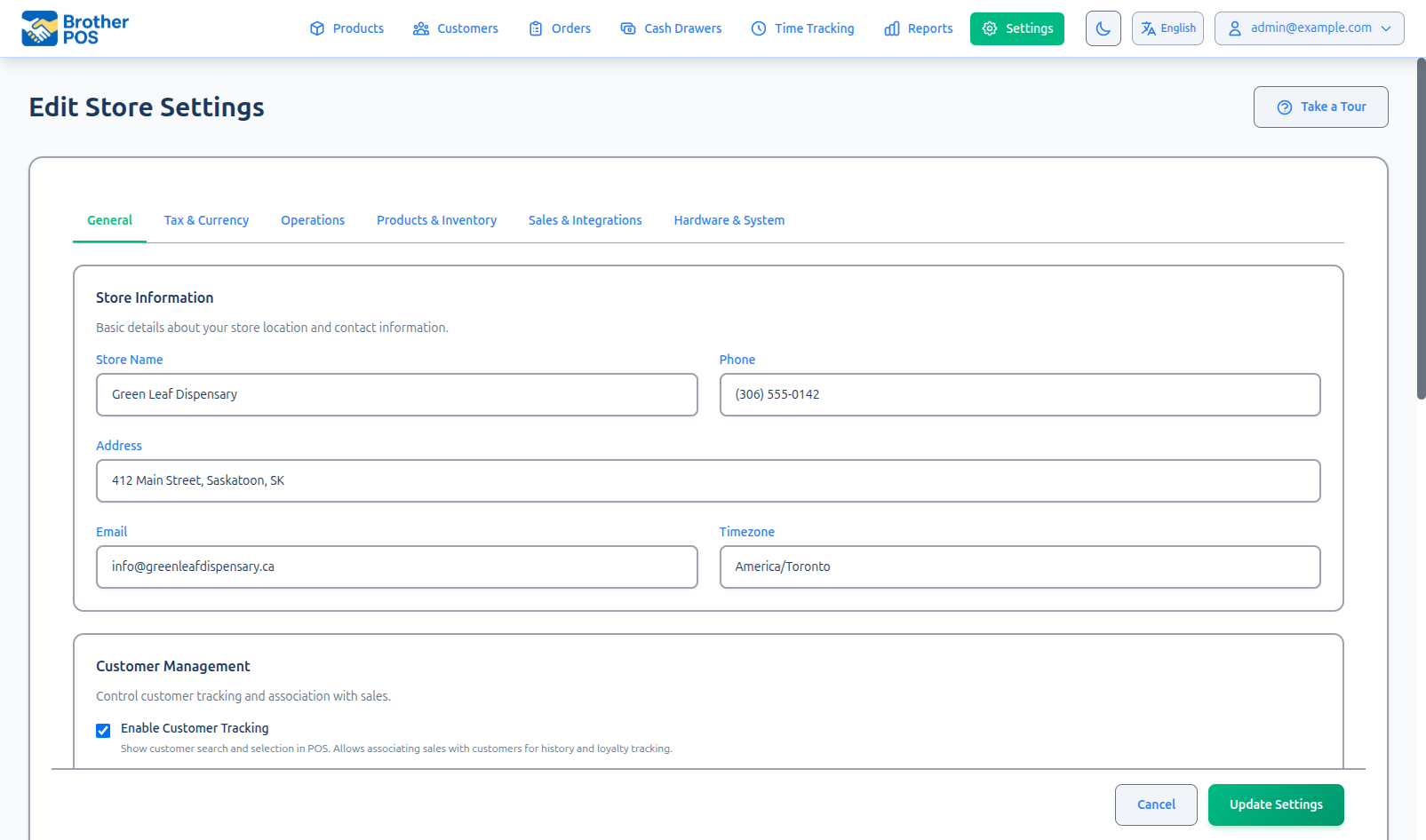
Go to Settings → Edit Settings and stay on the General tab.
Under Store Information, fill in:
| Field | Description | Example |
|---|---|---|
| Store Name | Your business name as it appears on receipts and the POS | "Green Leaf Dispensary" |
| Phone | Store phone number | "(306) 555-0123" |
| Address | Full street address | "123 Main St, Saskatoon, SK S7K 1A1" |
| Store contact email | "info@greenleaf.ca" | |
| Timezone | Pick the city closest to your store | "Regina" |
The same tab also has Store Logo (upload your logo once and it's used wherever your logo appears) and Store Hours (your open and close times for each day, which set when the cash drawer's business day ends). See General Settings.
Your Province / State and Currency Symbol are on the Tax & Compliance tab (see the next step).
The timezone affects how times appear on receipts, reports, and the POS. Make sure it is correct before going live — changing it later doesn't alter past sales, but it changes how times are displayed.
Click Update Settings.
2. Tax Configuration
Go to Settings → Edit Settings and click the Tax & Compliance tab.
First choose your Country and Province / State. Then set up tax for your jurisdiction:
Single Tax (e.g., Ontario HST)
- Set Tax Mode to Single Tax (HST).
- Enter the Tax Rate (%) (e.g.,
13for 13% HST). If you don't charge tax, enter0and tick This store charges no tax to confirm — the tax line then disappears from receipts and carts. - Enter the Tax Name that should appear on receipts (e.g., "HST").
Split Tax (e.g., Saskatchewan GST + PST)
- Set Tax Mode to Split Tax (GST + PST).
- Enter the GST Rate (%) (e.g.,
5) and the GST Name (e.g., "GST"). - Enter the PST Rate (%) (e.g.,
6) and the PST Name (e.g., "PST").
Individual products can be marked PST-exempt (for example, vape batteries in Saskatchewan) by editing the product.
Additional Tax (e.g., SK Vapour Products Tax)
If your jurisdiction charges an extra tax on certain products:
- Tick Enable Additional Tax.
- Enter the Additional Tax Name shown on receipts (e.g., "VPT").
- Set the additional tax rate on the categories or products it applies to. Products use their category's rate unless you override it on the product; set a product to 0% to exempt it.
Tax configuration affects every sale. Before going live, check your tax settings with your accountant or tax professional.
Click Update Settings.
Verify Your Tax Setup
- Open the POS register.
- Add a product to the cart.
- Check that the tax shown matches your expectations.
- If the numbers look wrong, return to Settings and adjust.
More detail: receipts and staff accounts
3. Receipt Settings
Go to Settings → Edit Settings and click the Hardware & System tab.
- Under Printing Features, tick Enable Receipt Printing and click Update Settings. Receipt printing is off until you turn it on.
- The Receipt Content Settings section then appears on the same tab:
| Field | Description | Example |
|---|---|---|
| Receipt Header (optional) | Text at the top of receipts | "Welcome to Green Leaf!" |
| Receipt Footer (optional) | Text at the bottom of receipts | "Returns within 14 days with receipt" |
| Hide Cashier Name on Receipts | When ticked, the cashier's name isn't printed | — |
Your receipt is often the last thing a customer sees. Add a friendly message and your return policy. Cannabis stores should check whether local regulations require specific information on receipts.
Click Update Settings.
4. User Accounts
Go to Settings and click Manage Users.
Create an account for everyone who will use Brother POS.
Planning Your Accounts
| Staff Member | Role | Needs Admin Access? | Needs POS Access? |
|---|---|---|---|
| Store owner / IT admin | Admin | Yes | Optional |
| Shift managers | Manager | Yes | Yes |
| Cashiers | Clerk | No | Yes |
| Delivery drivers | Driver | No | No (uses the driver app) |
Creating Each Account
- Click Add Staff Member.
- Enter their First Name, Last Name, and Email.
- Set a PIN (4 digits) for POS access.
- Enter a Password and Password Confirmation.
- Select the Role.
- Click Add Staff Member at the bottom of the form.
Two active staff members can't share a PIN — Brother POS won't save a PIN that another active employee is already using. Planning PINs ahead makes this easy. A simple scheme:
- Managers: 1000-1999
- Cashiers: 2000-2999
- Admins: 9000-9999
Minimum Recommended Accounts
- 1 Admin account — for system configuration (likely your own account)
- 1 Manager account — for day-to-day operations (if different from the admin)
- 1 Clerk account per cashier — for POS register access
Every person should have their own account. Shared accounts make it impossible to tell who processed which sale, which causes problems during cash reconciliation and audits.
More detail: categories and products
5. Product Categories
Go to Products in the top navigation bar, then click Categories.
Categories organize products on the POS register and in reports. New stores start with a set of categories that suits the kind of store you chose — a cannabis store, for example, starts with Flower, Pre-Rolls, Vapes, Edibles, Concentrates, Tinctures, Topicals, Capsules, Accessories, and Beverages. Rename, reorder, or remove them to fit your store.
Creating Categories
- Click New Category.
- Enter the category Name.
- Optionally pick a Parent Category (to make it a subcategory), a Category Icon, and a Sort Order (controls the order categories appear in).
- Save the category.
Too many categories slow cashiers down. Aim for 5-10 top-level categories, and use subcategories or brands for finer grouping.
6. Products
Go to Products in the top navigation bar.
Adding Products One by One
- Click Add New Product.
- Work through the steps: Category, Pricing Model, Details, and Variations.
- Click Create Product.
See the Admin Quick Start for a walkthrough of adding a single product.
Bulk Import via CSV
For large catalogs, import products from a CSV file:
- On the Products page, open More Actions and choose Import from File.
- Under Download Templates, download a template to see the expected columns.
- Fill in the template with your product data.
- Choose your file (or drag and drop it) to upload it.
- Review the Import Preview — it shows how many products are New, Updates, Restores, and Errors.
- Confirm the import.
- Fix any rows the preview flags as errors.
- Prices should be pre-tax (tax is calculated at the point of sale).
- Stock quantities should reflect your current physical count.
Product Fields Reference
| Field | Required | Description |
|---|---|---|
| Product Name | Yes | Product display name |
| Price | Yes, for unit-priced products | Pre-tax retail price. Products priced by weight, variations, or a pricing template get their prices there instead. |
| SKU | No | Unique product code — generated automatically if left blank |
| Barcode | No | UPC or custom barcode number; must be unique |
| Category | No | Where the product appears on the POS and in reports |
| Current Stock | No | Units currently in stock |
| Description | No | Product description |
| Brand | No | Manufacturer or brand name |
| THC / CBD content | No | Cannabis stores |
| Strain Type | No | Indica / Sativa / Hybrid (cannabis stores) |
More detail: optional features
7. Optional Features
Brother POS has many optional features that can be turned on or off. All of them are on Settings → Edit Settings; the table shows which tab. Turn on only what your store needs, then click Update Settings.
Cannabis Features
Cannabis features are switched on when your store is set up as a cannabis store (the Setup Wizard asks what you sell). There is no option for this on the Settings page — to change what your store sells, run the setup wizard again or contact support. For cannabis stores:
| Setting | Where | What it does |
|---|---|---|
| Enable Pricing Templates | Products & Inventory tab → Product Management Features | Pricing templates for products sold by weight |
| Enable Weight Presets | Products & Inventory tab → Product Management Features | Preset weights (1g, 3.5g, 7g, and so on). Must stay on while pricing templates are on. |
| Show THC/CBD Fields, Show Strain Type, Show Effects, Show Helps With, Show Terpenes | Products & Inventory tab → Cannabis Detail Fields | Choose which cannabis details show on your online storefront. On by default for cannabis stores. |
Business Features
| Feature | Where | Setting |
|---|---|---|
| Receipt printing | Hardware & System tab → Printing Features | Enable Receipt Printing |
| Label printing | Hardware & System tab → Printing Features | Enable Label Printing |
| Scale | Hardware & System tab → Printing Features | Enable Scale Integration |
| Camera scanning (iPad/Android app) | Hardware & System tab → Camera Barcode Scanning | Enable Camera Scanning |
| Employee time tracking | Operations tab → Time Tracking Settings | Enable Employee Time Tracking |
| Consignment | Operations tab → Consignment Tracking | Enable Consignment |
| Payouts | Operations tab → POS Payouts | Enable Payouts |
| Local delivery and shipping | Sales & Integrations tab → Delivery & Shipping | Enable Local Delivery, Enable Shipping |
| B2B wholesale | Sales & Integrations tab → Wholesale Feature Controls | Distributor connections and the wholesale portal |
| Additional tax | Tax & Compliance tab → Additional Tax | Enable Additional Tax |
Some features are only available on certain subscriptions.
Turn on only the features you need right now. You can always add more later, and fewer active features means a simpler screen for your staff.
More detail: hardware (printers, scanner, cash drawer, scale)
8. Hardware Setup
When the POS runs in a desktop web browser, all printing goes through the free Printer Bridge program on the register computer — see Printer Bridge. The Brother POS apps for iPad and Android print directly.
Receipt Printer
Brother POS supports ESC/POS receipt printers. The recommended model is the Epson TM-m30II.
- Turn on Enable Receipt Printing (Settings → Edit Settings → Hardware & System tab).
- Connect the printer to your store network (Ethernet or Wi-Fi) or, on a browser register, by USB through the Printer Bridge.
- For a network printer, note its IP address (usually shown on the printer's self-test printout).
- Printers are set up per register, not in store settings. Either open the POS on that register and tap the Settings (gear) in the top bar, or go to Cash Drawers → Manage Registers, edit the register, and expand Advanced Printer Configuration.
Barcode Scanner
USB barcode scanners act like a keyboard — plug one into the register and it works. No setup is needed in Brother POS.
- Plug the scanner into your register's USB port.
- Open the POS register.
- Scan a product barcode — the POS should find and add the matching product.
Scan a barcode while a text editor (like Notepad) is open. You should see the barcode number typed out followed by a new line. If that works, the scanner will work with Brother POS.
Cash Drawer
Cash drawers connect to your receipt printer's DK (drawer kick) port with an RJ11/RJ12 cable. Brother POS opens the drawer by sending a command through the printer.
- Connect the cash drawer's cable to the receipt printer's DK port.
- No separate setup is needed in Brother POS.
Label Printer
- Turn on Enable Label Printing (Hardware & System tab).
- Connect your ZPL/EPL label printer to the network (or by USB through the Printer Bridge).
- Enter the label printer in the register's printer settings, the same way as the receipt printer.
- Set up your label templates to match your label size — see Label Printers.
Scale
- Turn on Enable Scale Integration (Hardware & System tab).
- Connect the scale to the register computer. A USB or serial scale needs the Chrome or Edge browser.
- On the POS, tap the Settings (gear) to connect the scale. Brother POS can detect the scale's baud rate; if detection fails, choose the Baud Rate there manually.
The browser asks for permission the first time the POS connects to the scale. Allow it so the POS can read the scale.
More detail: loyalty program and compliance
9. Loyalty Program
To reward repeat customers:
-
Go to Settings → Edit Settings → General tab. Under Loyalty Program Settings, tick Enable Loyalty Program, set Points Per Dollar Spent (e.g., 1 point per $1), and set the Cash value per point ($). Click Update Settings.
-
Go to Customers and click Loyalty (the button appears once loyalty is on). This page lists your loyalty tiers and rewards.
-
Review your loyalty tiers. Customers move up tiers based on Minimum Lifetime Spend ($) and Minimum Visits, and each tier can give a Discount Percentage and a Points Multiplier. New stores start with these tiers, which you can edit:
Tier Minimum Lifetime Spend Minimum Visits Discount Bronze $0 0 0% Silver $500 10 5% Gold $1,500 30 10% Platinum $5,000 100 15% -
Review your loyalty rewards — what customers can redeem their points for. New stores start with "$5 Off Your Order" (100 points) and "$10 Off Your Order" (200 points).
Points are earned and tier discounts applied automatically when a cashier attaches a customer to a sale at the POS. See Loyalty Tiers for more.
10. Compliance Settings
Compliance settings are currently for Saskatchewan (SLGA) only.
Go to Settings → Edit Settings → Tax & Compliance tab. When your Province / State is set to Saskatchewan, a Saskatchewan Compliance section appears:
- Enter your SLGA Site ID (format SKR####-##, e.g., SKR1300-01).
- Set the Daily Purchase Limit (g) in equivalent grams (default 30g).
- Tick Enforce Purchase Limit at Checkout if the POS should stop sales that go over the limit.
- Click Update Settings.
Use the Generate SK Federal Report link in that section to open the Compliance Reports page, where you create your reports.
If you are a licensed cannabis retailer, compliance reporting is not optional. Make sure these settings are correct before processing any sales, and check with your compliance officer or legal advisor if you are unsure.
More detail: pre-launch checklist
Pre-Launch Checklist
Before telling your staff the system is live, run through this final checklist:
Must-Have
- Store name and address are correct
- Tax rates are configured and verified
- Receipt header and footer look professional
- All staff have individual accounts with PINs
- Product categories are set up
- At least a few products are loaded (ideally all)
- A test sale has been completed successfully on the POS
- Receipt prints correctly (if a printer is connected)
Should-Have
- Optional features reviewed and set appropriately
- Receipt printer connected and tested
- Barcode scanner tested
- Cash drawer tested
- Staff have been given their login details
Nice-to-Have
- Loyalty program configured
- Product images uploaded
- Compliance settings configured (Saskatchewan cannabis stores)
- WooCommerce integration set up
- All products imported via CSV
What's Next?
- User Roles & Permissions — Review the full permission matrix for your team.
- Navigating the Admin — Learn every section of the admin panel.
- POS Quick Start — Walk through the cashier experience yourself.
- Admin Quick Start — A faster walkthrough of the essentials.