Navigating the POS
Use this page to learn where everything is on the register screen: products on the left, the cart on the right, and the action buttons across the top.
Quick steps
- Find a product on the left: tap a category in the category bar, type in Search products..., or just scan the barcode.
- Tap the product card to add it to the cart on the right. Use − and + on a cart line to change the quantity.
- Add a customer (optional) with the search box at the top of the cart — by name, code, email, phone or card swipe.
- Take payment with the buttons under the totals, such as CASH or CARD.
- Stepping away? Tap the padlock (Lock / Switch User) in the top bar. The next person signs in with their PIN and the drawer stays open.
- Need more? Tap the gear in the top bar for this device's display settings, language and Quick Actions (such as Report Issue / Process Return and Open Admin Panel).
Common questions
A button in this guide isn't on my screen. Some buttons only show when your store uses a feature or your role has the permission. On a phone or iPad, swipe the row of top-bar buttons sideways to see the rest.
The top bar disappeared. Someone tapped the up arrow (Collapse Header). On a phone, tap Menu in the bottom bar. On a larger screen, tap the down arrow at the top of the cart panel.
The sync icon in the top bar is amber. The register hasn't synced in over 15 minutes, so prices or stock may be out of date. Tap the icon and choose Sync Now.
The register locked itself. Your store has an idle timeout. Enter your PIN to carry on. It never locks while there are items in the cart or a payment screen is open.
Where do I see today's sales? When the cart is empty, the cart panel shows Recent Sales. You can reprint a receipt from there.
More detail: the screen layout and the top bar
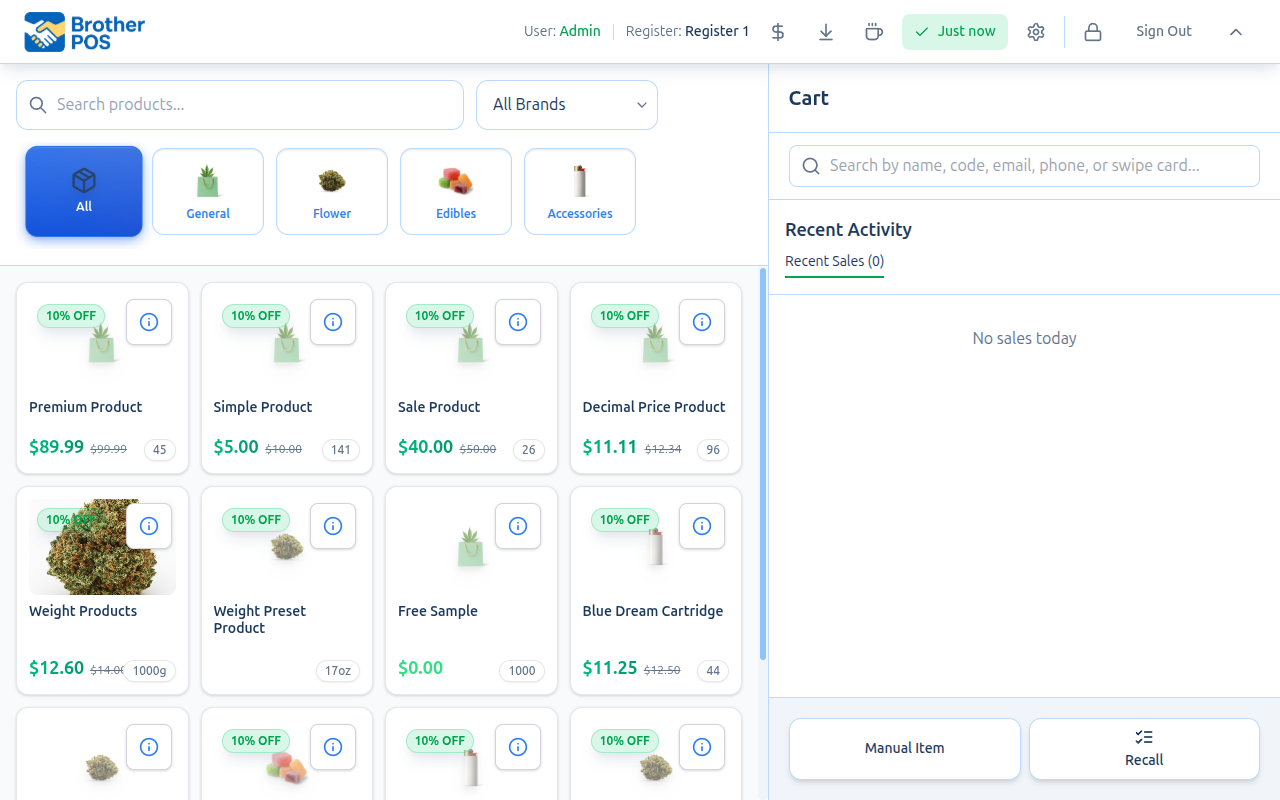
The POS Layout
When you log in to the POS at storename.brotherpos.ca/pos, you will see a screen divided into three main areas:
- Header bar across the top — who is signed in, the register, and action buttons
- Product area on the left — search bar, category bar, and product grid
- Cart panel on the right — customer search, cart items, totals, and payment buttons
Header Bar
The header bar runs across the top of the screen with key information and action buttons.
Who Is Signed In
On larger screens the left of the header shows the name of the signed-in cashier (in green) and, next to it, the register this device is using (for example "Register 1"). Hover over either name to see what it is.
Action Buttons
| Button | Purpose |
|---|---|
| Open Cash Drawer | Pop the cash drawer without a sale. Needs the Open Cash Drawer permission and a receipt printer set up for the register. |
| Cash Drop | Record cash removed from the drawer during your shift. Needs Manage Cash Sessions and an open drawer. |
| Pay In | Record cash added to the drawer. Needs Manage Cash Sessions and an open drawer. |
| Count / Close Drawer | Count the till and close the drawer session. Needs Manage Cash Sessions. |
| Time Clock | Punch in and out (when time tracking is on) |
| Sync indicator | Shows how recently the register synced with the server — tap it for sync details or Sync Now. See The Sync Indicator below. |
| Settings (gear) | Opens the register's Settings panel — see Register Settings Panel |
| Lock / Switch User (padlock) | Lock the register and show the PIN pad so another cashier can sign in |
| Sign Out | Fully sign out of the POS register |
| Collapse Header (up arrow) | Hide the whole top bar to give more screen space to products |
Cash Drop, Pay In and Count / Close Drawer are hidden in the header on phones; on a phone, find them in the Settings panel instead.
On a Phone or iPad
Which buttons appear depends on your role and the features your store uses, so on a narrow screen they may not all fit. When that happens, the row of buttons scrolls sideways: swipe it left or right to reach the rest. The row starts scrolled to its right-hand end, so Lock, Sign Out and Collapse Header are the ones on screen first.
Collapsing and Restoring the Header
Tap the up arrow at the right end of the header to hide the top bar. To bring it back:
- On a phone, tap Menu in the bottom bar.
- On a larger screen, tap the down arrow (Expand Header) at the top of the cart panel.
The header always comes back when the app is reopened.
The Sync Indicator
| What you see | What it means |
|---|---|
| Green tick with a time (e.g. "3m ago") | The register synced within the last 15 minutes. Prices, stock and products are current. |
| Amber warning with a time (e.g. "2h ago") | The last sync was more than 15 minutes ago. The register is still working from what it saved, but that may be out of date. Tap the indicator and choose Sync Now. |
| Amber "Never synced" | The register has saved products but no record of a sync. Sync before trusting prices and stock. |
| Spinning arrows ("Syncing...") | A sync is running right now. |
| Offline | The register cannot reach the server. See Offline Mode. |
| Red "Not synced" | Nothing has been downloaded to this register yet. |
On a phone only the icon shows. The register syncs in the background on its own every few minutes. A register that was closed overnight will show amber when it is opened in the morning, until its first sync of the day finishes.
More detail: categories, the product grid and search
Category Bar
Below the search bar, a row of category buttons lets you filter the product grid.
How It Works
- Tap a category to show only products in that category.
- Tap "All" (the first button) to remove the filter and show all products.
- The currently selected category is highlighted.
- With Show category icons turned on, categories can show an icon or emoji for quick visual identification.
- With Category grid layout turned on in the Settings panel, categories appear as tiles instead of a scrolling bar.
Example Categories
Categories are set up by your store, so yours will differ. A cannabis store might see:
| Button | Shows |
|---|---|
| All | Every product in the catalog |
| 🌿 Flower | Dried cannabis flower |
| 🚬 Pre-Rolls | Pre-rolled joints and packs |
| 💨 Vapes | Cartridges, disposable pens |
| 🍪 Edibles | Gummies, chocolates, baked goods |
| 🔧 Accessories | Grinders, papers, pipes |
Memorizing which category a product belongs to is one of the fastest ways to improve your speed at the register. Instead of searching by name every time, tap the category and find the product visually.
Product Grid
The product grid is the largest area on the screen, taking up the left side. It displays products as cards that you can tap to add to the cart.
Product Cards
Depending on the display settings for your device, each product card can show:
- Product name
- Price — with the original price shown too when the product is on sale
- Sale badge — e.g. "10% OFF", shown on the product image when product images are on
- Stock level
- Brand
- Cannabis details — THC/CBD and strain type, when Show cannabis details (THC/CBD) is on
- Info button — the "i" button opens detailed product information
Interacting with the Grid
- Tap a product card to add it to the cart. A simple product adds one unit straight away.
- Products with variations, modifiers or other options open a picker first. Weight-based products open the Select Weight panel.
- The grid scrolls vertically if there are more products than fit on one screen.
- A product count is shown at the bottom (e.g., "29 products").
Search Bar
The search bar is located above the category bar at the top of the product area.
Text Search
- Tap the search bar (placeholder text: "Search products...").
- Start typing.
- Results filter as you type.
- Tap the matching product to add it to the cart.
- Clear the search to return to the full product grid.
Barcode Scanning
If your register has a USB barcode scanner:
- Make sure the POS is the active window.
- Scan the barcode on the product.
- The POS matches it to a product and adds it to the cart.
You do not need to click the search bar before scanning. The POS listens for scanner input as long as you are not typing in another text box.
Search Tips
- Typing part of a product name finds it — "blue" finds "Blue Dream".
- SKUs match from the start — type the beginning of the SKU.
- Barcodes must be typed in full to match.
- Search is case-insensitive — "BLUE" and "blue" return the same results.
More detail: the cart panel
Cart Panel
The cart panel occupies the right side of the screen. This is where you build the current transaction.
Customer Search
At the top of the cart is a customer search box ("Search by name, code, email, phone, or swipe card..."). If the customer is new, choose Create New Customer from the results. Attaching a customer to a sale:
- Links the sale to their customer record
- Applies their loyalty tier discount automatically, if they have one
- Shows purchase-limit tracking when your store enforces cannabis purchase limits
Cart Items
When products are added, each line shows:
- Product name
- Quantity — with − and + controls
- Line total
- Discount — if a discount was applied to the line, with a button to remove it
Cart Totals
Below the items, the totals can show:
| Line | Description |
|---|---|
| Subtotal | Total before tax and discounts |
| Discount lines | For example an order discount, the customer's loyalty tier discount, or a promotion |
| Tax | Tax amount with the rate, e.g. "Tax (13%)" |
| Total | Final amount the customer owes |
In split tax mode the tax shows as two lines using your store's tax names (for example GST and PST).
Recent Sales
When the cart is empty, the cart panel shows a Recent Sales list with the sales from the current drawer session (or today's sales if no drawer is open), plus an Orders tab listing online and pending orders that are waiting to be handed over. This lets you quickly check or reprint the last few transactions.
Quick Action Buttons
When the cart is empty, a row of buttons appears under the payment area:
- Manual Item — Add a custom item with a name and price (useful for items not in the catalog)
- Recall — Bring back a held order
- Gift Cards — When gift cards are enabled
- Other buttons such as Tabs, Room, Scale Mode or Reward appear when your store uses those features
Cash payouts are recorded from the Cash Drop screen.
More detail: the Settings panel
Register Settings Panel
Tap the gear (Settings) in the header to open the Settings panel for this device.
Display Settings
Toggle these on or off to customize what appears on this register:
| Setting | Description |
|---|---|
| Show product images | Display product photos on cards |
| Show prices on product cards | Show prices directly on the grid |
| Show stock levels | Display remaining stock |
| Show sale/discount badges | Show sale badges on discounted products |
| Show category icons | Display icons for categories |
| Show cannabis details (THC/CBD) | Show THC/CBD details |
| Show cash drawer button in header | Show the Open Cash Drawer button |
| Show product info button on cards | Show the "i" button on product cards |
| Show brand on product cards | Display the brand name |
| Show out of stock products | Keep out-of-stock products in the grid |
The panel also has a light/dark theme switch. These settings only affect this device — they do not change what other registers see.
Language
Switch the POS interface language between:
- English
- Français (French)
- Español (Spanish)
Quick Actions
The panel also provides buttons such as:
- Report Issue / Process Return — Process a return, or flag a problem with a product (roles with the Process Returns permission — managers and admins by default). Roles with only the Manage Settings permission see Report Product Issue instead.
- Start Demo Tour — Launch a guided walkthrough of the POS
- Open Admin Panel — Switch to the admin interface (managers and admins)
- Get Support — Submit a support request
- Quick Add Product, Stock Adjustment and Shake / Reweigh (or Reweigh) — for roles with the matching permissions
More detail: locking the register and auto-lock
Register Lock Screen
When you step away from the register, lock it to prevent unauthorized use:
- Tap Lock / Switch User (the padlock) in the header.
- The screen shows "Register locked — enter PIN".
- To unlock, enter your PIN — or another cashier enters theirs to switch users.
Locking the register does not end the cash drawer session — the drawer stays open.
Even for a quick break, lock the register. It takes two seconds and prevents anyone from processing sales under your name.
POS Idle Timeout (Auto-Lock)
An admin can set the register to lock itself after a period with nobody touching it. The setting is POS Idle Timeout (minutes) under Settings > Edit Settings > Operations. 0 turns auto-lock off.
When the time runs out, the register shows the PIN pad, exactly as if someone had tapped Lock / Switch User. The cash drawer session stays open.
- After a sale: the register locks from the Start New Sale screen that appears when a sale is finished. A clerk who completes a sale and walks away leaves a locked register.
- Not in the middle of something: it will not lock while there are items in the cart or while a dialog such as a payment screen is open.
- Once that clears, it still locks: if the cart is cleared or the dialog is closed and then nobody touches the screen, the register locks after another idle period.
More detail: the payment buttons
Payment Screen
Payment buttons are shown in the cart panel below the cart totals. Tap one to begin the payment flow.
Payment Methods
| Button | Description |
|---|---|
| CASH | Enter the amount tendered; the system calculates change |
| CARD | Debit or credit on the card terminal. If your store uses an integrated terminal, the button may show its name instead. |
| E-TRANSFER | Customer pays via e-transfer (when enabled) |
| STORE CREDIT | Customer pays from a store credit balance (when enabled) |
| GIFT CARD | Customer pays with a gift card balance (when gift cards are enabled) |
| Split Payment | Split the payment across more than one method (shown when more than one payment type is enabled) |
Cash Payment Flow
- Tap CASH.
- Quick amount buttons appear ($10, $20, $50, $100), with an Amount Tendered box.
- Tap a quick button or type the amount the customer gave you. With nothing entered, the button reads Exact to record the sale for the exact total.
- The Change Due is displayed.
- Tap Complete Sale (or Exact) to finalize the sale.
Card Payment Flow
- Tap CARD. The Card Payment screen opens.
- If a payment terminal is set up, tap Send to Terminal and the customer pays on the terminal.
- Otherwise, have the customer pay on your terminal, then tap Complete Sale.
Split Payment Flow
- Tap Split Payment.
- Pick a method, enter the amount (the Remaining and Half shortcuts help), and tap Add Payment.
- Repeat until the payments add up to the total.
- Tap Complete Sale.
If a customer wants to pay $20 in cash and the rest on card:
- Tap Split Payment.
- Choose Cash, enter $20.00, tap Add Payment.
- Choose Card, tap Remaining, tap Add Payment.
- Tap Complete Sale.
More detail: selling by weight
Weight Selection Panel
When you add a weight-based product (common for cannabis flower), the Select Weight panel appears.
Preset Weights
Buttons come from the weight presets set up for the product. The standard set is:
| Button | Weight |
|---|---|
| 1g | 1 gram |
| 3.5g (⅛ oz) | Eighth |
| 7g (¼ oz) | Quarter |
| 14g (½ oz) | Half ounce |
| 28g (1 oz) | Full ounce |
If a product has only one preset and no scale is in use, it may be added straight away without showing the panel.
Custom Weight
- On products priced by tier, tap Custom Weight to enter an exact weight.
- On products priced per gram, type the weight in Enter Weight.
Scale Reading
If a scale is connected, the panel shows the live reading:
- Place the product on the scale (use Tare to zero it first if needed).
- Tap Use Scale Weight to use the reading.
- The price is calculated from that weight.
The price is calculated from the weight and the product's pricing set in the admin panel. Quality tier pricing may affect the rate — the panel notes which tier rate it is using.
More detail: age checks
Age Verification Prompt
If age verification is enabled, the POS asks the cashier to confirm the customer's age when age-restricted products are added to the cart, or at checkout, depending on the verification mode.
In At checkout mode, the prompt appears before the goods go out — that means before any payment button and before Pay Later, which sends the order to the kitchen to be made before it is paid for. Once confirmed it is not asked again until the cart is cleared, so the next customer is asked again.
More detail: different devices
POS on Different Devices
The POS works on various devices:
Touch Register
- Full touch interaction with the grid and cart
- Landscape orientation gives the best layout
Tablet (iPad, Android)
- Fully functional with touch
- Install as a PWA for full-screen mode
- Landscape orientation recommended
Desktop Browser
- Works with mouse and keyboard
- Barcode scanner support
A good register setup is a touchscreen display in landscape orientation, with a USB barcode scanner and a receipt printer.
What's Next?
- POS Quick Start — Practice your first sale step by step.
- Making a Sale — The complete sales workflow in detail.
- Gift Cards — Activate and redeem gift cards.
- Language & Theme — Customize the POS appearance.
- Logging In — Understand PIN login and session management.