Sales Reports
Use this page to see how your sales are going over any dates — net sales, tax, how customers paid, discounts, top products and every transaction.
Quick steps
- Click Reports in the top menu, then Sales Report. It opens on the Overview tab for this month so far.
- Pick your dates: tap Today, Yesterday, This Week, Last Week, This Month or Last Month — or set Start Date and End Date and click Filter.
- Read the cards at the top: Net sales (before tax) (with Total collected (incl. tax) underneath), Total Sales, Total Discounts and Tax Collected.
- Scroll down for payment methods, discounts, top products, brands and categories, and the All Transactions list. Click any sale to open it.
- Use the tabs for more: Open-price sales (lines typed in by hand, by clerk) and Profit (profit and margin by product).
- To download it, use the export buttons at the top — Export PDF, Export CSV, Line Items (CSV), Excel (.xlsx) or Tax Summary (CSV).
Daily Close shows the day's sales, every register and the cash drawers on one page. The Sales Report is best for trends over a range.
Common questions
Why is net sales lower than what customers paid? Net sales are before tax and after returns. What customers actually paid is Total collected (incl. tax), shown under the net sales figure — that's the number your payment methods add up to.
Where are voided sales? They're left out of the cards and charts. To see them, set the transactions list's Status filter to Voided or All.
How much tax do I owe? Look under Tax Collected. If there were returns, the line Refunded on returns: $X · Net: $Y shows the net amount. Tax Summary (CSV) gives the detail for filing.
I don't see the Profit tab. It's included on plans with advanced reports.
A split cash-and-card sale — where does it count? Each part counts under the method used. A $50 cash + $30 card sale adds $50 to Cash and $30 to Card (register).
More detail: the three tabs, opening the report, and the Reports page
The Sales Report is your main tool for understanding how your store is performing. It shows total revenue, transaction counts, discounts, tax, payment method breakdowns, and trends over any date range you choose. It is available on every plan.
The report has three tabs over the same dates:
| Tab | What it shows |
|---|---|
| Overview | Everything on the rest of this page up to Open-price Sales: net sales, tax, payments, discounts, trends, top products and every transaction. The tab it opens on. |
| Open-price sales | Every line rung as a typed amount instead of a scanned product, by clerk. See Open-price Sales Tab. |
| Profit | Gross profit and margin by product and category (what used to be Margin Analysis). On plans with advanced reports. See Profit Tab. |
Old links to the Open-Price Sales and Margin Analysis reports open the matching tab here.
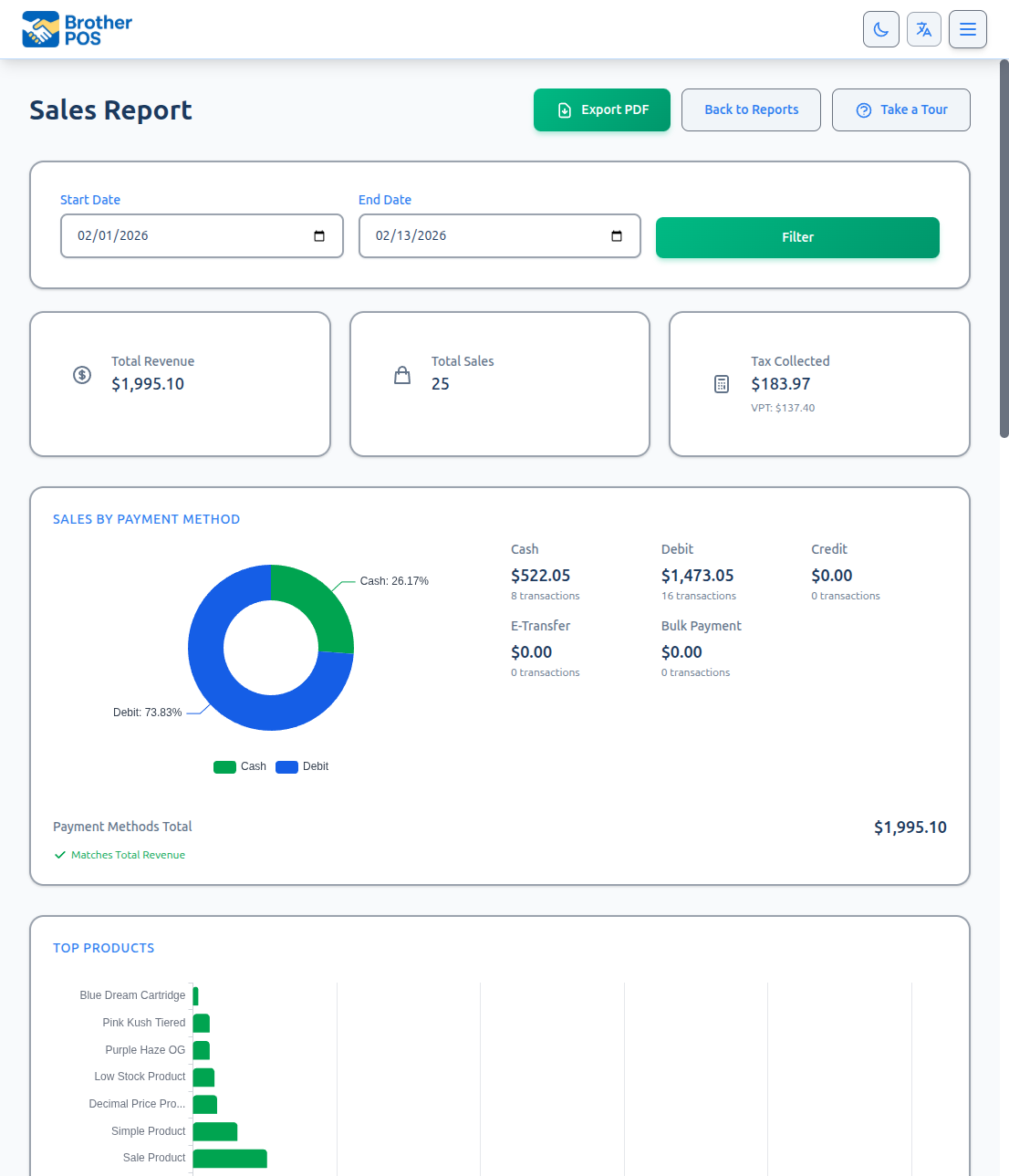
Accessing Sales Reports
- Log in to the Admin Panel at
storename.brotherpos.ca. - Click Reports in the top navigation bar.
- Click Sales Report.
The report opens on the current month to date (the first day of this month through today).
The Reports Hub
Clicking Reports in the top navigation takes you to a page of report cards. Admins and managers can open it; clerks cannot.
The cards are grouped under four headings. A heading with no reports for your store isn't shown.
| Group | Cards |
|---|---|
| Sales & cash | Sales Report, Daily Close, Financials (profit & loss and cash flow), BrotherPay eDebit Reconciliation, Your Mix vs Your Region |
| Inventory & products | Inventory, Receiving Variance, Give-Away (Weigh-Heavy), Flower Variance / Weight Variance, Product Issues, Wholesale |
| Customers & staff | Customer Analytics, Audit Trail, Employee Time Tracking, and membership and scheduling reports |
| Compliance & more | Compliance Reports, and reports for lodging, trail registrations, classes, service jobs, check-ins and Gaming |
These cards are always there: Sales Report, Daily Close, Inventory and Product Issues.
Some reports are only on plans that include advanced reports: Customer Analytics, Flower Variance / Weight Variance, Audit Trail, the Sales Report's Profit tab, the Inventory report's Turnover tab, and the By register section of Daily Close.
Other cards appear only when the matching feature is in use at your store, for example Give-Away (Weigh-Heavy) (scale), Receiving Variance (purchase orders), Wholesale, Financials (cash flow reporting), Employee Time Tracking, Compliance Reports and Gaming. When cash flow reporting is off but your plan includes it, admins see a faded Cash Flow and Profit & Loss card that links to the setting.
A few things that used to have cards of their own now live inside other reports:
| Was | Now |
|---|---|
| End of Day Report, Consolidated Registers, Current Cash Drawer | Daily Close |
| Cash Flow Statement, Profit & Loss | Financials |
| Inventory Turnover | The Turnover tab of Inventory |
| Open-Price Sales, Margin Analysis | The Open-price sales and Profit tabs of this report |
| Tax Summary | The Tax Summary (CSV) button at the top of this report |
| Historical Data | Settings → Edit Settings → Operations, in the Cash Flow Reporting section (and a link at the bottom of Financials) |
For a whole-day picture — revenue, sales by clerk, cash over/short, and every register in one place — open Daily Close. The Sales Report is best for digging into trends over a custom range.
More detail: dates and the summary cards
Setting a Date Range
Quick Presets
Along the top of the filter bar are one-click presets: Today, Yesterday, This Week (Monday to today), Last Week (the full previous Monday to Sunday), This Month and Last Month.
Custom Range
- Pick a Start Date and an End Date.
- Click Filter to refresh the report.
If your store runs two stores in one (dual store mode), a Store dropdown lets you look at one side or both. If you have more than one revenue center, a Revenue Center dropdown appears too. The revenue center you pick stays in place when you use a preset, switch Day/Week/Month/Year, clear the transaction filters, or export.
All dates and times are shown in your store's timezone. If your report does not match what you expect, check the timezone under Settings → Edit Settings → General tab.
Understanding the Summary
Four cards sit at the top of the report. They count completed sales only:
- Net sales (before tax) — What your sales brought in after every discount (line, order, tier/bulk, loyalty, promo codes, memberships and the rest), less the returns completed in the period, not counting tax. Delivery and shipping fees are included. Underneath it shows the tax, how much came off for returns, how much was delivery fees, Total collected (incl. tax) — what customers actually paid, the number your tenders add up to — and, when there is data to compare, the percentage change against the prior period.
- Total Sales — The number of completed transactions, with the average order value (net sales before tax and before returns, per sale) underneath.
- Total Discounts — Every kind of discount given in the period, with its share of the subtotal.
- Tax Collected — Tax from completed sales. If your store charges an additional tax, it is shown separately underneath. If any returns were completed in the period, a line underneath reads Refunded on returns: $X · Net: $Y — the tax handed back to customers, and what is left once it comes off (additional tax included). The net figure is what you actually owe.
Voided sales are left out of the summary cards, charts and payment breakdowns. You can still see them in the transactions table by changing its Status filter.
More detail: revenue by kind, prior period, trend chart and busiest times
Revenue by Kind
Below the summary cards, the Revenue by Kind card splits the period's revenue across three kinds of line:
- Product Revenue — Sales of products from your catalog.
- Service Revenue — Service charges that have no stock behind them, added by service features your store uses.
- Manual Entries — One-off lines typed in by a clerk on the POS with the Manual Item button (for example a delivery fee or a custom charge).
Each shows the dollar total and what percentage of your product sales it represents. The card is hidden when all three are $0.
The breakdown uses the same date and revenue center filters, counts completed sales only, and leaves out voided lines. Each line counts what was actually charged for it — its share of any order-wide discount taken off, no tax — so the three add up to your sales before returns and delivery fees, and the percentages add up to 100%.
Prior Period Comparison
The Prior Period Comparison card compares your range against the same number of days immediately before it: Prior Revenue, Prior Transactions, Prior Tax and Revenue Change. Revenue here is net sales before tax, worked out the same way as the card at the top. If there were no sales in that earlier period but you have imported historical data covering it, the card uses that instead and says where the data came from.
Sales Trend Chart
The Sales Trend chart plots net sales (before tax, after discounts) across your date range. Returns are not taken off the bars — they come off the net sales card instead.
The trend chart appears only when the selected range spans more than one day and there is revenue to plot. For a single day, use the Daily Close instead.
Day / Week / Month / Year Toggle
A row of pills beside the chart title lets you change how the data is grouped without changing your date range:
| Pill | What It Shows |
|---|---|
| Day | One point per day (the default). Days follow your store's time zone, so an evening sale lands on the day it was made. |
| Week | Revenue rolled up by week, labeled "Wk of [date]". |
| Month | Revenue rolled up by month, labeled "[Month] [Year]". |
| Year | Revenue rolled up by year. |
Only the grouping changes, never the underlying numbers.
Use Day for short ranges to compare individual days, and switch to Month or Year for long ranges (for example a full year) so the chart stays readable.
Time Insights
The Time Insights section shows how sales spread across the hours of the day, plus quick stats for your busiest hour, busiest day of the week, and average revenue per day.
More detail: payment methods and discounts
Sales by Payment Method
This section shows how customers paid for completed sales in the period.
| Payment Method | What It Tracks |
|---|---|
| Cash | Cash payments |
| Card (register) | Card payments taken with the POS CARD button |
| E-Transfer | E-transfer payments |
| Store Credit | Payments made from a customer's store credit balance |
| Gift Card | Gift card redemptions |
| Bulk Payment | Bulk payments |
| House Account | Charges to a customer's house account |
| Card terminal & online | Payments taken on a connected card terminal or paid by card online. Only listed when there are some. |
| Other | Anything that doesn't fit a line above. Only listed when there are some. |
| BrotherPay eDebit | eDebit payments (only listed when there are some) |
Each method shows the dollar total and, for most methods, the number of transactions. A pie chart beside the list shows the same split.
At the bottom, Payment Methods Total adds them all up. Payments include tax, so they are checked against Total collected (incl. tax), not net sales. When the two match you see a green Matches total collected (incl. tax) tick; when they don't, the total is shown in red and a Payment Total Discrepancy box at the top of the section shows Total collected, Payment Methods Total and the difference.
There is no separate "Split" row. When a customer pays with more than one method, each part is counted under the method actually used — a $50 cash + $30 card sale adds $50 to Cash and $30 to Card (register).
Discount Breakdown
When any discounts were given, a Discount Breakdown table splits them by type: Line Item Discounts, Order Discounts, Tier/Bulk Savings, Promotions, Qualifying Discounts, Loyalty Tier Discounts, Loyalty Reward Redemptions, Loyalty Points Cash-Out, Campaign Discounts, Promo Codes (codes entered at checkout), Promo Game Prizes (discounts won in promo games) and Membership Discounts (automatic discounts for members). Each shows its amount and its share of the total. Only the kinds actually used in the period are listed.
The same breakdown is used in the PDF export, so the two always agree.
More detail: store breakdown, top products and brands
Store and Sale Type Breakdowns
If your store runs in dual store mode and you are looking at both stores, a Store Breakdown section shows net sales (before tax), tax, transactions, cash and card for each side. If your store sells wholesale as a distributor, a Sales by Type section splits retail sales from wholesale sales.
Top Products
The Top Products section has a chart of your ten biggest sellers, then a table of every product sold in the period, highest net sales first, with its category, quantity sold and Net sales — what was charged for it after every discount, including its share of any order-wide discount, less returns, before tax. Click a column header to re-sort the table. A product's variations (sizes, flavours and so on) are counted under the main product, and the row shows which sizes or options sold most. These are the same product figures as the Profit tab.
A product you have since deleted still shows here (and in Category and Brand Performance) with the sales it made, so deleting an old product never makes past revenue disappear.
Brand Performance
The Brand Performance table rolls the period's sales up by product brand. It appears whenever the period has sales of products that have a brand.
| Column | What It Shows |
|---|---|
| Brand | The product brand. |
| Net sales | Net sales (after discounts, less returns, before tax) of the brand's products in the period. |
| Items Sold | Number of sale lines for the brand's products. |
| Sales | Number of transactions that included the brand. |
| Avg Sale Value | Brand revenue divided by the number of those transactions. |
| Revenue % | The brand's share of revenue across all brands in the table. |
Rows are sorted by revenue (highest first), and you can click a column header to re-sort.
Brand Performance answers "which labels move the most product," while Category Performance (just below it) answers "which product types drive revenue." Use them together to guide purchasing and shelf decisions.
More detail: the transactions list
Transactions Table
The All Transactions section at the bottom lists individual sales for the selected period, 50 per page:
- Receipt # — The transaction's receipt number.
- Date/Time — When the sale was completed. A sale that was paid more than a minute after it was started — for example a phone or online order placed earlier — also shows Placed with the time it was started.
- Cashier — The user who took the payment. For a phone or online order, that's whoever completed it, not necessarily who took the order.
- Payment — How the customer paid.
- Status — Completed or voided.
- Subtotal — Pre-tax amount.
- Discount — Discounts on the sale.
- Tax — Tax collected.
- Total — Final amount charged. When it includes a delivery or shipping fee, incl. $X delivery shows underneath.
- Items — Number of lines in the sale. An M badge means the sale contains a manual item.
Click any row to open the full sale.
Filtering the Transactions
Above the table you can narrow the list:
- Receipt # — Search for a receipt number.
- Payment — All, Cash, Card (register), Card terminal & online, E-Transfer, Store Credit or Split.
- Cashier — Only cashiers who made sales in the date range are listed.
- Status — Completed (the default), Voided or All.
- Item Type — All Items or Manual Items Only.
Click Filter to apply, or Clear filters to reset. A small summary above the table always shows the count, revenue and tax for the filtered list. These filters change the table only; the cards and charts above always cover all completed sales in the date range.
More detail: using sales data, and exporting
Using Sales Data Effectively
Daily Review
Check the sales report at the end of each business day to confirm that:
- Revenue lines up with your cash drawer counts.
- No unexpected voided sales occurred (set Status to Voided).
- Discount usage was appropriate.
Weekly Comparison
Pick a two-week range with the Day grouping to compare this week against last week. Identify which days are strongest and staff accordingly.
Monthly Performance
Pick the past year and switch to the Month grouping to see long-term trends. This supports decisions about purchasing, staffing and promotions.
The Sales Report gives you the "what." For the "why," pair it with:
- Category Performance to see which product categories drive revenue.
- Customer Analytics to understand who your top buyers are.
- The Profit tab to check whether strong sales also mean strong profits.
Exporting
On the Overview tab, the Sales Report header has five export buttons: Export PDF (a print-ready report), Export CSV (one row per sale), Line Items (CSV) (one row per item), Excel (.xlsx) (a formatted three-sheet workbook), and Tax Summary (CSV) (tax collected on each sale and what it was charged on, less tax refunded on returns — shown to stores that charge tax). The Discount column in the CSV and Excel files counts every kind of discount on the sale, the same kinds as the Discount Breakdown on screen. The Open-price sales and Profit tabs each have their own Export CSV button. See Exporting Reports for what's in each file and which filters each one follows.
More detail: the Open-price sales tab
Open-price Sales Tab
The Open-price sales tab lists every line your staff rang in by typing a name and a price, rather than by scanning or picking a real product. The money is right — the customer paid, the till balances — but the inventory is not: no product was attached, so nothing came out of stock and the sale does not appear in any product-level figures. It's available at every store — there is nothing to switch on.
Why It Matters
An open-price line usually means one of three things:
- A barcode that will not scan. The clerk knows the price, types it in, and the queue keeps moving. Perfectly sensible in the moment — but the product's stock count is now wrong, and stays wrong.
- Something genuinely not in the catalogue. A one-off, a special order, a repair fee.
- Something you would rather know about. Twenty untraceable $21.99 lines a week from one person is a pattern worth a conversation.
The report does not judge between them. It just makes them visible, which is usually enough to make the behaviour correct itself.
Choosing a Period
The tab uses the same dates as the rest of the Sales Report (this month to date, unless you change it). A Clerk dropdown in the filter bar lists everyone who rang an open-price line in the period, so you can narrow it to one person.
Only completed sales are counted. Held carts, voided sales and lines voided off a sale are not.
What the Tab Shows
The three headline numbers
| Figure | Meaning |
|---|---|
| Value rung open-price | Total money taken on typed-in lines in this period |
| Open-price lines | How many such lines there were |
| Manager-authorized | How many of them needed a manager PIN to ring |
The last number is only meaningful if you have switched the permission off for a role — see Roles & Permissions. If open-price selling is allowed for everyone, it will be zero.
Open-price selling by clerk
A table of every clerk who rang one, highest value first, showing their line count, their total value, and how many needed authorization. This table is hidden when you have filtered to a single clerk.
The most common cause is a barcode that never scans — the clerk found a workaround and stuck with it. Find the product and fix its barcode, and the number falls on its own. Look for the person only after you have ruled out the product.
Line detail
Every open-price line in the period, newest first:
| Column | Meaning |
|---|---|
| Date/Time | When the sale completed, in your store's timezone |
| Receipt # | So you can pull the original sale |
| Clerk | Who rang it |
| Item as typed | The description the clerk typed |
| Qty | Quantity on the line |
| Value | Line total |
| Authorized by | The person whose PIN approved it, if approval was needed |
| Reason | The reason given at the time of approval |
If the period is clean, the table says so: "No open-price lines in this period — every sale was rung against a real product."
Exporting
Export CSV at the top of the tab downloads the line detail for the period and clerk filter you currently have applied. The columns are Date/Time, Receipt #, Clerk, Item Name, Qty, Unit Price, Line Total, Authorized By and Reason. Handy for a monthly review or for handing to a bookkeeper.
Tightening It Up
If you would rather open-price selling not be routine, an admin can require approval for it:
- Go to Users and click Role Permissions.
- For the Clerk role (and any custom role), untick Sell Open-Price / Manual Items.
- Click Save Permissions.
From then on, adding a manual item at the register asks for a PIN from somebody whose role holds that permission, and a reason must be typed. Both are recorded on the line and show up in the Authorized by and Reason columns here.
The permission is on by default for clerks, so nothing changes at your store until you make this change.
Troubleshooting
The tab is empty but I know we typed prices in.
- Check the date range — it defaults to this month.
- Only completed sales count. A sale that was voided afterwards is not listed.
A clerk's line shows no reason or approver.
That line did not need approval — the role held the permission at the time, so no PIN and no reason were asked for. Only lines that went through the approval prompt carry those two fields.
The item name is vague ("misc $20").
That is the clerk's typed description, saved exactly as entered. If it happens a lot, coach staff to type something identifiable, or turn the permission off so a reason is required.
More detail: the Profit tab
Profit Tab
The Profit tab (what used to be Margin Analysis) compares what your products sold for against what they cost you. It shows your gross profit and margin for the dates you picked, which products earn the most, which ones earn too little, and how each category performs.
The Profit tab is not included on the Free or Basic plans. On those plans the tab doesn't appear.
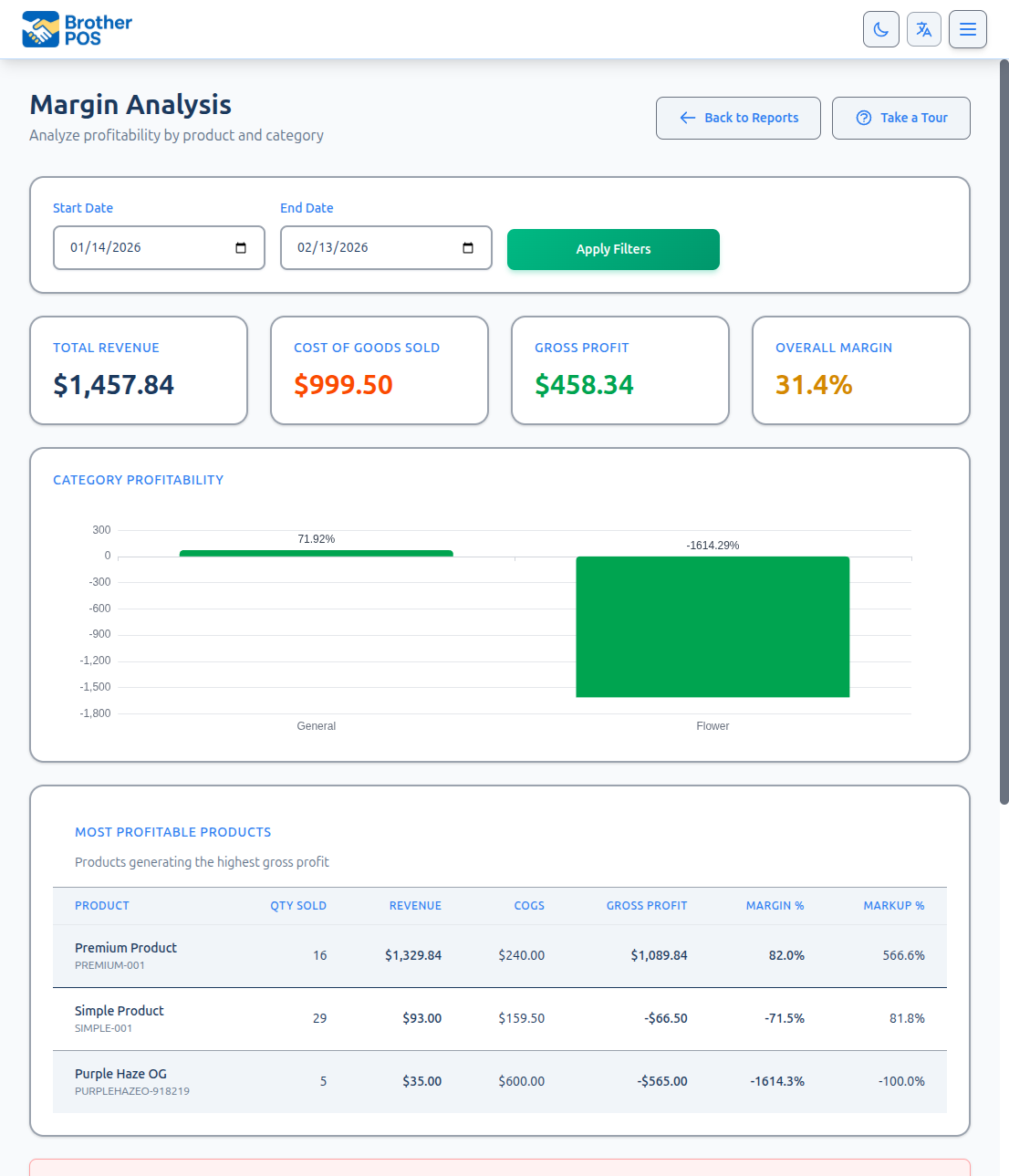
The tab uses the same dates as the rest of the Sales Report. If your store has Dual Store Mode turned on, the Store dropdown narrows it by the store type of each product's category.
Click Export CSV at the top to download the product list as a spreadsheet: one row per product with quantity sold, revenue, cost of goods, gross profit, margin, markup, current price and cost, and whether the product is missing a cost. It ends with a total row: the net sales, cost of goods and gross profit shown on the summary cards.
How the Numbers Are Worked Out
Revenue
Revenue is net sales (before tax), worked out exactly as on the Overview tab, Daily Close and Financials: completed sales in the date range after every discount — line and order discounts, tier/bulk savings, loyalty, promo codes, memberships — less returns completed in the period, not counting tax. Voided lines are left out. A product's revenue includes its share of any discount taken off the whole order, so it is what you actually collected for it. The total also includes delivery and shipping fees (the card says how much), which belong to no product.
Sales of a product's variations (sizes, flavours and so on) are counted under the main product, so a product sold only through its variations still shows up with all its sales. A product you have since deleted still appears for the period when it sold.
Cost
For each sale line, Brother POS uses the cost that was recorded on the sale when it rang through. If a line has no recorded cost, it uses the product's current (average) cost instead, and the Cost of Goods Sold card says how many lines were estimated that way. Returned items that went back on the shelf come off the cost. The Profit & Loss tab of Financials works out cost of goods the same way, so the two agree.
Margin
Margin is profit as a share of the selling price, based on what actually sold:
Margin % = (Revenue - Cost) / Revenue x 100
Example: You sold $50 of a product that cost you $30. Margin = ($50 - $30) / $50 = 40%.
Markup
Markup is profit as a share of cost:
Markup % = (Price - Cost) / Cost x 100
Example: A product priced at $50 that costs $30. Markup = ($50 - $30) / $30 = 66.7%.
Margin is worked out from real sales in your date range. Markup is not — it uses the product's current price and current cost. If you changed a price after the period you're looking at, the markup column shows the new price. For weight products priced by a pricing template, markup uses the price per gram.
Report Sections
Missing Cost Warning
If some products that sold have no cost set, a warning at the top says how many. Their cost counts as $0, so gross profit and margin look higher than they really are until you enter it. Click Enter product costs to fill them in.
Stale Cost Warning
If the cost recorded on a product's past sales doesn't match its current cost, the tab lists it with the cost it sold at and its cost today. You can correct the recorded cost on past sales to the current cost:
- Fix all historical costs — updates every past sale of that product.
- Fix this period only — updates just the sales in the date range you're viewing.
A line sold as a case or pack gets the cost of the whole case, not one unit — a case of 12 at $2 each is recorded as $24.
You'll be asked to confirm either one. Only use this when the current cost is the right one — for example, when the cost was missing or wrong at the time of sale.
Summary Cards
| Card | What it shows |
|---|---|
| Net sales (before tax) | The same net sales as the Sales Report for these dates. It notes how much was discounted, how much came off for returns and how much was delivery fees. |
| Cost of Goods Sold | The cost of everything sold, less restocked returns. It notes how many lines were estimated from current cost, and how many have no cost at all. |
| Gross Profit | Net sales minus cost of goods — the same figure as the Profit & Loss tab of Financials. |
| Overall Margin | Gross profit as a percentage of net sales. |
Category Profitability Chart
A bar chart of margin by category, for up to eight categories.
Most Profitable Products
Every product that sold in the period, highest gross profit first.
| Column | What it shows |
|---|---|
| Product | Product name and SKU. A stale cost tag means its recorded cost differs from its current cost. |
| Qty Sold | Quantity sold in the period |
| Net sales | Net sales from this product (and its variations) |
| COGS | Cost of what was sold |
| Gross Profit | Revenue minus cost |
| Margin % | Margin on what sold |
| Markup % | Markup at today's price and cost |
A product with no cost shows — for COGS and Gross Profit, No cost for Margin %, and — for Markup %.
Low Margin Alert (Below 30%)
Products with a cost whose margin was under 30%, lowest first.
| Column | What it shows |
|---|---|
| Product | Product name and SKU |
| Current Price | Today's price |
| Current Cost | Today's cost |
| Margin % | Margin on what sold in the period |
| Profit Impact | The gross profit the product made in the period |
Category Profitability Table
Margins totalled for each top-level category, highest gross profit first: Category, Qty Sold, Net sales, COGS, Gross Profit and Margin %. Each product counts once, under the top-level category of its primary category (a product filed only under a subcategory counts toward its top-level parent) — the same grouping as the Sales Report's Category Performance. Categories with no sales in the period are left out, and a category where none of the products sold has a cost shows No costs.
Sorting
Click any column header in the tables to sort by it. Click again to reverse the order.
Interpreting the Data
High Revenue, Low Margin
A product with strong sales but low margin may be:
- A loss leader — priced low on purpose to bring people in.
- Underpriced — its cost went up but the price didn't.
Consider raising the price or finding a cheaper supplier.
Low Revenue, High Margin
A product with few sales but a high margin may be:
- A niche product — valuable, but for a smaller group of customers.
- Under-promoted — try featuring it in a campaign or display.
- Overpriced — the high margin might be holding sales back.
Negative Margin
A negative margin means the product sold for less than it cost.
If you see a negative margin, check it right away. Common causes:
- The cost was entered too high.
- A deep discount pushed the selling price below cost.
- The price was set too low.
Fix the product's cost or price on the product page before more stock sells at a loss.
Using Margin Data for Decisions
Price Adjustments
- In Most Profitable Products, click the Margin % header to sort lowest first — or look at the Low Margin Alert table.
- For each low-margin product, decide whether to raise the price, ask your supplier for a better cost, or stop carrying it.
Category Strategy
- Review the category table.
- Compare margins across categories to see where your profit comes from.
- Consider carrying more in your high-margin categories, and whether low-margin ones are worth the shelf space.
Campaign Planning
Before running a sale:
- Check the margin of the products you plan to discount.
- Make sure the margin is still acceptable after the discount.
- Check the Profit tab for the campaign's dates afterwards to see what it did to profit.
The Profit tab is only as good as your costs. Update a product's cost whenever a supplier's price changes.
Troubleshooting
| Problem | Solution |
|---|---|
| I can't find the Profit tab | It isn't included on the Free or Basic plans. |
| A product shows No cost | It has no cost set. Click Enter product costs in the warning, or set its cost on the product page. |
| Gross profit looks higher than expected | Products with no cost count as $0 cost. Check the missing cost warning and the "lines have no cost" note on the Cost of Goods Sold card. |
| Markup doesn't match what I charged during the period | Markup uses today's price and cost, not the price at the time of sale. |
| A product is tagged stale cost | The cost recorded on its sales differs from its current cost. Use Fix all historical costs or Fix this period only if the current cost is correct. |
What's Next?
- Daily Close — A whole-day summary that includes every register.
- Exporting Reports — Download your sales data as CSV, Excel, or a print-ready PDF.
- Roles & Permissions — Require approval before staff can sell open-price items.
- Inventory — What your stock is worth, how it moved, and how fast it sells.
Stores running gaming machines see an additional Gaming card on the Reports page (shown only when slot machines are enabled). It covers per-machine cash payouts, totals over a date range, and CSV export. See Gaming for details.