Cash Drawer Sessions
Use this page to check every cash drawer shift — who opened it, what came in and out, and whether the count matched — and to close a drawer someone left open.
Quick steps
To check a shift:
- Click Cash Drawers in the top menu. The card at the top lists every drawer that's open right now.
- To narrow the list, pick a Register or Status, fill in both Start Date and End Date, then click Apply Filters.
- Click View on a session.
- On a closed session, the coloured card at the top shows Expected Cash in Drawer, Actual Cash Counted and Over/Under (green = balanced, red = short, amber = over).
- Scroll down for the sales, Sales by Clerk, cash drops, payouts and any deposits after close.
To close a drawer someone left open:
- View the open session (it shows Currently Active) and click Close this drawer.
- Count the cash in that drawer and type the total.
- Fill in Why is it being closed here? (required), then click Close drawer. The Z-Report is made just as at the register.
Common questions
What does the Open Var. column mean? The difference between what was counted when the drawer opened and what the last shift left behind. Red means cash was missing at open — check whether it was deposited after close before treating it as a loss.
A register opens short every morning. Someone is taking cash to the safe after the drawer is closed. Record it as a deposit after close and the morning count reads clean.
Where's the Z-Report? The session page is the Z-Report for that shift. If your store has a network receipt printer set up, a Reprint Z-Report button at the top of a closed session prints it again.
How do I compare over/short across many days? Filter by register and dates, then click Export CSV. Its Variance column lists every session's over/under side by side.
Can clerks see this page? No. Clerks can open and close the drawer at the register, but these admin pages are for managers and admins.
More detail: the sessions list
The Cash Drawer Sessions page in the admin panel provides a bird's-eye view of all cash drawer activity across your store. You can see which drawers are currently open, review closed sessions, and drill into any session to examine its full transaction history.
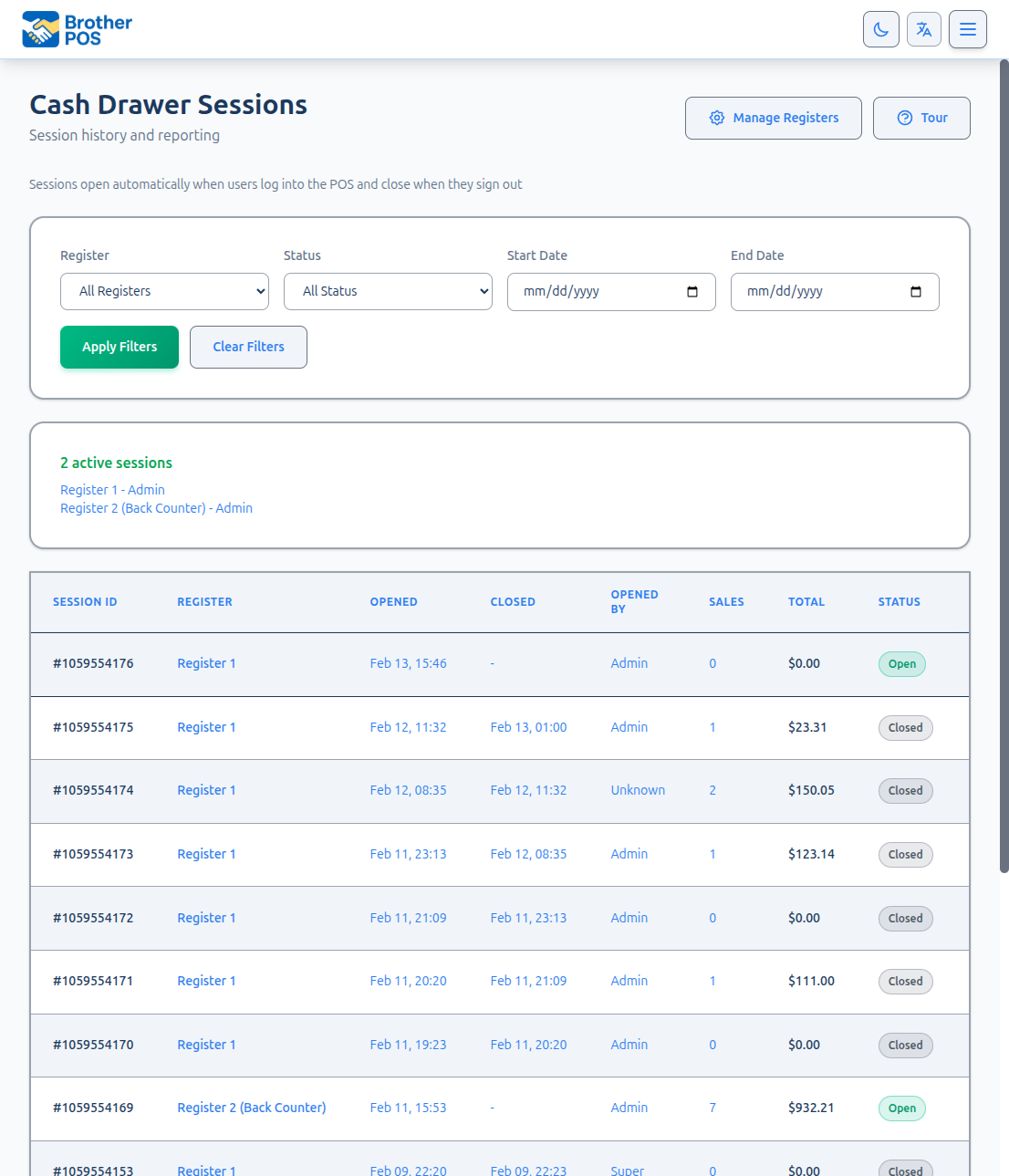
Accessing Cash Drawer Sessions
- Log in to the Admin Panel.
- Click Cash Drawers in the top navigation bar. This takes you directly to the sessions list.
The table lists every session, open and closed together, newest first, 25 to a page. Above it, a summary card names every session that is open right now — its register and who opened it.
Understanding the Sessions Table
| Column | Description |
|---|---|
| Session ID | The session's number. |
| Register | The physical register this session is tied to. |
| Opened | Date and time the session was opened. |
| Closed | Date and time the session was closed (a dash if still open). |
| Opened By | The person who opened the session. |
| Sales | Number of sales processed during the session. |
| Total | Total sales amount for the session. |
| Open Var. | The signed opening variance — what the cashier counted at open vs. what the prior shift's close left in the till. A dash when there's no variance; red when short, amber when over. |
| Status | Open (green) or Closed (grey). A closed session also carries a Shift or EOD tag showing whether it left a bank in the drawer or banked the whole till. |
| Actions | View opens the session's detail page. |
Use Export CSV at the top of the page to pull the filtered list out for a spreadsheet. The export adds Opening Float, Expected at Open, Opening Variance, Expected Cash, Counted Cash, Variance and who closed each session.
If your store has the Stale-drawer reminder banner turned on (Settings > Edit Settings, Operations tab, Cash Drawer Settings), an open session that has run past the business-day cutoff gets a ⚠ "Left open since {date}" badge in the open-sessions card above the table, so you can spot a forgotten drawer at a glance. The badge only shows when that setting is on, and never at a store set to 24/7 / continuous operation. See the POS-side Stale-Drawer Handling.
Active Sessions
The summary card above the table shows how many sessions are open and lists each one by register and who opened it. It always shows what is open now, whatever filters or page you're looking at. In the table, an open session has a green Open badge, along with when it opened and how many sales it has taken so far.
The session data updates when you refresh the page. There is no automatic real-time update on the admin sessions list.
Monitoring Active Sessions
As a manager or admin, use the active sessions view to:
- Verify all registers are open at the start of the business day.
- See who opened each register for accountability.
Opening and closing a drawer is controlled by the Manage Cash Sessions permission, not by job title, and clerks have it by default. The session record still names exactly who opened and who closed, and the Sales by Clerk table attributes each sale, so the accountability trail is unaffected. Adjust the permission under Users > Role Permissions.
Filtering Sessions
Use the filter controls at the top of the page, then click Apply Filters:
- Register — View sessions for a specific register only.
- Status — Open or Closed sessions.
- Start Date and End Date — Sessions opened within that range. Fill in both dates; a single date on its own is ignored.
Clear Filters resets the list.
More detail: every part of the session page
Session Detail View
Click View on any session to open its detail page.
Cash Reconciliation Headline
For a closed session, the page now leads with a prominent reconciliation card — the question a manager actually opens the page to answer: did the cash match? The card is colour-coded by its left border (green = balanced, red = short, amber = over) and shows three figures side by side:
| Figure | Meaning |
|---|---|
| Expected Cash in Drawer | Everything the till should hold: opening float, plus every dollar of cash that came in, less every dollar that went out. |
| Actual Cash Counted | The amount counted at close. |
| Over/Under | ✓ Balanced, or −$X short, or +$X over. |
The headline and the detailed Expected Cash Calculation lower on the page are computed once from the same figures, so they can never disagree. A View full day button links to Daily Close for that date, and Shift summary by employee breaks the shift down per staff member.
Session Summary
Across the top and in the Session Details and Payment Method Breakdown cards, the page shows:
- Total collected (incl. tax), Opening Float, Cash Sales and Card summary cards. Under the total, a small line shows Net sales (before tax) and Tax separately. When the prior shift left a carryover, the Opening Float card also shows Expected at open (prior carryover) and either ✓ Matches expected or the signed Opening variance — red when short, amber when over.
- Register and Status (with a Shift Close or End of Day tag once closed)
- Opened and Opened By
- Closed and Closed By (for closed sessions)
- Payment Method Breakdown: Cash Sales, Card, E-Transfer, Store Credit, Gift Card and Bulk Payment always show; House Account, BrotherPay eDebit, the card-terminal and online-payment lines, and Split Payment show only when used. Split payments are already included in the other lines. Tips Collected (when there were tips) and Payment Methods Total sit underneath.
- For a closed session: the Expected Cash Calculation (see below), Actual Cash Counted and Over/Under.
- Carryover Float and Deposit Amount for a shift close — what stayed in the drawer and what was banked. A shift that was handed over with Close & open mine is a shift close too: the incoming person's opening float is its carryover, and the rest of the count is its deposit.
If someone corrected the opening float after the session was already open (for example, the wrong starting amount was entered), each adjustment is listed in its own table with the before/after amount, reason, and who made it. When a manager approved a clerk's correction with their PIN, the Notes column says who approved it. The originally entered opening float is never overwritten — it stays on the page as the audit value, and the corrections are applied on top. See Opening & Closing a Cash Drawer for the POS-side workflow.
The opening variance is the difference between the float the cashier counted when opening a session and what the prior shift's close left in the till. A negative figure means cash was missing at open. It catches cash that goes missing at the seam between one shift closing and the next opening — overnight, for instance. It's recorded only when the prior shift close left cash in the till to reconcile against (a close that left $0 doesn't count). The variance shows on the session detail (Expected at open + Opening variance), the sessions list (Open Var. column), and the CSV export (which adds Expected at Open and Opening Variance columns). See the POS-side Opening Variance.
When a driver collects cash for a phone order at the door, it goes into the drawer that is open on the register that took the order. An order no register took goes into the store's open drawer when only one is open. When several are open, whoever marks it delivered in the admin panel picks the drawer (or Not in a drawer — I'll count it in by hand), and anything left out of every drawer is listed under Delivered cash not in any drawer on the Delivery tab of Orders → Fulfillment so it can be counted in.
Beyond regular sales, the expected-cash calculation also folds in non-sale cash flows recorded against the session: cash payments toward house accounts, store credit purchases, gift card activations/reloads, invoice payments, service-job payments, pawn loan repayments, pay-ins and cash tips (added in), as well as cash refunds, consignment payouts and pawn loan advances (subtracted).
Sales in Session
The Sales in this Session table lists every completed sale, 25 to a page. Click any sale to open it, or use the payment-method filter to show one kind of payment only.
| Column | Description |
|---|---|
| Receipt # | Receipt/order number for the sale |
| Time | When the sale occurred |
| Cashier | Who processed the sale |
| Items | Number of items in the sale |
| Payment | Payment method used |
| Total | Sale total |
Sales by Clerk
Because a single drawer session is shared by several clerks, a pooled over/short can't tell you who was responsible for what. The Sales by Clerk table attributes the day's takings to the clerk who rang each sale:
| Column | What it shows |
|---|---|
| Cashier | The staff member who processed the sale. |
| Transactions | How many sales they rang. |
| Cash | Cash they collected (including the cash leg of split payments). |
| Total | Their total across all payment methods. |
The columns tie out to the drawer — the Total column sums to the session's total sales and the Cash column sums to its cash sales. The same table appears on Daily Close under the heading "Staff Sales." Sales rung by a since-deleted clerk are grouped under Unknown so the totals still balance.
Product Movement
The Product Movement Summary table on the session detail page aggregates every physical product sold during the shift, with columns for product name, SKU, quantity sold, starting stock, ending stock, transaction count, and revenue. Use it to spot-check inventory after a shift, audit shrinkage, or reconcile the day's stock-on-hand against the POS.
This table is strictly products only — it filters on the line-item kind so:
- Manual entries (one-off charges typed in via the POS "Manual Item" button) are excluded. These never touched inventory, so they don't belong in a product-movement report.
- Service line items (golf green fees, lodging unit-nights, banquet add-ons, etc.) are excluded for the same reason — they're system-generated charges with no SKU and no stock impact.
If you need to see those non-product totals, use the Sales Report's Revenue by Kind card instead, which breaks revenue out by product / service / manual.
Cash Drops
When the session has cash drops, a Cash Drops table lists each one with its time, who dropped it (Dropped By), the reason, the amount and any notes, plus the total dropped.
Payouts
When the session has payouts, a Cash Payouts table lists each one with its time, who paid it (Paid By), the reason, the amount and any notes. A Supplier Payout shows the supplier's name under the reason, and at a gaming store a Machine column shows which machine each machine payout came from.
Every store can use Pay Out and Supplier Payout. Gaming stores also get Lottery Payout, Machine Payout and Progressive Payout.
Payouts by Type
Above the payouts table, a Payouts by Type card totals each kind of payout on its own, for the books:
| Line | What it covers |
|---|---|
| Machine Payout | Machine payouts only. Shown at gaming stores, even when it is $0. This is the figure a gaming floor balances on. |
| Lottery Payout / Progressive Payout | Shown at gaming stores when there were any. |
| Supplier Payout | Everything paid to suppliers, with a line per supplier underneath. Shown when there were any. |
| Other payouts | Everything left over — for example, Pay Out. Shown when there were any. |
| Total Paid Out | All payouts together. |
The lines always add up to the total, and the total is the same Payouts figure the expected-cash calculation subtracts — every payout left the drawer, whoever it went to. Splitting them out just means vendor money is never hidden inside the gaming figures.
Items Sold by Category
When your store has Show each item sold on the end-of-shift report turned on (Settings > Edit Settings > Hardware & System > Printing Features), a closed session's page has an Items Sold by Category card listing every item sold on the shift under its category, with how many and for how much — the same list as the Z-Report. See Z-Reports.
Deposits After Close
For a session closed as a shift close — End Shift, Close & Hand Off at a 24/7 store, or a Close & open mine handover — the page carries a Deposits After Close card: cash pulled out of the till after the shift was already closed and counted — the owner collecting the takings that night, for example.
It shows what is Left in drawer for next shift and the total Deposited, lists each deposit, and lets you record a new one. Recording a deposit lowers what the next shift is expected to find, and deliberately leaves this shift's over/short untouched.
This is what stops the next shift opening short for cash that was simply banked. See Deposits After Close for the full workflow.
Expected Cash Calculation
A breakdown of how cash moved in and out of the drawer during a closed session:
Opening Float:                                          $200.00
+ Net Cash Added:                                       $847.50
- Cash Refunds:                                          $20.00
- Cash Drops:                                           $500.00
- Payouts:                                               $50.00
+ Other cash (tips, adjustments, counter payments):      $20.00
= Expected Cash in Drawer:                              $497.50
  Actual Cash Counted:                                  $497.50
  Over/Under:                                             $0.00
Opening Float and Net Cash Added always show; the Cash Refunds, Cash Drops, Payouts and Other cash lines are hidden when they are zero, so a simple shift shows a short list.
| Line | What it covers |
|---|---|
| Net Cash Added | Cash taken in on sales, including the cash half of split payments. |
| Cash Refunds | Cash handed back on returns. |
| Cash Drops | Cash moved to the safe mid-shift. |
| Payouts | Cash paid out of the business mid-shift. |
| Other cash (tips, adjustments, counter payments) | Everything else that touched the till: cash tips, mid-shift opening-float corrections, pay-ins, and cash taken at the counter for house-account payments, store credit, gift cards, invoices, service jobs and pawn loan repayments — less cash paid to consignors and pawn loan advances paid out in cash. Signed, so it can be positive or negative. |
These lines are worked out from the same figures as the reconciliation card at the top of the page, and the Other cash line is whatever is left over — so the breakdown can never fail to sum to the expected figure. If a shift takes cash for something unusual, it shows up in that line rather than quietly going missing from the total.
Mid-shift float corrections also get their own Opening Float Adjustments table further down the page, listing each correction with its before/after amount, reason and who made it.
More detail: closing a drawer from the admin panel
Closing a Drawer From the Admin Panel
A drawer can be left open on a register nobody is at — the tablet was put away, or a shift never closed. You can count and close it from here instead of going to the register:
- Open the session (it shows Currently Active).
- Click Close this drawer at the top of the page.
- The page shows the session summary and the Expected Cash. Count the cash in that drawer and enter the total.
- In Why is it being closed here?, say why — for example "Left open overnight, register put away". A note is required.
- Click Close drawer.
The drawer closes the same way it would at the register: the Z-Report is made, and the page shows the over/short. The note is saved on the session as "Closed from the back office by {your name}: {note}". The whole count is recorded as counted cash — there is no deposit and bank split here. The register needs a new drawer opened before it can sell again.
You need the Manage Cash Sessions permission (admins always have it). A drawer whose register has since been deleted shows as Unknown Register and can still be closed this way.
More detail: over/under, trends and multiple registers
What the Over/Under Means
The over/under calculation is the core accountability metric for cash management:
| Result | Meaning | Action |
|---|---|---|
| Even ($0.00) | The cash count matches exactly. | No action needed. |
| Over (positive) | More cash than expected. | Could indicate incorrect change given to a customer. |
| Under (negative) | Less cash than expected. | Could indicate a missed payout, theft, or counting error. |
Small discrepancies (under $1.00) are normal due to manual counting. Establish a threshold for your store — for example, anything over $2.00 triggers a review.
If your store uses Canadian Cash Rounding, nickel rounding does not create an over/under — the rounding adjustment is tracked separately and the expected-cash calculation already accounts for it, so the till still balances.
If the same register or the same closing manager consistently shows shortages, investigate promptly. Review the transaction log for that session to identify any unusual activity.
Comparing Sessions Across Days
To spot trends in cash handling:
- Filter by Register to isolate a single register.
- Set Start Date and End Date to cover a week or month, and click Apply Filters.
- Click Export CSV — its Variance column gives every session's over/under side by side, and Opening Variance shows any shortfalls at open. (The on-screen list doesn't have an over/under column.)
- Click View on any session with a significant discrepancy to review its sales and cash movements.
Session as Z-Report
The session detail page serves as your session summary (Z-Report). There is no separate Z-Reports page. The session detail page contains all the information typically found in a Z-Report: sales totals, payment breakdowns, cash flow calculations, and over/under results.
Multi-Register Stores
If your store has more than one register:
- Each register has its own independent session. Opening Register 1 does not affect Register 2.
- The Sessions page shows all registers together. Use the Register filter to view one register at a time.
- Each register's session ties to its own cash drawer. Cash drops and payouts are register-specific.
More detail: common workflows
Common Workflows
Start-of-day verification
- Open the Sessions page.
- Confirm that all expected registers show an Open session.
- Check the Open Var. column. A blank means the morning count matched what the previous shift left. A red figure means the drawer opened short — see whether it was banked overnight (Deposits After Close) before treating it as a loss.
End-of-day reconciliation
- After all registers are closed, open Daily Close for today — its Cash Drawer Sessions card shows every register's Over/Under and a day total. (Or set Start Date and End Date to today on this page.)
- Click into any session with a discrepancy to investigate.
- Note any issues for the daily report.
Investigating a shortage
- Open the session with the shortage.
- Check whether it is an opening shortage or a closing one. An opening variance means the cash was already gone before the shift started — look at what the previous shift left and whether it was deposited after close. A closing over/short belongs to this shift.
- Review the session's sales and the Sales by Clerk table for anything unusual.
- Check for missing cash drops — a recorded drop that was not physically removed will cause an apparent shortage.
- Verify that any split payments with a cash component were recorded correctly.
More detail: troubleshooting
Troubleshooting
| Problem | Solution |
|---|---|
| Session shows as Open but the drawer was closed | The close process may have been interrupted. Count the drawer and close it at the register, or from this page with Close this drawer — see Closing a Drawer From the Admin Panel. |
| A drawer was left open and flagged stale (⚠ badge) | Turn on Require closing a stale drawer before reopening under Settings > Edit Settings > Operations > Cash Drawer Settings so the next person has to count and close it before starting a new shift. The Stale-drawer reminder banner (which also turns on this badge) nudges staff at the register. There is no auto-close — a stale drawer must be counted and closed by a person. If your store never closes, turn on 24/7 / continuous operation so the register stops nagging and the badge no longer shows on this page. |
| Every session on a register is off by the same amount, every day | The opening count is being established wrong. When the last shift left cash in the drawer, the register asks staff to count it and stops them if the count doesn't match, so check that nobody is tapping past that prompt — and check the register's Default Opening Float (Manage Registers at the top of this page) matches what you actually start that till with. |
| A register opens short every morning | Somebody is taking the cash to the safe after the drawer is closed. Record it as a deposit after close and the morning open reads clean. |
| Expected cash seems too high | Check for cash drops that may not have been recorded. An unrecorded drop makes expected cash appear higher than it should be. |
| A cash refund shows on today's session, but the return was raised yesterday | Expected. A cash refund is counted against the drawer that was open on that register when the refund was completed — that is the till the cash actually came out of. The earlier shift stays exactly as it was counted. |
| A cash refund can't be completed | A cash refund needs an open drawer to pay from. Open a drawer on the register first, then complete the return. |
| A cash refund from the admin panel asks you to "Choose the cash drawer the refund comes out of." | More than one drawer is open. Pick the till the cash is really coming out of in Cash drawer (for cash refunds) on the return form, so that drawer — and not another one — is the one expected to be short by the refund. With only one drawer open, it's used automatically. |
| A cash sale can't be voided: "This sale's drawer has been closed." | That sale's shift has already been counted and closed. Refund it with a return instead — the cash comes out of today's open drawer and the closed shift stays as it was counted. |
| A register keeps opening short by about a day's takings | The balance carried from shift to shift has grown past what is really in the drawer. At the next open, count the real cash and choose "The $X was deposited after close" when asked. That books the difference as a deposit and resets the carried balance. See Deposits After Close. |
| Cannot view session details | The admin cash pages are for Managers and Admins. Clerks can run the drawer at the register but do not see these pages. |
The register says "This register already has an open drawer (opened by {name}). Continue with it, or take it over." | A register can only have one open drawer at a time. Carry on with the drawer that is open, take it over, or close it first. |
| Two open sessions for the same register (from before this was blocked) | Close the older one with Close this drawer on its page. |
What's Next?
- Z-Reports — Information about Z-Reports and session summaries.
- Cash Drops & Payouts — Information about viewing cash drops within sessions.
- Deposits After Close — Record cash pulled from the till after a shift was closed.
- Opening & Closing a Cash Drawer — Learn the POS-side workflow for opening and closing drawers.