Online Orders
Use this page to handle orders customers place on your website — prepare them, mark them ready, and complete or cancel them.
Quick steps
Storefront orders (your BrotherPOS website):
- Click Orders in the top menu, then the Online Orders button at the top (it shows how many are waiting).
- Use the Pending filter to see new orders. Pick Pickup, Delivery or Shipping to narrow it down.
- Open an order. When it's packed, click Mark Ready — the customer is emailed if they have an email on file.
- When the customer has it, click Complete Order. If they're paying at handover, pick how they paid (and the cash drawer for cash), then click Record payment & complete.
- To call it off instead, click Cancel on a pending order. Its items go back into stock and the customer is emailed.
WooCommerce orders waiting to be completed:
- Click Orders, open More filters, set Source to WooCommerce and Status to Pending, then click Apply Filters.
- Click View on the order.
- Click Complete order to create the sale and take the stock, or Void order to cancel it. Confirm the prompt.
Common questions
A WooCommerce order never showed up. Go to Settings > WooCommerce Integration and click Sync Now in the Order Import card. If none of the order's products are matched to your BrotherPOS products, the order is skipped.
Why doesn't a WooCommerce order have Mark Ready or Complete Order buttons on the Online Orders page? WooCommerce orders are read-only there. Complete a waiting one from the Orders list, as above.
Orders are becoming sales without anyone completing them. Auto-fulfill Orders is on in your WooCommerce settings.
Where do I send a delivery order out? Open the order and click View in Fulfillment › Delivery, or go to Orders → Fulfillment.
More detail: the Online Orders page, filters and delivery orders
The Online Orders Page
AdminManagerOwnerWhen your store takes orders through its storefront, the Orders page has an Online Orders button at the top, with a count of orders waiting. (Storefront-only accounts have Online Orders in the side menu.)
The page lists your storefront orders and your WooCommerce orders that have become sales, newest first. A card payment that was started but never finished isn't listed.
Filtering the list
| Filter | Options |
|---|---|
| Status | All, Pending, Ready, Completed, each with a count |
| Fulfillment | All methods, Pickup, Delivery, Shipping |
The two filters work together: for example Pending + Delivery shows the delivery orders still waiting. The status counts follow the fulfillment you picked. Export CSV downloads every order that matches both filters, not just the page you're on, with a Source column (Online or WooCommerce).
Delivery and shipping orders
A delivery or shipping order shows where it stands, right on its card and on its own page:
- Delivery: the route and driver it's on (for example Route #12 · Sam Lee, linked to the route), or Not on a route, and when it was delivered. Admins and managers also get View in Fulfillment › Delivery, which opens the list of deliveries still to go out (see Routes & Optimization).
- Shipping: Awaiting Shipment, or the date it shipped and its tracking number. Admins and managers also get View in Fulfillment › Shipping (see Shipping Orders Out).
Clicking Complete Order on a delivery order marks it delivered, the same as Mark Delivered on the Fulfillment page: the sale is completed, a payment taken at the door goes into the drawer you pick, and the order's stop on the driver's route is closed.
WooCommerce orders on this page
WooCommerce orders have a WooCommerce badge, and the status and fulfillment filters apply to them too. They're read-only here: they're completed at the register or when WooCommerce syncs, so their page has no Mark Ready, Complete Order or Cancel buttons, and its Open in Orders button opens the sale on the Orders page. A WooCommerce delivery that hasn't been dropped off yet is finished with Mark Delivered on the Fulfillment page. A WooCommerce order that hasn't been completed at all isn't a sale yet, so it isn't on this page: find it in the Orders list (below).
More detail: how WooCommerce orders come in
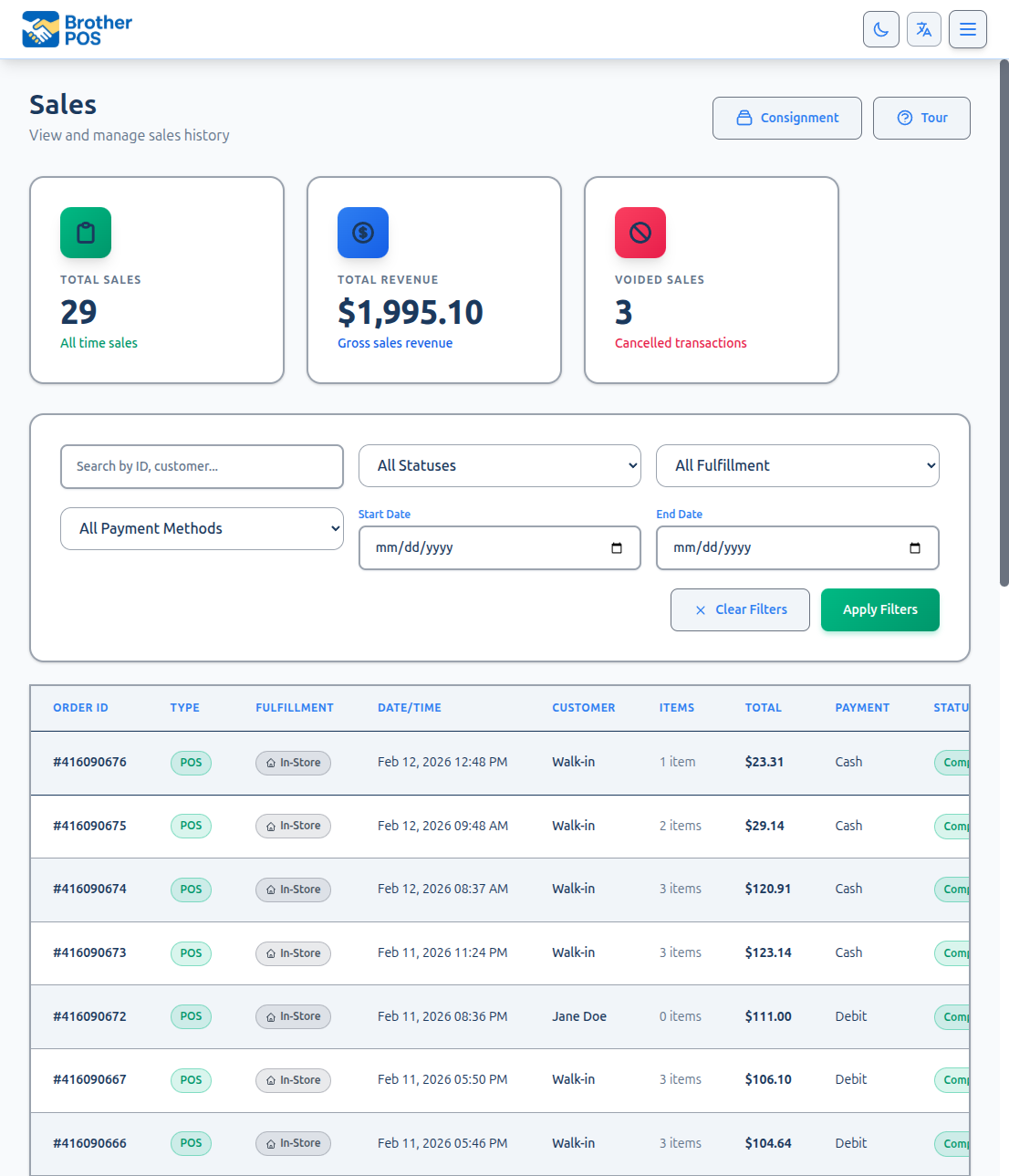
If your store has a WooCommerce website connected, orders placed on the website come into Brother POS automatically. They appear in the same Orders list as your in-store sales, so you can complete them (turn them into a sale) or void them from one place.
Orders placed on your Brother POS storefront website are handled on the Online Orders page (below). Once a WooCommerce order has become a sale, it's listed there too.
Prerequisites
Before WooCommerce orders appear in Brother POS:
- Your WooCommerce store must be connected. See WooCommerce Setup.
- Import Orders from WooCommerce must be turned on in your WooCommerce settings.
- The products on the order must be matched to Brother POS products. An order where none of the products can be matched is skipped.
How Orders Come In
Depending on how your website is connected, orders are either sent to Brother POS as they're placed, or picked up on a regular schedule.
When an order comes in:
- The stock for its items is reserved, so it can't be sold twice.
- What happens next depends on the Auto-fulfill Orders setting in your WooCommerce settings:
- On — the order is completed right away: a sale is created and the stock is deducted.
- Off — the order waits in your Orders list as Pending until someone completes or voids it.
More detail: finding WooCommerce orders and their statuses
Finding WooCommerce Orders
- Log in to the Admin Panel.
- Click Orders in the top navigation bar.
- WooCommerce orders show a WooCommerce badge in the Type column.
To see only WooCommerce orders, open More filters, set Source to WooCommerce and click Apply Filters. Set Status to Pending to see the ones still waiting. You can also type a WooCommerce order number into Search.
While an order is waiting to be completed, its row shows the WooCommerce order number and Online in the Payment column.
Order Statuses
| Status | Meaning |
|---|---|
| Pending | The order came in and is waiting to be completed or voided. Its stock is reserved. |
| Completed | The order was completed and a sale was created. From then on, the list shows that sale (with the WooCommerce badge) instead of the waiting order. |
| Voided | The order was voided. On the order's own page this shows as Cancelled. |
The WooCommerce Order Page
Click View on a WooCommerce order. The page shows:
- Order Number and Status
- Customer — name, email, and phone. A View Customer Profile link appears if a Brother POS customer has the same email.
- Fulfillment — the delivery method, shipping cost (or Free shipping), and address, when the order includes them
- Customer note, if the customer left one
- Payment — how the customer chose to pay (for example Interac e-Transfer or Pay on Pickup), plus the order's status in WooCommerce
- Order Date and Total
- Loyalty Reward Selected — if the customer picked a loyalty reward at checkout. The discount is applied when the order is completed.
- Order Items — quantity, product name, SKU, line total, and unit price
- POS Sale — once completed, a View Sale link to the sale that was created
More detail: completing or voiding a WooCommerce order, and stock
Completing or Voiding a Pending Order
Pending orders have two buttons at the top of their page:
Complete order
- Click Complete order.
- Confirm the prompt.
Brother POS creates the sale, deducts the stock, and releases the reservation. The customer is matched to an existing Brother POS customer by email (or a new customer record is created). WooCommerce is updated to completed — unless the new sale is still pending, such as a delivery that hasn't been dropped off yet.
If none of the order's products are matched to Brother POS products, the order can't be completed.
Void order
- Click Void order.
- Confirm the prompt.
The stock reservation is released, the order is marked cancelled, and the cancellation is sent back to WooCommerce. No sale is created.
Only pending orders can be completed or voided.
Stock
| Moment | What happens to stock |
|---|---|
| Order comes in | Stock is reserved |
| Order is completed | Stock is deducted and the reservation is released |
| Order is voided | The reservation is released |
If you later void the sale that was created from a WooCommerce order (from its sale page), its items are put back into stock automatically.
More detail: checking the sync and troubleshooting
Checking the Sync
If an order isn't showing up:
- Go to Settings and click WooCommerce Integration.
- In the Order Import card, click Sync Now to check for new orders right away. (The button only shows when order import is turned on.)
- Open Sync Logs to see recent sync activity and any errors.
If orders keep failing to come in, visit the WooCommerce Health Monitor to diagnose connection issues.
Troubleshooting
| Problem | Solution |
|---|---|
| Online orders not appearing | Make sure your WooCommerce connection is working and Import Orders from WooCommerce is on. Click Sync Now and check the Sync Logs. |
| An order never arrived | If none of the order's products are matched to Brother POS products, the order is skipped. Check your product mappings, then sync again. |
| Complete order fails | The order's products aren't matched to Brother POS products. Fix the mapping and try again. |
| No Complete order or Void order buttons | These only appear on pending orders. |
| Orders become sales without anyone completing them | Auto-fulfill Orders is on in your WooCommerce settings. |
| WooCommerce status didn't update | Check the WooCommerce Health Monitor for connection errors. |
What's Next?
- Order Management — Search, filter, and export all orders.
- Returns (Admin) — Process returns.
- WooCommerce Order Sync — Configure how orders sync between systems.
- WooCommerce Health Monitor — Monitor and troubleshoot your WooCommerce connection.