Delivery Zones
Use this page to set the areas your store delivers to and what each area pays for delivery.
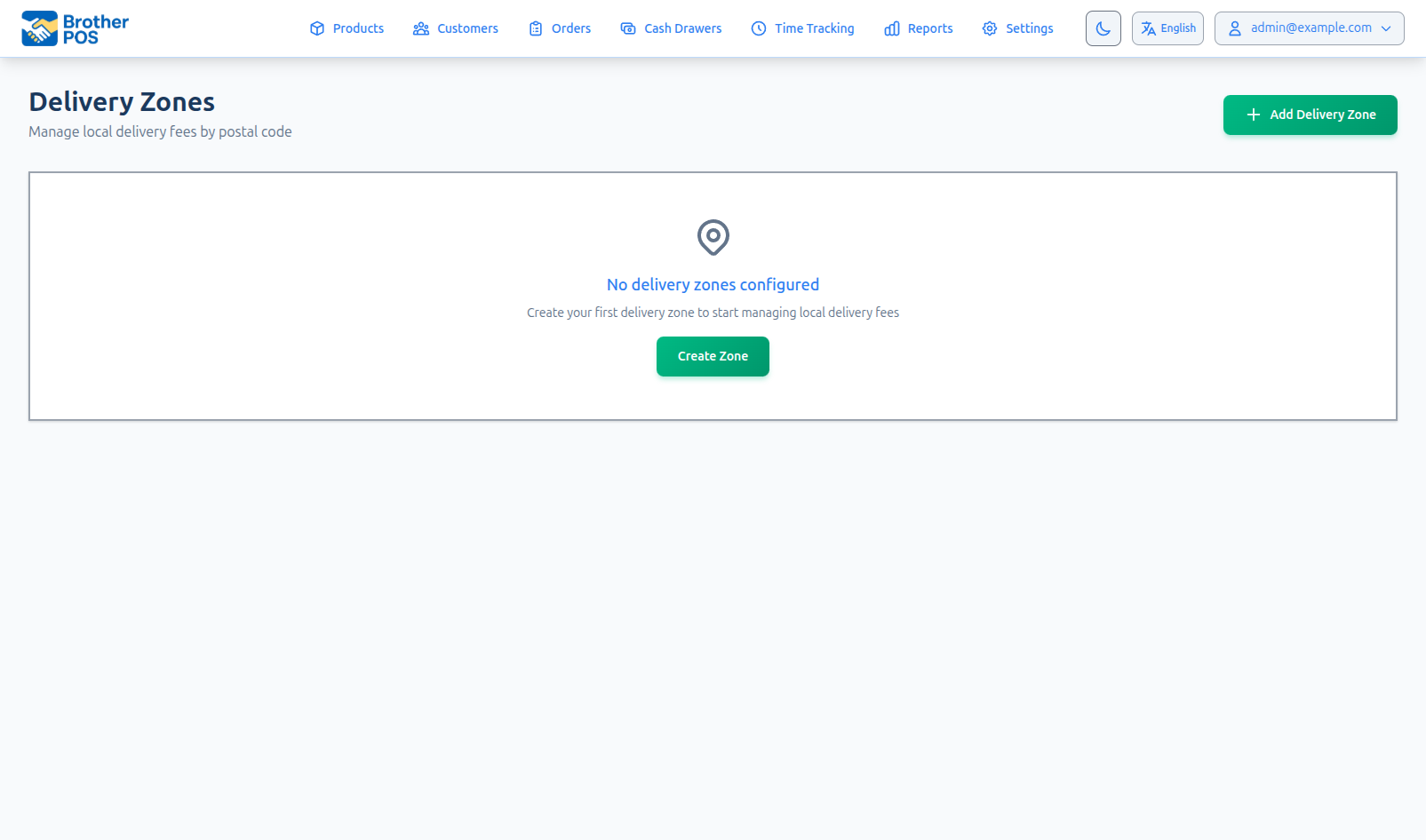
Quick steps
- Go to Customers, open the More Actions menu and click Delivery Zones.
- Click Add Delivery Zone.
- Type a Zone Name (for example "Downtown").
- Under Postal Code Patterns, type the start of each postal code you deliver to, one per line (for example
S7K). - Enter the Delivery Fee, and a Free Delivery Threshold if big orders ship free.
- Leave Active ticked and click Create Delivery zone.
Delivery zones are available once Enable Local Delivery is on. Go to Settings → Edit Settings → Sales & Integrations and tick Enable Local Delivery.
Common questions
A postal code matches two zones. Which fee is used? The zone with the lowest Priority number wins. A more specific pattern does not win on its own — set the priorities.
Do spaces or capitals in postal codes matter?
No. S7K 1A1 and s7k1a1 match the same way.
Is the free delivery threshold applied at the register? Not automatically. The register's zone list shows (Free over $X), and the clerk sets the fee to 0 when the order qualifies. Online checkout applies it for you.
Can I stop delivering to an area for a while? Yes. Click Deactivate on the zone's row, and Activate to turn it back on.
More detail: where zones are used, and tax on delivery fees
Where Zones Are Used
A zone is picked by matching the customer's postal code against your zones:
- Delivery orders taken at the POS: when you type the customer's postal code, the POS finds the matching zone and fills in its delivery fee (the clerk can type over it). If no zone matches, it shows Not in delivery area. The clerk can then pick a zone from the Delivery Zone (optional) list, or type the fee agreed with the customer. The free delivery threshold isn't applied automatically at the POS: the zone list shows it as (Free over $X), and the clerk sets the fee to 0 when the order qualifies. See Phone Orders, Delivery & Shipping.
- Online storefront checkout: the matching zone's delivery fee is added to the order (or no fee, if the order reaches the zone's free delivery threshold). If no zone matches, the customer is told "We don't deliver to that postal code yet. Please choose pickup, or contact us." and can't place a delivery order. (A store with no active delivery zones hasn't limited its area, so its delivery orders go through with no fee.)
The delivery fee is not taxed unless you choose to tax it. To charge tax on it, go to Settings → Edit Settings → Sales & Integrations tab and, in the Delivery & Shipping Fees section, tick Charge tax on delivery and shipping fees. The fee is then taxed at your store's tax rate, the same way as the products: GST and PST if you charge them separately, or your single rate (such as HST). It is never charged the additional tax (such as a vapour tax). For example, with 5% GST and 6% PST, a $5.00 fee adds $0.55 of tax. This applies to online orders and to delivery orders taken at the POS. Orders already placed keep the tax they were placed with.
Opening Delivery Zones
Go to Customers, open the More Actions menu and click Delivery Zones. It appears when local delivery is on. You can also find the page by typing "Delivery Zones" into the admin search.
More detail: the zone list and every field
The Zone List
| Column | Description |
|---|---|
| Zone Name | The zone's name, with its description underneath. |
| Postal Codes | The postal code patterns in this zone. |
| Delivery Fee | The fee, with "Free over $X" underneath if you set a free delivery threshold. |
| Same Day | Yes or No. |
| Priority | Decides which zone wins when a postal code matches more than one zone. |
| Status | Active or Inactive. |
| Actions | Edit, Deactivate / Activate, and Delete. |
Creating a Delivery Zone
- Click Add Delivery Zone.
- Fill in the form:
| Field | What to enter |
|---|---|
| Zone Name | Required, and it must be unique. For example "Downtown" or "North End". |
| Priority | A whole number, 0 or higher (default 0). The lower number wins when zones overlap. |
| Description | Optional notes about the zone. |
| Postal Code Patterns | One pattern per line. See below. |
| Delivery Fee | The fee for this zone, for example 5.00. Use 0 for free delivery. |
| Free Delivery Threshold | Optional. Orders at or above this amount get free delivery. Leave it empty if delivery is never free. |
| Same Day Available | Tick this if you offer same-day delivery to this zone. It's shown in the zone list for your reference. |
| Active | Only active zones are matched. |
- Click Create Delivery zone.
Writing postal code patterns
Patterns match from the start of the postal code:
S7KorS7K*matches every postal code starting with S7K.S7matches every postal code starting with S7.S7K1A1matches that one postal code.
Spaces are ignored on both sides, so M5V 1A* and M5V1A match the same postal codes, and S7K 1A1 matches a customer who types s7k1a1. Letters can be upper or lower case.
If you leave Postal Code Patterns empty, that zone matches every postal code. That can be handy as a catch-all zone with a high priority number.
Editing a Delivery Zone
- Click Edit on the zone's row.
- Change any fields.
- Click Update Delivery zone.
Changing a fee only affects new orders. Orders already placed keep the delivery fee they were charged.
More detail: overlapping zones and priority
Overlapping Zones and Priority
If a postal code matches more than one active zone, the zone with the lowest Priority number wins. If two zones have the same priority, the one created first wins.
A more specific pattern does not automatically beat a broad one. You control the order with the priority numbers.
Example, for postal code S7K 1A1:
- Zone "Downtown" with pattern
S7K1A1, priority 0, wins. - Zone "Central" with pattern
S7K, priority 1, also matches but loses because its number is higher.
Give specific zones low numbers (0, 1) and broad catch-all zones high numbers (5, 10). Or keep your patterns from overlapping at all.
More detail: turning zones off and deleting them
Turning a Zone Off
To stop delivering to an area for a while, click Deactivate on the zone's row. Inactive zones are skipped when postal codes are matched, and they aren't in the zone list when you pick a zone by hand at the register. Click Activate to turn the zone back on.
Deleting a Delivery Zone
Click Delete on the zone's row and confirm when asked. The zone is no longer used for new orders, and past orders keep the delivery fee they were charged.
More detail: best practices
Best Practices
- Start simple. Begin with 2 or 3 zones and add more as delivery grows.
- Name zones clearly. "Downtown" is better than "Zone 1".
- Set realistic thresholds. A free delivery threshold should still cover your delivery costs.
- Review fees regularly. Fuel and wages change, so adjust fees to stay profitable.
- Test a postal code. After setting up zones, start a delivery order at the POS with a postal code from each zone to confirm the right fee comes up.
What's Next?
- Routes & Optimization: how deliveries become driver routes.
- Drivers: who can drive and how they sign in.
- Shipping Zones: shipping for mail-order deliveries.
- Packing Slips: print packing slips for delivery orders.