Packing Slips
Use this page to print a packing slip — a price-free list of what's in an order and where it's going — for delivery and shipping orders.
Quick steps
- Go to Orders and open the delivery or shipping order.
- Click More Actions, then Print Packing Slip.
- The slip prints on your receipt printer, and a message says Packing slip #PS-… sent to the printer.
- Pick and pack the items using the slip as your list, and put the slip in with the order.
The slip goes straight from your browser to the store's receipt printer (or the printer bridge on your computer). There's no preview or PDF.
Common questions
I don't see Print Packing Slip on an order. It only appears on orders being delivered locally or shipped, not on in-store or pickup orders. Only admins and managers can print them.
It says "Could not print the packing slip". Check that the receipt printer (or the printer bridge on this computer) is on, then print again. The retry gets a new slip number.
Can I print from the Fulfillment page? Yes. On the Shipping tab of Orders → Fulfillment, click Print Slip on an order.
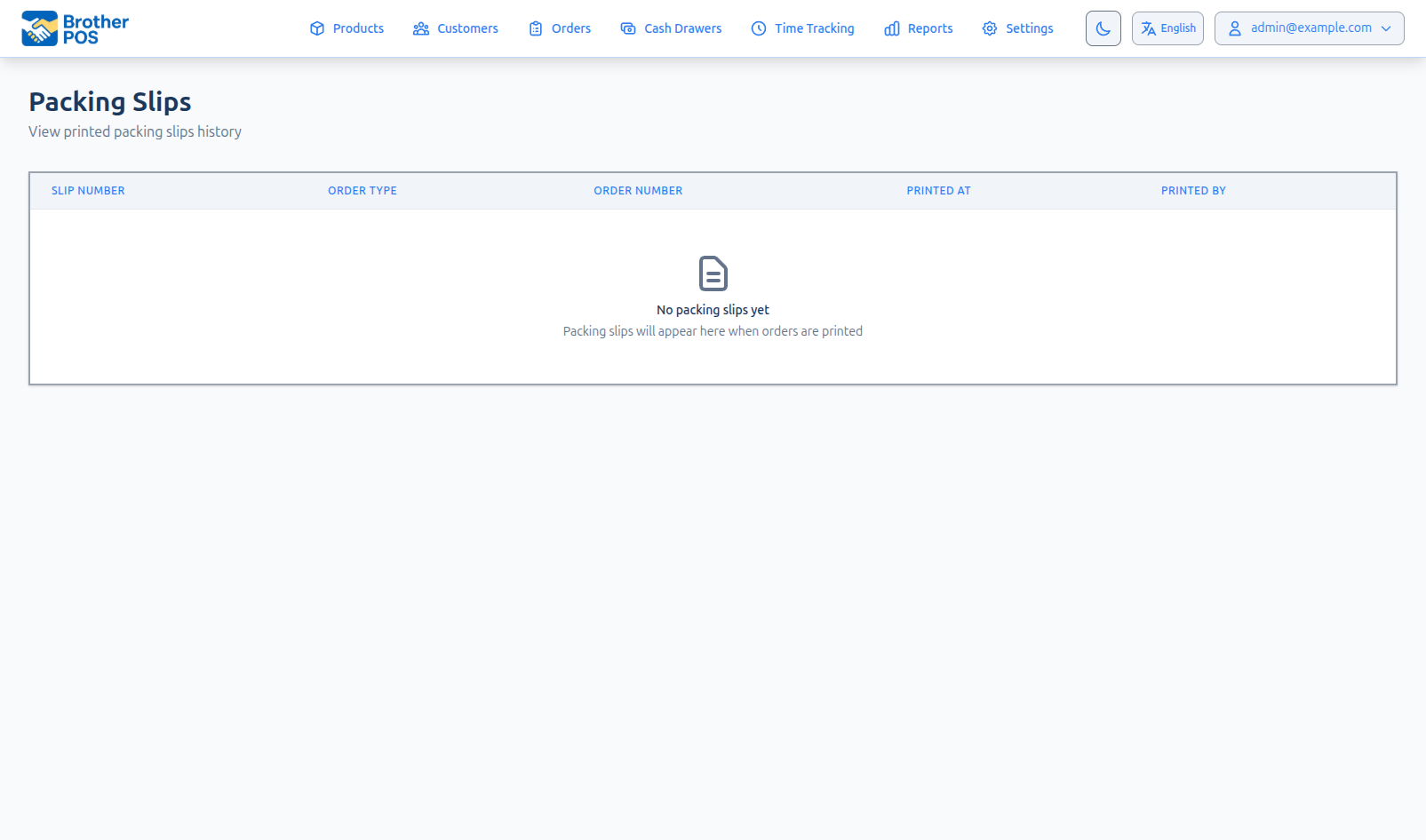
Where can I see slips I've already printed? Go to Orders, click More Actions and choose Packing Slips.
More detail: which orders, and printing
Which Orders Can Get a Packing Slip
The Print Packing Slip option appears on orders being delivered locally or shipped, in the order page's More Actions menu. It doesn't appear on in-store or pickup orders.
Printing a Packing Slip
- Go to Orders and open the order.
- Click More Actions, then Print Packing Slip.
- The slip prints on your receipt printer. A message in the top-right corner says "Packing slip #PS-… sent to the printer."
You can also print one from the Shipping tab of the Fulfillment page with the Print Slip button on an order. It prints the same way.
Your browser sends the slip straight to your receipt printer, like a receipt. There's no preview or PDF. It uses the receipt printer set up on your registers (the first register that has one). If that printer doesn't answer, it tries the printer bridge on the computer you're using. Print from a computer at the store, on the same network as the printer.
If neither printer answers, you'll see "Could not print the packing slip" with the reason, and a reminder to check that the printer (or the printer bridge on this computer) is on. The slip is still added to your packing slip history with its number, so printing again gives it a new number.
Only admins and managers can print packing slips.
More detail: what's on a packing slip
What's on a Packing Slip
Top of the slip
- PACKING SLIP heading
- Your store name, address and phone number
- Slip #: a number like
PS-20260915-0001, made up of the date and a count for that day - Printed date and time, and By (the staff member who printed it)
- Order #, Order Date, Type (Retail Sale) and Fulfillment (for example Local Delivery or Shipping)
Ship to
- The delivery or shipping name, address and phone number from the order
- If the order has no delivery address, the customer's name, address and phone from their profile
Items
For each item:
- A numbered product name
- SKU
- Qty, with "g" for weighed products or "ea" for each-priced products
- Variant, if the product is a variation
Bottom of the slip
- Total Items: all the item quantities added up
- DELIVERY NOTES and NOTES, if the order has them
- "Thank you!"
- A Signature and Date line for the customer to sign at the door
More detail: reprinting and slip history
Reprinting
If a slip is lost or damaged, open the order and click Print Packing Slip again. You can do this at any time. Each print, including one that didn't reach the printer, gets a new slip number.
Packing Slip History
Brother POS keeps a list of every packing slip printed, showing Slip Number, Order Type, Order Number, Printed At and Printed By. To open it, go to Orders, click More Actions and choose Packing Slips. It's listed for admins and managers when local delivery or shipping is on. You can also type "Packing Slips" into the admin search.
When shipping is on, the Orders page also has a Fulfillment button; its Shipping tab lists the orders still to ship (see Shipping Orders Out).
More detail: wholesale orders
Wholesale Orders
Wholesale orders have their own Print Packing Slip button on the wholesale order page. It opens a printable page in your browser instead of printing to the receipt printer. From there you can print it on a regular printer or save it as a PDF.
More detail: a packing routine, slips vs. receipts, and best practices
A Simple Packing Routine
- Print a packing slip for each order as you prepare it.
- Pick the items, using the slip as your list.
- Check each item and quantity against the slip.
- Pack the items and the slip together.
- Send it out. For local delivery, make sure the order is assigned to a driver (see Dispatcher Console). For shipping, label it and hand it to the carrier.
Packing Slips vs. Receipts
| Packing Slip | Receipt | |
|---|---|---|
| Purpose | Check that the order is packed correctly | Record of payment |
| Prices | Never shown | Shown |
| Tax and payment details | Not included | Included |
| Signature line | Yes, for delivery and shipping | No |
Best Practices
- Include a slip with every delivery. It lets the driver and customer check the order at the door.
- Get a signature. Use the signature line when the order is handed over.
- Test your printer. Print a slip for a test delivery order before your first real one.
- Keep copies if you need them. In regulated industries, the printed slips can be part of your paper trail.
What's Next?
- Dispatcher Console: assign packed delivery orders to drivers.
- Delivery Zones: set up where you deliver.
- Shipping Zones: set up shipping for mail orders.
- Drivers: who can do deliveries.