Customer Management
Use this page to find a customer, change their details, look at what they've bought, and tidy up duplicates.
Quick steps
To find and edit a customer:
- Click Customers in the top menu.
- Type a name, email, phone number or customer code in the search box and click Search.
- Click the customer's name to see their profile, purchases and loyalty points.
- Click Edit, change what you need, then click Update Customer.
To add a customer:
- On Customers, click Add New Customer.
- Type their Name (required), and email and phone if you have them.
- Click Create Customer. A customer code is made for them automatically.
Type straight into the Notes box on a customer's row. It saves when you click away, and cashiers see the same note at the register.
Common questions
One person has two accounts. Open the account you want to get rid of, scroll to Merge into another customer…, and click Merge into this one beside the account to keep. Points, store credit, spend and sales all move over. A merge can't be undone.
How do I print a loyalty card? Open the customer's profile and click Print Card beside their code. It needs a label printer set up for your store.
What happens when I delete a customer? They're archived: removed from your list and searches, but their sales history, points and store credit stay on file. The Delete button is on the customer list, not the profile.
How do I export or import customers? Click More Actions at the top of the list, then Export CSV or Import. Importing matches existing customers by email or phone, so it won't create duplicates.
Can my stores share customers? Yes, if you own more than one store. The owner turns it on under Owner, Customers tab. See Sharing customers across your stores.
More detail: the customer list, notes and search
The admin panel has a full customer management screen. You can see your whole customer list, search and filter it, edit customer details, review purchase history, and generate customer codes. This page covers every customer task in the admin panel.
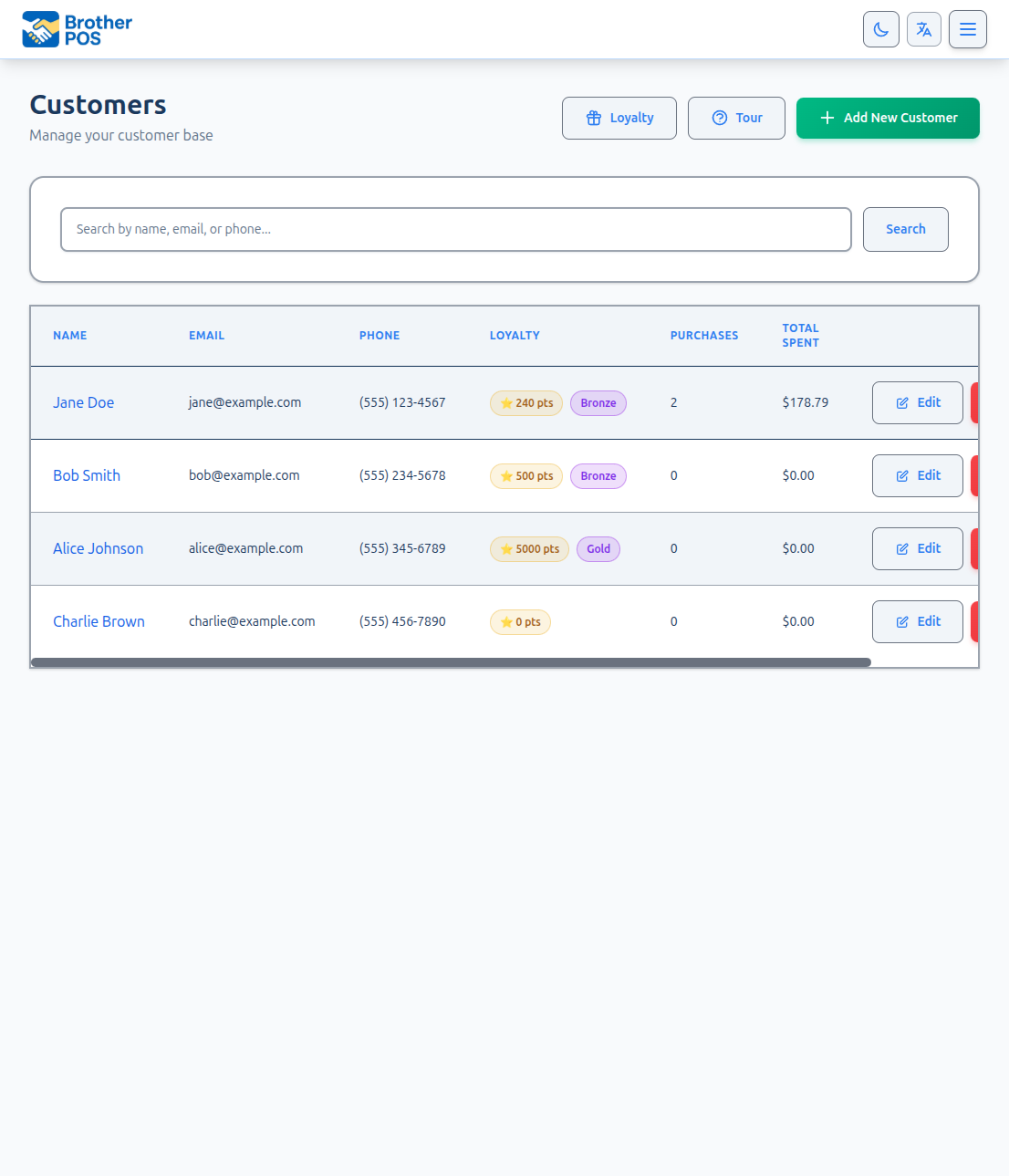
Accessing Customer Management
- Log in to the Admin Panel at
yourstore.brotherpos.ca. - Navigate to Customers in the navigation bar.
- You will see the Customer List — a paginated table of all customer accounts in your store.
The Customer List
The customer list shows your customers, newest first. Each row shows:
| Column | Description |
|---|---|
| Name | Customer's full name (or auto-generated name like "Customer C10015"), plus any tags assigned to them |
| Email address on file | |
| Phone | Phone number on file |
| Loyalty | Current points balance and tier badge (only shown when loyalty is enabled in store settings) |
| Purchases | Total number of completed transactions |
| Total Spent | Total amount spent across all completed sales, less anything refunded on returns |
| Notes | An editable notes box for each customer — type directly in the list to add or update a note (see below) |
| Actions | Edit and Delete buttons for managing the customer |
The list is paginated with 25 customers per page. Use the page navigation at the bottom to browse through large customer lists. Click the Name, Loyalty, Purchases or Total Spent column header to sort the page you are looking at.
Inline Customer Notes
The customer list includes a Notes column with an editable box on every row — no need to open the customer to jot something down. Use it for preferences, follow-ups, or a heads-up for staff.
- Click into the notes box on the customer's row.
- Type your note.
- Click away (the box saves automatically when it loses focus). A brief confirmation appears under the box.
These are the same notes staff see at the POS in the Customer Details panel, so a note added here is visible to cashiers on their next lookup, and a note a cashier adds at the register shows up here. See Customer Lookup (POS) for the register side.
There's one notes field per customer, shared between the admin list and the POS. Editing it in either place updates the same note — keep it concise so it stays useful at a glance.
Searching and Filtering
Search
Use the search bar at the top of the customer list to find specific customers. The search checks across multiple fields simultaneously:
- Name — Partial and case-insensitive matching
- Email — Partial matching
- Phone — Partial matching. Type 7 or more digits and formatting such as brackets, spaces and dashes doesn't matter.
- Customer Code — Exact or partial matching
- Loyalty Card Number — Exact or partial matching
- RezWeed card code — The five-character code on a customer's RezWeed loyalty card, once it has been linked to them
Examples:
- Searching
306finds all customers with "306" in their phone number - Searching
goldwould match customers named "Goldman" (it searches names, not tiers) - Searching
C100finds all customers whose code contains C100
Filter by Tag
If you have created customer tags, an All Tags dropdown appears beside the search bar. Pick a tag and click Search to show only customers with that tag. Click Clear to reset the search and filter.
Filter by Loyalty Tier
When your loyalty program is on and you have set up tiers, an All Loyalty Tiers dropdown also appears beside the search bar. Pick a tier and click Search to show only customers in that tier. Click Clear to reset it.
If a customer presents a loyalty card or you have their code, type the full customer code (e.g., C10015) to find them straight away.
More detail: the customer profile
Viewing a Customer Profile
Click a customer's name in the list to open their profile page. To change their details, click Edit.
Contact Information
- Name, email, phone — Contact details on file
- Customer Code — Their unique
C#####identifier - Loyalty Card Number — Physical card number (if assigned)
- Customer Since — When the account was first created
Purchase Statistics
- Total Purchases, Spent here and Last Purchase — worked out from the customer's completed sales at this store. Spent here takes off what was refunded on completed returns, so a fully refunded sale no longer counts toward it
Loyalty Program
Shown only when loyalty is enabled for your store:
- Loyalty Points — How many points the customer has available (with the dollar value beside it, if your store has set a cash value per point). If the customer also has an account at a store you share customers with, a line underneath reads "One balance with [store] — points earned or spent there show here too."
- Tier Status — Their current tier and its level
- Lifetime spend (incl. imported history) — Used for loyalty tiers. Unlike Spent here, it includes spending carried over from a customer import or your previous system
- Visit Count — Total number of completed visits
Recent Purchases
The profile shows the customer's 10 most recent completed sales in a table with the following columns (in order):
| Column | Description |
|---|---|
| Receipt # | Clickable link to the full sale record |
| Date | When the sale was completed |
| Items | Number of items in the sale |
| Total | Sale amount |
| Payment | Payment method used |
| Cashier | Who processed the sale |
This is useful for resolving customer inquiries ("What did I buy last Tuesday?") or verifying return requests.
More detail: editing and adding customers
Editing a Customer
Step-by-Step
-
Navigate to Customers in the admin panel.
-
Find the customer and click Edit on their row (or open their profile and click Edit).
-
Update any of the following fields:
Field Notes Name The customer's display name. Required on this form. Phone Accepts various formats and is displayed neatly formatted. Email Must be a valid email format if provided. Loyalty Card Number Must be unique across all customers in your store, and across all your stores if they share customers. Loyalty Points The customer's current points balance. If your store has set a cash value per point, a Cash Value box beside it converts for you — type a dollar amount and the points fill in. See Manual Points Adjustments. Loyalty Tier Shown when your store has loyalty tiers. Tiers are normally set automatically from spend and visits; pick a different tier here to move this one customer, or No tier to take them off tiers. See Moving a customer by hand. No marketing emails / No marketing texts Under Marketing. Tick these when a customer asks at the counter to stop getting your marketing emails or texts. The form also has a Profile section (date of birth, notes, tags and similar details — called Profile & Membership at stores with memberships) and a House Account section. See House Accounts.
-
Click Update Customer to apply changes.
The form remembers the balance it showed when you opened it. When you save, only the difference you typed is applied, as a line in the customer's loyalty history reading "Adjusted in the back office". Points the customer earned or spent at the register while you had the form open are kept. If you only fixed a phone number, their points are left alone.
Customer code, lifetime spend, and visit count cannot be changed from the edit form.
The Store Credit section on the edit form, and the Store Credit balance and Adjust Balance button on the profile, only appear when Enable Store Credit Payments is on for your store. See Store Credits (Admin).
Creating a Customer from the Admin Panel
While customers are typically created at the POS during a sale (see Creating Customers), you can also create them from the admin panel:
- Navigate to Customers.
- Click Add New Customer.
- Fill in the customer details:
- Name (required on this form)
- Email (optional)
- Phone (optional)
- Loyalty Card Number (optional)
- Any Profile or House Account details you want to record (optional)
- Optionally tick No marketing emails or No marketing texts under Marketing.
- Click Create Customer.
If a customer with the same email or phone number is already on file, the form stops and says This customer may already exist, linking to that customer. Open them instead — or, if this really is a different person, tick This is a different person — create them anyway and save again.
A unique customer code is automatically generated. The customer starts with 0 loyalty points, $0 lifetime spend, and 0 visits.
More detail: customer codes and loyalty cards
Customer Codes
Every customer has a unique code in the format C##### (e.g., C10001, C10002, etc.). These codes are:
- Auto-generated when the customer account is created
- Sequential — each new customer gets the number after the highest code in use. If your stores share customers, new codes are numbered across all of them, so a new code never means two different people.
- Not editable — there is no box to change a code by hand. The only time a code changes is when an owner uses Settle for stores that share customers (see One code, different people).
- Scannable — can be printed as barcode labels for fast POS lookup
Generating a Code for an Existing Customer
If a customer does not have a code yet (for example, an older record):
- Open the customer's profile.
- Click Generate Code.
- A code is assigned and saved immediately.
Printing a Loyalty Card Label
From the customer's profile:
- Click Print Card (beside the customer code).
- A barcode label is sent to your label printer.
- The label shows the customer's code as a scannable barcode and their name. If your store has a customer card label template, the card uses that layout instead.
Print Card needs a label printer set up for your store. See Label Printers. If none is set up, the card won't print and an error message appears.
Bulk Code Generation
If you have many customers without codes (for example, after moving from another system), contact Brother POS support — codes can be filled in for all of them at once.
More detail: deleting a customer
Deleting a Customer
To delete a customer account:
- On the customer list page, find the customer you want to delete.
- Click the Delete button in the Actions column.
- Confirm. The message reads: "Archive this customer? They'll be removed from the customer list. Their sales history, loyalty points and store credit are kept on file."
Note: The Delete button is on the customer list page, not the customer profile page.
If your stores share customers, deleting someone here only removes them from this store. Their account, points, spend and visits carry on at the other stores that share customers.
Deleting archives the customer. They disappear from your customer list and from customer searches, so nobody can spend their points or store credit. Their sales history, points and store credit balance are kept on file. If you only need to correct their details, edit the customer instead.
More detail: sharing customers across your stores
Sharing customers across your stores
If you own more than one Brother POS store, you can have them share customers. A customer then has one account, one card and one points balance at all of those stores. They can earn points at one store and spend them at another, and every store sees the same balance.
What's shared and what isn't
| Shared between the stores | Kept separately at each store |
|---|---|
| Name, email, phone and date of birth | Store credit |
| Customer code and loyalty card number, so one card works everywhere | Gift cards |
| Loyalty points balance | House accounts |
| Lifetime spend and visit count | Sales history (each store lists the sales made there) |
| Loyalty tier | Notes and tags |
| "No marketing emails" and "No marketing texts" | |
| The loyalty program itself (see below) |
If a customer changes their phone number at one store, it changes at all of them. If they unsubscribe from your marketing emails, they're unsubscribed at every store.
Daily purchase limits count everything the customer bought that day at all the sharing stores, not just the store they're in now.
Turning sharing on
Sharing is set up by the store owner in the Owner Dashboard:
- Click Owner in the top navigation, then open the Customers tab.
- Under Stores that share customers, tick every store that should share. Pick two or more.
- Under Loyalty program, pick the store whose loyalty program all of them will use. Each store in the list shows how many tiers and rewards it has and its points per dollar. The store with the most set up is picked for you.
- Click Save.
The side panel shows Sharing: On with the number of stores, and how many customers the stores share between them.
You can only share between stores you own. If one of them already shares customers with a store you don't own, you'll see a message saying so.
One loyalty program for all the stores
Stores that share customers run one loyalty program:
- The same tiers and rewards at every store. When you add, edit, switch off or delete a tier or reward at any of the stores, it changes at all of them.
- The same Enable Loyalty Program, Points Per Dollar Spent and Cash value per point settings. Change them at one store and they change at all of them.
- A customer is in the same tier everywhere, even when you moved them to a tier (or to No tier) by hand.
- A reward's Redemption Limit (per customer) counts redemptions at every store. A "once per customer" reward can be redeemed once in total, not once at each store.
- A free-product reward gives each store's own copy of the product. Stores find it by the same SKU, or the same barcode if there's no SKU match. At a store that doesn't carry the product, the reward is switched off.
When sharing starts, the other stores' own tiers and rewards are retired and replaced with the program you picked. Past sales and redemptions still show the old ones. Customers at those stores are then put in the tier the shared program gives them. A store that joins later takes on the shared program the same way.
Clicking Save without touching Loyalty program (for example, to add another store) keeps the program your stores already share, and the new store takes it on. Customers at the stores already sharing keep their tiers, including tiers you set by hand. Only picking a different store under Loyalty program switches every sharing store to that store's program.
The loyalty pages at each sharing store (the Loyalty dashboard, tiers, rewards and the loyalty part of Settings) show a note: "This store shares its loyalty program with [stores] — changes here apply there too."
Serving a customer from another store
Nothing changes for your cashiers:
- Search at the register by name, phone, email or code. People who have only shopped at one of your other stores show up too, marked From [store name]. Tap them and their account is brought over to this store, with their points. This needs an internet connection.
- Scan or swipe their card. The card from any of your sharing stores works.
Once a customer has been picked or scanned at a store, they appear in that store's own customer list.
Customers who already had an account at two stores
Before your stores shared, a regular may have signed up at each one separately. Once sharing is on, the Customers tab in the Owner Dashboard helps you tidy these up.
Same person, separate accounts lists accounts at different stores with the same phone number or email. Check they really are one person (a family can share a phone number), then click Combine. The person gets one account: their points, spend and visits are added together, the oldest account's details are kept (with blanks filled in from the others), and each store's loyalty history gets a line reading "Accounts combined across stores". If any of the accounts had opted out of marketing email, the combined account stays opted out. Combine all does every pair on the list at once.
Two accounts at the same store can't be combined here. Merge them at that store first (see Merging Duplicate Customers).
One code, different people appears when your stores gave the same customer code to different people before they shared. (Every store starts numbering at C10001.) When one of these codes is scanned, the register asks: "More than one customer uses C10001. Which one is it?" Click Settle on a code to fix it for good. The person who had the code first keeps it, and everyone else gets a new code at every store. Settle all does them all. The page then lists the new codes. Print those customers a new card, because their old card now belongs to someone else.
A loyalty card number or customer code can't be given to a customer if a different person already has it at one of your sharing stores. You'll see a message like "is already Jo's at Main Street".
A store that stops sharing
To take a store out, untick it on the Customers tab and click Save. Untick all but one to switch sharing off.
- The store keeps its customers. Each customer's spend and visits there go back to what they actually bought at that store.
- A points balance is never handed out twice. The points stay with the customer's account at the stores still sharing. If the customer never shopped at any of those, or sharing is switched off completely, the points stay at the store where the customer first signed up. Every other store's copy goes to 0 points, with a loyalty history line saying where the points went.
- The store keeps the loyalty program as it was when it left, and can change it from then on without affecting the others.
If the store shares again later, its customers come up under Same person, separate accounts to combine, rather than joining back up by themselves.
More detail: merging, exporting and importing
Common Tasks
Merging Duplicate Customers
When one person has two accounts, merge them from the customer's page. You need the Manage Loyalty permission (admins always have it).
- Open the duplicate account — the one you want to get rid of.
- Scroll to Merge into another customer… at the bottom of the page and open it. It opens by itself when Brother POS spots accounts with the same email, phone number or name, and lists them under These customers look like the same person:.
- Click Merge into this one beside the account to keep. Or type the Customer code of the account to keep (for example
C10001) and click Merge. - Confirm.
The duplicate's points, store credit, house account, spend, visits and sales move to the account you keep, and the duplicate is archived. The page confirms how many points and sales were moved. A merge can't be undone.
Exporting and Importing Customers
Both are in the More Actions menu at the top of the customer list, along with Tags, the tour and, when your store uses them, Delivery Zones, Shipping Zones and Wholesale Portal Access. The Loyalty and Add New Customer buttons stay in view.
- Click Export CSV to download every customer as a spreadsheet: name, email, phone, customer code, loyalty points, lifetime spend, visit count, created date, plus any signup details you collect.
- Click Import to bring in customers from a spreadsheet (CSV or Excel). A blank template is available on the import page. A store with no customers yet also sees an Import a customer list button on the empty list.
When a row's email or phone number matches a customer you already have, that customer is updated instead of added again. Phone numbers match however they're written (3065550100 matches (306) 555-0100), and emails match whatever the capitals. On a match, blank details are filled in from the spreadsheet, and points, lifetime spend and visits are only raised, never lowered. So importing the same file twice doesn't create duplicates or double anyone's points.
After you choose the file, the import page says what kind of file it detected (for example the customer import template from this page, a Lightspeed export, or a generic CSV) and shows a preview: how many customers are New, Updates, Skipped and Errors, with the rows that won't import until they're fixed. Points brought in by an import are recorded in the customer's loyalty history as Imported opening balance (a new customer) or Imported adjustment (an existing one), so you can always see where they came from.
Viewing All Customers in a Specific Tier
When loyalty is enabled, pick the tier from the All Loyalty Tiers dropdown on the customer list and click Search. You can also open the tier from the Loyalty dashboard and click View All Customers, which opens the list already filtered to that tier.
More detail: audit trail and best practices
Audit Trail
Brother POS keeps a history of changes to customer records, including:
- Who made the change
- When the change was made
- What fields were modified (before and after values)
You can review these changes in the Audit Trail. See Audit Trail for details.
Best Practices
- Keep information current. If a customer reports a new phone number or email, update their record immediately. Accurate contact information makes future lookups faster.
- Encourage customer codes. Print loyalty card labels for regular customers so they can be scanned quickly at the POS instead of searched by name.
- Review purchase history for returns. Before processing a return, check the customer's purchase history to verify the original transaction.
- Watch for duplicates. Periodically scan the customer list for potential duplicates (same phone number, similar names). Merge them proactively to keep data clean.
- Do not delete unless necessary. Deleting a customer takes them out of your lists and searches. Prefer editing over deletion.
What's Next?
- Loyalty Setup — Enable and configure the loyalty points program.
- Loyalty Tiers — Set up tier thresholds, multipliers, and discounts.
- Rewards — Create rewards customers can redeem with their points.
- Store Credits Admin — Add to, deduct from, and review customer store credit balances.
- Customer Analytics — Reports on customer spending and behavior.