Loyalty Tiers
Use this page to set up loyalty tiers — levels like Bronze, Silver and Gold that give your best customers a discount and faster points.
Quick steps
- Go to Customers and click Loyalty (it shows when the loyalty program is on). Your tiers are under Loyalty Tiers.
- Click Add Tier, or the Edit icon beside a tier to change it.
- Fill in the Name and Level (0 for the starting tier, then 1, 2, 3 — higher is better).
- Set Minimum Lifetime Spend ($) and Minimum Visits. A customer moves up when they meet either one.
- Set the Discount Percentage (%) and Points Multiplier (1.0 is normal, 1.5 earns 50% more).
- Click Create (or Update). Customers move up by themselves on their next sale.
Bronze, Silver, Gold and Platinum are set up for you. Edit them to suit your store.
Common questions
Do customers ever drop down a tier? Not by themselves — not when you raise a requirement, and not when a sale is voided. You can move one customer by hand.
How do I put one customer in a different tier? Open the customer, click Edit, pick a tier from Loyalty Tier (or No tier) and click Update Customer.
Is the tier discount applied automatically? Yes. When the customer is added to a sale at the register, the discount appears in the cart. The cashier can remove it for that sale.
What happens to customers if I delete a tier? You pick where they go: another tier, or No tier. They keep their points either way.
Does "Free Delivery" waive the delivery fee? No. Free Delivery and Early Access to Sales are listed as benefits only — apply them yourself.
More detail: how tiers work
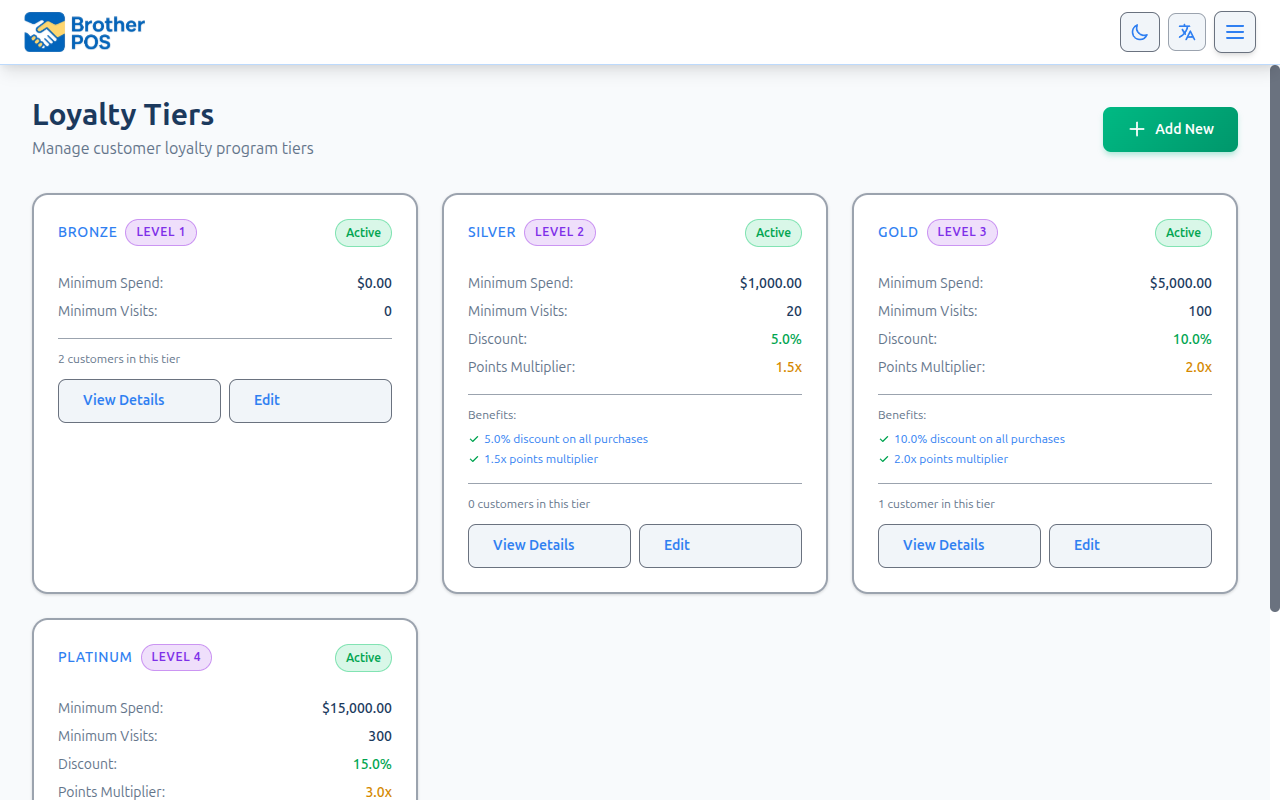
Loyalty tiers reward your best customers with better perks as they spend more or visit more often. Customers move up automatically based on their lifetime spend or number of visits, unlocking faster points earning and automatic discounts. This page covers how to set tiers up in the admin panel.
How Tiers Work
Each tier has:
- A level — a whole number rank, where 0 is the base tier and higher numbers are better tiers
- A name — e.g., Bronze, Silver, Gold (fully customizable)
- Requirements — a minimum lifetime spend and/or a minimum number of visits
- Benefits — a points multiplier, a discount percentage, and optional listed perks
Customers are placed in tiers automatically. When a customer's lifetime spend or visit count reaches a better tier's requirement, they move up on that sale — no manual action needed.
Brother POS never moves a customer down a tier on its own — not when you raise a requirement, and not when a sale is voided. A manager can still move one customer to a different tier by hand. See Moving a customer by hand.
If your stores share customers, they run one loyalty program with the same tiers. Adding, editing, switching off or deleting a tier at one store does the same at all of them, and a tier's name and level can't be used twice across the stores. The tier pages say "This store shares its loyalty program with [stores] — changes here apply there too." See Sharing customers across your stores.
New stores start with four tiers already created — Bronze, Silver, Gold, and Platinum — which you can edit or delete.
More detail: viewing, creating and editing tiers
Viewing Your Tiers
- Go to Customers.
- Click the Loyalty button (it only appears when your loyalty program is turned on). This opens the Loyalty dashboard.
- Your tiers are listed in the Loyalty Tiers section, lowest level first.
Each tier in the list shows:
- A colored circle with its level (e.g., L2)
- Its name, with an Inactive badge if it's switched off
- Its requirements (e.g., "$500 spend or 10 visits", or "Base tier (no requirements)")
- Its discount (e.g., "5% off") and multiplier (e.g., "1.25x points"), when set
- Edit and Delete icons
When you open or save a tier, you land on its details page, which lists its requirements, benefits, the first 10 customers in that tier (with their points and lifetime spend), and statistics.
Creating a New Tier
-
On the Loyalty dashboard, click Add Tier.
-
Fill in the form:
Field Required Description Name Yes Display name. Must be unique in your store (and across your stores, if they share customers). Level Yes Whole number, 0 or higher, unique in your store (and across your stores, if they share customers). Use 0 for the base tier, then 1, 2, 3, and so on. Higher = better. Description No A short description of the tier. Display Color No Type a color name (such as bronze, silver, gold, platinum, green or purple) or a color code such as #ffd700. The Loyalty dashboard shows the tier in that color; anything it doesn't recognise shows as blue. The starter tiers come with color codes and show in their own colors. Minimum Lifetime Spend ($) Yes Total spend needed to reach this tier. Use 0 for the base tier. Minimum Visits Yes Number of purchases needed to reach this tier. Use 0 to go by spend only. Discount Percentage (%) No Automatic discount for customers in this tier, from 0 to 100. Points Multiplier Yes 1.0 is the normal earning rate; 1.5 earns 50% more points. Can't be lower than 1.0. Free Delivery No Lists free delivery as a benefit of this tier. See Free Delivery and Early Access. Early Access to Sales No Lists early sale access as a benefit of this tier. Additional Benefits Description No Any other benefits, in your own words. Active — Checked by default. Inactive tiers aren't used when moving customers up, and give no discount or points multiplier. -
Click Create.
A customer reaches a tier when they meet either the minimum spend or the minimum visits — not both. If Minimum Visits is 0, only spend counts.
Editing a Tier
- On the Loyalty dashboard, click the Edit icon next to the tier (or Edit Tier on its details page).
- Change any of the fields above.
- Click Update.
What Happens When You Edit
- Lowering a requirement — customers who now qualify move up the next time they make a purchase.
- Raising a requirement — nobody moves down. Customers already in the tier stay there.
- Changing the discount percentage — applies to sales from now on. Past sales aren't recalculated.
- Changing the points multiplier — applies to points earned from now on. Past points aren't recalculated.
- Renaming a tier — takes effect everywhere right away.
The level decides which tier counts as better, and no two tiers can share a level. Changing levels on tiers customers already hold can shuffle who counts as higher. If you're restructuring, it's usually safer to switch old tiers off and create new ones.
More detail: recommended tier structures
Recommended Tier Structure
The starter tiers new stores get are a good example:
| Tier | Level | Min. Spend | Min. Visits | Multiplier | Discount |
|---|---|---|---|---|---|
| Bronze | 0 | $0 | 0 | 1.0x | 0% |
| Silver | 1 | $500 | 10 | 1.25x | 5% |
| Gold | 2 | $1,500 | 30 | 1.5x | 10% |
| Platinum | 3 | $5,000 | 100 | 2.0x | 15% |
Why This Works
- Bronze has no requirements, so every customer lands here on their first purchase.
- Silver is reachable for regulars within a few months.
- Gold rewards committed customers with a meaningful discount and faster points.
- Platinum is for your top spenders.
Alternative: Three Tiers
| Tier | Level | Min. Spend | Multiplier | Discount |
|---|---|---|---|---|
| Member | 0 | $0 | 1.0x | 0% |
| Premium | 1 | $1,000 | 1.5x | 5% |
| VIP | 2 | $3,000 | 2.0x | 10% |
More detail: how customers move up, and moving one by hand
How Customers Move Up
What counts
- Lifetime spend goes up by the sale total each time a completed sale is attached to the customer.
- Visits go up by one for each of those sales. A membership check-in also counts as a visit, so it can move a customer up a tier that goes by visits.
- If a sale is voided, its total and the visit are taken back off — but the customer keeps their tier.
When tiers are checked
Every time a customer's lifetime spend or visits change (after each sale), Brother POS:
- Looks at all active tiers, starting from the highest level.
- Picks the highest tier where the customer meets the minimum spend or the minimum visits.
- Moves the customer up if that tier is higher than their current one. Otherwise nothing changes.
A customer who doesn't have a tier yet is placed in the highest tier they qualify for (or your level-0 base tier) on their first purchase.
Moving a customer by hand
To put one customer in a different tier:
- Go to Customers, find the customer and click Edit.
- Pick a tier from the Loyalty Tier dropdown, or No tier to take them off tiers. (The dropdown only appears when your store has tiers.)
- Click Update Customer.
Tiers are still worked out automatically afterwards. The next time the customer's spend or visits change, they move up if they qualify for a higher tier than the one you picked. A customer on No tier is placed in the highest tier they qualify for on their next purchase.
More detail: tier discounts, multipliers and other benefits
Tier Benefits in Detail
Discount Percentage
When a customer in a tier with a discount is attached to a sale at the POS:
- The discount is added automatically and shows in the cart as the tier name and percentage (e.g., "Gold (10% off)"). The cashier can remove it for that sale.
- It only applies to items in loyalty-eligible categories.
- It's worked out after bulk savings, order discounts, and sale campaign discounts on those items, and before tax.
- It appears on the order as Loyalty Tier Discount.
- To round these discounts to the nearest whole dollar, turn on Round Loyalty Tier Discounts (see Discount Rounding).
Points Multiplier
The multiplier boosts how many points a customer earns:
- 1.0x = normal rate
- 1.25x = 25% more points
- 1.5x = 50% more points
- 2.0x = double points
How points are worked out on a sale:
- Each item's line total is multiplied by your Points Per Dollar Spent, and by any loyalty bonus campaign on that item.
- If the sale had order-level discounts, the points are reduced by the same proportion.
- The result is multiplied by the customer's tier multiplier and rounded to a whole number.
Items in categories that aren't loyalty-eligible earn no points. Manual/custom items keyed in at the register do earn points, and the tier multiplier applies to them too.
Free Delivery and Early Access
Free Delivery and Early Access to Sales are listed as benefits on the tier, but Brother POS does not automatically waive delivery fees or open sales early. If you offer these perks, apply them as part of your own process.
More detail: switching off or deleting a tier
Deactivating or Deleting a Tier
Deactivating
- Edit the tier.
- Uncheck Active.
- Click Update.
An inactive tier:
- Isn't used when moving customers up.
- Stays assigned to customers who already have it, but gives them no discount and no points multiplier while it's switched off.
- Can be switched back on at any time the same way.
Deleting
Click the Delete icon next to the tier on the Loyalty dashboard.
-
Empty tier — confirm the prompt: "Delete tier 'Gold'? This can't be undone."
-
Tier with customers — a page opens asking where its customers should go (hover over the icon first to see how many there are). Under Move these customers to, pick:
- No tier — they keep their points and history, and get no tier discount. This is the choice to make if you're turning tiers off.
- One of your other tiers — each one shows its discount and multiplier.
Then click Move customers and delete [tier name]. You'll see a message like "Deleted Gold and moved 12 customer(s) to Silver."
Tiers are awarded automatically from spend and visits, so a customer you moved can earn one of the remaining tiers again. To stop tiers altogether, delete every tier.
If your stores share customers, the tier is deleted at every sharing store, and its customers at every store are moved to the tier you picked.
More detail: more questions
More Questions
Can I add a tier between two existing tiers?
Levels must be whole numbers and can't repeat, so there's no "level 1.5". Renumber the tiers above it first (starting from the highest), then create the new tier. Customers are checked against all active tiers on their next purchase.
Do loyalty-ineligible categories count toward tiers?
Yes, for spend. Lifetime spend uses the full sale total. Categories that aren't loyalty-eligible still earn no points and get no tier discount.
How quickly do upgrades take effect?
On the sale that crosses the requirement. The new tier's discount applies from the customer's next transaction.
Where can I see who's in each tier?
Each tier's details page lists the first 10 customers in that tier with their points and lifetime spend. Click View All Customers on that page to open the Customers list filtered to that tier. You can also pick a tier from the All Loyalty Tiers dropdown on the Customers list yourself.
What's Next?
- Rewards — Create rewards that customers can redeem with their points.
- Loyalty Setup — Enable the loyalty program and configure the points rate.
- Customer Management — View and manage customer accounts.
- Loyalty Points & Tiers (POS) — How tiers appear and work at the POS register.