Loyalty Points & Tiers
Use this page to see a customer's points and tier at the register, and to let them spend points on a reward or on money off the bill.
Quick steps
To earn points:
- Attach the customer to the sale before taking payment (see Customer Lookup).
- Finish the sale as usual. Points are added when the sale completes — you don't need to do anything else.
To check points:
- Tap the i button next to the customer's name in the cart.
- Look under Loyalty Status — Points Balance shows the points and what they're worth in dollars.
To spend points:
- With the customer attached, tap Discount.
- For a reward: tap it in the Loyalty Rewards section at the top. (You can also tap a reward marked Tap to redeem in the customer's details window.)
- For money off: in Cash Out Points, choose Dollars ($) or Points, type the amount the customer asked for, and tap Apply.
- Take payment. The points come off when the sale completes.
A free-product reward only works when that item is already in the cart. Scan the item first, then apply the reward.
Common questions
The customer didn't get points on a sale. They have to be attached before the sale is completed. Points can't be added by attaching them afterwards — a manager can use Adjust Points to fix it.
How do they move up a tier? Automatically, once their total spending or visits pass the next tier's requirement. Tiers never go down on their own.
Why don't I see a reward the customer is asking about? Rewards they don't have enough points for, or aren't allowed yet (tier, date, or already used), are hidden.
What happens to points if they return something? The points earned on the returned items come back off their balance, and any points they spent on that sale are given back.
More detail: how points are earned
Brother POS includes a built-in loyalty program that rewards customers for their purchases. Points are earned automatically on every sale with a customer attached, and customers move up through tiers as they spend more or visit more often. This page covers how the loyalty system works from the POS register perspective.
How Loyalty Points Work
Earning Points
When a customer is attached to a sale and the sale is completed, they automatically earn loyalty points. The number of points earned depends on two factors:
-
Points per dollar rate — Set by your admin in store settings (default: 1 point per dollar spent). Points are worked out on what the customer pays for the items before tax, after discounts. For example, if the rate is 1 point per dollar and the items come to $47.50, the customer earns 48 points (rounded to the nearest whole number).
-
Tier multiplier — Higher loyalty tiers earn points faster. For example, a Gold tier customer with a 1.5x multiplier earns 71 points on that same $47.50 instead of 48.
| Items (before tax) | Points Rate | Tier Multiplier | Points Earned |
|---|---|---|---|
| $47.50 | 1 pt/$1 | 1.0x (Bronze) | 48 |
| $47.50 | 1 pt/$1 | 1.25x (Silver) | 59 |
| $47.50 | 1 pt/$1 | 1.5x (Gold) | 71 |
| $47.50 | 1 pt/$1 | 2.0x (Platinum) | 95 |
Points are not added when products are scanned or when payment begins. They are awarded only after the sale is fully completed and the payment is processed. If a completed sale is voided, the points it earned are taken back. If just one line is voided off a completed sale, the customer loses the points that line earned and keeps the rest.
Manual and Custom Items Earn Points Too
Points aren't limited to catalog products. Manual/custom line items — the ad-hoc items a cashier types in with their own name and price — also earn base loyalty points on their amount. A sale is a sale, so the customer is credited whether the item came from the catalog or was keyed in by hand.
A couple of nuances:
- Manual items earn the base rate and the customer's tier multiplier. A store-wide double-points day counts too — a bonus campaign set to all products doubles a hand-keyed $45 bar tab just like it doubles a catalog sale. Campaigns aimed at particular products, categories or brands don't apply, because there's no catalog product to match them against.
- Catalog products only earn points if their category is loyalty-eligible (your admin controls this). Manual items skip that category check.
Returns Claw Back Points
When you process a return, the loyalty points the customer earned on those items are automatically taken back — proportionally. If a customer returns half of what they bought, roughly half the points earned on that sale come off their balance. This keeps balances honest so customers can't earn points on a purchase and keep them after returning the goods.
- The claw-back is prorated against the portion of the original sale that actually earned points (loyalty-eligible catalog items plus manual/custom items).
- Any tier or campaign bonus that inflated the original earn is reversed in the same proportion, because the claw-back is based on the points that were truly earned.
- A customer's balance is never pushed below zero.
- If the customer spent points on that sale (a reward or a points cash-out), the returned share of those points goes back onto their balance.
- Voiding a single line off a completed sale takes back that line's points the same way.
See Returns for the full return workflow.
More detail: where points and tiers show
Viewing Customer Loyalty Information
In the Cart
When a customer is attached, the customer box at the top of the cart shows their name, customer code, loyalty card number (if any), and their phone and email. If their tier gives a discount, the cart totals show a line with the tier name and percentage, for example Gold (5% off).
Customer Details
Tap the i (info) button beside the customer's name in the cart to open Customer Details. The Loyalty Status section shows:
- Tier name and its benefits (discount percentage and points multiplier)
- Points Balance — Total redeemable points, with what that balance is worth in dollars underneath it (for example
430and≈ $8.60) - Visits — Total number of completed visits
- Available rewards — Rewards the customer can redeem right now. Tap one to apply it to the sale.
- Adjust Points — Add or remove points with a reason (only for staff whose role can manage loyalty)
Elsewhere in Customer Details you'll also find Purchase History (total purchases and total spent) and Recent Orders (their last 5 completed sales).
Customers Who Shop at Your Other Stores
If your store shares customers with the owner's other stores, a customer has one points balance at all of them. Points earned at one store can be spent at another, and the balance you see is the same everywhere. Their tier is the same at every store too, and the tiers, rewards and points rate are the same program.
Their store credit, gift cards and house account are not shared. Those only work at the store that issued them.
Understanding Loyalty Tiers
Loyalty tiers reward your best customers with escalating benefits. A typical tier structure looks like this:
| Tier | Level | Minimum Spend | Points Multiplier | Discount |
|---|---|---|---|---|
| Bronze | 0 | $0 | 1.0x | 0% |
| Silver | 1 | $500 | 1.25x | 2% |
| Gold | 2 | $1,500 | 1.5x | 5% |
| Platinum | 3 | $5,000 | 2.0x | 10% |
Your store admin configures the tier names, spending thresholds, multipliers, and discounts. The Bronze/Silver/Gold/Platinum tiers shown above are only an example. Your store has whatever tiers your admin set up, and a tier can also have a minimum number of visits instead of (or as well as) a spending amount.
How Tier Upgrades Work
Tier upgrades happen automatically based on the customer's lifetime spend or visit count — whichever requirement your admin has set for the tier, and whichever the customer reaches first:
- A customer makes a purchase that pushes their lifetime spend (or visit count) past a tier's requirement.
- Brother POS checks all tiers and finds the highest tier the customer qualifies for.
- The customer is automatically upgraded to that tier.
- The upgrade takes effect as soon as that sale completes.
Brother POS never automatically downgrades a customer's tier. Once a customer reaches Gold, they stay Gold even if they stop shopping for a while. A tier can't be changed at the register, but a manager can move a customer to a different tier from the admin panel. See Loyalty Tiers.
Tier Benefits at the POS
When a customer with a tier is attached to a sale, the following benefits are applied automatically:
- Discount percentage — If the customer's tier includes a discount (e.g., Gold = 5% off), it is applied automatically to the loyalty-eligible items in the cart. It appears in the cart totals as the tier name and percentage (e.g., "Gold (5% off)"), with an X to remove it if the customer doesn't want it.
- Points multiplier — The customer earns points at an accelerated rate (e.g., Gold = 1.5x points). You do not need to do anything — this is calculated automatically when the sale is completed.
More detail: redeeming rewards and cashing out points
Redeeming Loyalty Rewards
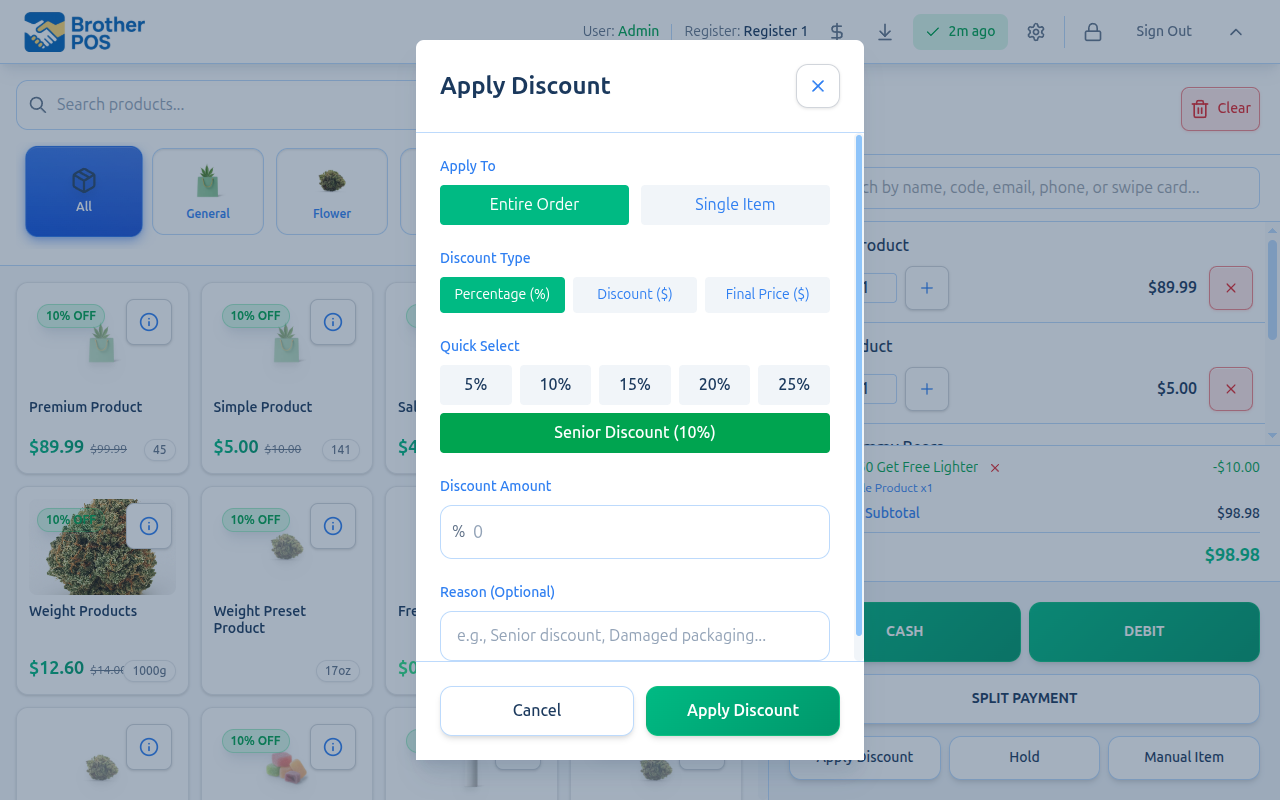
Customers can spend their loyalty points on rewards during checkout. Rewards are configured by your admin and can include:
| Reward Type | Description | Example |
|---|---|---|
| Discount | Dollar amount or percentage off the sale | "$5 off" or "10% off" |
| Free Product | One unit of a specific product comes off the bill. Ring the item up as normal first — the reward zeroes it. | "Free pre-roll" |
| Store Credit | Spends the points and adds the reward's dollar amount to the customer's store credit balance automatically when the sale completes. | "$10 store credit" |
Viewing Available Rewards at Checkout
- Attach the customer to the sale (if not already attached).
- Tap the i (info) button beside the customer's name to open Customer Details, which displays available rewards.
- You will see a list of available rewards — these are rewards the customer can redeem right now. Rewards they cannot afford are not shown.
- Tap a reward marked Tap to redeem. It goes onto the current sale, the window closes, and you see "[reward] applied to this sale". You can also tap the Discount button and pick the reward from the Loyalty Rewards section at the top. See Loyalty Rewards at Checkout.
If Redeem Loyalty Rewards & Points is switched off for your role (and you can't apply discounts), tapping a reward opens the Discount window instead, where it needs a manager's approval like any other discount.
A "Free pre-roll" reward takes one pre-roll off the total, so the pre-roll has to be in the cart. Scan it in first, then apply the reward. If you apply it with the item missing, nothing comes off — but the customer keeps their points, so nothing is lost. The reward shows "Add it to the cart to redeem" while the item is missing.
Reward Restrictions
Some rewards may have restrictions that prevent redemption:
- Minimum tier level — The reward may only be available to customers at a certain tier or above.
- Redemption limit — The reward may have a maximum number of times it can be redeemed per customer (e.g., "Once per customer").
- Date restrictions — The reward may only be valid during a specific date range.
- Insufficient points — The customer does not have enough points for the reward.
If a reward is restricted, it simply will not appear in the available rewards list.
Cashing Out Points for a Dollar Discount
A customer does not have to wait for a fixed reward. You can put any number of their points toward the current bill, at your store's cash value per point.
- Attach the customer to the sale.
- Tap the Discount button.
- Find the Cash Out Points panel. It only appears when the customer has at least one point. It shows what they have and what it is worth, e.g. "430 pts available · worth $8.60".
- Choose Dollars ($) or Points and type the amount — whichever way the customer asked for it. ("Take $5 off" or "use 250 points".)
- Tap Apply. The preview line tells you exactly what will happen: "Redeem 250 pts for $5.00 off".
The cart then shows a "250 pts redeemed" line with an X beside it to take it back off.
A few things worth knowing:
- You cannot over-redeem. The amount is capped at the customer's balance and at the order total, and it is checked again on the server when the sale completes. If you type more than they have, it caps and tells you: "(capped at 430 pts)".
- One redemption method per sale. Picking a fixed reward removes a points cash-out that is already on the sale.
- Changing the customer clears it. Swapping or removing the customer on the sale removes the cash-out, so points can never be taken from the wrong person.
- Points come off when the sale completes, not when you tap Apply. Cancel the sale and the balance is untouched. If the points are gone by then (for example, spent at another register), the sale isn't saved. See If the Points Can't Be Taken.
Points Display During Checkout
Throughout the checkout flow, the POS displays relevant loyalty information:
Before Payment
- Customer name and code in the customer box at the top of the cart
- Tier discount line in the cart totals (if the tier has a discount)
- Rewards and the Cash Out Points panel, both behind the Discount button
- Points balance in Customer Details
After Payment (Sale Complete Screen)
When a customer was attached, the sale-complete screen shows their loyalty standing straight away, so you don't have to pull the customer back up to answer "how many points do I have now?":
- Points balance — their new balance, after this sale
- +N earned on this sale
- −N redeemed, if they spent points on this sale
- Their tier name
This is skipped if no customer was attached, or if the points balance isn't available (for example, a sale saved offline that hasn't reached the server yet).
On the Printed Receipt
If the customer has a points balance, the printed receipt includes a LOYALTY POINTS block showing the balance before the sale, points earned, points redeemed, and the balance after — plus their member code.
More detail: common scenarios and troubleshooting
Common Scenarios
Customer Asks "How Many Points Do I Have?"
- Attach the customer to a sale and tap the i (info) button beside their name to open Customer Details.
- Their points balance is shown in the Loyalty Status section, with the dollar value right underneath it — so you can answer both "how many points?" and "what's that worth?" without doing the maths.
- Straight after a sale, the same numbers are on the sale-complete screen.
Customer Wants to Know How Close They Are to the Next Tier
- Open Customer Details.
- Check their Total Spent (under Purchase History) and Visits.
- Compare those with the next tier's requirement, which your admin can tell you. For example: "You've spent $1,200. Gold tier starts at $1,500 — you're $300 away!"
Customer Claims They Should Have More Points
If a customer believes their points balance is wrong:
- Open Customer Details and review their current points balance and recent orders.
- If there is a discrepancy, a manager can check the customer's loyalty history in the admin panel and correct the balance — either with Adjust Points at the register or from the admin panel.
Loyalty Is Disabled for Your Store
If your admin has turned off the loyalty program, customers don't earn points on new sales, no tier discount is applied, and the Discount window doesn't offer loyalty rewards or the Cash Out Points panel. Customers can still be attached to sales for purchase history and compliance tracking, and their total spent and visits keep counting.
Troubleshooting
| Problem | Solution |
|---|---|
| Customer did not earn points on a sale | Verify the customer was attached to the sale before payment was completed. Points are only awarded for completed sales with a customer attached. |
| Points balance shows 0 for a regular customer | The loyalty program may have been recently enabled, or the customer's points may have been redeemed. If they usually shop at another of the owner's stores, your stores may not share customers, so their points are at that store. Ask a manager to check the customer's history in the admin panel. |
| Tier discount not applying | Confirm the customer's tier has a discount percentage configured. Some tiers (like the base Bronze tier) may have 0% discount. The discount also doesn't apply to items in categories that aren't loyalty-eligible. |
| No rewards listed under the Discount button | The customer may have no available rewards (not enough points, or no rewards configured). A reward with a per-customer limit may already be used up, including at another store that shares customers with yours. Check with your admin. |
| Customer earned fewer points than expected | Check the customer's tier multiplier. The base rate is set by the admin (default: 1 point per dollar). The tier multiplier increases this rate for higher tiers. Discounts also reduce points — including points the customer cashed out on the same sale. |
| No dollar value shown beside the points balance | Your store's cash value per point is set to 0. An admin sets it in Settings > Edit Settings > General > Loyalty Program Settings. |
| Free-product reward applied but the customer was still charged | The item has to be in the cart for the reward to zero it. Scan the item in, then apply the reward. If it was rung through without the item, no points were spent either. |
What's Next?
- Store Credits — Apply store credits at checkout.
- Customer Lookup — Find customers at the POS.
- Loyalty Setup — Admin guide to configuring the loyalty program.
- Loyalty Tiers — Admin guide to configuring tier thresholds and benefits.
- Rewards — Admin guide to creating and managing rewards.