Store Credits (Admin)
Use this page to see a customer's store credit balance, add or take off credit by hand, and track where every dollar came from.
Quick steps
To add or take off credit:
- Go to Customers and open the customer's profile.
- In the Store Credit card, click Adjust Balance.
- Type the Adjustment Amount — a positive number to add (e.g.
25.00), a negative one to take off (e.g.-10.00). - Type a Reason. If the customer is paying you for the credit, pick the Payment Method (and the Cash Drawer for cash).
- Click Update Customer. The change shows in Store Credit History.
If you don't see the Store Credit card, an admin needs to tick Enable Store Credit Payments under Settings > Edit Settings, Operations tab, Payment Types.
Common questions
Where does store credit usually come from? Returns refunded as Store Credit or Exchange, and store credit loyalty rewards. Both are added automatically.
A customer says their balance is wrong. Open their profile and read the Store Credit History. Every change is listed with its date, amount, balance after and reason.
Does store credit expire? No, the balance doesn't expire and can't go below $0.
Saving says "open a till first". Credit paid for in cash goes into a cash drawer, so one must be open. Open a drawer at the register, or choose another payment method.
More detail: turning store credit on, and how the balance works
Store credit is a dollar balance on a customer's account that they can spend at the POS register. Credit most often comes from returns (when a customer is refunded as store credit or makes an exchange) or from loyalty rewards, but you can also add or remove credit by hand. This page covers everything store credit in the admin panel.
Enabling Store Credit Payments at the POS
Before customers can pay with store credit at the POS register, an admin must enable the Store Credit payment type in store settings:
- Navigate to Settings > Edit Settings > Operations tab.
- Scroll to the Payment Types section.
- Check the Enable Store Credit Payments checkbox.
- Click Update Settings.
Once enabled, a Store Credit payment option appears on the POS payment screen alongside Cash, Debit, and other payment methods.
This one setting switches store credit on or off for your whole store, in the admin panel as well as at the register. While it is off:
- The Store Credits page isn't available, and it doesn't come up in the admin search.
- Customer profiles don't show a Store Credit balance or the Adjust Balance button.
- The customer edit form has no Store Credit section, and no credit can be added or deducted.
Every customer's balance and credit history is kept. Turn the setting back on and it all reappears, exactly as it was.
See Operations Settings for details on all payment type toggles.
How a Customer's Balance Works
Each customer has one store credit balance. Everything adds to or takes from that single balance:
| What happens | Effect on the balance |
|---|---|
| A return is refunded as store credit | The refund amount is added automatically. |
| A return is processed as an Exchange | The refund amount is added automatically, to pay for the replacement items. |
| A store credit loyalty reward is redeemed | The reward's amount is added automatically when the sale completes. |
| You add credit by hand | Added from the customer's edit form (admin), with New Credit on the Store Credits page, or with Issue Store Credit (register). |
| The customer pays with store credit | The amount paid is taken off. |
| A sale paid with store credit is voided | The amount is given back. |
| A sale where points bought a store credit reward is voided | The points are given back, and the reward credit is taken off again (as much of it as is left). |
| You deduct credit by hand | Taken off from the customer's edit form. |
| You void a credit on the Store Credits page | Only what's left of that credit is taken off. Credit the customer got afterwards is not touched. |
The balance can't go below $0, and it doesn't expire.
More detail: viewing, adding and deducting credit
Viewing a Customer's Store Credit
- Go to Customers and open the customer's profile.
- The Store Credit card shows their Current Balance.
- Below it, Store Credit History lists their 20 most recent changes:
| Column | Description |
|---|---|
| Date | When the change happened |
| Type | Credit (added to the balance) or Debit (taken off the balance) |
| Amount | How much was added or used |
| Balance | The balance after this change |
| Notes | The reason — for example "Return" followed by the return number, "Loyalty reward: $10 Store Credit", or the reason you typed |
This history is how you resolve disputes. If a customer says their balance is wrong, every change that affected it is listed here.
Adding or Deducting Credit
From the Admin Panel
-
Open the customer's profile and click Adjust Balance (or click Edit).
-
In the Store Credit section, fill in:
Field Description Adjustment Amount A positive amount to add credit (e.g., 25.00), or a negative amount to deduct (e.g.,-10.00). Leave blank for no change.Reason Why you are changing the balance. It is saved in the Store Credit History. If you leave it blank, it is saved as "Manual adjustment". Payment Method (only when adding paid credit) If the customer is paying you for this credit, pick how: Cash, Debit / Card, E-Transfer, Square Terminal, Helcim Terminal, Stripe or Payfirma. Leave it on None / bookkeeping only for credit where no money changes hands (a goodwill credit, a correction). Cash Drawer (for cash credits) Shown when a drawer is open. Picks which drawer the cash goes into. -
Click Update Customer.
Credit paid for in cash is added to the drawer's expected cash, so a cash drawer must be open. If none is open, the save is refused with "open a till first".
You can't deduct more than the customer has. A deduction larger than the balance is refused.
From the Register
Staff with permission to manage store credit can tap Issue Store Credit in the customer's Customer Details panel at the POS. See Store Credits (POS).
When to Add Credit
- Customer satisfaction — Compensating a customer for a bad experience, defective product, or service issue.
- Promotional credits — Giving new customers a welcome bonus or running a credit-based promotion.
- Error correction — Fixing a mistake on a customer's balance.
- Gift credits — A customer paying for store credit for someone else (choose a payment method so the money is recorded).
More detail: credit from returns and loyalty rewards
Credits from Returns
When a return is processed with Store Credit as the refund method and a customer is attached, the refund amount is added to the customer's balance straight away. The history line reads "Return" followed by the return number. A return processed as an Exchange adds its refund the same way, with a history line reading "Exchange" followed by the return number. See Returns.
Credits from Loyalty Rewards
When a customer redeems a "Store Credit" type loyalty reward at the POS:
- The customer's loyalty points are deducted when the sale completes.
- At the same moment, the reward's configured amount is added to the customer's store credit balance automatically. No manager step is needed.
- The credit is ready to use on the customer's next purchase.
These credits appear in the customer's store credit history with a reason naming the reward (e.g., "Loyalty reward: $10 Store Credit").
More detail: the Store Credits page, New Credit and voiding
The Store Credits Page
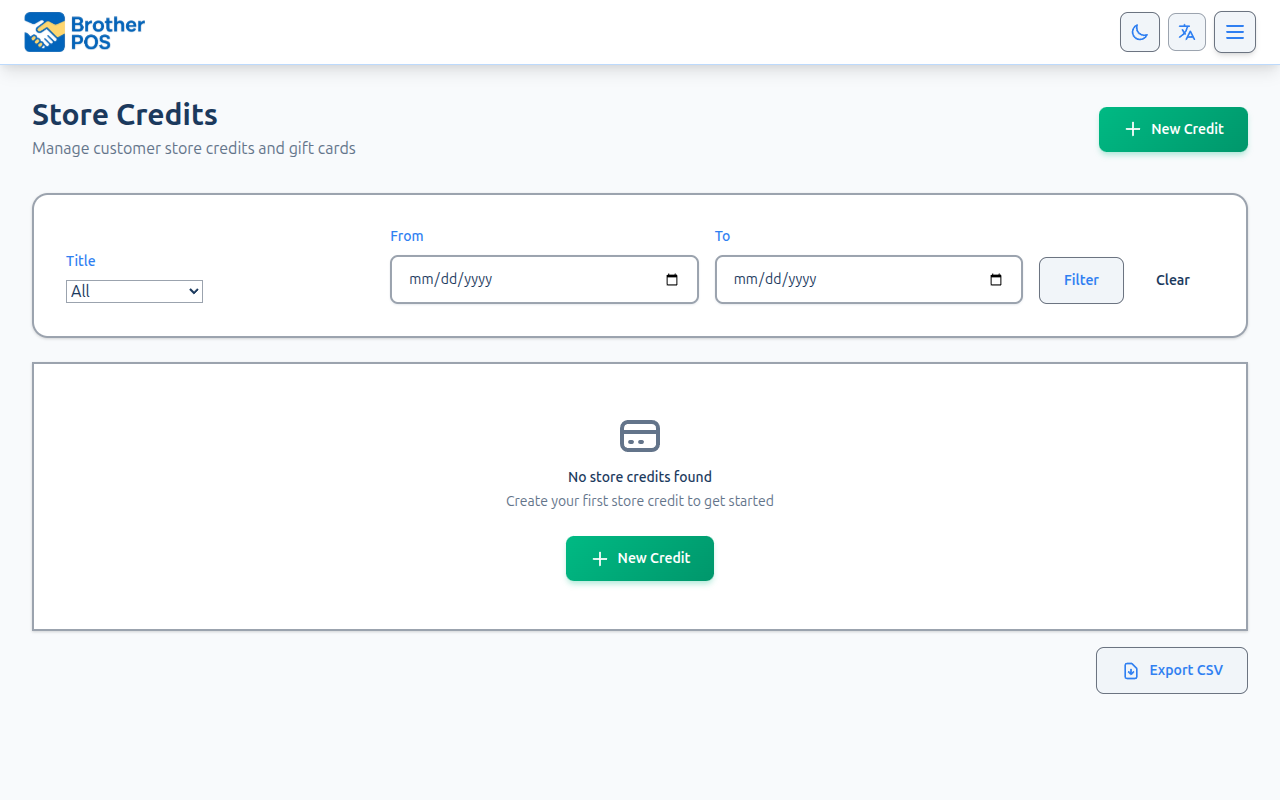
There is also a separate Store Credits page. Find it by typing "Store Credits" into the admin search. It is for managers and admins.
This page lists individual credit records, each with its own code (SC followed by 12 letters and numbers). You can filter by status (Active, Fully Redeemed, Expired or Voided) and date, export the list with Export, open a record to see its details, and void an active record with Void Credit.
Spending at the register comes off the customer's single balance, and also off their records here — the one closest to expiring first, then the oldest. Each record shows what's left of it and changes to Fully Redeemed once it's all spent. Credit that didn't come from a record (a return or a reward, for example) has no record here, so the customer's profile is still where to see their whole balance.
Issuing Credit with New Credit
A credit created with New Credit is added to the customer's store credit balance straight away, so they can spend it at the register. You pick the customer, the amount and a Reason from the list (Product Return, Customer Compensation, Gift Card Purchase, Promotional Credit or Other). It shows in their Store Credit History with the reason and the credit's code.
The New Credit form has an optional Expiration Date. The credit can still be used all day on that date — it expires at the end of the day, in your store's time zone. Once the date has passed, the record changes to Expired, but nothing is taken off the customer's balance. To remove unused credit, use Void Credit or deduct it on the customer's edit form.
Voiding a Credit
Void Credit takes the credit back off the customer's balance. If they have already spent some of it, only what's left of that credit comes off, and the balance never goes below $0. Credit the customer received after it (for example, from a later return) is not taken. For example, you void a $20 credit. The customer had spent $15 of their balance, then got $30 store credit from a return, so their balance is $35. Only the $5 left of the voided credit is taken off, and they keep the $30 from the return. The history line reads "Voided store credit" followed by the code and your reason.
More detail: common scenarios, audit and best practices
Common Scenarios
Customer Disputes Their Balance
- Open the customer's profile.
- Review the Store Credit History.
- Each Debit line from a purchase is tied to a sale, and each Credit line shows its reason.
- Compare the history with the customer's claim to find the difference.
Customer Has Several Credits from Different Returns
Nothing to do. Every return adds to the same balance, so the customer sees one total at the register and can spend any part of it.
Suspicious Credit Activity
If you notice unusual patterns (frequent returns for store credit, large manual credits, etc.), check the reasons and staff names in the customer's Store Credit History, and look at the customer's return history for patterns.
Audit and Compliance
- Every change to a customer's balance is saved with the amount, the balance before and after, who made it, and the reason or sale. The Store Credit History on their profile shows the latest 20 changes.
- Store credit changes are also recorded in the Activity Logs in the admin panel. See Activity Logs.
Best Practices
- Always type a reason. A clear reason like "Return - damaged product" or "Compensation - long wait" makes the history easy to review later.
- Pick a payment method when money changes hands. If a customer pays for credit, choose the payment method so the money shows up in your drawer and reports.
- Review balances regularly. Look out for unusually large balances or lots of manual credits.
- Correct mistakes with an opposite adjustment. If you added the wrong amount, add a negative (or positive) adjustment with a reason like "Correction" so the history explains itself.
What's Next?
- Customer Management — View and manage customer accounts.
- Loyalty Setup — Configure the loyalty points program.
- Rewards — Create rewards that generate store credits.
- Store Credits (POS) — How cashiers apply store credits at checkout.
- Returns — Admin-side return management.