Operations Settings
Use this page to set your cash drawer defaults and choose which payment methods the register offers, on the Operations tab of your settings.
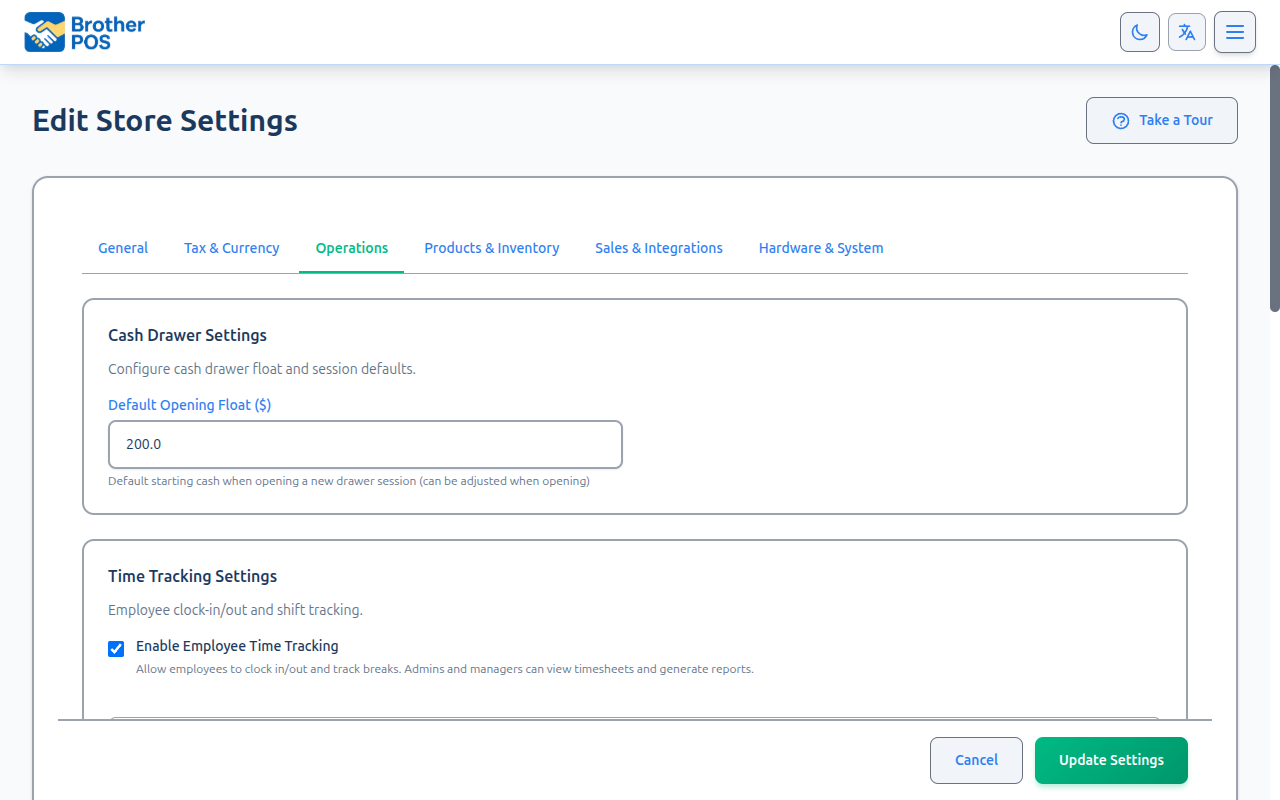
Quick steps
- Go to Settings, click Edit Settings, and open the Operations tab.
- Under Cash Drawer Settings, set the Default Opening Float ($) and the POS Idle Timeout (minutes) (0 turns the auto-lock off).
- Tick any end-of-day helpers you want, such as Stale-drawer reminder banner or Blind close.
- Under Payment Types, tick the payment methods the register should offer (cash, card, e-transfer, store credit, gift card, house account).
- Scroll to the bottom and click Update Settings.
Common questions
What does "Blind close" do? It hides the expected cash total while the clerk counts the drawer. Over/short is still recorded.
Can I charge a fee on card payments? Yes. Tick Add a surcharge to card / debit payments and set a percentage, a flat fee, or both. Check your card network's rules first — surcharging Interac debit is prohibited in Canada.
Where are the receipt header and footer? On the Hardware & System tab, under Receipt Content Settings. Auto-printing receipts is set on each register — see Registers.
Are receipt numbers sequential? No. Each is built from the date and time of the sale plus a few random digits. It's unique within your store, but doesn't count up 1, 2, 3.
More detail: what's on the Operations tab
Accessing Operations Settings
- Log in to the Admin Panel as an admin.
- Click Settings in the navigation, then click Edit Settings.
- Click the Operations tab.
The tab has several sections, including Cash Drawer Settings, Online Order Notifications, Time Tracking Settings, Consignment Tracking, POS Payouts, Cash Flow Reporting, Promo Games, and Payment Types. This page covers the cash drawer and payment types. For order alerts, see Online Order Notifications.
Store Hours and Store Logo are now on the General tab. See General Settings.
More detail: cash drawer settings
Cash Drawer Settings
| Setting | Default | What it does |
|---|---|---|
| Default Opening Float ($) | $200.00 | The starting cash filled in when someone opens a new drawer session. It can be changed at the time of opening. |
| POS Idle Timeout (minutes) | — | Locks the POS after this many minutes without activity. Enter 0 to turn the lock off. The maximum is 120. |
When a drawer is left open
The same section also helps staff deal with a drawer that was left open past the end of a business day. These options are all off by default.
| Setting | What it does |
|---|---|
| 24/7 / continuous operation | For stores that never close. The close screen offers a single "Close & hand off" action for shift changes, and the stale-drawer reminder and forced close are turned off. The cash is still reconciled at each shift close. |
| Stale-drawer reminder banner | Shows a banner on the register when a drawer has been open since an earlier business day, with a one-tap close button. |
| Blind close | Hides the expected cash total while the clerk counts the drawer. Over/short is still recorded. |
| Require closing a stale drawer before reopening | If a drawer was left open from an earlier business day, the next person must count and close it (Z-report) before starting a new shift on that register. |
| Business-day cutoff hour (fallback) | Used only when Store Hours (on the General tab) are not set. A drawer opened before this hour (store time) counts toward the previous business day. The default is 4 (4 AM). |
Once you set Store Hours on the General tab, the business day ends at your closing time and the fallback cutoff hour is ignored.
To list every item sold under its category on the Z report, tick Show each item sold on the end-of-shift report. It's on the Hardware & System tab, under Printing Features. With it off, the Z report shows category totals only.
More detail: payment types and card surcharge
Payment Types
Choose which payment methods appear on the POS register.
- Scroll to the Payment Types section.
- Check or uncheck each payment method:
| Setting | Default |
|---|---|
| Enable Cash Payments | On |
| Enable Card Payments | On |
| Enable E-Transfer Payments | Off |
| Enable Store Credit Payments | Off |
| Enable Gift Card Payments | Off |
| Enable House Account / Charge Account Payments | Off |
- Click Update Settings.
Unchecked payment types are hidden from the POS register. If only one payment type is left on, the split payment option is hidden too.
Store Credit Payments
When Enable Store Credit Payments is checked, cashiers can put a customer's store credit balance toward a purchase. Credits are issued and managed from the Store Credits admin page. See Store Credits (Admin).
For the cashier's side, see Completing Payment and Store Credits (POS).
Card Surcharge
Under Payment Types you can also check Add a surcharge to card / debit payments. Then set:
| Field | What it does |
|---|---|
| Percentage (%) | A percentage of the payment, e.g. 2. |
| Flat fee ($) | A fixed amount, e.g. 0.25. The percentage and the flat fee are added together. |
| Receipt label | The name the surcharge has on the receipt, e.g. "Card Surcharge". |
The surcharge is added only to card and debit payments. Cash, store credit, gift card and house account payments are never surcharged.
Card networks may restrict surcharging, and surcharging Interac debit is prohibited in Canada. Confirm it's allowed for your business before turning it on.
More detail: receipts, auto-print and saving
Receipts and Auto-Print
Receipt text is not on the Operations tab:
- Receipt Header, Receipt Footer and Hide Cashier Name on Receipts are under Hardware & System → Receipt Content Settings. That section appears when receipt printing is turned on.
- Auto Print Receipts is set per register, not store-wide. Edit the register to change it. See Registers.
Saving Changes
All the tabs on the Edit Settings page are one form. When you're done, click Update Settings at the bottom of the page.
More detail: more questions
Common Questions
Can I print a test receipt? Yes. Edit a register and use its Test Print button. See Registers.
Are receipt numbers sequential? No. Each receipt number is built from the date and time of the sale plus a few random digits. It's unique within your store, but it doesn't count up 1, 2, 3.
Is a cash count always needed to close a drawer? Closing a drawer means counting the cash. The count is compared with what the system expected, and the difference is recorded as over or short. With Blind close on, the expected total stays hidden while counting.
What's Next?
- General Settings — Store name, address, timezone, store hours, and customer tracking.
- Tax Configuration — Configure your tax rates.
- Online Order Notifications — Chimes and auto-printed tickets for online orders.
- Registers — Per-register printers and auto-print.