Completing Payment
Use this page to take payment once the cart is ready — cash, card, e-transfer, store credit or gift card.
Quick steps
To take cash:
- Tap CASH under the cart.
- Tap the bills the customer hands you ($10, $20, $50, $100 — each tap adds up), type the amount on the numpad, or tap Exact.
- Check Change Due, then tap Complete Sale.
- Give the change shown on the Payment Successful! screen, then tap Start New Sale.
To take a card:
- Tap CARD (or your terminal's button, such as SQUARE, HELCIM or KORT).
- Have the customer pay on the terminal.
- If your card terminal isn't linked to Brother POS, check it says approved, then tap Complete Sale. A linked terminal completes the sale by itself when the card is approved.
Other ways to pay: tap E-TRANSFER, STORE CREDIT, GIFT CARD or HOUSE ACCT and follow the window. To pay with two methods, tap Split Payment.
You only see the payment buttons your store has turned on. If one is missing, ask your admin.
Common questions
The customer wants to pay part cash, part card. Tap Split Payment instead of a single payment button. See Split Payments.
The card was declined. Tap Try Again and let the customer try again, or cancel and pick another way to pay.
The internet is down. Can I still sell? Yes, for cash, record-only card, e-transfer, store credit, gift card and house account. The screen says Sale Queued and the sale syncs when the connection returns. A linked card terminal needs the internet.
It says "Insufficient payment amount". The cash you entered is less than the total. Enter at least the Total Due.
More detail: the payment buttons
Payment Buttons
Payment buttons appear at the bottom of the cart pane whenever items are in the cart. Only enabled payment methods are shown — your admin chooses which methods are available in store settings.
| Button | Payment Method |
|---|---|
| CASH | Cash with change calculation |
| CARD | Card payment taken on your terminal (hidden when a connected terminal button such as SQUARE, HELCIM or KORT is shown instead) |
| E-TRANSFER | Interac e-Transfer |
| STORE CREDIT | Use the attached customer's store credit balance |
| GIFT CARD | Redeem a gift card balance |
| HOUSE ACCT | Charge the attached customer's house account |
Other buttons can appear depending on your setup, such as GREEN eCHECK or TAP (Tap to Pay on iPhone in the iOS app).
Below the payment buttons is a row of action buttons, including Apply Discount, Hold and Manual Item.
The Split Payment button appears in that action row when more than one payment method is enabled. See Split Payments for details.
More detail: cash payments
Cash Payment
The cash payment flow includes a numpad for entering the amount tendered and automatic change calculation.
Cash Payment Steps
- Tap the CASH button.
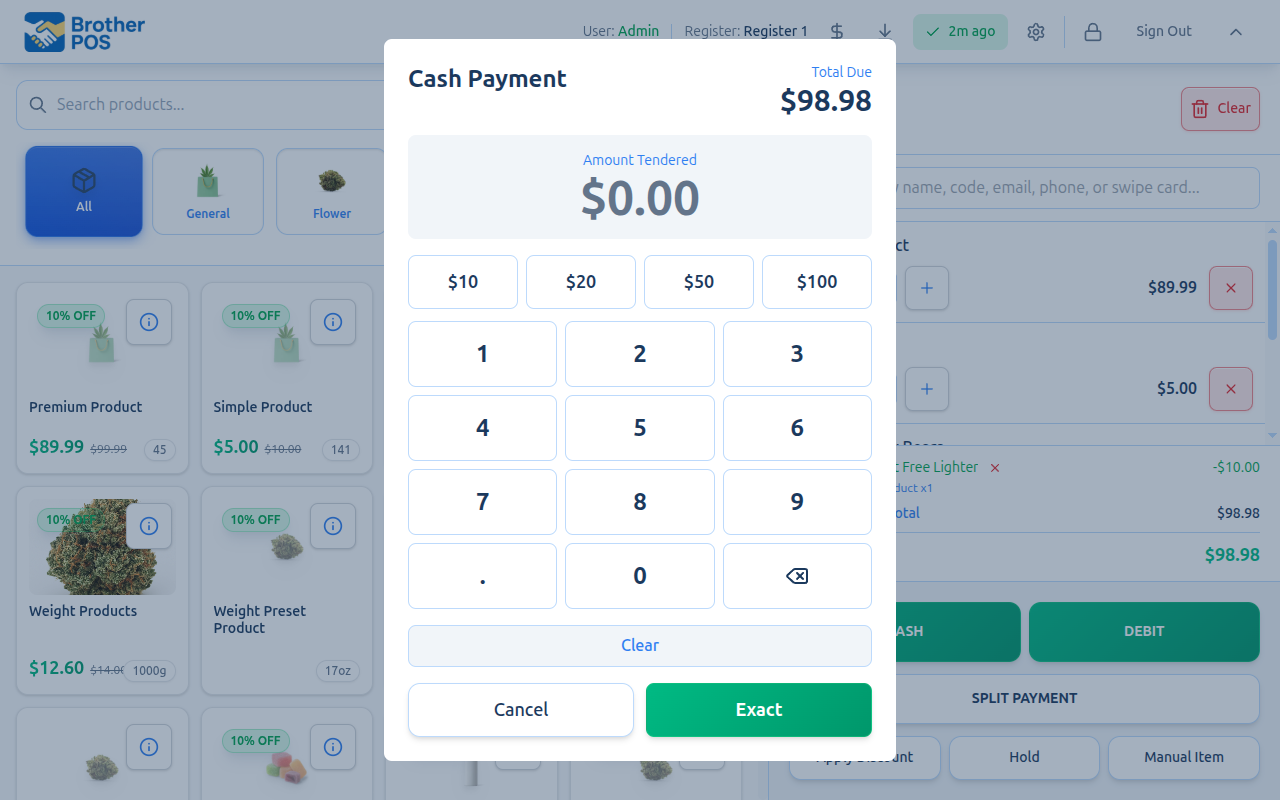
- The Cash Payment window opens showing:
- Total Due (when cash rounding is on, the rounded total, with the rounding shown underneath)
- The Amount Tendered (starts at $0.00)
- An Exact button and quick amount buttons: $10, $20, $50, $100
- A numpad for entering other amounts
- Change Due (or Remaining Due if the amount is short), which updates as you type
-
Enter the amount the customer is paying:
- Tap the quick amount buttons for the bills the customer hands you. Each tap adds to the amount, so $100 then $20 makes $120.
- Use the numpad to type an amount (e.g., 45.00).
- Tap Exact, or leave it blank, if the customer is paying the exact total.
-
The change is worked out automatically:
Change = Amount Tendered - Total Due
-
Tap Complete Sale.
Cash Window Controls
| Control | Function |
|---|---|
| 0-9 keys | Enter digits |
| . (decimal) | Add a decimal point (only one, and up to 2 digits after it) |
| Backspace (arrow icon) | Delete the last digit |
| Clear | Reset the tendered amount to $0.00 |
| Exact | Fill in the exact total due |
| $10, $20, $50, $100 | Add that bill to the amount tendered |
Change Display
When the tendered amount is more than the total, the change appears in green, for example:
Change Due: $5.94
It is also shown in a highlighted box on the success screen after the sale completes, so you can confirm the change to give the customer.
If the amount entered is less than the total due, tapping Complete Sale shows "Insufficient payment amount". Enter an amount equal to or greater than the total.
Exact Change
If the customer pays the exact total, tap Exact (or enter nothing) and then Complete Sale. The sale is recorded with the tendered amount equal to the total and $0.00 change.
More detail: card payments and terminals
Card Payment
Without a Connected Terminal
- Tap the CARD button.
- The Card Payment window opens showing the total due.
- Take the card payment on your own terminal.
- Tap Complete Sale to record the payment in Brother POS.
This is a "record-only" flow — Brother POS does not talk to the card terminal. Check that the payment was approved on the terminal before tapping Complete Sale.
With a PayFacto Terminal
If your store's CARD button is connected to a PayFacto terminal:
- Tap the CARD button. The amount is sent to the terminal straight away (if you need to send it again, tap Send to Terminal).
- The window shows "Present card on terminal..." while the customer taps, inserts or swipes their card.
- The result comes back:
- Approved: the sale completes and the success screen appears.
- Declined: a reason appears (e.g., "Insufficient funds", "Card expired"). Tap Try Again, then Send to Terminal to go again.
- Cancelled: the customer cancelled on the terminal. Tap Try Again, or cancel and choose another payment method.
Square, Helcim and Kort terminals have their own buttons (SQUARE, HELCIM, KORT) with their own screens.
Terminal Status Messages
| Status | Meaning |
|---|---|
| Processing payment... | Connecting to the terminal |
| Waiting for Card | The terminal is waiting for the customer |
| Transaction Approved | Payment successful |
| Transaction Declined | Payment was declined (with a reason) |
| Cancelled | The customer cancelled on the terminal |
| Terminal Busy | The terminal has another transaction pending — Brother POS retries after a 30-second countdown, or tap Retry Now |
| Recovery Needed | The connection dropped and the terminal may have taken the payment — tap Recover Payment to check |
| Manual Resolution Required | Check the terminal's receipt, then tap Receipt Shows Approved or Declined / No Receipt (or Start Over) |
If a terminal payment is declined, you can try again without leaving the payment screen. The customer can try a different card or payment method.
Skip Terminal
After a terminal payment is declined, cancelled or fails, a Skip Terminal button appears. Tapping it records the sale as a card payment without the terminal. Only use it when the payment really was taken another way (for example, on a separate terminal).
More detail: e-transfer
E-Transfer Payment
E-transfer is a simple recording flow for Interac e-Transfer payments.
E-Transfer Payment Steps
- Tap the E-TRANSFER button.
- The E-Transfer Payment window opens showing the total due.
- Optionally enter an E-Transfer Reference (transaction ID or confirmation code).
- Check that the e-transfer has arrived in your bank.
- Tap Complete Sale.
The reference field is optional but recommended. It helps with reconciliation, especially if you receive several e-transfers in a day.
More detail: store credit
Store Credit Payment
Store credit lets customers pay with the balance on their account. Credit can come from returns and exchanges, or be added by a manager.
The STORE CREDIT button only appears when store credit payments are turned on. An admin turns this on in store settings, Operations tab, under Payment Types → Enable Store Credit Payments.
Store Credit Payment Steps
- Attach the customer to the sale. Store credit cannot be used without a customer.
- Tap the STORE CREDIT button.
- The Store Credit window shows the customer's Available Balance and the Credit Applied.
- If the balance covers the whole total, tap Complete Sale. Any leftover balance stays on the customer's account.
- If the balance does not cover the total, the window shows the Remaining to Pay. Tap Apply Credit (the button shows the amount) to take the balance off the sale, then pay the rest with another payment method. If the rest is paid in cash, the cash window asks only for what's left, and the change is worked out on that.
If the customer has no balance, the window says so and there is nothing to apply.
For more on store credit, see Store Credits.
More detail: gift cards
Gift Card Payment
Gift cards let customers pay with a stored-value card bought earlier. The GIFT CARD button appears when Enable Gift Card Payments is turned on in store settings (Operations tab, Payment Types).
Gift Card Payment Steps
- Tap the GIFT CARD button.
- Enter or scan the Gift Card Code and tap Look Up.
- The card's available balance is shown. Expired, inactive or empty cards are refused with a message.
- If the balance covers the full sale, tap Complete Sale.
- If the balance is less than the total, Complete Sale is not available. Cancel and use Split Payment to combine the gift card with another payment method.
For full details, see Gift Cards.
More detail: manager approval for purchase limits
When a Manager Must Approve the Sale
For cannabis stores that enforce a daily purchase limit, a sale that takes the customer over the limit stops at payment and opens Purchase Limit Exceeded. It shows what the customer bought earlier today (Previously Today), This Sale, the Daily Limit and how much the sale is Over by. If any item has no equivalent grams set, the window lists it as counted at an estimate.
- A manager enters their PIN in Manager PIN.
- Optionally, type an Override Reason (Optional), such as a medical exemption.
- Tap Authorize Sale. The sale completes and the usual success screen appears.
Tap Cancel to go back to the cart and remove items instead. See Manager Override for more.
More detail: what happens after payment, and tips
What Happens After Payment
Completing a sale does the following:
1. Sale Recorded
The sale is saved with its line items, quantities, prices, discounts, tax, payment method, amount tendered, change given, and the clerk who processed it.
2. Inventory Updated
Stock levels go down for each item sold. Weight-based products go down by the weight sold.
3. Loyalty Points Awarded
If a customer with loyalty is attached, points are added for the items that earn points. The success screen shows their points balance and the points earned.
4. Receipt Printed
If the register is set up to print receipts, a receipt prints automatically. See Receipts for details.
5. Cash Drawer Opens
For cash payments, including a split payment with a cash part, the drawer opens when the register's printer is enabled and the register is set to print receipts or to open the drawer.
6. Success Screen
The Payment Successful! screen shows:
- A checkmark
- The attached customer, if any, with their points
- For cash (and split payments with cash), the Change Due in a highlighted box
- The sale total, and for cash the Amount Tendered
- For split payments, the amount taken by each method
- A View receipt button, when your store doesn't print receipts (so you can show or email one)
- A Start New Sale button
Tap Start New Sale to clear the screen and begin the next transaction.
Recording a Tip
When tips are turned on for your store (store settings, Sales & Integrations tab, Enable Tips), the success screen also shows Record Tip. Anyone who can use the register, clerks included, can record the tip the customer gives:
- Tap 10%, 15% or 20% (each shows the dollar amount), or
- Tap Custom, type the amount and tap Save.
The screen then shows Tip recorded with the amount. On a split payment, the tip is recorded on the part that wasn't cash (usually the card). If a PayFacto terminal already collected a tip, it shows as Tip (from terminal) instead.
More detail: offline payments and errors
Offline Payments
If the register is offline when a sale is completed:
- The sale is saved on the register, waiting to sync.
- The completion screen says Sale Queued — "Offline — saved locally and will sync when the connection returns."
- The sync indicator in the header shows how many items are waiting.
- When the connection returns, waiting sales sync to the server automatically.
Cash, Card (record-only), E-Transfer, store credit, gift card, house account and split payments can all be completed this way. Payments sent to a connected card terminal need the internet.
While offline, stock levels and customer balances come from what the register last saved and may not reflect sales on other registers. See Offline Mode.
Payment Error Handling
| Scenario | What Happens |
|---|---|
| Network error while saving the sale | The sale is saved on the register and syncs later |
| The server refuses the sale (for example, a validation problem) | An error is shown and the cart stays open so you can fix it — the sale is not saved for later |
| Terminal communication failure | An error message is shown, with options to retry, recover or cancel |
| Duplicate sale prevention | The POS makes sure the same sale is not recorded twice, even if it is sent again |
What's Next?
- Gift Cards — activating and redeeming gift cards
- Split Payments — dividing payment across multiple methods
- Receipts — printing and reprinting receipts
- Sales History — viewing and managing completed sales
- Voiding Sales — cancelling a completed sale