Sale Campaigns and Freebies
Use this page to understand the deals your store runs — sales, free items and BOGO — and how they show up (or get applied) at the register.
Quick steps
Most deals apply by themselves. You only need to act on a manual sale campaign:
- Add the items to the cart as usual.
- Tap Discount.
- Under Active Promotions, tap the campaign (for example "Summer Sale").
- Tap Apply Discount. If your role can't give discounts, someone who can enters their PIN.
Everything else is automatic:
- Sale prices show on the product with the regular price crossed out.
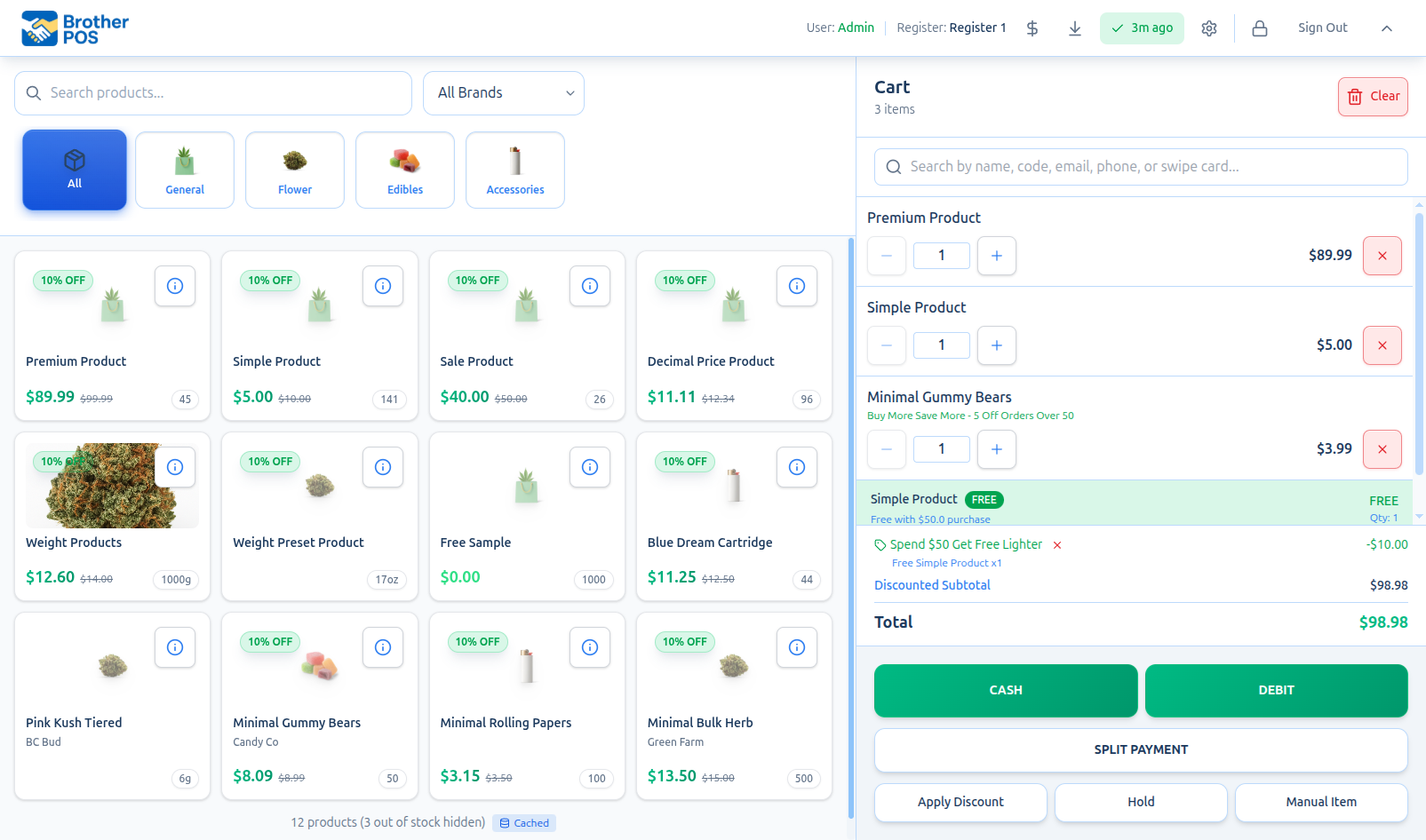
- Free items (spend $X, get Y free) are added on their own line marked FREE once the cart reaches the amount. A bar under the cart says Spend $X more to get: until then.
- BOGO free items are added automatically when enough qualifying items are in the cart.
Common questions
The customer doesn't want the deal, or a different discount is better. Tap the small X next to the promotion's name in the cart totals. For a free item, tap the X on its row. It stays off for the rest of the sale.
Can I use a campaign and my own order discount together? No. Both are order discounts, so applying one replaces the other. A free item can still sit alongside either.
The customer qualifies for two deals. Do they get both? Usually the register applies one automatic promotion per sale — the one that saves the customer the most. The exception is a free item your admin set to be given even when another promotion applies.
Why didn't a product get the deal? Your admin may have taken it off the campaign or held it out of all promotions. A free item also only appears while it's in stock.
More detail: sale campaigns (automatic and manual)
Sale Campaigns
Sale campaigns are time-bound discounts created by admins. They run between a start date and an end date. Your admin sets each one to Automatic or Manual, and that decides what you see at the register.
Automatic Sale Campaigns
You don't need to do anything. Products on the deal already show the sale price on the product card, with the regular price crossed out. When you ring one up, the cart line shows the campaign name and the discount, for example "Summer Sale (20% off)".
Manual Sale Campaigns
Manual campaigns wait for you to apply them from the Discount button.
- Add items to the cart as usual.
- Tap the Discount button.
- Manual campaigns that are running now are listed at the top under Active Promotions. Each one shows:
- Campaign name (e.g., "Summer Sale")
- A short description of the deal
- An icon for a percentage or dollar discount
- Tap a campaign to select it.
- The discount is set to Entire Order, the discount type and value are filled in, and the reason box is filled in as "Campaign: " followed by the campaign name.
- Tap Apply Discount to apply it to the order.
To skip the campaigns and enter your own discount, tap Manual discount beside the Active Promotions heading. Tap ← Back to promotions to see the campaigns again.
If your role isn't allowed to give discounts, the Apply Discount button first asks for the PIN of someone who can approve the discount. That applies to campaigns picked from this menu too.
Campaign Rules
- Only campaigns inside their date range (and any day or hour limits) appear at the POS.
- Only campaigns that give a discount are listed under Active Promotions. A manual freebie campaign isn't listed there.
- A manual campaign is applied as an order discount, so it replaces any existing order discount. You can't stack two order discounts.
- The reason (for example "Campaign: Summer Sale") is saved with the sale.
- Campaigns are created and managed by admins from the Products page in the admin panel: open the actions dropdown and choose Sales Campaigns.
- A product your admin has taken off a campaign, or held out of all promotions, does not get that deal. This is true when the register is offline too, including BOGO and freebie promotions.
Seeing the Deal Before You Add the Item
You don't have to add an item to the cart to find out whether it's on a deal:
- Size lists (variations): each size on a campaign shows the regular price struck through, the deal price in green, and a % OFF badge. As you pick sizes, the list shows a running subtotal and how much the customer is saving.
- Weight tiles (for example 3.5g, 7g): a tile on a deal shows the struck-through regular price, the deal price and a % OFF badge.
The price you see there is the price the cart charges, so you can quote it to the customer with confidence.
More detail: freebie campaigns
Freebie Campaigns
Freebie campaigns automatically give customers a free product when their cart subtotal reaches a set amount. This is a "spend X, get Y free" promotion.
How Freebies Work
- An admin creates a freebie campaign specifying:
- Spend threshold: the minimum subtotal to qualify (e.g., $50.00)
- Freebie product: the product given for free (e.g., "Rolling Papers")
- Freebie quantity: how many of the free product to give (e.g., 1)
- When the campaign is active and the cart subtotal meets or passes the threshold, the freebie product is automatically added to the cart for free.
- If items are removed and the subtotal drops below the threshold, the freebie is automatically removed.
A freebie only appears while the free product is in stock.
Freebie Progress Bar
When a freebie campaign is active but the cart hasn't reached the threshold yet, a progress bar appears at the bottom of the cart items:
- The bar shows how close the customer is to qualifying.
- The message reads: "Spend $12.50 more to get:" followed by "1x Rolling Papers FREE".
- The bar fills as items are added.
- Once the threshold is met, the free item appears in the cart. If there's another freebie with a higher threshold, the bar moves on to that one.
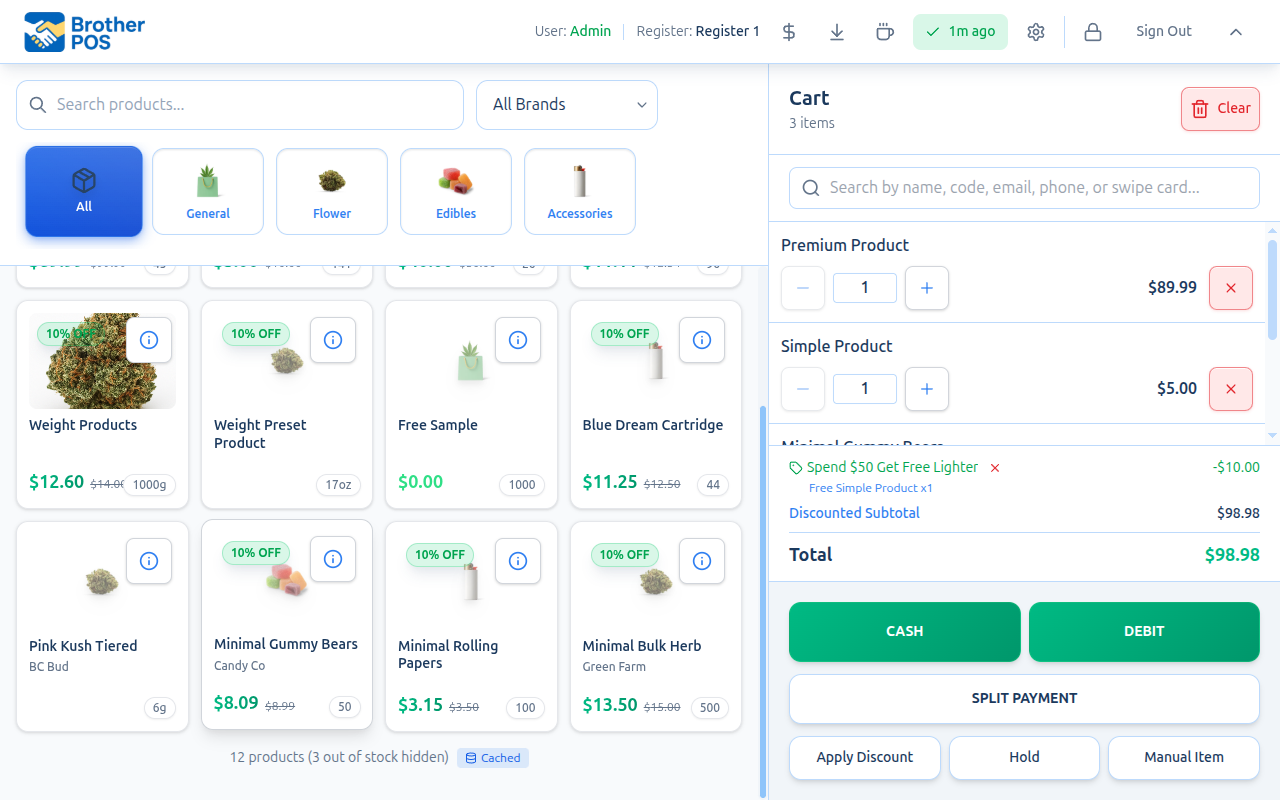
The freebie progress bar is a great upselling tool. Let the customer know they are close to earning a free item. It often encourages them to add one more product to their order.
How Freebies Display in the Cart
Free items appear on their own highlighted line below the regular cart items, showing:
- The product name
- A note saying why it's free, such as "Free with $50.00 purchase", or "Free with every purchase" for a deal that gives the item with any sale (or the name of the promotion that gave it)
- FREE in place of a price
- The quantity
- An X to remove the deal (see Declining a Promotion)
You can't change the quantity of a free item. The free item goes away on its own if the subtotal drops below the threshold.
More Than One Freebie Campaign
Several freebie campaigns can run at the same time with different thresholds. For example:
| Campaign | Threshold | Freebie |
|---|---|---|
| Free Rolling Papers | $50.00 | 1x Rolling Papers |
| Free Lighter | $100.00 | 1x BIC Lighter |
The progress bar always shows the next freebie the cart hasn't reached (the lowest threshold still above the subtotal).
The register applies one automatic promotion per sale, such as a freebie, a BOGO or a mix & match deal. If more than one matches, it uses the one that saves the customer the most. In the example above, a $120 cart gets one freebie, not both.
The exception is a freebie your admin has set to Also give it when another promotion applies. That free item is added on top of the sale's other deal (for example a free pre-roll with every purchase, even during BOGO hours), and the other deal's discount stays in place.
Freebie on Receipts
Free items are marked FREE on the receipt, usually with the campaign's name, for example FREE - Free Rolling Papers.
More detail: BOGO campaigns
BOGO Campaigns
BOGO (Buy One, Get One) campaigns reward customers for buying more of the products your admin selected.
How BOGO Appears at the POS
- Buy one, get one free: once the customer has enough qualifying items in the cart, the free item is added automatically on its own line marked FREE.
- Buy one, get one discounted (for example 50% off): ring up both items. The discount comes off the cheaper one (unless your admin set the deal to discount the more expensive one) and shows in the cart totals.
- If the qualifying items are removed or their quantity drops too low, the reward is automatically removed.
Your admin can also require the items to be the same product (buy 1 pre-roll, get the same pre-roll free) or let any mix of the selected products count.
BOGO on Flower Sold by Weight
Flower sold by weight counts in the packages it was rung up in, not in grams:
- Ringing up 7g at the 3.5g preset counts as two eighths. On "buy one, get one free", the free item is an eighth: a 3.5g line at $0.00.
- A custom weight typed in, with no preset, has no package to count, so it isn't part of the BOGO.
This works the same way when the register is offline. The free flower still counts toward the customer's daily purchase limit.
BOGO campaigns are set up as a campaign type in Sales Campaigns, reached from the Products page actions dropdown. See Sale Campaigns for setup instructions.
More detail: product sale labels and promotions in the cart totals
Product Sale Labels in the Cart
Separate from campaigns, an individual product can carry its own sale discount (set by an admin on the product). When such a product is in the cart, the line item shows a small green sale label beneath the product name so staff and customers can confirm the deal applied.
The label appears for both percentage off and dollar amount off sales:
- If the admin set a sale reason, that text is shown (e.g., "Weekend special").
- Otherwise it shows a label such as "Sale: 20% off each" or "Sale: $5.00 off each".
"Buy N for price X" (quantity-gated) deals
Some product sales only apply once the cart quantity reaches a minimum (e.g., $25 each when buying 2 or more). For these:
- Below the threshold: a grey hint appears, such as "Buy 2+ to save $5.00 off/ea", so you can prompt the customer to add one more and unlock the deal.
- At or above the threshold: the line price drops and the green sale label appears, confirming the deal is active.
The "Buy N+ to save" hint is a built-in upsell cue. If a customer has one of a qualifying item, mention they can grab a second to hit the discounted price.
Promotions in Cart Totals
When the register applies an automatic promotion such as a BOGO, freebie or mix & match deal, the cart totals show:
- The promotion's name, with a tag icon
- The amount saved, when the promotion takes money off
- A short line describing the deal, such as "Buy 1 Get 1 Free"
This line appears alongside any other discounts (order discount, tier discount, loyalty discount) so the customer can see exactly where their savings come from.
Declining a Promotion
You can take a promotion off the sale:
- For a deal that takes money off, tap the small X next to the promotion's name in the cart totals.
- For a deal that only gives a free item, tap the X on the free item's row in the cart. (That kind of deal doesn't get its own line under the totals.)
This is useful if a different discount would benefit the customer more, or if the promotion was applied in error.
Every deal you take off stays off for the rest of the sale. If you remove a free pre-roll and then a BOGO, the pre-roll does not come back. Clearing the cart starts the next sale fresh.
More detail: campaigns vs. your own discounts, and setting up campaigns
Campaign vs. Manual Discounts
| Feature | Manual Sale Campaign | Your Own Discount |
|---|---|---|
| Created by | Admin in the admin panel | Cashier or manager at the register |
| Date-bound | Yes (start and end date) | No (one-time use) |
| Listed in the Discount window | Yes, under Active Promotions | No |
| Manager PIN needed | Yes, for staff without discount permission | Yes, for staff without discount permission |
| Works with freebies | Yes | Yes |
A manual campaign and your own order discount can't be stacked on the same order. Applying one replaces the other. Both can still sit alongside a freebie, since a freebie adds a free item rather than discounting the order.
Setting Up Campaigns
All promotional campaigns (sale, freebie and BOGO) are created from the same admin page:
- Open the Products page in the admin panel.
- Click the actions dropdown.
- Choose Sales Campaigns to open the campaign management page.
- Click Create Campaign and choose the Campaign Type in the form.
For setup instructions, see:
What's Next?
- Loyalty Rewards at Checkout — using loyalty points and tier discounts
- Applying Discounts — manual discount options
- Completing Payment — finishing the sale