Freebie Campaigns
Use this page to give customers a free item automatically when their cart reaches a set amount — for example, spend $50 and get free rolling papers.
Quick steps
- Go to Products, click More Actions, then Sales Campaigns.
- Click Create Campaign and choose Freebie Threshold as the Campaign Type.
- Give it a Name, then set the Minimum Spend Amount, the Free Product and the Quantity of Free Item.
- Set the Start Date & Time and End Date & Time, and leave Application Method on Automatic.
- Click Create. When a cart reaches the amount at the register, the free item is added on its own line marked FREE — the cashier doesn't do anything.
A freebie works best when cashiers mention it: "Spend $12.50 more and you get a free lighter." The cart shows how much more the customer needs.
Common questions
The freebie isn't showing up in the cart. Check the campaign is active and within its dates, the cart is over the amount, and the free product is active and in stock. A bigger automatic deal (like a BOGO) may be winning instead — tick Also give it when another promotion applies if both should go on.
The customer doesn't want the free item. Tap the X next to the campaign name in the cart totals. It stays off for that sale.
Does the free item come out of stock? Yes, just like a sale. If the product runs out, the freebie simply stops being added.
Can I give a free item with every sale? Yes. Set Minimum Spend Amount to $0.
Is the amount checked before or after tax? Before tax, and before any whole-order discount.
More detail: how freebies work and where to find them
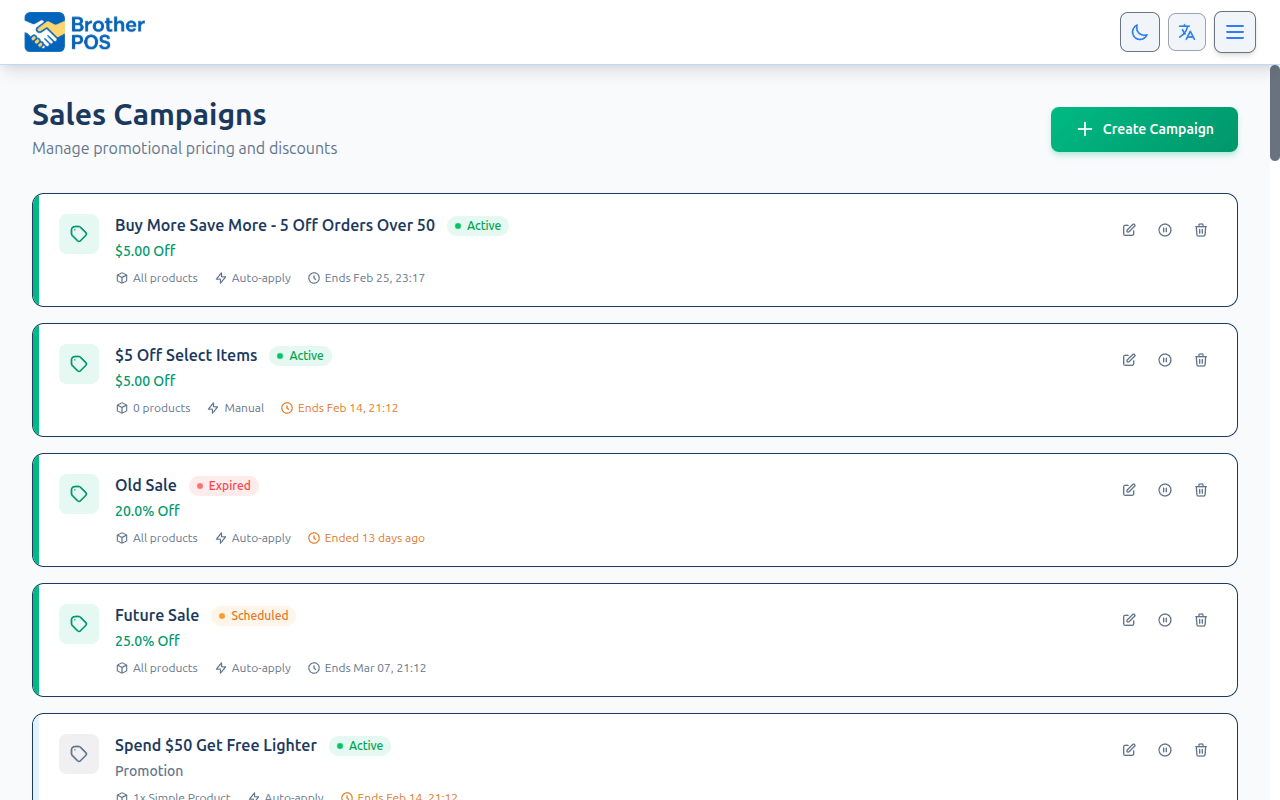
How Freebie Campaigns Work
- An admin or manager creates a freebie campaign with a spend threshold and a free product.
- At the POS register, when the cart reaches the threshold, the free product is added to the cart automatically.
- The free item appears on its own highlighted line showing FREE and its quantity.
- If items are removed and the cart drops below the threshold, the free item disappears again.
- The campaign only runs between its start and end date (and on any days or hours you limit it to).
Accessing Freebie Campaigns
Freebie campaigns are created on the same Sales Campaigns page as other promotions, by choosing Freebie Threshold as the campaign type.
- Log in to the Admin Panel.
- Go to the Products page.
- Click More Actions on the Products page and select Sales Campaigns.
Freebie campaigns aren't available on the Basic and Free plans — those plans can only create Discount campaigns.
Freebie campaigns appear as cards on the same list as all other campaign types, labelled with what it takes and what the customer gets, for example Spend $50 → Free Gift.
More detail: every field when creating a freebie
Creating a Freebie Campaign
Step-by-Step
- Click Create Campaign at the top of the campaigns list.
- Choose Freebie Threshold as the campaign type.
- Fill in the campaign details below.
Basic Information
| Field | Required | Description |
|---|---|---|
| Name | Yes | Descriptive name (e.g., "Spend $50 Get Free Papers"). |
| Description | No | Optional notes about the promotion. |
Freebie Settings
| Field | Required | Description |
|---|---|---|
| Minimum Spend Amount | Yes | The cart amount the customer must reach to get the free item. |
| Free Product | Yes | The product to give away. |
| Quantity of Free Item | Yes | How many of the product to give (defaults to 1). |
| Also give it when another promotion applies | No | Normally a sale gets one automatic deal. Tick this to add the free item on top of a BOGO or other deal too. See Freebies do not stack. |
Set Minimum Spend Amount to $0 to give the item with every purchase — for example a free pre-roll with every sale. The cart note then reads "Free with every purchase".
The threshold is checked before tax. It uses the prices of the items in the cart after any sale prices and item-level discounts, but before a whole-order discount. Savings from Mix & Match tier pricing are taken off first, so a tier-discounted cart only counts what the customer actually pays for the items.
Choosing the Free Product
Any active product can be the free item. The Free Product list puts Giveaway items first — products that have Don't sync to WooCommerce ticked on their product page — followed by All other products.
Ticking that box only keeps the product off your WooCommerce site. The product still sells and rings up normally at the register.
The free product must be active and have enough stock for the quantity you give away. If it runs short, the freebie simply isn't added. Keep an eye on stock for your freebie product throughout the campaign.
Schedule and Options
- Set the Start Date & Time and End Date & Time.
- Leave Application Method on Automatic so the free item is added without the cashier doing anything.
- Optionally set Maximum Uses to stop the freebie after it has been given away a certain number of times. Each completed sale that includes the free item counts as one use — a sale that is refused or never finished doesn't use one up.
- Click Create.
Common Workflows
Creating a simple spend-and-get campaign
- Click Create Campaign.
- Choose Freebie Threshold as the campaign type.
- Name: "Spend $50 Get Free Rolling Papers."
- Minimum Spend Amount: $50.00.
- Free Product: select the product from the list.
- Set the start and end date and time for the promotion.
- Click Create.
- Tell staff about it at the next team meeting.
More detail: what happens at the register
Campaign Behavior at the POS
Progress Toward the Freebie
While a customer is below the threshold of an automatic freebie, the cart shows how much more they need to spend, for example "Spend $12.50 more to get: 1x BIC Lighter FREE".
Adding the Freebie
When the cart reaches the threshold:
- The free product appears on its own highlighted line in the cart.
- The line shows FREE, the quantity, and a note such as "Free with $50.00 purchase".
- The campaign name appears in the cart totals.
- The cashier does not need to do anything.
Removing the Freebie
If the cart drops below the threshold (the customer removes items or lowers quantities), the free product is taken off the cart automatically.
If the customer doesn't want the free item, tap the X next to the campaign name in the cart totals to remove it from this sale. It stays off when the sale is completed — it isn't added back.
When the Freebie Runs Out
Before a sale with a free item is completed, Brother POS checks the campaign once more. If Maximum Uses has been reached in the meantime (for example, another register gave away the last one a moment ago), the free item is taken off that sale instead of going out free. The same checks — campaign still running, uses left, free product active and in stock — decide whether a freebie is offered in the first place, so a freebie with a Maximum Uses of 50 really does stop at 50.
Customer Awareness
Cashiers should mention the freebie to the customer: "You qualified for a free [product] today because you spent over $[threshold]!" This creates a positive experience and encourages repeat visits.
Make sure cashiers know about active freebie campaigns so they can explain it to customers. A free item that the cashier does not mention is a missed opportunity for customer delight.
More detail: editing, and running several freebies
Editing a Freebie Campaign
- Click the Edit button on the campaign card.
- Update any fields:
- Change the threshold amount.
- Swap the free product for a different one.
- Adjust the dates.
- Click Update.
A cart that is already open picks up the change the next time it is recalculated (for example, when an item is added or removed). Past completed sales are not affected.
Multiple Freebie Campaigns
You can have several freebie campaigns running at once with different thresholds and products. For example:
| Campaign | Threshold | Free Product |
|---|---|---|
| Spend $30 Get Free Lighter | $30.00 | BIC Lighter |
| Spend $75 Get Free Rolling Papers | $75.00 | Raw King Size Papers |
| Spend $150 Get Free Grinder | $150.00 | Metal Herb Grinder |
Only one automatic promotion applies to a sale: the one worth the most to the customer. A freebie is worth the free product's regular price times the quantity. A customer spending $160 in the example above gets one free item, not all three. This also applies across campaign types, so a BOGO, bundle or other automatic deal worth more can win over a freebie. Ordinary Discount campaigns are separate: they lower product prices and still apply alongside a freebie.
The exception: a freebie with Also give it when another promotion applies ticked is added on top of whatever other automatic deal the sale gets, and doesn't cancel that deal's discount.
More detail: WooCommerce and stock
Freebie Campaign and WooCommerce
Every freebie campaign has a WooCommerce Display Settings section. It only does anything if your store is connected to WooCommerce:
- Sync to WooCommerce — tick Display this freebie deal on WooCommerce site to send the deal to your online store.
- Custom Display Message — the message shown to online shoppers.
Synced freebie deals are shown on your website as notices and a spend-progress bar. Ticking or unticking Sync to WooCommerce, pausing or activating the campaign, or deleting it updates your website automatically. Campaign cards for synced freebies also have a Sync to WooCommerce button to push changes right away.
See Freebie Sync for configuration details.
Inventory Impact
Free items given through freebie campaigns:
- Are deducted from inventory just like a regular sale.
- Count against the product's stock level.
- Should be monitored to prevent stockouts of the free product.
Open the freebie product and set its Low Stock Alert level. That way you can spot the free product running low in time to restock or end the campaign.
More detail: troubleshooting and best practices
Troubleshooting
| Problem | Solution |
|---|---|
| Freebie not appearing in the cart | Check the campaign is active and within its dates (and any day or hour limits), that it is set to Automatic, that the cart meets the threshold, and that the free product is active and in stock. If Maximum Uses is set, it may be used up. Another automatic promotion worth more may be applying instead — tick Also give it when another promotion applies if the freebie should go on as well. |
| Product missing from the Free Product list | Only active products are listed, and a product with variations can't be the free item. Check the product is active. |
| Freebie appears but shows a price | The product was probably scanned or added as a normal item. Remove it and let the campaign add it. |
| Customer got the freebie but the total is below the threshold | A whole-order discount doesn't count against the threshold, because the threshold is checked before it. |
| Wrong product showing as freebie | Open the campaign and verify the correct product is selected. Changes show up once the cart is recalculated. |
| Freebie not showing on WooCommerce | Make sure Sync to WooCommerce is ticked on the campaign and your WooCommerce connection is working. See Freebie Sync. |
Best Practices
- Choose low-cost, high-perceived-value products. Items like lighters, rolling papers, or stickers cost you very little but feel valuable to the customer.
- Set thresholds slightly above your average sale. If your average sale is $40, set the threshold at $50 to encourage customers to add one more item.
- Monitor stock levels. A popular freebie campaign can burn through stock quickly. Keep extra inventory of the free product on hand.
- Rotate freebie products. Change the free product periodically to keep the promotion fresh and interesting.
- Promote the campaign. Put up signage in the store: "Spend $50, get FREE rolling papers!" The campaign works best when customers know about it and try to reach the threshold.
- Don't overlap deals by accident. Because only one automatic promotion applies per sale, a freebie can be pushed aside by a bigger BOGO, bundle or similar deal running at the same time — unless you tick Also give it when another promotion applies.
What's Next?
- Sale Campaigns — Create percentage and dollar-off promotions.
- Tier Pricing — Set up quality tier pricing matrices.
- Pricing Models — Understand all available pricing models.