Tier Pricing
Use this page to set one price list for each weight (1g, 3.5g, 7g and so on) and share it across many products.
Quick steps
To create a pricing template:
- Go to Products, click More Actions and choose Tier Pricing. The Pricing Templates page opens.
- Click Create New Template and type a Template Name (for example "Flower Premium").
- Tick the categories it covers under Apply to Categories.
- Under Weight-Based Pricing, type a price for each weight you sell. Tick POS beside the weights cashiers should see as buttons.
- Click Create.
To put a product on a template:
- Open the product and go to its Pricing tab.
- Set Pricing Model to Quality Tier, then choose the template from Pick a tier:.
- Click Update Product.
Change a price on the template once and every product using it updates when you click Save — except products whose prices you've customized.
Common questions
I don't see Tier Pricing under More Actions. Pricing templates must be switched on. Go to Settings, click Edit Settings, open Products & Inventory, tick Enable Pricing Templates and click Update Settings.
A weight is missing at the register. Weights priced at $0 are never offered, and weights without POS ticked are hidden. Open the template, set a price or tick the box, and click Save.
Can a customer mix two strains for the bigger-bag price? Yes, if the template has Mix & Match Pricing turned on. The combined weight must match a weight on the template, and the saving must be at least $1.00.
Can I fill in the in-between weights for me? Yes. Price a few key weights (say 1g and 28g), then click Auto-Fill Empty.
More detail: turning pricing templates on and how they work
Tier pricing uses pricing templates (also called quality tiers) to create weight-based pricing matrices for products. Instead of a single price, each product has a price for every weight option defined in its template. This is the standard pricing model for cannabis flower in Canadian dispensaries.
Prerequisites
Tier pricing must be switched on for your store with the Enable Pricing Templates setting. Cannabis stores have it on by default.
To check or change it:
- Go to Settings, click Edit Settings and open the Products & Inventory tab.
- Tick Enable Pricing Templates. Enable Weight Presets is ticked for you, because templates need it.
- Click Update Settings.
The Enable Pricing Templates, Mix & Match Pricing and Enable Weight Presets checkboxes are available to every store, not just cannabis stores.
How Tier Pricing Works
The Pricing Matrix
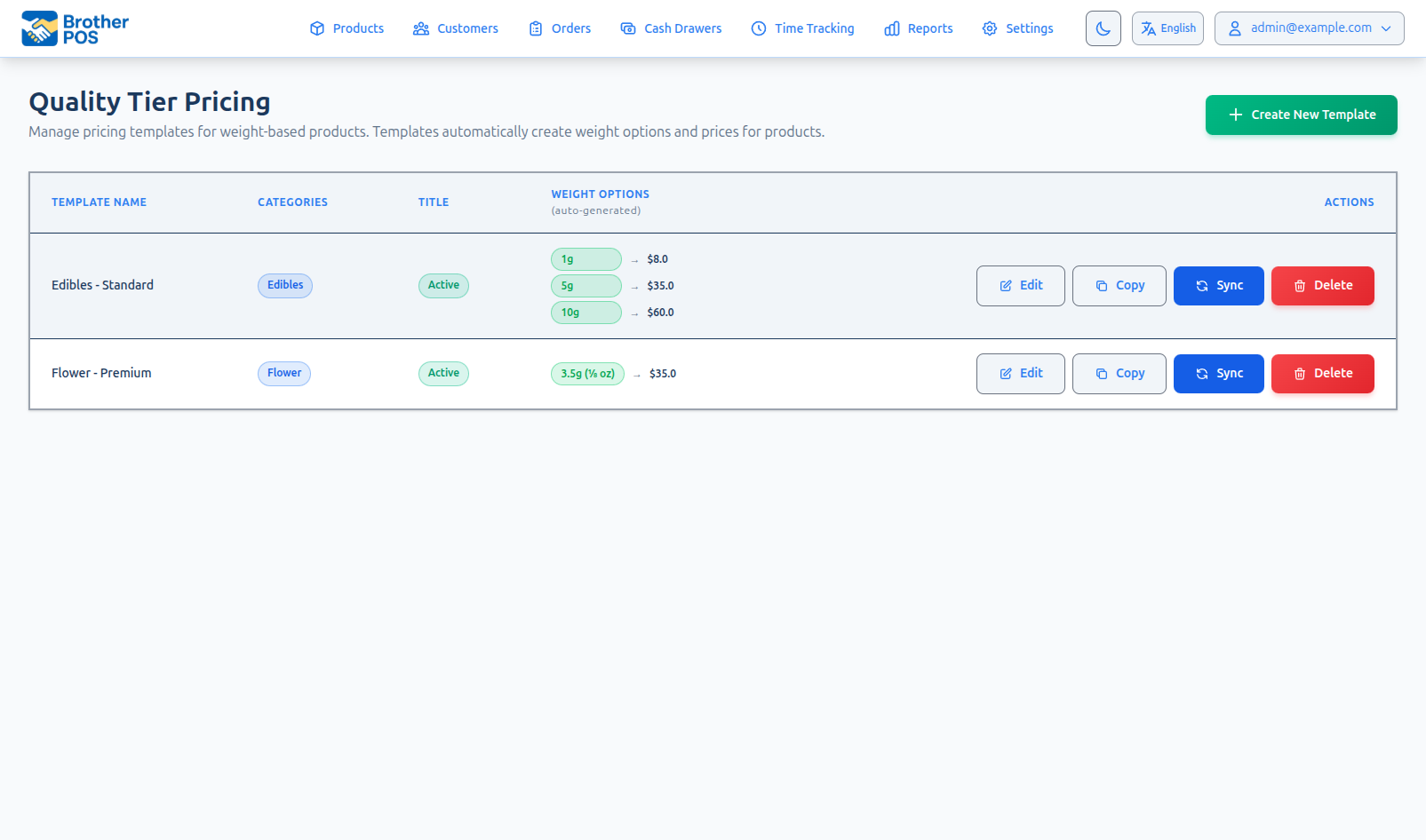
Each pricing template has its own pricing matrix: a set of weight-to-price pairs. The Pricing Templates page shows a table of templates, one row per template.
For example, a "Flower Premium" template might have this pricing matrix:
| Weight | Price |
|---|---|
| 1g | $10.00 |
| 3.5g | $32.00 |
| 7g | $58.00 |
| 14g | $105.00 |
| 28g | $190.00 |
And a "Flower Budget" template would have its own separate matrix with different prices.
At the POS Register
When a cashier selects a tier-priced product:
- The weight selection modal opens showing the weight options from the template.
- The price displayed for each weight comes from the product's template (with any running sale already taken off).
- The cashier taps the desired weight, and the item is added to the cart at that price.
Weights priced at $0 are never offered, and weights without the POS checkbox ticked are hidden (see below).
For example, if "Blue Dream" uses the "Flower Premium" template and the customer wants 3.5g, the price is $32.00 from the matrix above.
More detail: setting up and editing templates
Setting Up Tier Pricing
Accessing the Tier Pricing Page
On the Products page, click More Actions and select Tier Pricing. The page that opens is titled Pricing Templates. The menu entry is shown to admins, managers and storefront owners.
At the top, Create New Template starts a new template and Sync All re-syncs every template. Each template in the table has these actions:
- Edit: Open the template's pricing matrix for editing.
- Copy: Start a new template pre-filled with this template's pricing matrix.
- Sync: Update products from this template. It also assigns the template to active weight products in the template's categories that don't have a template yet. Products whose prices you have customized are left alone.
- Delete: Remove the template. Products that used it lose their tier pricing.
Editing a Template's Pricing Matrix
- Click Edit on the template you want to change.
- Set the Template Name, the categories under Applies to Categories, and whether it is Active.
- Under Weight Options & Prices, enter the price for each weight you want to offer.
- Tick the POS checkbox next to weights you want shown as quick-pick buttons in the register.
- Leave weights at $0 if you don't sell them. The POS will not offer that weight.
- Click Save.
Saving updates every product that uses this template with the new prices. Products whose prices you have customized are left alone, the same as with Sync.
All weights with prices are used for pricing calculations (including Mix & Match). The POS checkbox controls which weights appear as quick-pick buttons in the register. Unticked weights still have valid prices; they just won't appear in the weight selection modal. If you leave every POS box unticked, all priced weights are shown.
Managing the Pricing Matrix
Auto-Fill Empty
When editing a template, use the Auto-Fill Empty button to fill empty weights by interpolating between prices you have already set. Set prices for a few key weights (e.g., 1g and 28g) and let auto-fill calculate the weights in between.
POS Visibility Checkboxes
Each weight has a POS checkbox. It controls which weights appear as quick-pick buttons in the register. All weights with prices are still valid for pricing calculations; the checkbox only affects what is shown.
Adding Weights
Click + Add Weight to open the Add Weight to Pricing window. Select from your existing weight presets, or create a custom weight. Custom weights are saved as presets for future use.
More detail: assigning templates to products
Assigning Templates to Products
From the Product Wizard
When creating a new weight-based product:
- In Step 1, pick a category. If its name includes "Flower" or "Concentrate", the Pricing Template (Optional) dropdown appears. Choose a template there, and the wizard skips Step 2.
- Or, in Step 2, choose Pricing Template as the weight pricing method, then pick the template in Step 3.
- The template's weights and prices are shown in Step 3 and can't be edited per product.
From the Product Edit Page
- Go to Products and open the product.
- On the Pricing tab, set Pricing Model to Quality Tier. This option is only available for weight products.
- Choose the template from the Pick a tier: dropdown.
- Click Update Product. The product now uses the template's pricing matrix.
If the product's categories don't match the new template's categories, saving moves the product into the template's categories.
Tier Pricing at Scale
Consistency Across Products
Pricing templates keep prices consistent. When you save a change to the "Flower Premium" template, every product using it is updated with the new prices (except products whose prices you have customized). This is much faster than updating prices product by product.
Adding a New Product
When you create a new product and assign it a template:
- The product uses the template's pricing matrix.
- No additional pricing setup is needed.
- The product appears at the POS with the template's prices for each weight.
Changing a Product's Template
If you want to reprice a product:
- Open the product and pick the new template on the Pricing tab.
- Click Update Product.
- The product now uses the new template's pricing matrix.
More detail: volume discounts and Mix & Match
Volume Discounts in Tier Pricing
Tier pricing naturally supports volume discounts because you set each weight's price independently. The per-gram price typically decreases as the weight increases:
| Weight | Price (Premium) | Per Gram |
|---|---|---|
| 1g | $10.00 | $10.00/g |
| 3.5g | $32.00 | $9.14/g |
| 7g | $58.00 | $8.29/g |
| 14g | $105.00 | $7.50/g |
| 28g | $190.00 | $6.79/g |
This encourages customers to purchase larger quantities.
Mix & Match Consolidation
When a customer buys several bags from the same template, their weights can be added together and charged at the template's price for the combined weight.
Each template has two options:
| Option | What it does | Default |
|---|---|---|
| Same-Product Weight Consolidation | Several bags of the same product combine (e.g., 7g + 7g charged at the 14g price) | On |
| Mix & Match Pricing | Different products on this template combine. When on, it replaces same-product consolidation | Off |
The store-wide Mix & Match Pricing setting (under Enable Pricing Templates in Settings) must also be on for either option to work. It is on unless you turn it off.
Example (Flower Premium, Mix & Match on): a customer adds 3.5g of two different products ($32 + $32 = $64). The combined 7g costs $58 on the template, so the cart shows Quality Tier Savings of $6.00.
Savings only apply when:
- The combined weight exactly matches a weight on the template (3.5g + 1g = 4.5g gets no savings if there is no 4.5g price).
- The savings come to at least $1.00.
The cashier can remove the savings with the X next to Quality Tier Savings in the cart totals.
More detail: how tier prices work with discounts
Tier Pricing and Discounts
Tier prices interact with other discount mechanisms:
Sale Campaigns
Sale campaigns can apply to tier-priced products. The discount is taken off the price for the chosen weight:
- 20% off a $32.00 (3.5g) item = $25.60
- $5 off a $32.00 item = $27.00
A campaign that would bring the price to $0 or below is ignored for that weight.
Loyalty Tier Discounts
If your store uses loyalty tiers, customers in a loyalty tier may receive an automatic percentage discount on their order, including tier-priced products.
Manual Discounts
Staff with the Apply Discounts permission (or with a manager's PIN) can apply manual discounts on top of tier pricing at the POS.
When several discounts apply, Brother POS works them out in this order:
- Each line is priced from the template, with any sale campaign and any manual line discount taken off. Mix & Match savings are worked out at this stage too.
- Automatic spend-based promotions are applied.
- A manual order discount is applied.
- The loyalty tier discount is applied.
- Any redeemed loyalty reward is applied.
Each step works on the amount left after the step before it.
More detail: best practices and example setups
Best Practices
- Start with market rates. Research what competing stores charge per weight, and set your initial matrix accordingly.
- Maintain clear price differentiation. There should be a noticeable price difference between templates. If templates are priced too close together, customers will always choose the higher quality.
- Reward volume purchases. Make sure the per-gram price decreases meaningfully at higher weights. This encourages larger purchases.
- Review the matrix monthly. Market prices fluctuate. Review your matrix at least monthly to ensure you are competitive and maintaining healthy margins.
- Use categories effectively. Give each template the categories it covers, so Sync can assign it to new products in those categories.
Common Workflows
Setting up tier pricing for a new store
- Make sure Enable Pricing Templates is on in Settings.
- Open Tier Pricing from the Products page and create your templates.
- Set prices for each weight in each template.
- Create your products and assign templates.
- Test at the POS to verify correct prices appear.
Changing a product's template
- Open the product in Products.
- On the Pricing tab, pick the new template.
- Click Update Product. The product now uses the new template's pricing matrix.
More detail: troubleshooting
Troubleshooting
| Problem | Solution |
|---|---|
| Product not showing tier pricing at POS | Check that the product's Pricing Model is Quality Tier with a template picked, and that the template is Active. |
| Some weight options missing at POS | The weight may be priced at $0 or have its POS checkbox unticked. Open the template and set a price or tick the box. |
| No template dropdown in Step 1 of the product wizard | The dropdown only appears for categories whose name includes "Flower" or "Concentrate". Otherwise choose Pricing Template in Step 2. |
| Pricing templates not appearing as an option | Turn on Enable Pricing Templates in Settings > Products & Inventory. |
| No Mix & Match savings in the cart | Check the template's Mix & Match / Same-Product options and the store's Mix & Match Pricing setting. The combined weight must exactly match a template weight, and savings must be at least $1.00. |
What's Next?
- Pricing Models: Understand all available pricing models in Brother POS.
- Sale Campaigns: Run promotions on tier-priced products.
- Quality Tiers: Deep dive into quality tier configuration.
- Weight Presets: Customize the available weight options.