Pricing Templates
Use this page to set up pricing templates — one price list by weight (1g, 3.5g, 7g…) that many products share.
Quick steps
- Turn it on once: Settings > Edit Settings > Products & Inventory, tick Enable Pricing Templates, click Update Settings.
- Go to Products, open More Actions and click Tier Pricing.
- Click Create New Template and type a Template Name (for example "AAA Flower").
- Tick the categories it covers under Apply to Categories.
- Type a price for each weight you sell. Tick POS beside the weights you want as buttons on the register. Set a few key prices and tap Auto-Fill Empty to fill the rest.
- Click Create. Products in those categories now ring up at these prices.
Edit a template's prices and click Save — every product on it updates, except products whose prices you customized yourself.
Common questions
A weight isn't showing on the register. It has no price (or $0) in the template. Give it a price. If you ticked POS on some weights, only those show as buttons.
Can two templates share a category? Not while both are active. Deactivate the old template first.
How do I put one product on a template? Open the product, go to the Pricing tab, set Pricing Model to Quality Tier and choose the template under Pricing Template. Save.
I changed a template but some products still show old prices. Click Sync on the template's row (or Sync All). Products with their own customized prices are left alone on purpose.
What happens if I delete a template? Every product on it goes back to its own base price. If you only want to stop using it for new products, untick Active instead.
More detail: how templates work, and naming them
Pricing templates let you create centralized weight-based pricing matrices. Each template is a separate pricing configuration with its own set of weight-to-price pairs. Products assigned to a template automatically use its pricing matrix — change the template, and the products using it update instantly (products whose prices you have customized are left alone).
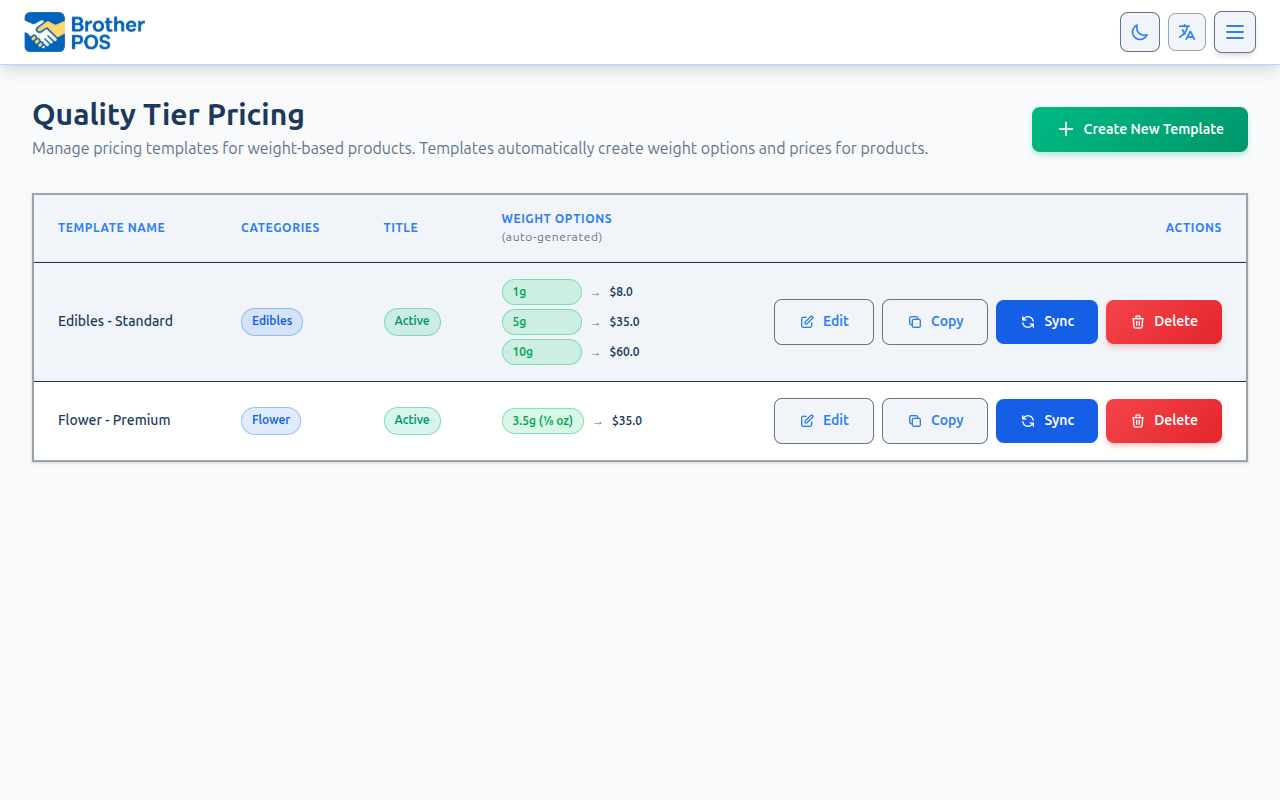
Pricing templates are only available when Enable Pricing Templates is enabled in your store settings. Navigate to Settings > Edit Settings > Products & Inventory tab, tick it and click Update Settings. Enable Weight Presets is ticked for you, because templates need it. The checkbox is available to every store, not just cannabis stores.
How Pricing Templates Work
Each pricing template defines a set of weight-to-price pairs. Products are assigned to a template, and the POS uses that template's pricing matrix automatically.
Example: Flower Premium Template
| Weight | Price |
|---|---|
| 1g | $12 |
| 3.5g | $40 |
| 7g | $72 |
| 14g | $135 |
| 28g | $250 |
Example: Flower Budget Template
| Weight | Price |
|---|---|
| 1g | $10 |
| 3.5g | $32 |
| 7g | $58 |
| 14g | $105 |
| 28g | $190 |
When a budtender selects a product on the POS register, the system uses the product's assigned pricing template to determine available weights and prices. The budtender selects the weight, and the price fills in automatically.
Accessing Pricing Templates
- Go to Products.
- Open More Actions and click Tier Pricing (the menu entry is shown to admins, managers and storefront owners).
- The Pricing Templates page displays a table of templates. Each row is an individual template with its own pricing matrix.
Naming Templates
Pricing templates can have any name. Common approaches include:
- Quality grades: "AAAA", "AAA", "AA", "Budget"
- Descriptive names: "Flower Premium", "Concentrates Standard", "Value Tier"
- Category-based: "Shatter Premium", "Live Resin Budget"
Choose names that are meaningful to your staff. Templates are visible in the product wizard and edit page.
More detail: setting up the price matrix
Setting Up a Template's Pricing Matrix
Each pricing template has its own pricing matrix — a set of weight-to-price pairs.
Step-by-Step
- Go to Products, open More Actions and click Tier Pricing.
- Click Create New Template or the Edit button on an existing template.
- Enter a Template Name.
- Tick the categories this template applies to (Apply to Categories).
- Set prices for each weight in the pricing matrix.
- Check the POS checkbox next to weights you want shown as quick-pick buttons in the register.
- Click Create (new template) or Save (existing template).
Rules
- All prices are pre-tax. Tax is calculated automatically at checkout.
- You do not need to fill in every weight. A weight left at $0 (or blank) will not appear on the POS register for products using this template. You can also remove a weight from the template with the × beside it.
- Changes to a template automatically update all products using it, except products whose prices you have customized.
- Active tiers cannot share categories. A given category can only be linked to one active template at a time. To reuse a category in a new template, deactivate the old one first. (Inactive templates can share categories freely — the overlap rule only applies to active templates.)
If a weight has no price set (or is left at $0), that weight option will not appear on the POS register for products assigned to this template. This is intentional — use it to restrict which weight options are available for sale.
Auto-Fill Empty
The template editor includes an Auto-Fill Empty button that interpolates prices between anchor prices you have already set. Set the price for a few key weights (e.g., 1g and 28g) and use auto-fill to calculate reasonable prices for the weights in between.
POS Visibility Checkboxes
Each weight in the pricing matrix has a POS checkbox. All weights with prices are used for pricing calculations (including consolidation). The POS checkbox controls which weights appear as quick-pick buttons in the register. Unchecked weights still have valid prices — they just won't appear in the weight selection window. If you leave every POS box unticked, all priced weights are shown.
Adding Custom Weights
Click + Add another weight (or + Add Weight when editing) to open the weight window. You can:
- Select from existing Weight Presets (1g, 3.5g, 7g, etc.)
- Create a custom weight by entering the gram value — it's automatically saved as a preset for future use
More detail: putting products on a template
Assigning Templates to Products
From the Product Wizard
When creating a new weight-based product:
- In Step 1, select a category (e.g., "Flower").
- The Pricing Template (Optional) dropdown appears. Select the template to use.
- In Step 2, select Weight-Based pricing, then choose Pricing Template as the weight pricing method.
- Complete the wizard and save.
From the Product Edit Page
- Navigate to Products and open the product.
- On the Pricing tab, set the Pricing Model to Quality Tier (it is only available when the product's unit type is weight) and choose the template under Pricing Template. (If the product's category already matches a template, Weight Product Settings also offers a Use "…" Pricing Template checkbox.)
- Save the product.
The product will now use the pricing matrix from its assigned template.
How Templates Appear on the POS
When a budtender taps a product that has a pricing template assigned:
- The POS displays a weight selector showing the POS-visible weights for that template.
- Each weight option shows the corresponding price from the template's matrix.
- The budtender taps the desired weight.
- The item is added to the cart at the matrix price.
If the product has no weight options set up, the register shows No weight options available for this product.
More detail: bulk pricing and in-between weights
Weight Consolidation (Bulk Pricing)
Each template has two independent consolidation toggles that give customers volume discounts when they buy more than one weight-based item.
Same-Product Weight Consolidation
Toggle: Same-Product Weight Consolidation
When enabled, multiple bags of the same product combine their weights for pricing purposes. Different products do NOT combine.
Example: Customer buys 7g + 7g of the same product. Weights combine to 14g → 14g tier price applies to the pair, instead of 2 × 7g prices.
Mix & Match Pricing
Toggle: Mix & Match Pricing
When enabled, different products within the same template combine weights for bulk pricing. Mix & Match supersedes Same-Product Consolidation — when on, all items in the tier consolidate together regardless of product.
Example: Template has 3.5g=$35, 7g=$60. Customer buys 3.5g of Product A + 3.5g of Product B = 7g total. The 7g price applies → $60.00 combined instead of $70.00.
Combined weights only get the bulk price when the total lands exactly on a weight in the template, and the saving is at least $1.00. 3.5g + 1g + 1g = 5.5g, with no 5.5g price, is left at the individual prices.
When both toggles are off, each weight selection is priced individually at its matrix price, with no combined discount. Consolidation also depends on the store-wide Mix & Match Pricing setting under Settings > Edit Settings > Products & Inventory, which is on unless you turn it off.
Disable both toggles when you want each weight to price exactly at its preset tier price and no consolidation discounts are offered.
Per-Gram Fallback Pricing
When a product on a template is sold at a weight the template has no price for (for example a custom weight), the system uses per-gram fallback pricing by default:
- It finds the largest template weight that is less than or equal to the weight sold.
- It uses that weight's per-gram rate.
- The price is capped at the next template weight's price, so buying more never costs more.
Example: Tiers are 1g=$10, 3.5g=$30, 7g=$50. Selling 5g → uses the 3.5g tier rate ($8.57/g) = $42.86, which is below the 7g price of $50.
You can change this under Settings > Edit Settings > Products & Inventory > Pricing Between Tiers. The other choice, Step pricing, charges the next-lowest template weight's price plus the extra grams at the smallest weight's per-gram rate (still capped at the next template weight's price).
More detail: copying, syncing, transfers and price changes
Templates and Stock Transfers
When you transfer a product on a template to another of your stores that doesn't have it yet, the template goes with it:
- If the other store has a template with the same name, that store's prices apply — the product joins its template like any other product there.
- If it doesn't, the template is copied over (its name, prices and settings, but not the categories it applies to), and the transfer's message asks you to check it there. Pricing templates are switched on at that store if they were off.
Copying Templates
When creating a new template, you can use the Copy Pricing From dropdown (or the Copy button on a template's row) to start with an existing template's pricing matrix and modify it. This saves time when creating similar templates (e.g., creating a "Budget" template based on a "Premium" template with lower prices).
Syncing Templates
Sync All Button
The pricing templates index page includes a Sync All button that synchronizes all templates with their assigned products, and each row has its own Sync button. Products whose prices you have customized are not affected. Syncing also puts active weight products that have no template yet onto the template that matches their category, and Sync All clears template names left on products whose template no longer exists. Use this when:
- You have updated a template and want to ensure all products reflect the changes.
- You have imported products from another system (e.g., WooCommerce).
Adjusting Prices
To update prices for a template:
- Go to Products, open More Actions and click Tier Pricing.
- Click the Edit button on the template.
- Edit the prices in the pricing matrix.
- Click Save.
Saving the template updates all products using it, except products whose prices you have customized.
More detail: deactivating or deleting a template
Disabling or Deleting a Template
Deactivating
Deactivate a template when you don't want it used for new products any more, but the products already on it should carry on as they are.
- Go to Products, open More Actions and click Tier Pricing.
- Edit the template and uncheck the Active checkbox.
- Save.
An inactive template:
- Is no longer offered for new products. It disappears from the template pickers (new products, Quick Add, the product's Pricing tab for products not on it) and syncing no longer puts new products on it.
- Stays on the products already using it. They keep the template and keep selling at its prices on the register, online and on menu boards. Their Pricing tab shows the template marked (Inactive).
- Still updates its products when you change its prices. Editing an inactive template's prices reaches the products on it, just like an active one.
To offer it again, check Active and save. Nothing needs restoring — its products never left it.
Deleting
- Go to Products, open More Actions and click Tier Pricing.
- Click Delete on the template's row and confirm.
What Happens to the Products When You Delete
Deleting a template takes it off every product that was using it. Those products stop using tier pricing and go back to being priced from their own base price. For a weighed product that means its per-gram price times the weight — so an eighth that was $45 on the template could ring up at $52.50 afterwards.
Each affected product records the change on its own History tab on the product edit page, showing what changed and who did it, so you can always see why a price moved. If you sync products to WooCommerce, the change is sent there like any other product edit.
Before deleting a template, check which products use it (each product's Pricing tab shows its Pricing Template) and reassign them to another template or set a suitable base price. If you only want to stop using it for new products, deactivate it instead.
More detail: good habits
Best Practices
- Price competitively — Research your market. Lower-tier templates should be noticeably cheaper to justify the grading.
- Be consistent — Apply templates objectively based on quality, not brand preference.
- Review quarterly — Adjust the matrix as market prices shift.
- Train your staff — Ensure budtenders understand which template applies to which products.
- Use categories — Assign templates to categories so new products automatically get the right pricing.
What's Next?
- Weight Presets — Configure the standard weights used in the pricing matrix.
- Strain Library — Browse the strain catalog.
- Terpenes, Effects & Flavors — Add detailed product attributes.
- Sales Reports — See how your products are selling.