Terpenes, Effects & Flavors
Use this page to tag cannabis products with terpenes, effects, flavors and medical benefits, and to manage those lists.
Quick steps
To tag a product:
- Go to Products and open the product.
- Open the Cannabis tab and tick This is a cannabis product if it isn't ticked.
- In Cannabis Details (Optional), find Cannabis Profile.
- Tick the Terpenes, Effects, Flavors and Medical Benefits that apply.
- Click Update Product.
To add a new terpene or effect to the list:
- Open the admin Search (Ctrl+K, or Cmd+K on a Mac), type Terpenes or Effects and pick the result.
- Click Add Terpene (or Add Effect), fill in the Name and the other fields, and click Create Terpene (or Create Effect).
These lists are shared by every store on Brother POS. Anything you add, edit or delete changes the list for everyone, so check the entry doesn't already exist first.
Common questions
The fastest way to tag a product? Use the Strain Library. Applying a strain ticks its dominant terpene, main effects and medical benefits for you (not flavors).
How do I stop an entry being picked on products? Edit it and untick Active.
Why can't I delete an entry? The Delete button only appears when no products are tagged with it. Remove the tag from those products first.
Can I hide these details on my online store? Yes. Under Settings > Edit Settings > Products & Inventory, use the switches in Cannabis Detail Fields. Hiding a detail doesn't delete it.
More detail: what each list is for, and where to find it
Brother POS lets you tag cannabis products with terpenes, effects, flavors and medical benefits. These tags help budtenders make recommendations and describe a product beyond its strain name.
These lists are available when cannabis features are on for your store. Admins and Managers can manage them. If cannabis features are off, opening any of these pages takes you back to Settings with a message.
Overview of Attribute Types
| Attribute | Purpose | Example Values |
|---|---|---|
| Terpenes | Aromatic compounds that shape a strain's smell and taste | Myrcene, Limonene, Caryophyllene, Pinene, Linalool |
| Effects | How a product tends to feel | Relaxed, Euphoric, Creative, Sleepy, Focused, Uplifted |
| Flavors | Taste and aroma descriptors | Berry, Citrus, Earthy, Pine, Sweet, Diesel, Mint |
| Medical Benefits | Commonly reported uses (informational only) | Chronic Pain, Stress, Insomnia, Appetite Loss, Nausea |
Opening the Lists
Each list has its own page. None of them are in the main menu.
Terpenes and Effects: open the admin Search (the search button at the top of the admin, or Ctrl+K, Cmd+K on a Mac), type Terpenes or Effects, and pick the result.
Flavors and Medical Benefits don't appear in the menu or in admin search. To open one, add its address to the end of your store's web address:
| List | Address |
|---|---|
| Flavors | /admin/flavors |
| Medical Benefits | /admin/medical_benefits |
For example, if you sign in at yourstore.brotherpos.ca, go to yourstore.brotherpos.ca/admin/flavors.
These lists are shared by every store on Brother POS, not kept per store. A terpene or effect you add, edit or delete changes the list for everyone. Check that an entry doesn't already exist before you add it, and don't add entries that only make sense for your store.
More detail: terpenes
Managing Terpenes
The Terpene List
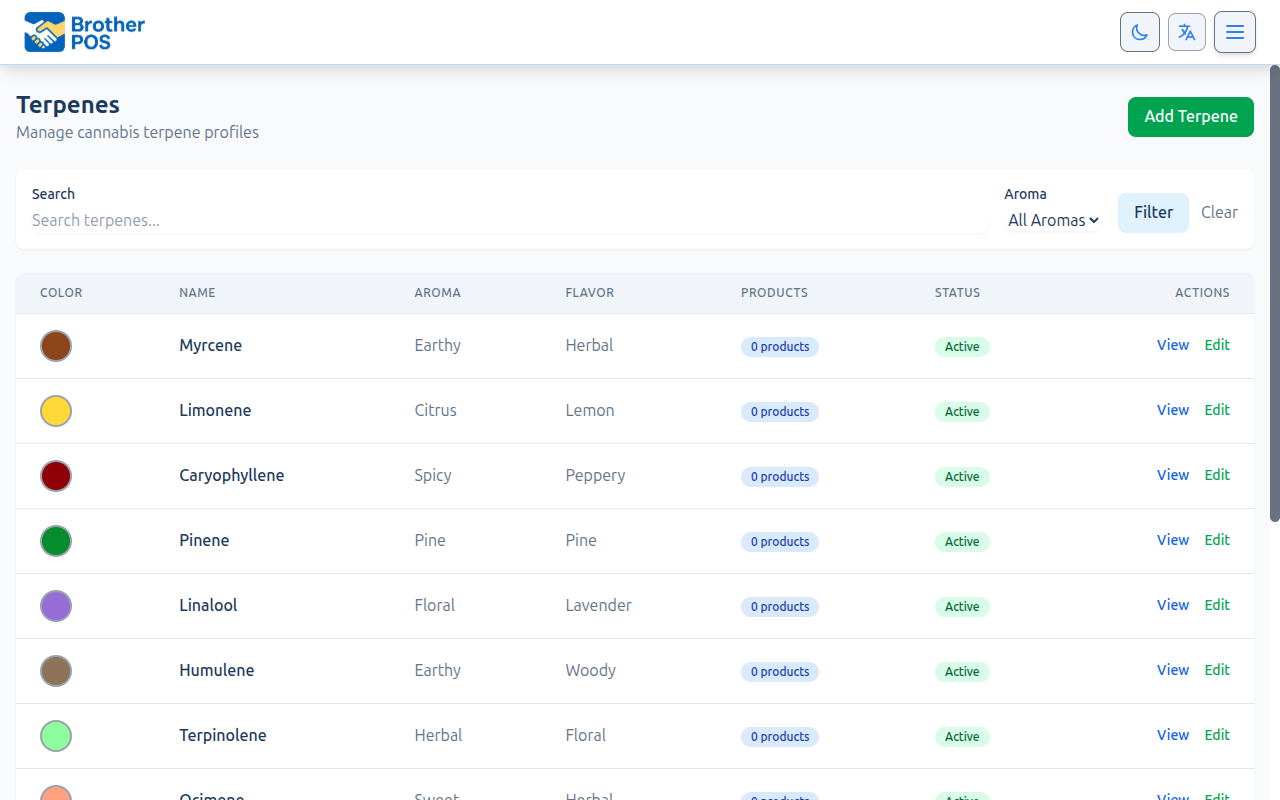
The Terpenes page lists every terpene. Use Search and the Aroma dropdown, then Filter to narrow the list. Click Clear to reset.
| Column | Description |
|---|---|
| Color | The colour used for the terpene's badge |
| Name | The terpene name |
| Aroma | Its aroma group, e.g. Earthy or Citrus |
| Flavor | A short flavor description |
| Products | How many products are tagged with it |
| Status | Active or Inactive |
| Actions | View and Edit |
Adding a Terpene
- Click Add Terpene.
- Enter the Name (e.g., "Myrcene").
- Choose an Aroma and enter a Flavor (e.g., "herbal, earthy").
- Pick a Display Color and, optionally, add a Description.
- Leave Active ticked so the terpene can be chosen on products.
- Click Create Terpene.
Pre-Loaded Terpenes
The list comes with common terpenes, including:
- Myrcene — Earthy, musky. Often associated with relaxing effects.
- Limonene — Citrus. Known for mood elevation and stress relief.
- Caryophyllene — Spicy, peppery.
- Pinene — Fresh pine. Known for alertness and memory.
- Linalool — Floral, lavender. Known for calming effects.
- Humulene — Earthy, woody. May suppress appetite.
- Terpinolene — Floral, herbal and slightly citrus. Often associated with uplifting effects.
- Ocimene — Sweet, herbal, woody.
- Bisabolol — Delicate floral.
- Also Eucalyptol, Geraniol, Valencene, Nerolidol and Borneol.
More detail: effects
Managing Effects
The Effects List
The Effects page lists every effect. Filter by Search and Category, or click one of the category badges above the list.
| Column | Description |
|---|---|
| Icon | The effect's icon |
| Name | The effect label |
| Category | Positive, Negative or Neutral |
| Products | How many products are tagged with it |
| Status | Active or Inactive |
| Actions | View and Edit |
Adding an Effect
- Click Add Effect.
- Enter the Name (e.g., "Energetic").
- Choose a Category: positive, negative or neutral.
- Optionally set an Icon and a Description.
- Click Create Effect.
Pre-Loaded Effects
- Positive: Relaxed, Happy, Euphoric, Uplifted, Creative, Energetic, Focused, Giggly, Talkative, Aroused
- Neutral: Hungry, Sleepy, Tingly
- Negative: Dry Mouth, Dry Eyes, Paranoid, Anxious, Dizzy, Headache
More detail: flavors and medical benefits
Managing Flavors
The Flavor List
The Flavors page works like the other lists. Its columns are Color, Name, Category, Products, Status and Actions.
Adding a Flavor
- Click Add Flavor.
- Enter the Name (e.g., "Tropical").
- Choose a Category and Display Color, and optionally add a Description.
- Click Create Flavor.
Pre-Loaded Flavors
Pre-loaded flavors include:
- Berry, Grape, Cherry, Mango, Pineapple
- Citrus, Lemon, Lime, Orange, Grapefruit
- Sweet, Candy, Honey, Vanilla, Chocolate
- Earthy, Woody, Nutty, Coffee
- Herbal, Mint, Lavender, Floral
- Spicy, Pepper, Pine, Diesel, Skunk
Managing Medical Benefits
The Medical Benefits List
The Medical Benefits page works like the Effects list. Its columns are Icon, Name, Category, Products, Status and Actions.
Medical benefit tags are informational only. They are not medical advice. Make sure your staff understands that these tags reflect commonly reported uses, not health claims. Check local rules on what medical claims, if any, you are allowed to make.
Adding a Medical Benefit
- Click Add Medical Benefit.
- Enter the Name (e.g., "Muscle Spasms").
- Choose a Category and, optionally, an Icon and Description.
- Click Create Medical Benefit.
Pre-Loaded Medical Benefits
Pre-loaded benefits include:
- Chronic Pain, Arthritis, Migraines, Headaches, Muscle Spasms
- Stress, Anxiety, Depression, PTSD
- Insomnia, Fatigue, Appetite Loss, Nausea
- Inflammation, Seizures, Epilepsy, Glaucoma
More detail: editing, hiding and deleting entries
Editing, Hiding and Deleting Entries
- Edit: Click Edit on the entry's row, make your changes, and save.
- Hide from products: Untick Active. Only active entries can be picked on the product page.
- Delete: Click View to open the entry, then click Delete. The Delete button only appears when no products are tagged with the entry. Remove the tag from those products first. The entry's page lists the products using it.
Because these lists are shared by every store, deleting an entry removes it for all stores.
More detail: tagging products, the register and your online store
Tagging Products
On the Product Page
- Go to Products and open a product.
- Go to the Cannabis tab.
- Tick This is a cannabis product if it isn't already ticked.
- In Cannabis Details (Optional), find Cannabis Profile.
- Tick the Terpenes, Effects, Flavors and Medical Benefits that apply. Effects, flavors and medical benefits are grouped by category.
- Click Update Product.
From the Strain Library
On the Cannabis tab, the Strain Library browser can tick some of these for you. Applying a strain ticks the terpene matching its dominant terpene, the effects it is strongly known for, and its medical benefits. It doesn't tick flavors. Review the ticks before you save.
Applying a strain copies its details onto the product once. Later changes to the product don't affect the library, and the library doesn't change your product.
Cannabis Details on the Register
When cannabis features are on, the register's product details show the strain type, THC/CBD, dominant terpene, and effects and "helps with" information for products that have them. Strain type appears as a coloured badge: Indica purple, Sativa green, Hybrid yellow.
Searching on the register finds products by name, SKU or barcode. It doesn't search by effect or terpene.
Showing Details on Your Online Store
Your store settings have switches for which cannabis details to show:
- Go to Settings and click Edit Settings.
- Open the Products & Inventory tab.
- Find Cannabis Detail Fields.
On your online storefront's product pages, these switches control:
| Switch | Controls |
|---|---|
| Show THC/CBD Fields | THC and CBD values, on product pages and product cards |
| Show Strain Type | The Indica/Sativa/Hybrid label |
| Show Terpenes | The dominant terpene |
| Show Effects | The effects list |
Turning a switch off hides that detail but doesn't delete the data. You can turn it back on at any time.
More detail: good habits
Best Practices
- Keep tags short. "Chronic Pain" scans better than "Helps with chronic pain conditions."
- Use consistent naming. Don't create both "Relaxed" and "Relaxing". Pick one and use it everywhere.
- Tag thoroughly. The more you tag, the more budtenders have to work with when recommending products.
- Use the strain library. Applying a strain fills in terpenes, effects and medical benefits consistently across products of the same strain.
- Remember the lists are shared. Add only entries that other stores would recognise too.
What's Next?
- Strain Library — Browse strains and fill in product details.
- Pricing Templates — Set up quality-based pricing.
- Compliance — Understand how product data feeds into regulatory reporting.
- Creating Products — Build products with full attribute data.