Order Management
Use this page to find any sale, look at what was sold, reprint the receipt, or start a return or void.
Quick steps
- Click Orders in the top menu. The page is titled Sales and shows the newest orders first.
- To find an order, type a receipt number, customer name, email or phone into Search, or set Status, Start Date and End Date. Click Apply Filters.
- Need more filters (payment method, pickup/delivery/shipping, where the order came from)? Open More filters.
- Click View on an order to see its items, discounts, tax and payment.
- On the order page, click Print Receipt, or Process Return to refund items. Void Sale is under More Actions.
Common questions
A split cash-and-card sale doesn't show when I filter by Cash. Split sales are their own payment type. Set Payment Method back to All Payment Methods to see them.
Why doesn't Total collected here match net sales in my Sales report? Total collected (incl. tax) on this page includes tax. The reports lead with net sales before tax and show Total collected (incl. tax) separately. Also, this list goes by the day an order was placed, while revenue goes by the day it was paid.
How do I export the list? Click More Actions, then Export CSV. The file uses the search and filters you have on.
Can I undo a void? No. A voided sale can't be un-voided, so be sure before you confirm.
I don't see Void Sale. Only admins and managers can void, and only completed sales. A pending phone order that was never paid is cancelled instead.
More detail: the Orders page and its columns
The Orders page in the admin panel lists every sale processed through Brother POS. From here you can search for a transaction, filter by date, status, or payment method, export the list, open an order's details, print a receipt, start a return, or void a sale.
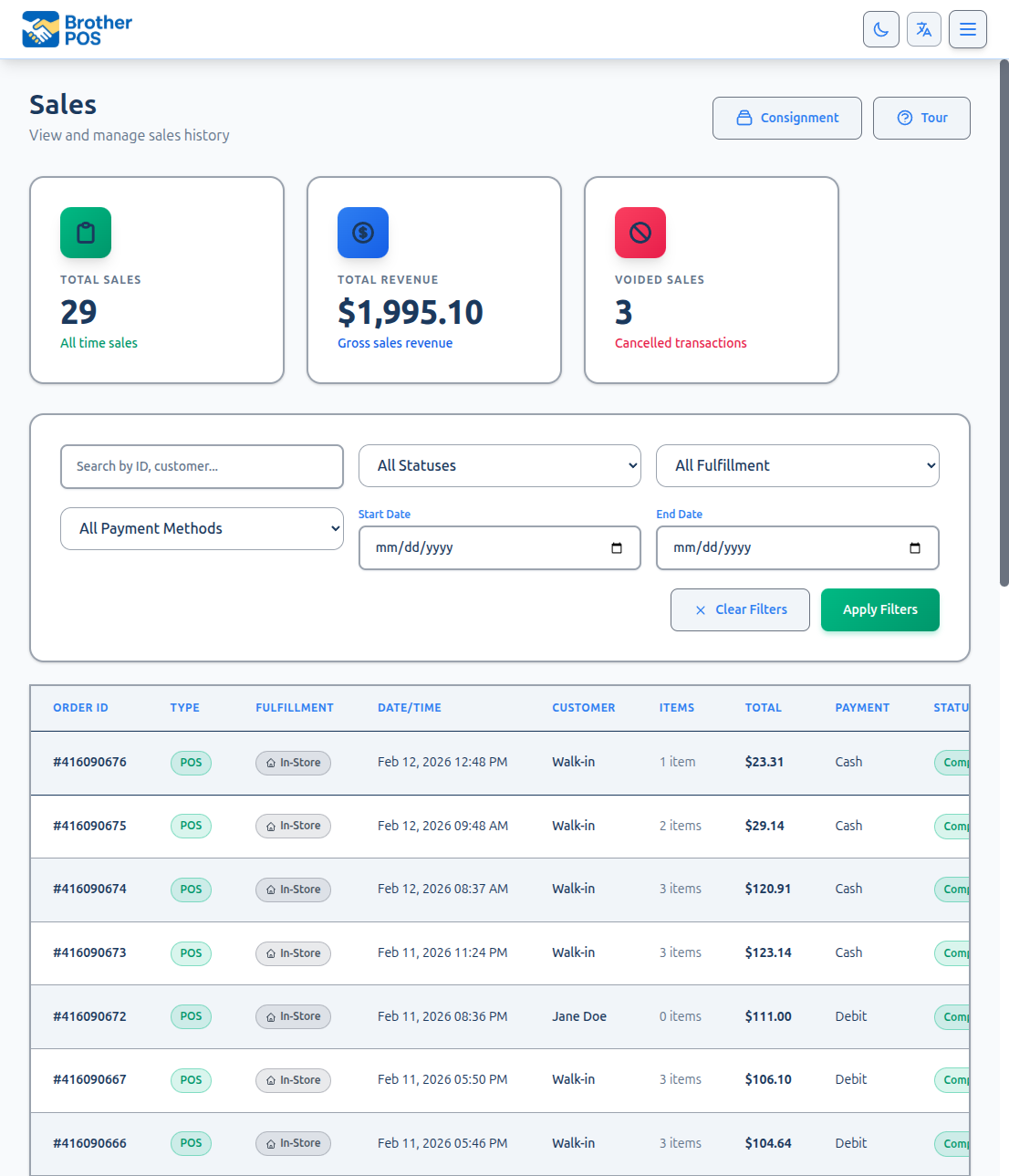
Accessing the Orders Page
- Log in to the Admin Panel.
- Click Orders in the top navigation bar.
- The page (titled Sales) opens with the newest orders first, 25 per page.
At the top of the page, three summary cards show:
- Total Sales — the number of orders. It says Matching your filters when a filter or search is on, and All time sales when not.
- Total collected (incl. tax) — the total of completed sales, including tax. With dates set, a sale counts on the day it was completed, the same way the reports count it. A phone order taken yesterday and paid today is today's revenue.
- Voided Sales.
The page header has Online Orders (with a count of waiting orders) when your store takes online orders, and, for admins and managers, Fulfillment when your store delivers or ships (deliveries and shipments still to go out, see Routes & Optimization). Everything else is in the More Actions menu, depending on the features your store uses: Export CSV, Delivery Routes, Packing Slips, Kitchen Orders, Purchase Orders, Wholesale Orders, Consignment, and Tour.
Understanding the Orders Table
Each row is a single order:
| Column | Description |
|---|---|
| Order ID | The receipt number the register shows, with the sale's short ID underneath (for example, id 1042). WooCommerce orders that haven't been completed yet show their WooCommerce order number. |
| Type | Where the order came from, for example Register, Phone order, Online order, WooCommerce, Wholesale, Reservation or Imported. When it didn't go over the counter, how it went out is shown beside it: Pickup, Delivery or Shipping. |
| Date/Time | When the order was placed, in your store's time zone. |
| Customer | The customer attached to the order. Shows Walk-in when there is none (or Online Customer for a WooCommerce order with no name). |
| Items | Number of line items on the order. |
| Total | The order total. |
| Payment | The payment method, for example Cash, Card, E-Transfer, Store Credit, Gift Card, or Split. WooCommerce orders waiting to be completed show Online. |
| Status | Completed, Pending, Ready, or Voided. |
| Actions | Click View to open the order. |
You can click the Date/Time, Customer, Items, and Total headings to sort the rows on the current page.
More detail: searching, filtering and exporting
Searching for Orders
Type in the Search box, then click Apply Filters. Search matches:
- The receipt number the list shows, or the short ID — full or partial.
- Customer name, email, or phone number.
- WooCommerce order number — for WooCommerce orders that haven't been completed yet.
Clear the box and click Apply Filters again to see all orders.
Filtering Orders
Search, Status and the dates sit in one row. The rest are under More filters, which only lists choices your store has actually used. Pick any combination, then click Apply Filters. Clear Filters appears once a filter is on and resets everything.
| Filter | Options |
|---|---|
| Status | All Statuses, Completed, Pending, Voided |
| Start Date / End Date | Show orders placed in a date range. You can fill in just one of them. |
| Fulfillment (More filters) | In-Store, Pickup, Delivery, Shipping |
| Payment Method (More filters) | The payment types your store has taken, for example Cash, Card, E-Transfer, Split |
| Source (More filters) | Where orders came from, for example Register, Phone order, Online order, WooCommerce |
A sale paid partly in cash and partly by card is recorded as Split, so it does not appear when you filter by Cash or Card. Use All Payment Methods when you need to see those sales too.
Exporting the Orders List to CSV
Click More Actions, then Export CSV. The file uses the same search and filters you have applied (status, payment method, fulfillment, source, dates, and search), so it matches what you're looking at.
The file is named orders-<date>.csv and has one row per sale with these columns:
| Column | What it contains |
|---|---|
| Order # | The sale's receipt number (for example, 20260915143012123), as shown in the list. |
| Date/Time | When the sale was completed (or placed, if it isn't completed), in your store's time zone. |
| Customer | Customer name, or - for walk-ins. |
| Budtender | The staff member who rang the sale. |
| Status | For example completed or voided. |
| Payment | The payment method as saved, for example cash, debit (card), or split. |
| Total | The sale total. |
WooCommerce orders that haven't been completed yet are not included in the export — only sales are.
More detail: the order page
Viewing Order Details
Click View on any row. The order page is titled with the receipt number (for example Sale #20260915143012123), with the short ID underneath. Its header has Print Receipt and, on completed sales for admins and managers, Process Return. Online orders also have Manage Online Order. Print Packing Slip (delivery and shipping orders) and Void Sale are in the More Actions menu.
Sale Information
- Status, plus Delivery Status and Status Updated for delivery orders. While a local delivery is still on its way, admins and managers also see Mark Delivered here (see Routes & Optimization).
- Date & Time. For a phone or online order, or any order completed more than a minute after it was placed, you see Taken via (for example Phone order) and each step's time instead: Placed, Marked ready, Delivered and Completed.
- Cashier — whoever took the payment. When someone else took the order, Order taken by shows who.
- Payment Method
- Drawer Session the sale belongs to
Items Sold
| Column | Description |
|---|---|
| Product | Product name and SKU. Badges mark MANUAL (custom) items, FREEBIE items, and items discounted by a sale campaign. |
| Quantity | Units (for example "2") or weight sold. |
| Unit Price | Price per unit. If the price was reduced, the original price is shown crossed out. |
| Discount | Any discount on this line. |
| Subtotal | The final amount for this line. |
| Status | Only shown when a line was voided. Voided lines show VOIDED with the reason, time, and who voided them. |
For deli-style weighed items, when the budtender poured heavier than the charged weight, the line shows the actual dispensed weight, e.g. Dispensed: 11.4g (+4.4g free). The over-pour is highlighted when the give-away is 1 g or more. The line also notes whether the weight came from the scale. The same overages are totalled across all sales in the Weigh-Heavy Give-Away report, and the dispensed weight is captured from the deli scale (see Scales).
Customer Information
For a sale with a customer: name (with a View Customer Profile link), email and phone. If your loyalty program is on, it also shows the customer's current points and the points earned and redeemed on this sale. Sales without a customer show Walk-in customer.
Delivery and shipping orders have a Delivery Address (or Shipping Address) section with the recipient, phone, address, delivery notes, scheduled date and time, and any Delivery Activity notes.
A cash delivery that a driver marked delivered but that still isn't completed shows Cash Return Required to admins and managers. Enter the Amount Received (and notes if you like) and click Complete Sale & Record Cash Return. Delivered orders normally complete themselves at the door, so a completed sale never asks for this.
Payment Summary
Rows only appear when they apply to the order:
- Subtotal
- Promotion — discount from a sale campaign, with the campaign name
- Qualifying Discount
- Discount — manual or order-level discounts, loyalty reward discounts, and points cashed out
- Loyalty Tier Discount — with the customer's tier name and percentage
- Bulk Savings
- Promo Reward
- Tax with its rate, for example Tax (13%) — or separate GST and PST lines with their rates when your store uses split tax. No tax line appears if your store doesn't charge tax.
- Any additional tax (such as a vapour products tax), under its own name
- Delivery Fee and Shipping
- Total
- Cash Tendered and Change Given — for cash sales
- E-Transfer Reference — for e-transfer sales
- Payment Breakdown — for split payments, each method and amount. A part paid by gift card shows Gift Card with the card number underneath, and a part put on a house account shows House Account.
More detail: printing, returns and voiding
Printing a Receipt
On the order page, click Print Receipt:
- If a register has a receipt printer set up, the receipt is sent straight to that printer.
- Otherwise, a printable receipt opens in a new browser tab. Use your browser's print command (Ctrl+P / Cmd+P) to print it or save it as a PDF.
Receipt printers are set up per register — see Registers.
Delivery and shipping orders also have Print Packing Slip in the More Actions menu.
Processing a Return
On a completed sale, managers and admins see a Process Return button. See Returns (Admin) for the full steps.
Voiding a Sale
If a completed sale needs to be cancelled (for example, it was rung up by mistake):
- Open the order page.
- Click More Actions, then Void Sale.
- Confirm: "Are you sure you want to void this sale? This action cannot be undone."
There is no field for a reason — the void is recorded with a standard "voided via admin" note. After voiding, you're returned to the orders list.
When a sale is voided:
- Its status changes to Voided.
- The items are put back into stock.
- The customer's lifetime spend and visit count are reduced by that sale.
A voided sale cannot be un-voided.
Voiding a sale that was created from a WooCommerce order puts its items back into stock, the same as any other sale. Stock for wholesale-order sales is not put back here — it's handled when the wholesale order itself is cancelled.
Who Can Void Sales?
- Admin Manager Admins and managers see Void Sale, only on completed sales. A pending phone order that hasn't been paid is cancelled at the register instead (see Phone Orders, Delivery & Shipping).
More detail: common workflows
Common Workflows
Investigating a cash discrepancy
- Set Start Date and End Date to the day in question.
- Open More filters, set Payment Method to Cash and click Apply Filters.
- Review each cash sale. Remember that Split sales with a cash portion are not included in this filter.
- Cross-reference with the Z-Report for that session (see Z-Reports).
Finding all orders for a customer
- Type the customer's name, email, or phone number in Search.
- Click Apply Filters.
- Click View on any order to see its details.
Reviewing orders for a period
- Set the Start Date and End Date.
- Click Apply Filters.
- Review the orders and the Voided Sales card for unusual activity. Use More Actions → Export CSV to keep a copy.
More detail: troubleshooting
Troubleshooting
| Problem | Solution |
|---|---|
| Order is missing from the list | Check your filters and search — the order may be outside the date range or excluded by status, payment, or source. Click Clear Filters. |
| A split sale doesn't show under Cash or Card | Split sales are their own payment type. Set Payment Method to All Payment Methods. |
| More filters is missing a choice | It only lists options your store has used. A store that has only ever taken cash and card sees just those. |
| Total collected for a day doesn't match the orders listed | The list goes by the day an order was placed; revenue goes by the day it was completed. |
| WooCommerce orders still show after filtering by payment or fulfillment | Those filters only apply to sales. Use the Source filter to include or exclude WooCommerce orders. |
| Can't find a sale by the number on the receipt | Type the receipt number into Search. |
| Void Sale is missing | Only admins and managers can void, and only completed sales. It's in the More Actions menu. |
What's Next?
- Returns (Admin) — Process and manage returns from the admin panel.
- Online Orders — Handle WooCommerce orders in your admin panel.
- Sales Reports — Generate detailed sales reports and analytics.
- Z-Reports — View end-of-session cash summaries.