Sale Campaigns
Use this page to put products on sale for a set time, such as 20% off edibles this weekend.
Quick steps
- Go to Products, click More Actions and choose Sales Campaigns.
- Click Create Campaign. Leave Campaign Type on Discount for a plain sale, and type a Name (cashiers see it at the register).
- Pick the Discount Type (Percentage Off or Fixed Amount Off) and type the Discount Value — for example
20for 20% off. - Under Schedule, set the Start Date & Time and End Date & Time. Leave the start blank to begin right away.
- Under Apply To, choose All Products, By Category, By Brand or Specific Products, and tick what's included.
- Leave Application Method on Automatic so the price drops by itself at the register. Click Create.
The campaign's dates switch it on and off for you. To stop it early, click Pause on its card.
Common questions
The campaign is on but a product isn't discounted. Check the card says Active (not Scheduled), the method is Automatic, and the product is covered by Apply To. Then open the product's Specials tab — it may have been taken off this campaign.
Two campaigns cover the same product. Do they add up? No. The register uses whichever gives the customer the lowest price.
Can I leave one product out of a campaign? Yes. Open the product, go to its Specials tab and click Take off beside that campaign. It stays on every other campaign.
How do I do a buy-one-get-one deal? Click Create Campaign and pick BOGO as the Campaign Type. See BOGO Campaigns below.
How do I extend a sale? Click Edit on the campaign card, change the End Date & Time, then click Update.
More detail: how campaigns work, types and statuses
Sale campaigns let you run time-limited promotions at the POS register. You pick which products or categories are included, the discount type and amount, and the start and end dates. A campaign set to Automatic discounts eligible products on its own, with nothing for the cashier to do. A campaign set to Manual waits for the cashier to pick it from the register's discount menu.
How Sale Campaigns Work
- An admin creates a campaign with a date range and discount rules.
- When the start date and time arrive, the campaign starts applying.
- At the POS register, products in an automatic discount campaign show their discounted price.
- Cashiers see a sale badge and the campaign name on the discounted item.
- When the end date passes, the campaign stops applying and prices return to normal.
You don't need to switch a campaign on or off by hand. Its dates control it. You can still Pause a campaign early from the campaigns list.
Accessing Sale Campaigns
- Log in to the Admin Panel.
- Navigate to the Products page.
- Click More Actions on the Products page and select Sales Campaigns.
The menu item shows for admins and for any role with the Manage Campaigns permission, which managers have by default.
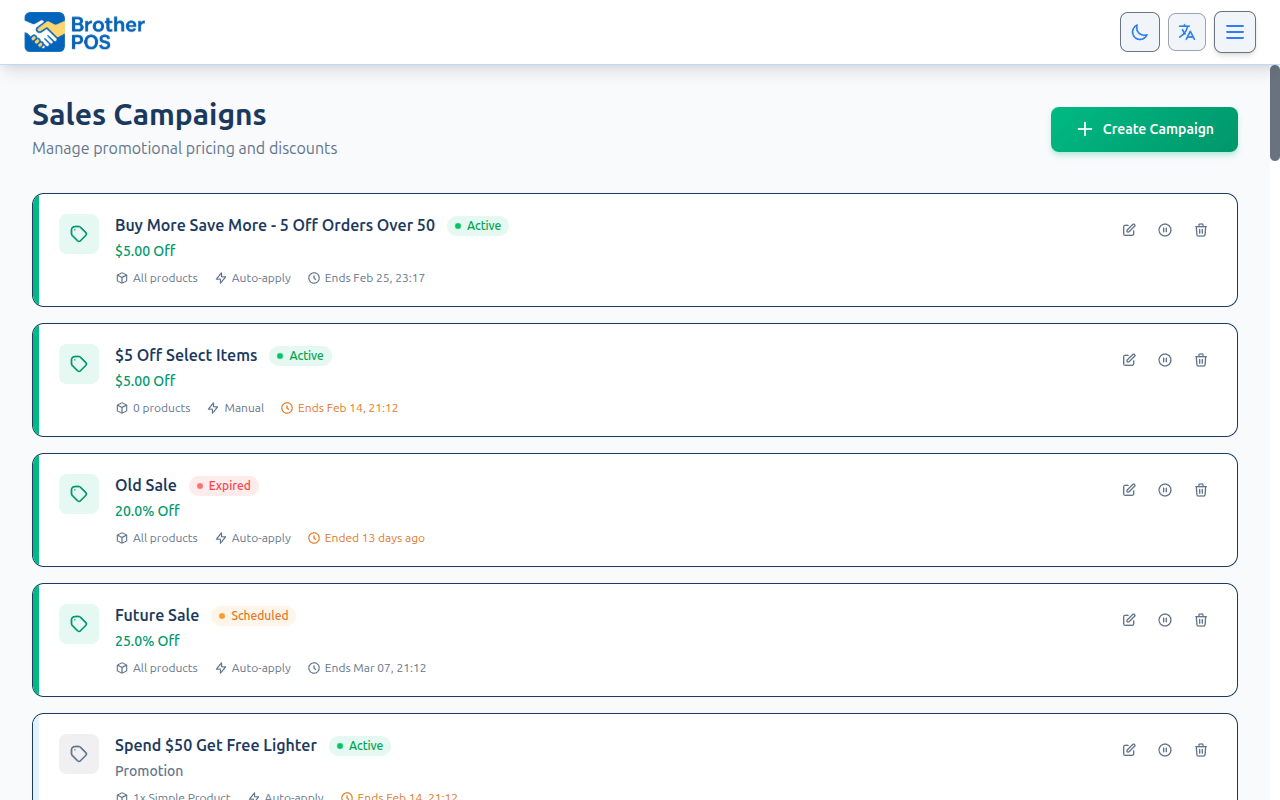
The page shows your campaigns as cards. Running deals come first, then deals waiting for their start date, days or hours. Paused and ended deals sit underneath, under their own heading Switched off or ended. Each card has a status badge: Active, Scheduled, Expired or Inactive. You can also download the list with Export CSV.
Campaign Types
Brother POS supports nine campaign types:
| Type | Description |
|---|---|
| Discount | Percentage or dollar amount off eligible products. |
| Freebie Threshold | Customer gets a free item when the cart reaches a spend amount. |
| BOGO | Buy one, get one free (or discounted). |
| Buy X Get Y | Buy from one group of products, get a different product free or discounted. |
| Bundle | One fixed price when specific products are purchased together. |
| Mix & Match | Discount when the customer buys enough items from a group of products. |
| Tiered Quantity | Discount increases with quantity purchased. |
| Choice Reward | Customer chooses a reward once they reach a spend or quantity amount. |
| Loyalty Bonus | Bonus loyalty points multiplier. Customers earn more points on qualifying products during the campaign (e.g., 2x points on Edibles week). Not a cash discount. |
On the Basic and Free plans, only the Discount type is available. The other campaign types come with higher plans.
A Bundle campaign is a deal: when a customer puts all of certain separate products in the cart, they pay one fixed price (e.g., "Pipe + Lighter + Papers = $14.99"). A bundle product is different: it's a single item in your catalog, like a fixed bundle, a combo or a bucket, that you set up on the product itself. See Bundles and Combos.
Understanding the Campaigns List
Each campaign card shows:
- Colored type stripe along the edge indicating the campaign type.
- Type icon for quick visual identification.
- Campaign name.
- Status badge (Active, Scheduled, Expired or Inactive).
- Deal summary, such as "20% Off", "Buy 1, Get 1 Free", "Spend $50 → Free Gift" or "Spend $75 → customer picks a reward".
- Description (if provided).
- Details row: how many products it targets (or "All products"; for a category or brand campaign, the count is the products that match right now), Auto-apply or Manual, any days and hours it's limited to (for example "Fri, Sat, 5:00 PM–11:00 PM", or "Every day, 4:00 PM–6:00 PM" for a daily happy hour), and when it ends or starts. A campaign that targets nothing says No products — never applies.
- Action buttons: Edit, Pause / Activate, and Delete. Freebie campaigns synced to WooCommerce also get a Sync to WooCommerce button.
Campaign Statuses
| Status | Meaning | Color |
|---|---|---|
| Active | The campaign is running right now. | Green |
| Scheduled | The campaign hasn't started yet. A campaign limited to certain days or hours also shows Scheduled outside them. | Amber |
| Expired | The end date has passed. Discounts are no longer applied. | Red |
| Inactive | The campaign has been paused. It won't apply until you activate it again. | Grey |
More detail: every setting when creating a campaign
Creating a Sale Campaign
Click Create Campaign at the top of the campaigns list, then fill in the form from top to bottom.
Campaign Type and Details
| Field | Required | Description |
|---|---|---|
| Campaign Type | Yes | Pick Discount for a plain percentage or dollar sale. The form shows the settings for the type you pick. |
| Name | Yes | A descriptive name (e.g., "Summer Sale 2026", "420 Week Special"). Cashiers see it at the register. |
| Description | No | Optional notes about the campaign. |
Discount Settings
| Field | Description | Example |
|---|---|---|
| Discount Type | Percentage Off or Fixed Amount Off. | 20% off, or $5.00 off |
| Discount Value | For a percentage, enter the number (e.g., 20 for 20% off, up to 100). For a fixed amount, enter the dollar value (e.g., 5.00). | 20 |
| Round discount to nearest dollar | Optional. Rounds the calculated discount to a whole dollar (e.g., $4.95 off becomes $5 off). |
A discount never makes an item free. If the discount would bring the price to $0 or below, the regular price is charged instead.
All discounts are applied to the product's pre-tax price. Tax is then calculated on the discounted amount.
Schedule
| Field | Description |
|---|---|
| Start Date & Time | When the campaign begins. Leave blank to start immediately. |
| End Date & Time | When the campaign ends. Leave blank for no end date. |
| Active on specific days | Optional. Tick days for a recurring deal (e.g., "Moon Rock Mondays"). Leave all unticked for every day. |
| Active during specific hours | Optional. A From and To time for deals like a happy hour. A window that ends before it starts runs past midnight, and the hours after midnight belong to the day it started: a Friday-only deal from 10:00 PM to 2:00 AM still applies at 1:00 AM on Saturday. |
Days and hours follow your store's time zone.
Apply To Products
Use the Apply To dropdown to choose what the campaign covers:
All Products: every product in your catalog is discounted.
By Category: only products in the categories you tick under Select Categories are discounted.
By Brand: only products from the brands you tick under Select Brands are discounted.
Specific Products: only hand-picked products are discounted.
- Tick the products you want in the product picker. Only these exact products are eligible.
- The search box matches a product's name, SKU or category, and each row shows the product's category beside its name. That makes it easy to tell apart two products with the same name, such as a "Wedding Cake" shatter and a "Wedding Cake" flower.
- The category filter includes subcategories. Choosing Flower also shows products filed under a subcategory such as Flower > $30 oz.
- A product that comes in several sizes (variations) is listed once, under the main product. Ticking it covers every size.
- Unticking a product and saving takes it off the campaign — including unticking every product, which leaves the campaign discounting nothing.
If you frequently add new products, targeting by category means new products join the campaign as soon as they are added to an included category. With specific product targeting, you would need to add each new product by hand.
A category campaign checks each product's category at the moment it's priced. A product you create after the campaign was set up gets the discount as soon as it's in a targeted category. You don't need to edit or re-save the campaign. (Only Specific Products targeting needs each product added by hand.)
Application Method
| Option | What it does |
|---|---|
| Automatic (default) | The discount applies on its own as soon as an eligible product is rung up. |
| Manual | The campaign shows in the register's discount menu under Active Promotions, and the cashier picks it. See Sale Campaigns and Freebies. |
Advanced Options
Advanced Options is folded away. Click it to open it (it's already open when a Maximum Uses is set).
| Field | Default | Description |
|---|---|---|
| Maximum Uses | Blank (unlimited) | Optional cap on how many times the campaign can be used. |
| Show on storefront | On | When on, the deal appears on your storefront's deals page and the homepage deals section. When off, the deal still applies at the register but is hidden from customers browsing your storefront. |
Untick Show on storefront for deals you don't want advertised publicly, for example an employee discount or a quiet clearance price. The discount still applies at checkout; it just stays off the customer-facing storefront.
Saving
Next to the Create button, Activate immediately is ticked. Leave it on so the campaign runs on its dates, or untick it to save the campaign paused. When you edit a campaign, the same box is labelled Active.
Click Create to save the campaign.
More detail: what cashiers and customers see
What Cashiers See at the POS
When an automatic discount campaign is active, the POS register shows:
- Discounted price on the product card, with the original price crossed out, and a sale badge.
- Campaign name under the item in the cart, with the discount (e.g., "Summer Sale (20% off)").
- No extra steps: the cashier doesn't need to select anything. The discount applies as soon as the eligible product is rung up.
- The deal price before the item is added: when a cashier opens a product's list of sizes or its weight tiles, anything on a campaign shows the regular price struck through, the deal price, and a % OFF badge. The size list also shows a running total and how much the customer is saving. The price the cashier quotes is the price the cart charges.
If a product is eligible for more than one active discount campaign, Brother POS uses the one that gives the customer the lowest price. Discount campaigns do not stack. The same goes for a product's own sale discount: the lower of the two prices wins.
A customer earns loyalty points on what they actually paid. On a 20%-off campaign, a $50 item earns points on $40, not $50.
To permanently shield a specific product from all sale campaigns (and BOGO, freebies, and loyalty bonuses), use the Promotion Exclusions controls on the product itself instead of editing each campaign. See Excluding a Product from Promotions. To take a product off just one campaign, see the next section.
What Customers See
Customers see a campaign price the same way the register does. Your storefront shows the regular price struck through beside the deal price, and so does the customer display beside the register. Your printed menu shows the struck-through price as well. A product you have taken off a campaign shows its regular price.
More detail: taking a product off one campaign
Taking a Product Off One Campaign
Sometimes a product belongs in most of your deals but not in one of them. For example, you might run a Friday flower special and a weekly edibles deal at the same time, and want one premium jar left out of the Friday special only.
You do this from the product itself, not from the campaign. Open the product in the admin panel and go to its Specials tab. It lists every campaign in your store and what each one does to this product:
| What the row shows | What it means | What you can do |
|---|---|---|
| On this special | The campaign currently reaches this product. | Take off removes the product from this campaign only. |
| Taken off | You took this product off this campaign. | Put back on undoes it. |
| Add to this special button | A Specific Products campaign that doesn't include this product yet. | Tap it to add the product. |
| Not targeted | A category campaign that doesn't cover this product. | Edit the campaign itself if you want it included. |
Above the list, a banner tells you whether the product is ON SALE right now and how many specials apply.
How it works:
- Only that one campaign is affected. The product stays on every other campaign it belongs to.
- Taking a product off beats the campaign's own targeting. That includes a Specific Products campaign that lists the product by name.
- Sizes go with the main product. Take a product with variations off a campaign and every size comes off with it. On a size's own Specials tab, that row reads Taken off, with a link back to the main product where you can change it.
- It applies everywhere the price shows. That covers the register (online and offline), your storefront, the customer display, RezWeed deals, and campaigns synced to WooCommerce.
- It covers loyalty bonuses too. A product taken off a double-points campaign earns the normal rate, while the rest of the store keeps the bonus.
For the rest of the product page, see Managing Products.
More detail: editing, pausing and extending
Editing a Campaign
You can edit campaigns at any time, including active ones.
- Click the Edit button on the campaign card.
- Update any fields (name, discount, targeting, dates).
- Click Update.
Changes to active campaigns take effect right away. Cashiers see updated prices on their next product search or page refresh.
Changing the discount amount or targeting on an active campaign affects all future sales immediately. Transactions already completed with the old discount are not modified. A refund gives back what the customer actually paid, even if the campaign has since ended or changed.
Pausing and Deleting
- Pause (on the campaign card) stops the campaign right away and marks it Inactive. Click Activate to turn it back on.
- Delete removes the campaign from your list and stops it applying. Completed sales keep the discount they got.
Extending a Campaign
To extend a campaign that is about to expire or has already expired:
- Click the Edit button on the campaign card.
- Change End Date & Time to a later date.
- Click Update.
If the campaign had expired, it starts applying again as soon as the current date falls inside the new date range (as long as it isn't paused).
More detail: BOGO campaigns
BOGO Campaigns
BOGO (Buy One, Get One) campaigns reward customers for buying more of the products you select.
Configuring a BOGO Campaign
- Click Create Campaign and select BOGO as the campaign type.
- Fill in the BOGO Settings:
| Field | Description | Example |
|---|---|---|
| Buy Quantity | How many the customer pays full price for. | 1 |
| Get Quantity | How many they get free or discounted. | 1 |
| Reward Type | Free (100% off), Percentage Off or Fixed Amount Off. | Free |
| Reward Value | Leave blank for free items, or enter the % or $ off. | 50 |
| Must be same product | When ticked, the customer must buy the same item (e.g., 2x Blue Dream Pre-Roll). When unticked, any mix of the selected products qualifies. | Ticked |
| Discount applies to cheapest item | The free or discounted item is always the cheapest one. | Ticked |
- Under Apply To Products, choose the products that qualify for the deal.
- Set the schedule and click Create.
To give away a different product than the one being bought (e.g., buy 2 edibles, get a free rolling paper), use the Buy X Get Y campaign type instead.
How BOGO Works at the Register
- Free rewards: once the customer has the buy quantity in the cart, the free item is added automatically on its own line marked FREE.
- Percentage or dollar rewards: the customer adds both the buy and the get items to the cart (e.g., buy 1 + get 1 = 2 items). The discount comes off the cheaper item.
- If the qualifying items are removed, the reward goes away too.
The register applies one automatic promotion per sale: BOGO, Buy X Get Y, Bundle, Mix & Match, Tiered Quantity, Choice Reward or Freebie Threshold. If several match, it uses the one that saves the customer the most. Discount campaigns are separate: they lower the product's price and still apply alongside it.
BOGO vs. Freebie Threshold
| Feature | BOGO | Freebie Threshold |
|---|---|---|
| Trigger | Buying enough of the selected products | Reaching a spend amount |
| Free item | One of the qualifying products | A specific product you pick |
| Cart display | Separate line marked FREE (free rewards) | Separate line marked FREE |
Free items are saved on the sale at $0.00 and print on the receipt marked FREE with the campaign name, so they show up in your sales records.
More detail: product-level "buy N for price X" deals
Product-Level "Buy N for Price X" Deals
Separate from campaigns, an individual product can carry its own sale discount that only kicks in once the cart reaches a minimum quantity: a "Buy N for price X" deal (e.g., singles at full price, but $25 each when buying 2 or more).
This is set on the product itself (the product's Specials tab, or Step 3 of the new-product wizard), not on the Sale Campaigns page.
Configuring a quantity-gated product sale
- Edit the product and open its Specials tab (or open Step 3 of the product wizard).
- In the Sale Discount (Optional) section, set:
| Field | Description |
|---|---|
| Discount Type | Percentage or dollar amount off. |
| Discount Value | The percentage or dollar amount. |
| Apply When Qty ≥ | The minimum cart quantity that triggers the sale. Leave blank to apply to every unit (the standard behaviour). Set to 2 or more for a "Buy N" deal. The minimum allowed value is 2. |
| Sale Reason (Optional) | Label shown to the cashier when the deal applies. |
- Save the product.
When a minimum quantity is set, the product's listed price still shows the regular (single-unit) price, so a shopper buying one sees the honest price. The discounted price only appears in the cart once the quantity threshold is met. The register applies the same threshold when it's offline, so online and offline registers agree.
More detail: WooCommerce sync
Campaign and WooCommerce Sync
If your store has a WooCommerce integration:
- Freebie Threshold campaigns have a Sync to WooCommerce option on the campaign form. Tick it to show the same deal on your website. See Freebie Sync.
- A product you have taken off a synced campaign is left out of that campaign on your website too. This needs version 1.7.19 or newer of the Brother POS WooCommerce plugin.
See WooCommerce Product Sync for how products and prices reach your website.
More detail: best practices and example setups
Best Practices
- Name campaigns clearly. Use descriptive names like "Back to School 15% Off Accessories" rather than "Sale 1." Future you will thank present you.
- Schedule in advance. Create campaigns ahead of time with future start dates. This avoids rushing on the promotion start day.
- Test before launch. For important promotions, leave the start date blank (starts immediately) and check prices at the POS before the sale goes public.
- Avoid overlapping campaigns on the same products. Brother POS handles it (the lowest price wins), but it can confuse staff and make results hard to compare.
Common Workflows
Creating a weekend flash sale
- Click Create Campaign and leave the type as Discount.
- Name it "Weekend Flash Sale - 25% Off Edibles."
- Set Discount Type to Percentage Off and Discount Value to 25.
- Set Start Date & Time to Friday 6:00 PM and End Date & Time to Sunday 11:59 PM.
- Under Apply To, choose By Category and tick "Edibles."
- Click Create.
Running a store-wide holiday sale
- Click Create Campaign and leave the type as Discount.
- Name it "Holiday Sale - 15% Off Everything."
- Set Discount Type to Percentage Off and Discount Value to 15.
- Set start and end dates for the holiday period.
- Under Apply To, choose All Products.
- Click Create.
More detail: troubleshooting
Troubleshooting
| Problem | Solution |
|---|---|
| Campaign is active but products are not discounted at POS | Check the card's status and that Application Method is Automatic (Manual campaigns must be picked by the cashier). Verify the targeting includes the product. Then open the product's Specials tab: it may be Taken off this campaign, or held out of every promotion under Promotion Exclusions. |
| Can't find a product in the campaign's product picker | Search by name, SKU or category. Products with sizes are listed once, under the main product. |
| Wrong discount amount showing | Open the campaign and check the discount value and the Round discount to nearest dollar option. Remember that percentage discounts are on the pre-tax price. |
| Campaign did not start on time | Check the start date and time, and any day or hour limits. Make sure the time zone is correct in your store settings. |
| Products show sale price after campaign ended | Refresh the POS page. If the issue persists, check the campaign end date. It may have been accidentally extended. |
| Two campaigns applying to the same product | Brother POS applies the lowest price. If this is unintentional, open the product's Specials tab and Take off the campaign you don't want. |
What's Next?
- Freebie Campaigns — Set up spend-threshold campaigns that auto-add free items.
- Tier Pricing — Configure quality tier pricing matrices.
- Pricing Models — Understand the different pricing models in Brother POS.